TABLE OF CONTENTS
This functionality of the Yonder Admin Interface allows selected users to view and / or edit and create new users and to assign the respective user permissions. This feature may or may not be activated in your organization’s Yonder setup depending on the commercial setup.
In case your Yonder tenant is connected to your organization’s own identity provider (IDP; typically, Microsoft Active Directory) then certain functions will not be available. Further details to which exact functions are not available for IDP users will be provided below.
The overview page (list of users) provides the following functions / information.
General
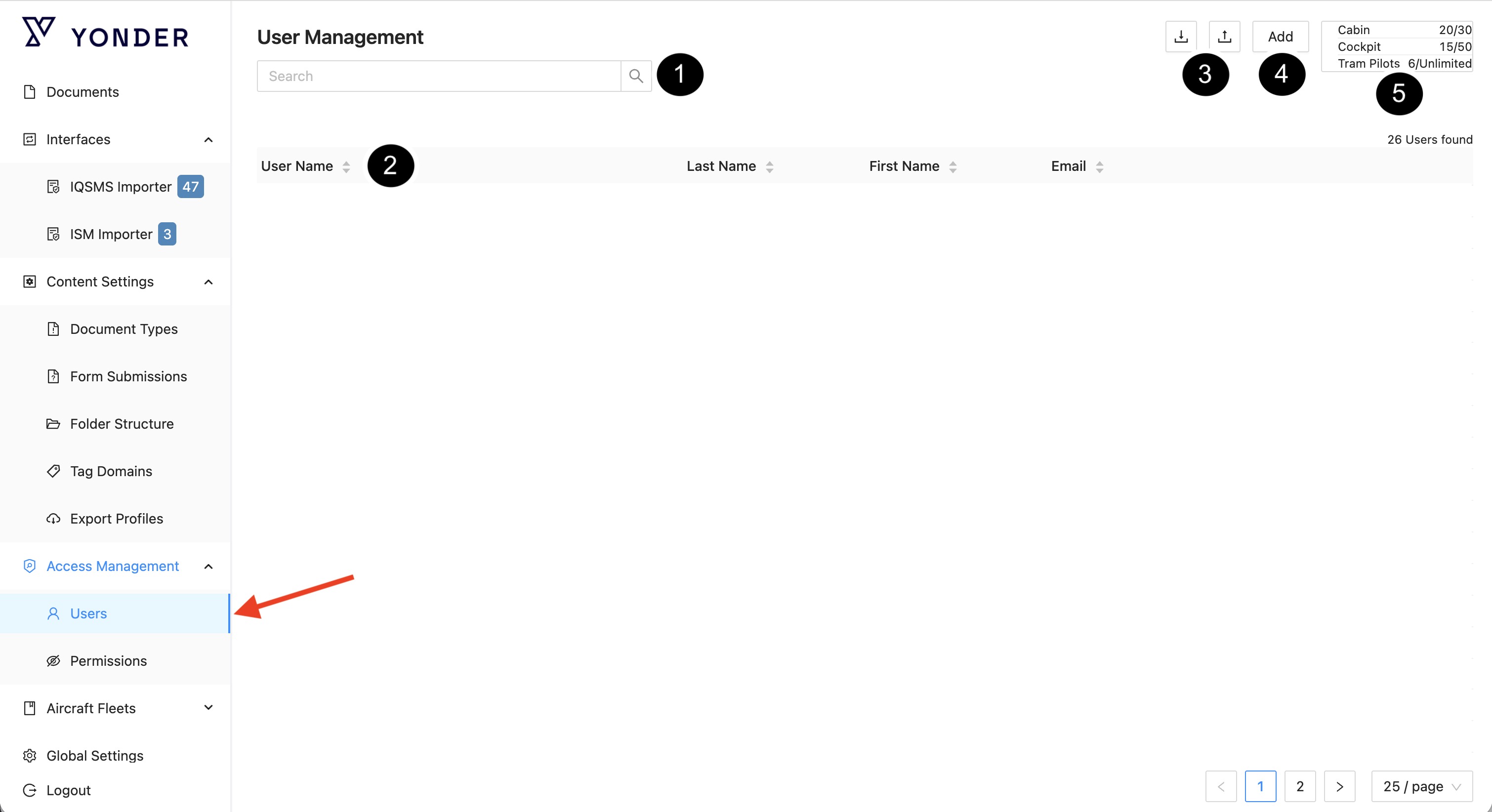
- Search
Searches all columns and shows only matching results. - Sorting
The list of users can be sorted by clicking on the arrows in the required column, as highlighted in the image below. - Import / Export

Users can now be imported / exported with a single click, making it easier to review, share, or update user information.
By clicking Export, you will download the current list of users in XLSX format. This exported file can also serve as a template for importing users.
Note: As mass imports may take time, the user importing will receive an email notification, once the import has been executed.
- Add
By clicking on “Add”, new users can be manually created and the required permissions can be set.
Please pay attention to the remarks in red.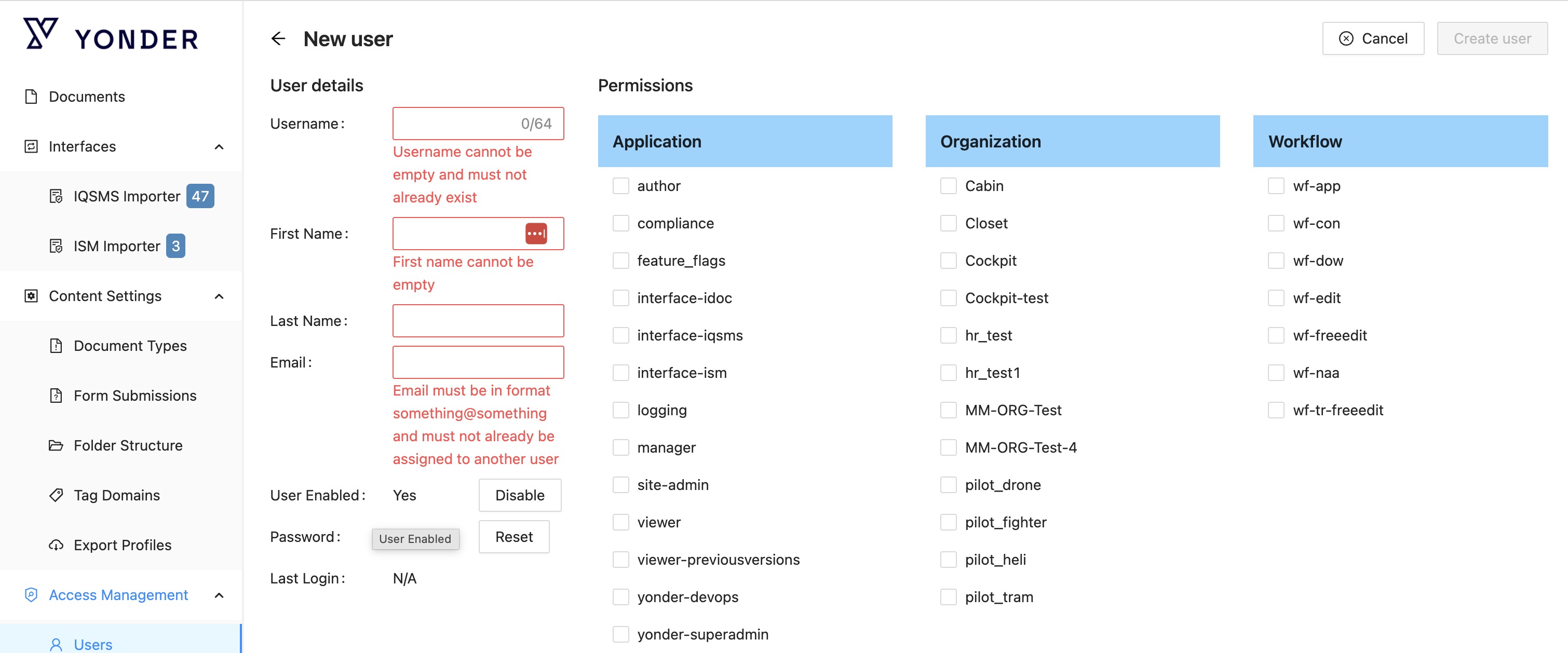
- License counter
Depending on the licensing model, the license counter displays the number of used and available seats.
Manage User Info
Clicking on a specific user will open the “User details” view, where the following can be done:
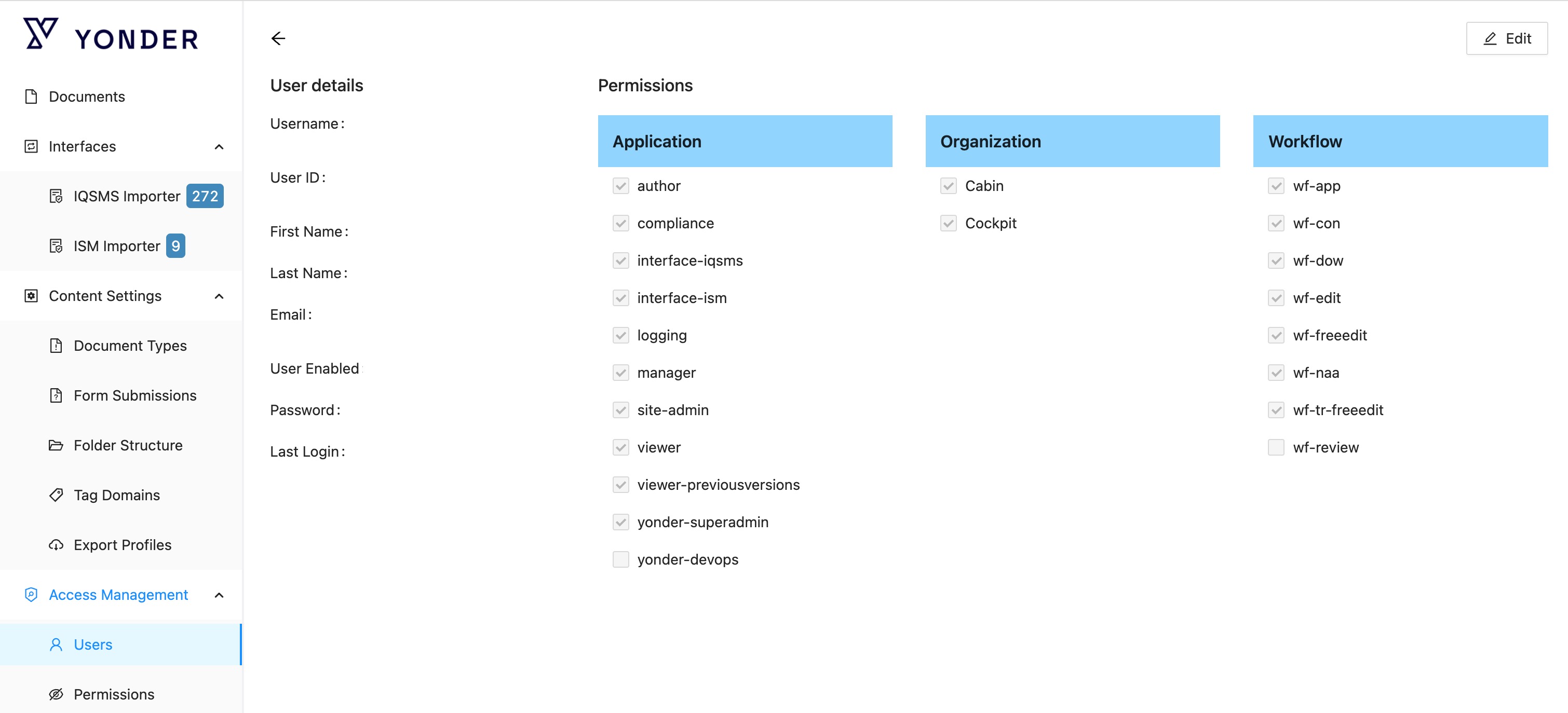
By clicking “Edit”, you can modify a user’s details.
- Edit user details
Modify email address, first name, last name, and permissions. - Disable user
Revoke access without deleting the user from the system. - Reset password
Trigger a password reset for the user.
Note: For IDP-managed users, the email address, first name, and last name (highlighted in the image below) cannot be edited in Yonder, as this information is synchronized from your organization’s IDP.
Delete User
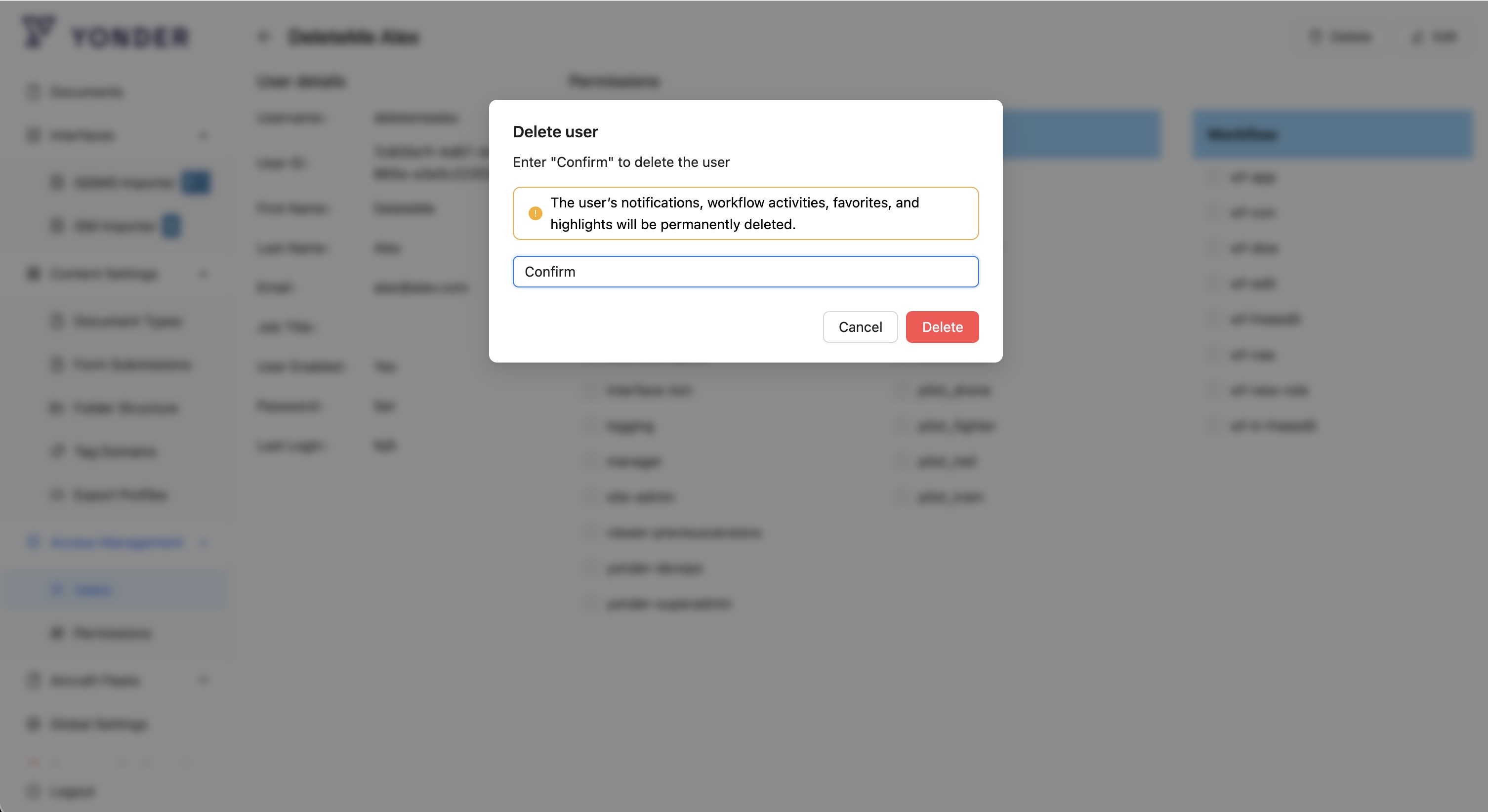
When a user is deleted, all associated notifications, workflow activities, favorites, and highlights are automatically removed.
The administrator performing the deletion is informed through a confirmation modal that these items will be deleted.
Technical Description
When a user is deleted, the system performs the following actions:
- Deletes all notifications associated with the user
- Deletes all workflow activities associated with the user
- Deletes all favorites associated with the user
- Deletes all highlights associated with the user
Additional behavior:
- The administrator deleting the user is informed via a popup/modal that these objects will be removed.
- Compliance tasks are not deleted.
- The user deletion is recorded in the history log.
Was this article helpful?
That’s Great!
Thank you for your feedback
Sorry! We couldn't be helpful
Thank you for your feedback
Feedback sent
We appreciate your effort and will try to fix the article