TABLE OF CONTENTS
- General
- Upload a new file
- Assign a Folder
- Offline Reader Synchronization
- Preview a file
- Revise a file
- Edit a file
- Delete a file
- Notifications
- History Log
General
File Drop is a feature, where media objects can be uploaded via the Yonder Reader Online, so they can be distributed to the end-users in a simple way. Files and memos are also available on the Yonder Reader Offline, once synced. It's a quick and easy way to distribute content to your end-users.
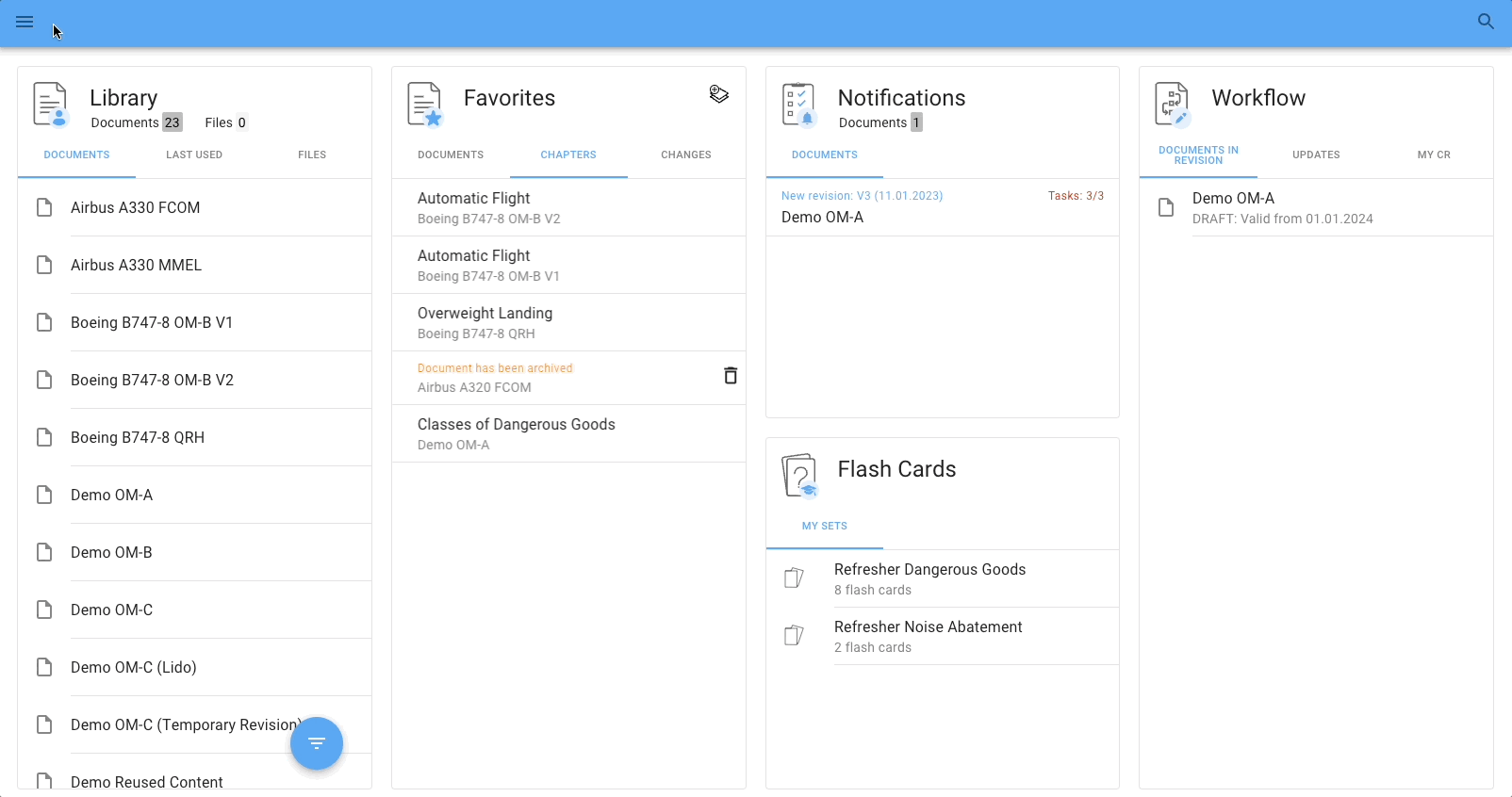
By assigning metadata (tags, effectivity) or setting (named) user permissions for the documents, users will only see the documents that they require, as briefly demonstrated below.
Prerequisites
- Supported file types
- DOCX, PPTX, XLSX
- Max file size: 12MB
File Drop - General Screen
The File Drop screen consists of a list view on the left side and a tab view on the right side of the screen:
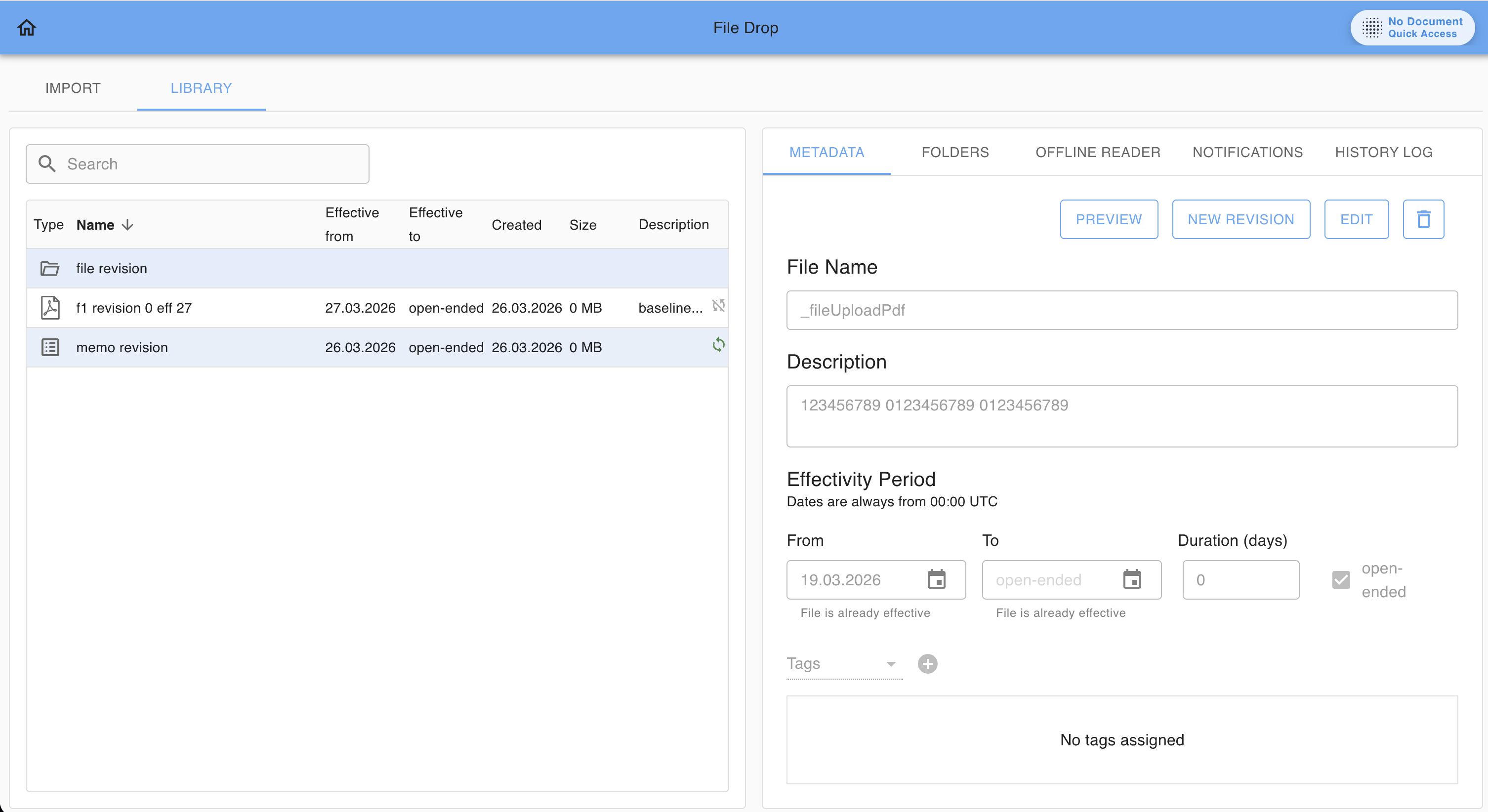
List view
The list view displays files and folders with the following information:
- Type – Indicates whether the item is a folder or a file, shown with a media type icon.
Note: Folders can be navigated. Click a folder to open and browse its contents. - Name – Name of the file or folder.
- Effective From – Start date of the file’s validity.
- Effective To – End date of the file’s validity.
- Created – Date when the file or folder was created.
- Size – File size in MB.
- Description – Truncated preview of the description stored in the metadata.
- Offline Sync – Icon indicating whether offline synchronization is enabled.
Tab view
The tab view displays detailed information for the selected file. It consists of the following tabs:
- Metadata – General information about the file.
- Folders – Folder assignments of the file.
- Offline Reader – Settings for offline synchronization.
- Notifications – User notifications related to the file.
- History Log – Log information displayed in a table view.
Upload a new file
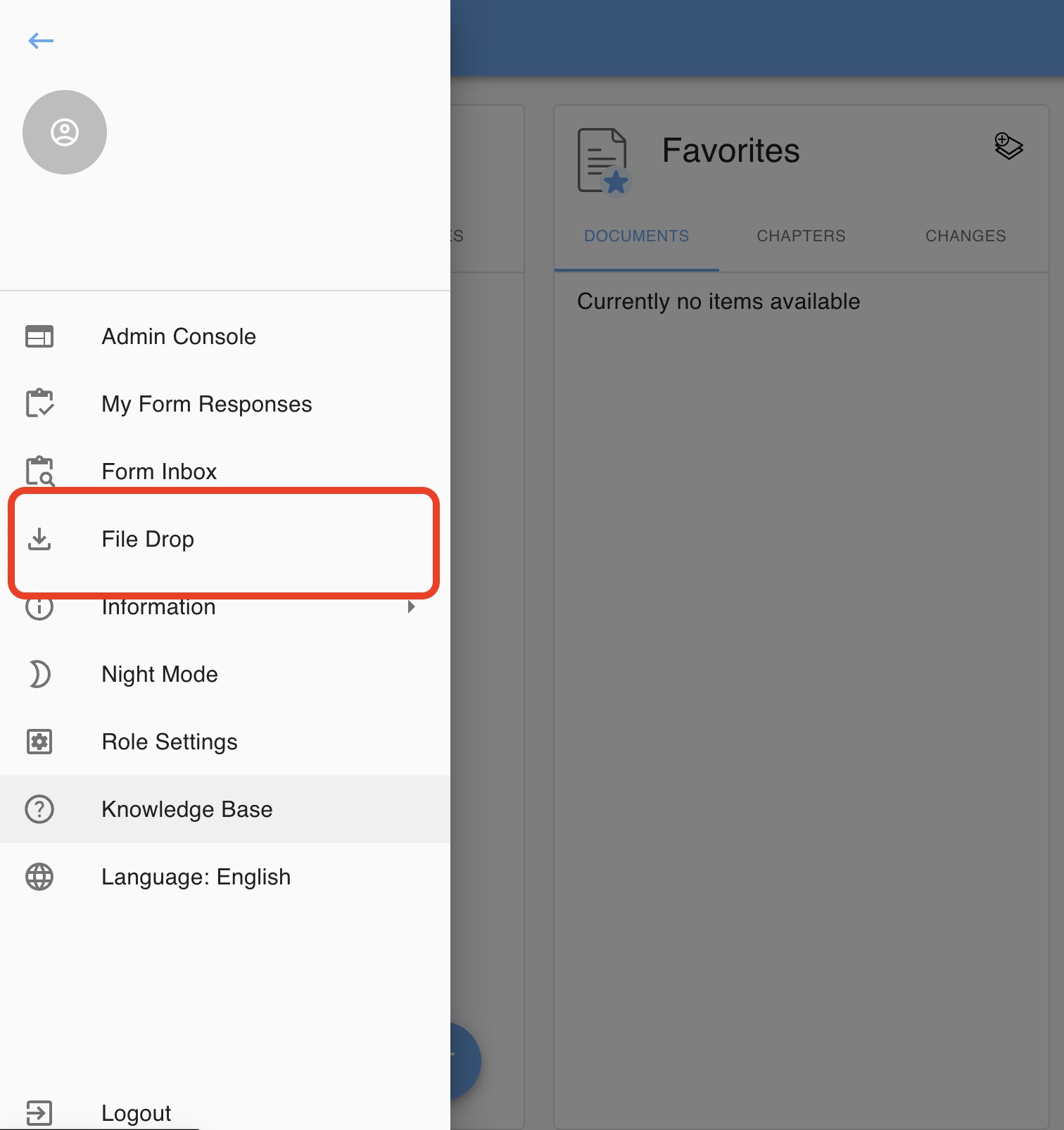
The File Drop feature can be accessed via the hamburger menu:
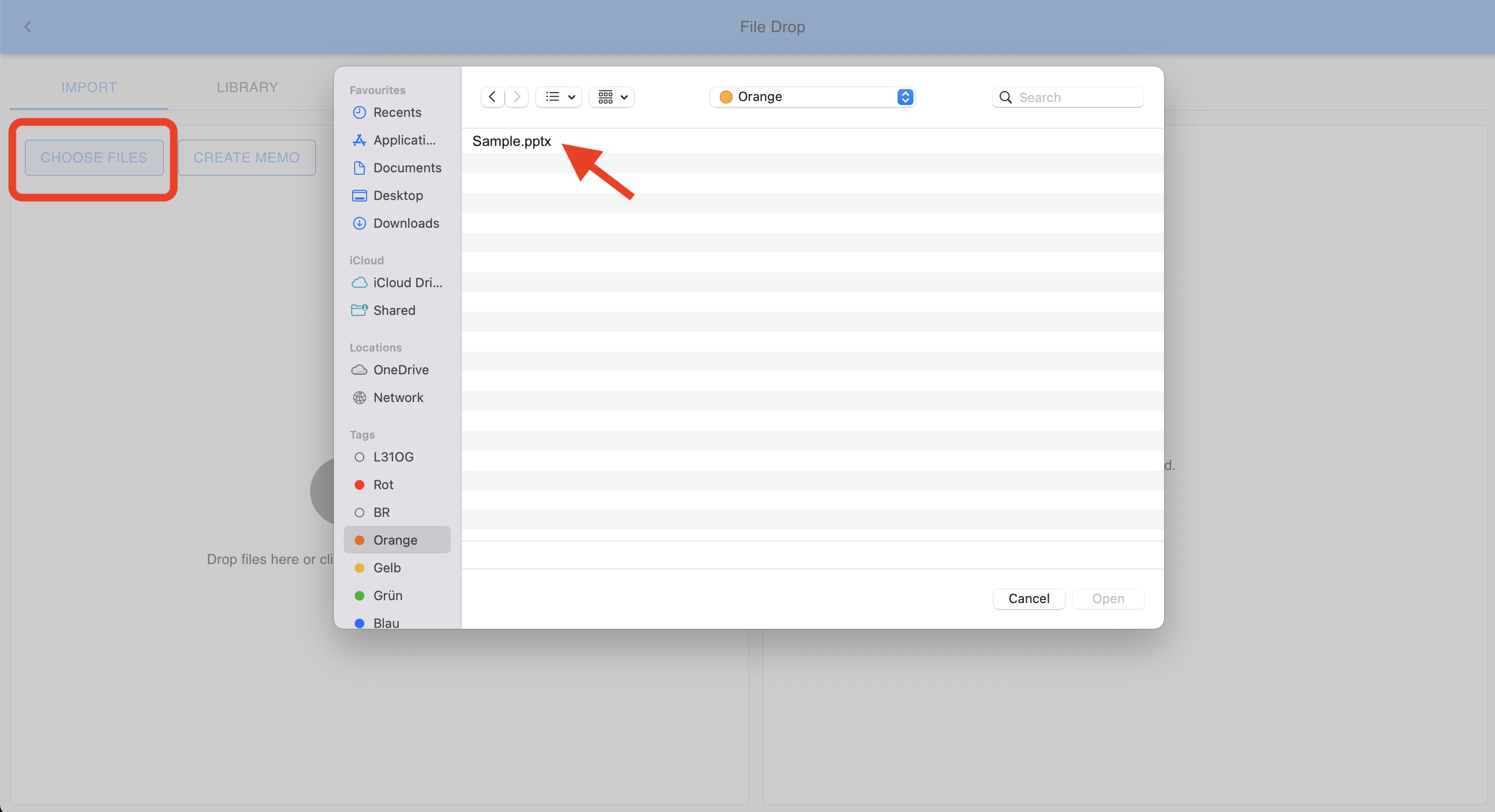
Follow below steps to upload a new file:
- Click on ‘CHOOSE FILES’
- Select the file from your file explorer
Important Note
Depending on your computer’s operating system, special characters in file names may be replaced (for example, macOS may replace a “|” with a “:”). After the import, please review the file name and rename it if needed.
- Define Meta Data
- Set Effectivity From / To
- Set Tags or Users (individual users)
Assign a Folder
- Sort your file in a folder
- click on FOLDERS
- selecte one or more folders where the file has to be added
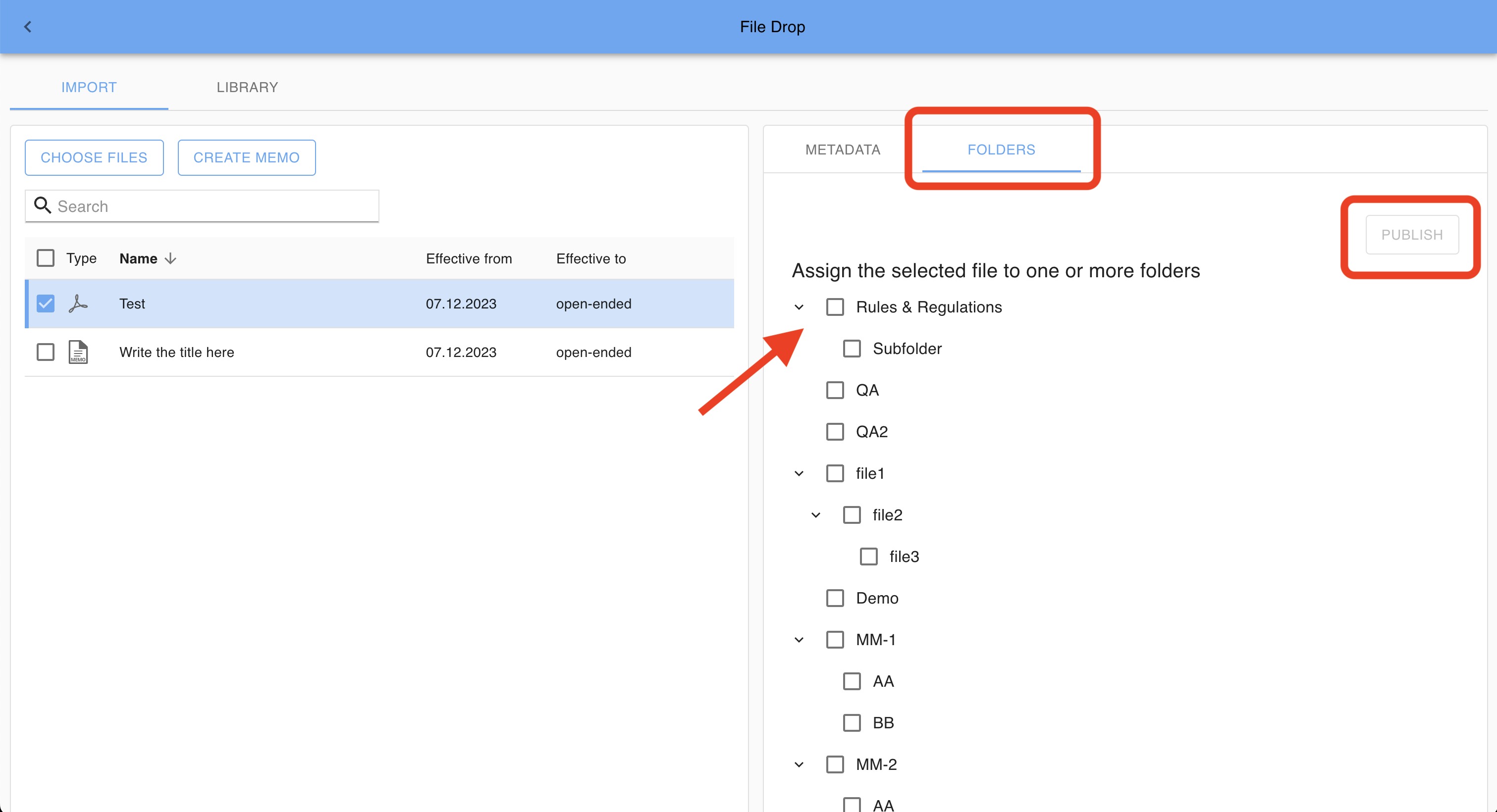
- Click PUBLISH
Offline Reader Synchronization
On a file level you can define whether content is synchronized to the Yonder Offline Reader.
The default behavior for newly uploaded files is configured in the Admin Console by the Site Administrator.
A Sync / No Sync icon in the file list provides a quick visual indication of whether a file is synchronized to the Yonder Offline Reader or not.
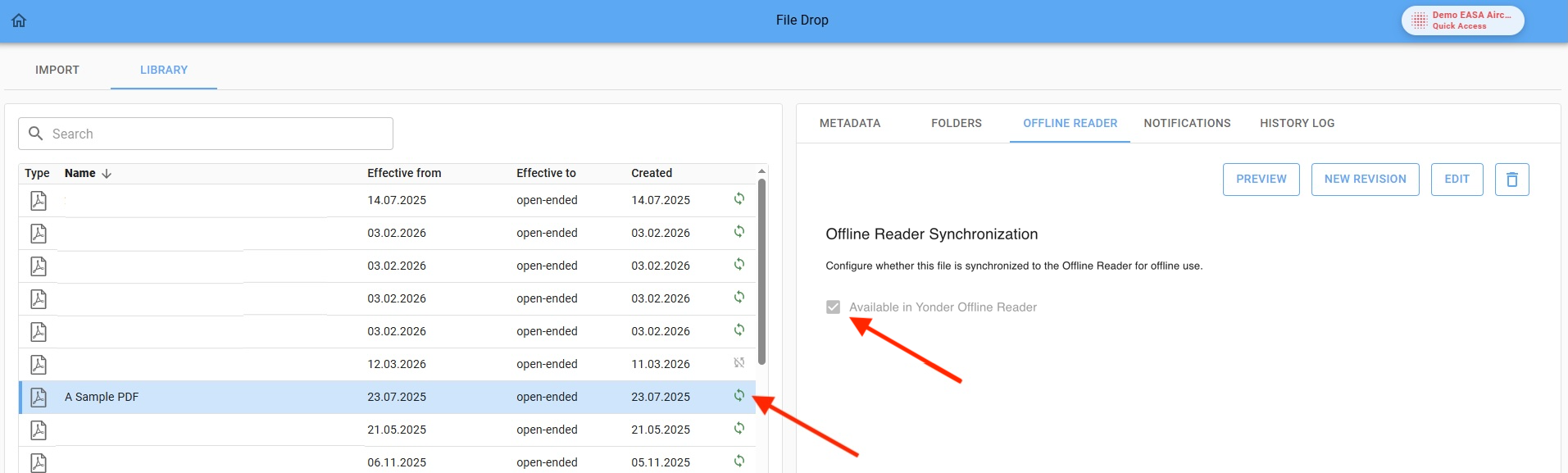
Note
Marking content as not synchronized can help keep offline synchronization faster and reduce storage usage on end-user devices.
Preview a file
When a PDF file is uploaded via File Drop, selecting Preview opens the document in a dedicated tab. This allows you to quickly view the contents of the file without downloading it.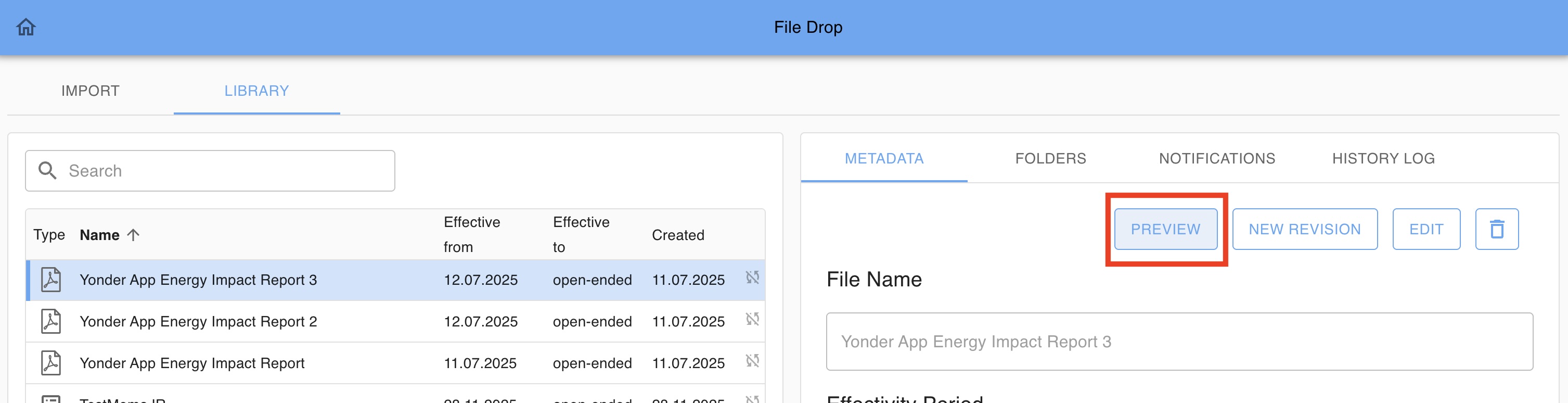
Revise a file
You can revise a file and change its content:
- In the File DropLIBRARY select the file and open ‘New Revision’ from the pop-over

- Select the new file version from your file explorer
- Click PUBLISH
Note:
- Once a file revision is uploaded, the old revision is removed.
Edit a file
Edit allows you to change the meta data of a file as well as the folder assignment.
Delete a file
Delete a file will remove the file permanentely (including its former revisions).
Notifications
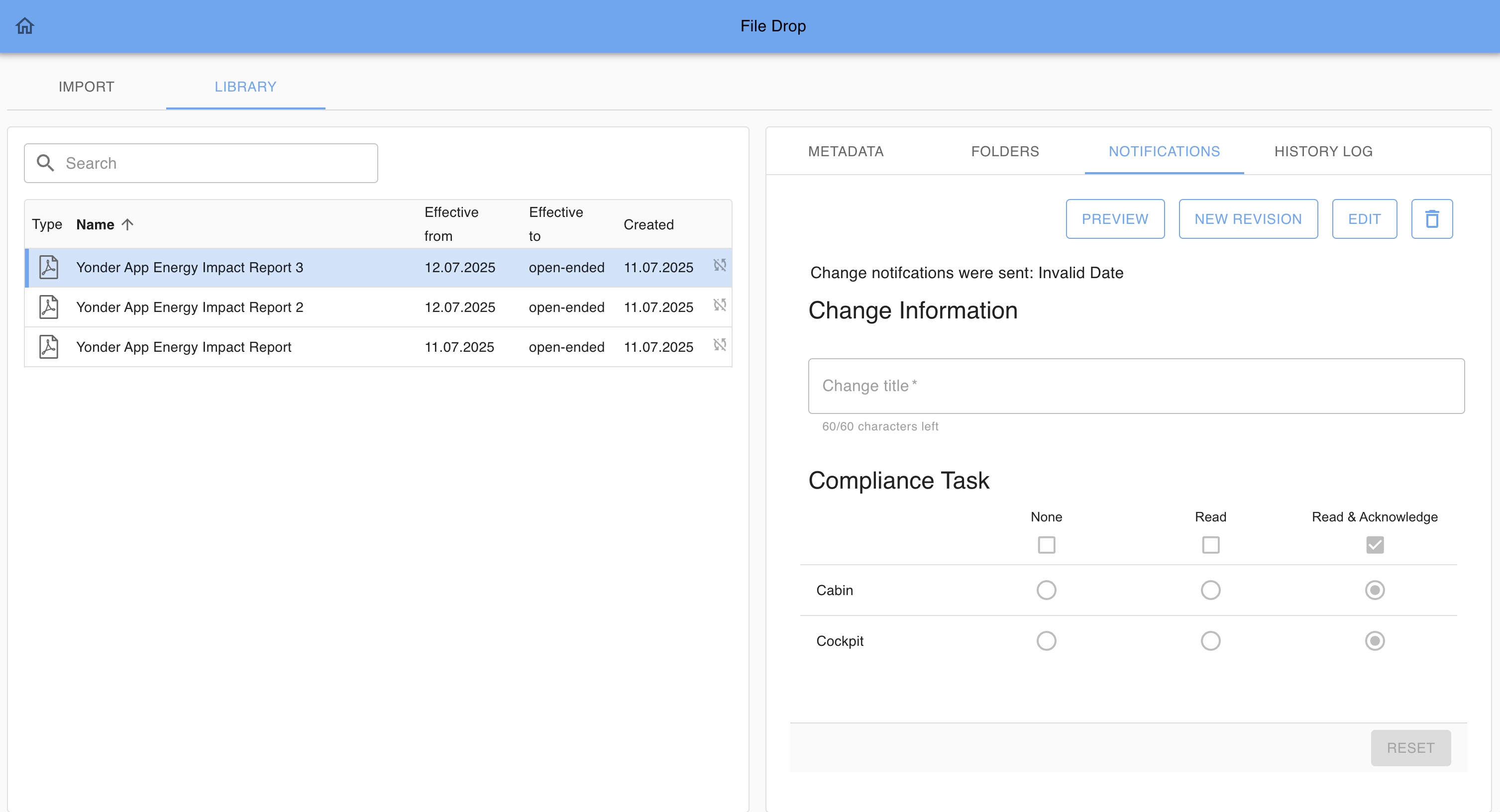
Tasks for the defined users will be triggered and notified for:
- New files
- New file revisions
Notifications will be displayed in the Notifications card.
Note:
Comliance tasks will be logged as ‘read’ when the file is opened from the notifications card only. The task needs to be done.
History Log
Within the HISTORY LOG tab, you access the changes that have been applied to the file:
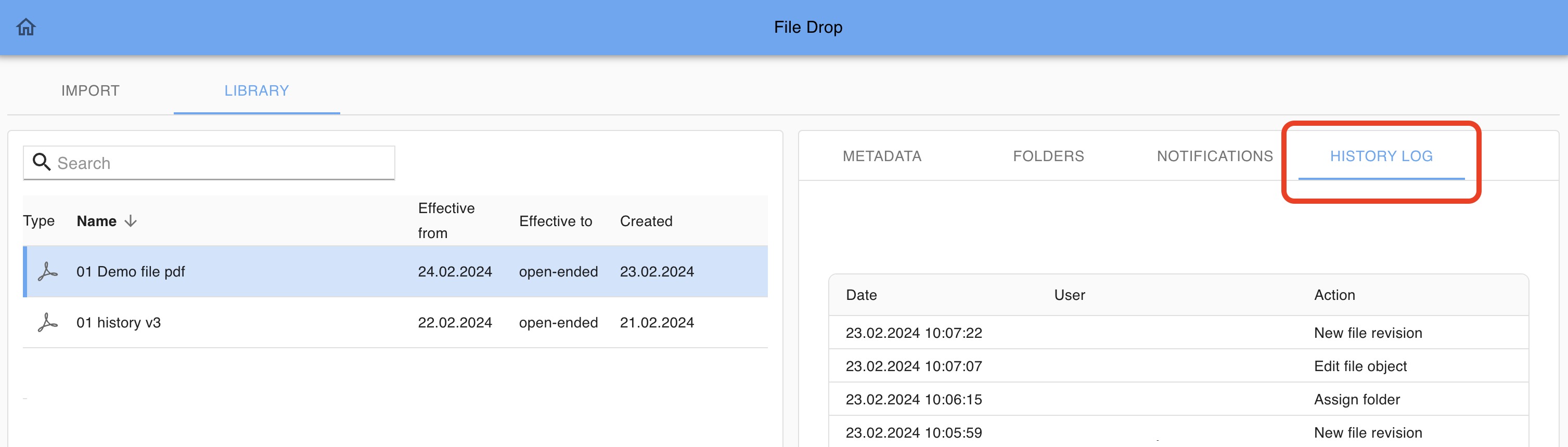
Logged actions
- New file
- New file revision
- Delete file
- Edit file object
- Edit file revision
- Assign folder
Was this article helpful?
That’s Great!
Thank you for your feedback
Sorry! We couldn't be helpful
Thank you for your feedback
Feedback sent
We appreciate your effort and will try to fix the article