TABLE OF CONTENTS
Libary Card
The library card is segmented in 3 tabs:
- Documents (Smart Documents, Files, Forms)
- Recent
This article explains these documents tabs and their functions.
Documents
Smart Documents
Smart Documents are created using Yonder’s editorial functionality. They are XML-based and designed to deliver the full capabilities of true digitalization — offering structured, flexible, and interactive content that goes far beyond static document formats.
They support a wide range of advanced features, including:
Version control – manage and track document revisions seamlessly.
Interactivity – embed links, references, and other dynamic elements for enhanced navigation.
Metadata integration – enrich content with contextual data for improved search and categorization.
Conditional content – display information dynamically based on context or user role.
Collaboration – enable multiple editors to contribute within a controlled and traceable environment.
Smart Documents form the foundation of Yonder’s digital document ecosystem, combining structure, control, and usability in a single intelligent format.
Files
In Files you see multiple types of content:
- Memos
- Office files (Word, Excel, PowerPoint)
- Media Objects (images)
Forms
Forms are 'interactive documents' that allow users to provide information directly within Yonder.
Users can fill out a form, save it under a user-defined title, and submit it to the back-office for further processing.
For detailed instructions and guidance, please refer to the dedicated article on Forms.
Library Handling
There are multiple ways to navigate through your content such as navigating through the outline or by scrolling and swiping throuh the content of the document.
Navigate in the Folder Structure
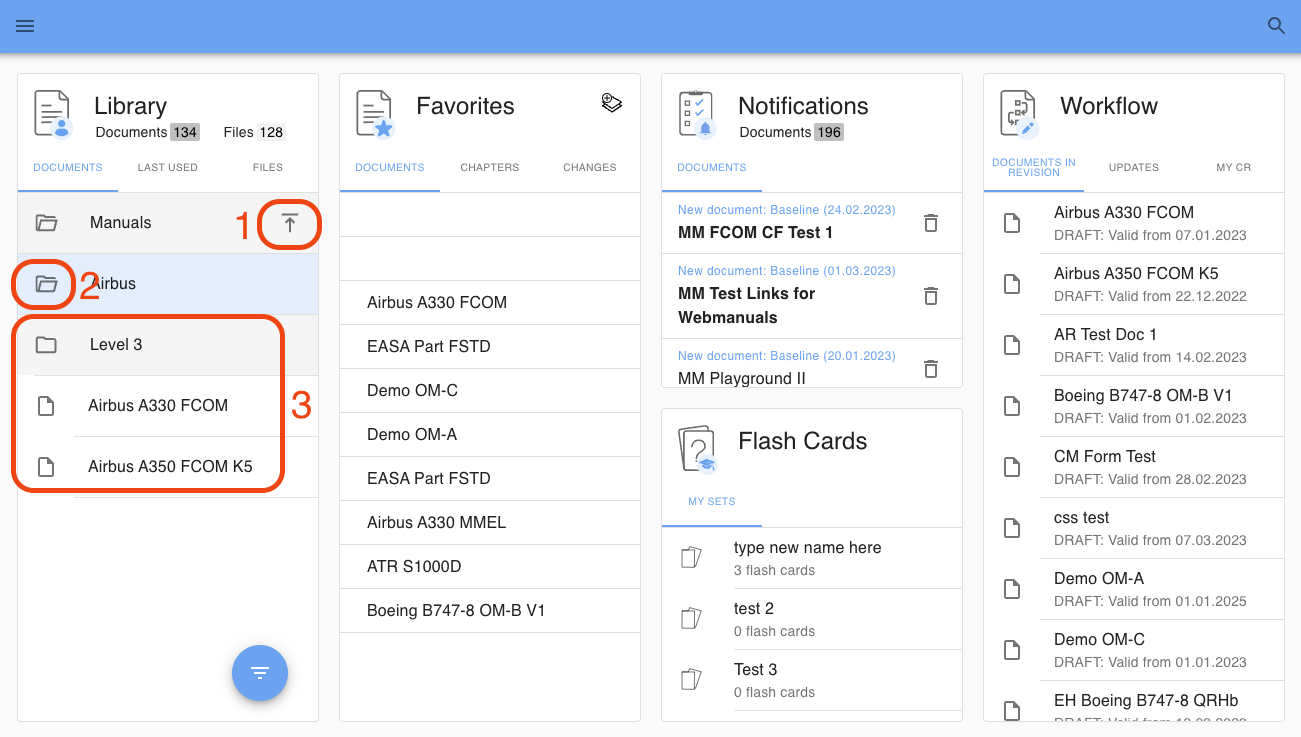
In the Reader you can easily navigate through the folders of a structure. A clickable folder bread crumb is available to easily navigate back in the structure.
- navigate back to the top (root) of the library
- opened folder
- items within the opened folder
Filter and Sort
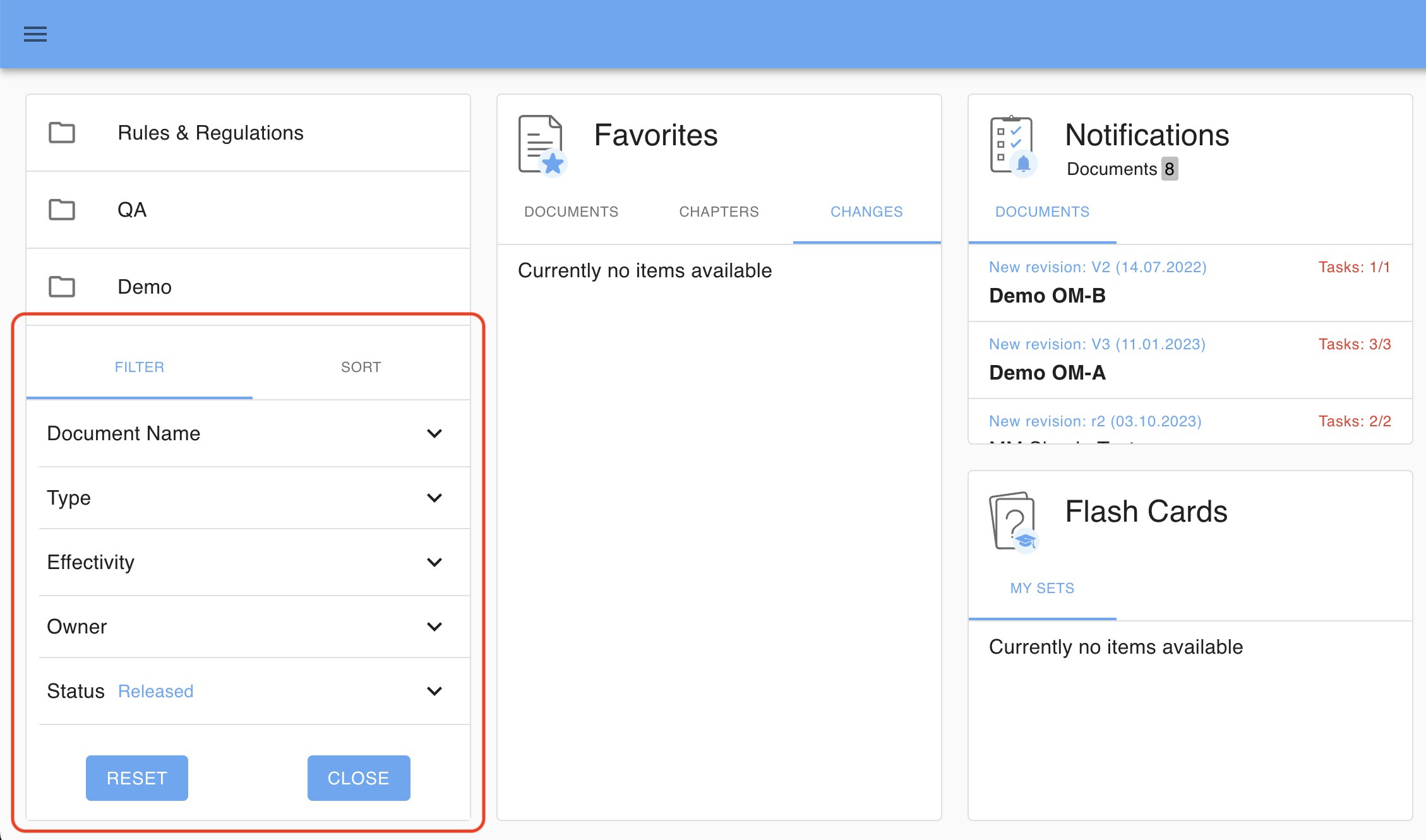
You can filter and sort your library in order to find the required content more easily.
Filter
Your library content can be filtered by applying following criteria:
| Document Name | search the content by name |
| Type | filter the content by document types:
|
| Effectivity | filter by effectivity date |
| Owner | filter by document owner |
| Status | filter by document status:
|
Sort
| Document Name | search the content by name |
| Effective from | filter the content by the effectivity from date |
Zoom & Pan
This feature allows users to interact with images in a dedicated full-screen view, providing a user-friendly and detailed way to explore visual content. The functionality is intuitive and includes the following actions:
Open Image – Clicking on an image opens it in a dedicated full-screen view, allowing users to focus on the image without distractions.
Zoom In/Out – Magnifier icons (+/-) let users zoom in for closer inspection of details or zoom out for a broader view of the image.
Pan Image – When the image is zoomed in, users can click and drag to move across different sections of the image for easier exploration.
Close View – The “X” icon in the corner exits the full-screen view and returns the user to the previous screen.
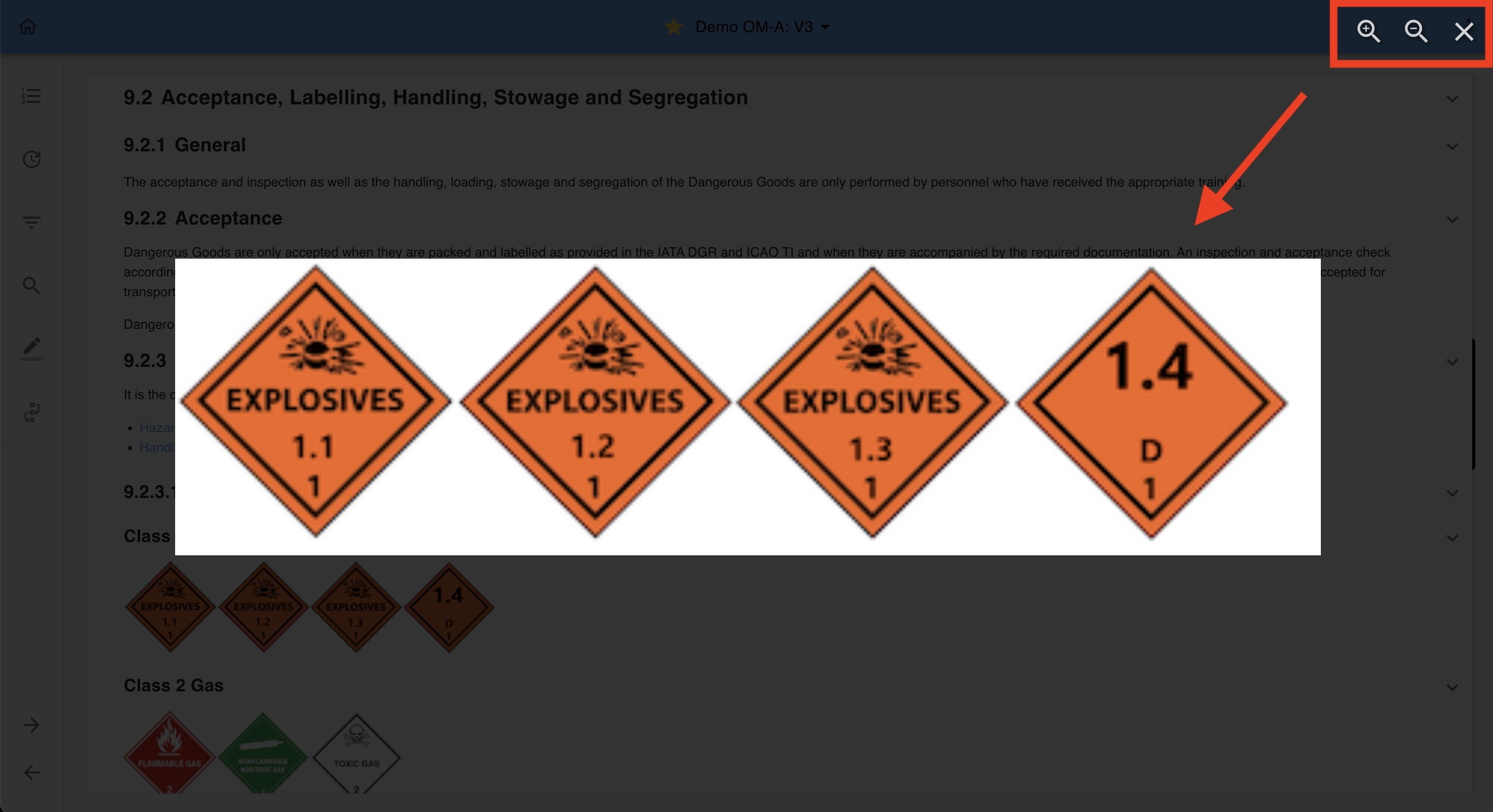
Image Quality
Depending on the quality and resolution of the image, zooming in may result in pixelation, especially at higher zoom levels. This is a natural limitation of low-resolution images and should be considered when using the zoom function.
More Options Menu (Kebab Menu)
Document Revision
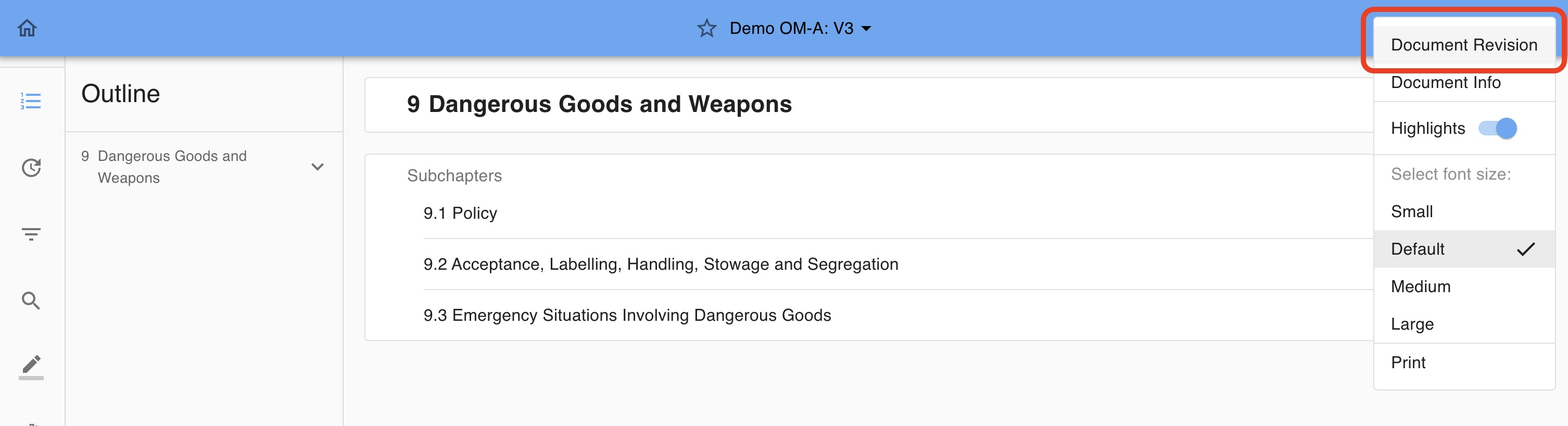
You may retrieve the document revision information by clicking on the 'More Options' menu and then selecting ‘Document Revision’.
Within the left navigation pane of Document Revision, you will encounter workflow steps, accompanied by tabs on the right section for:'Overview,' 'Discussion,' 'Change,' and ‘History Log’.

Document Versions
The document banner color reflects the document validity status at the current point of time, providing a quick visual indication of the document state. The following color codes are used:
- Outdated – Orange
- Valid – Blue
- Future Effective – Mauve
- Draft – Grey

This helps users immediately identify the status of a document without needing to open additional details.
History Log
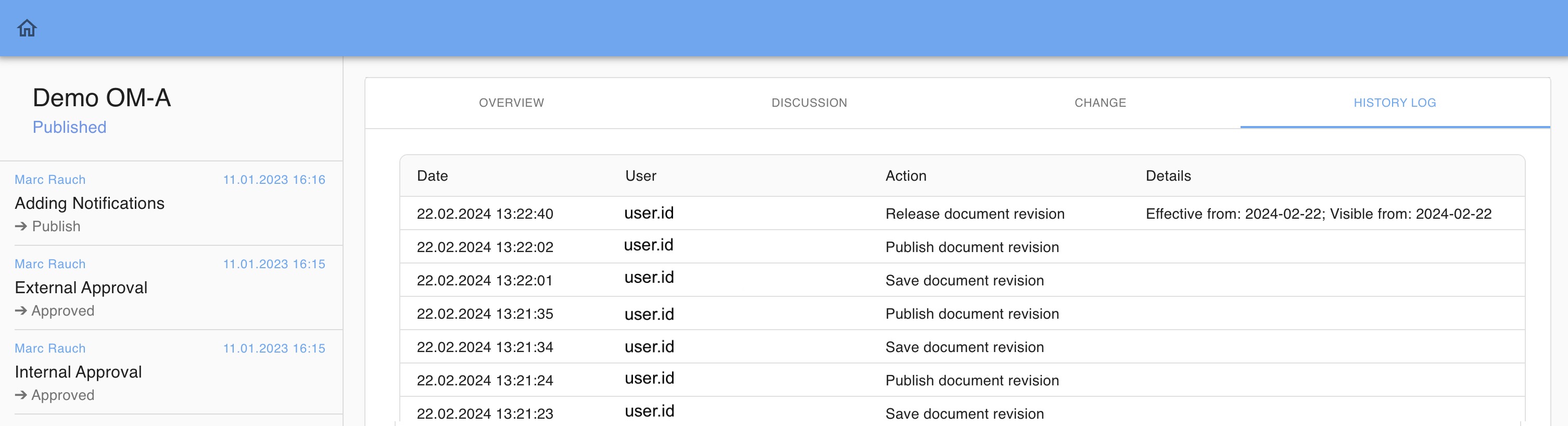
The history log provides a record of changes made to the presently accessed document revision:
Logged actions
The Logged Actions feature captures and tracks key activities performed on documents within Yonder. Each action provides an audit trail to help users and administrators monitor changes, ensure compliance, and understand the history of a document. The following actions are recorded:
| Action | Description |
|---|---|
| New Document | Creation of a completely new document in the system. |
| New Document Revision | Creation of a new revision for an existing document. |
| Import Document Revision | Importing a document revision from an external source or integration. |
| Release Document Revision | Approval and release of a document revision, making it officially available to users. |
| Change Effectivity Date | Modification of the effective start or end date of a document or revision. |
| Archive Document | Archiving a document to remove it from active use while retaining its history. |
| Revert Document Revision | Reverting a document to a previous revision. |
| Save Document Revision | Saving the current state of a document revision without releasing it. |
| Publish Document Revision | Making the revision available in the Yonder Reader for end users. |
| Terminate Document | Permanently closing a document to prevent further edits or revisions. |
| Delete Task / Notification | The history log now shows the creation and deletion of Tasks and Notifications, including trigger information, object count, status (DONE, ROLLED BACK, ERROR), and elapsed time. |
| Delete User | Logging of action when deleting a user |
Note: All activities are recorded in Coordinated Universal Time (UTC) format.
Was this article helpful?
That’s Great!
Thank you for your feedback
Sorry! We couldn't be helpful
Thank you for your feedback
Feedback sent
We appreciate your effort and will try to fix the article