TABLE OF CONTENTS
Column Structure
Yonder is developed using the native Apple iOS design components.
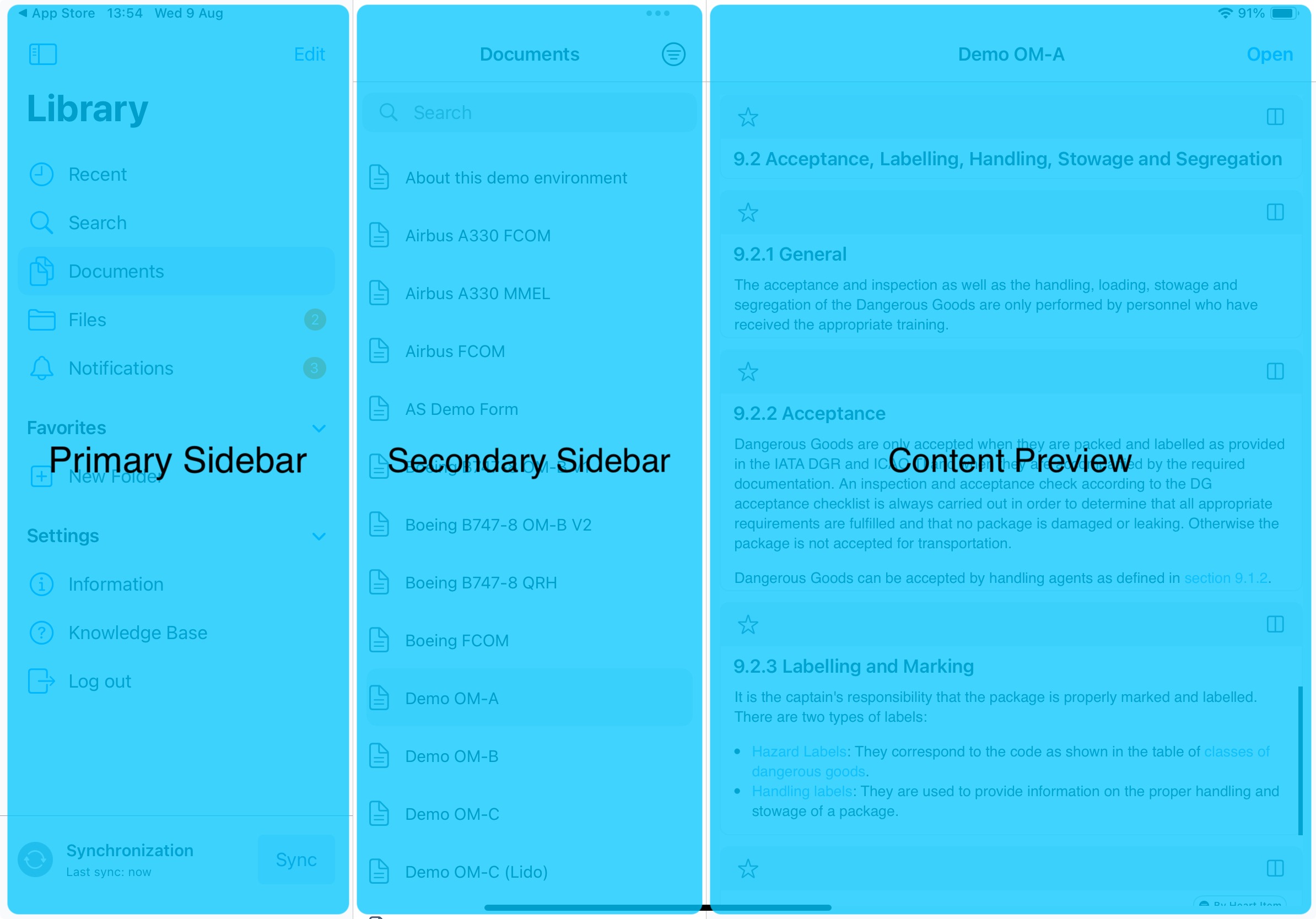
In order to facilitate the functionality we have chosen a three-column-layout:
- Primary sidebar
- Secondary (supporting) sidebar
- Content preview in the third column
Primary sidebar
The Primary Sidebar provides access to all major functionalities in Yonder through a set of organized shortcuts.
Library
The Library Shortcuts provide quick access to the main functions and personal tools within Yonder.
They are organized into two categories for easier navigation and efficiency.
General Shortcuts
These links allow you to reach key areas of the app quickly:
Recent – view your most recently opened documents.
General Search – search across all available content.
Documents – open and browse your document library.
Personal Shortcuts
These shortcuts focus on your personal content and activity:
Notifications – view alerts and updates relevant to you.
Form Responses – access and review your submitted forms.
Highlights – open and manage your notes and highlights.
Favorites – quickly access your saved or marked modules.
The Library Shortcuts make it easy to navigate Yonder, ensuring that all essential tools and resources are always within quick reach.
Preferences
The Preferences section allows you to configure and manage your app settings. It provides direct access to key options that control how the app behaves and displays information.
From the Preferences menu, you can:
Adjust your app preferences, including:
App Information – view version details and system information.
Sync Options – check sync status, trigger or pause synchronization manually.
App Language – select your preferred display language.
Access the Knowledge Base for detailed guides and support (available online only).
Log out of the app when needed.
Synchronizaton
View the sync status of your app and manually trigger or pause a sync when needed.
Secondary sidebar
The secondary sidebar hosts the list view of the shortcut you clicked.
Search and Filter
The list has normally following functionality:
- Search
The search will search within the list only. If you want to search through the whole application please select the dedicated search function:
Click Here
- Filter
Sort and filter criteria can be applied to the list. All items within the list will be sorted respectively filtered down to your selection. The sort and filter criteria may vary depending on the selected list.
Note: The filter icon will be filled and coloured active to indicate that a filter is applied (narrowing down your list elements)
Applying Filters to the list in the secondary sidebar
When you apply filter criteria to the list, it only changes what you see in this list. The filters do not affect the content in the third column (contnent).
This helps prevent applying filters to the wrong content by mistake. If you want to filter information within a specific content in the third column, please use the filters available inside that column.
Resizing the secondary sidebar
Drag the sidebar edge of the second column left or right to adjust its width and modify the content preview viewport on your iPad:
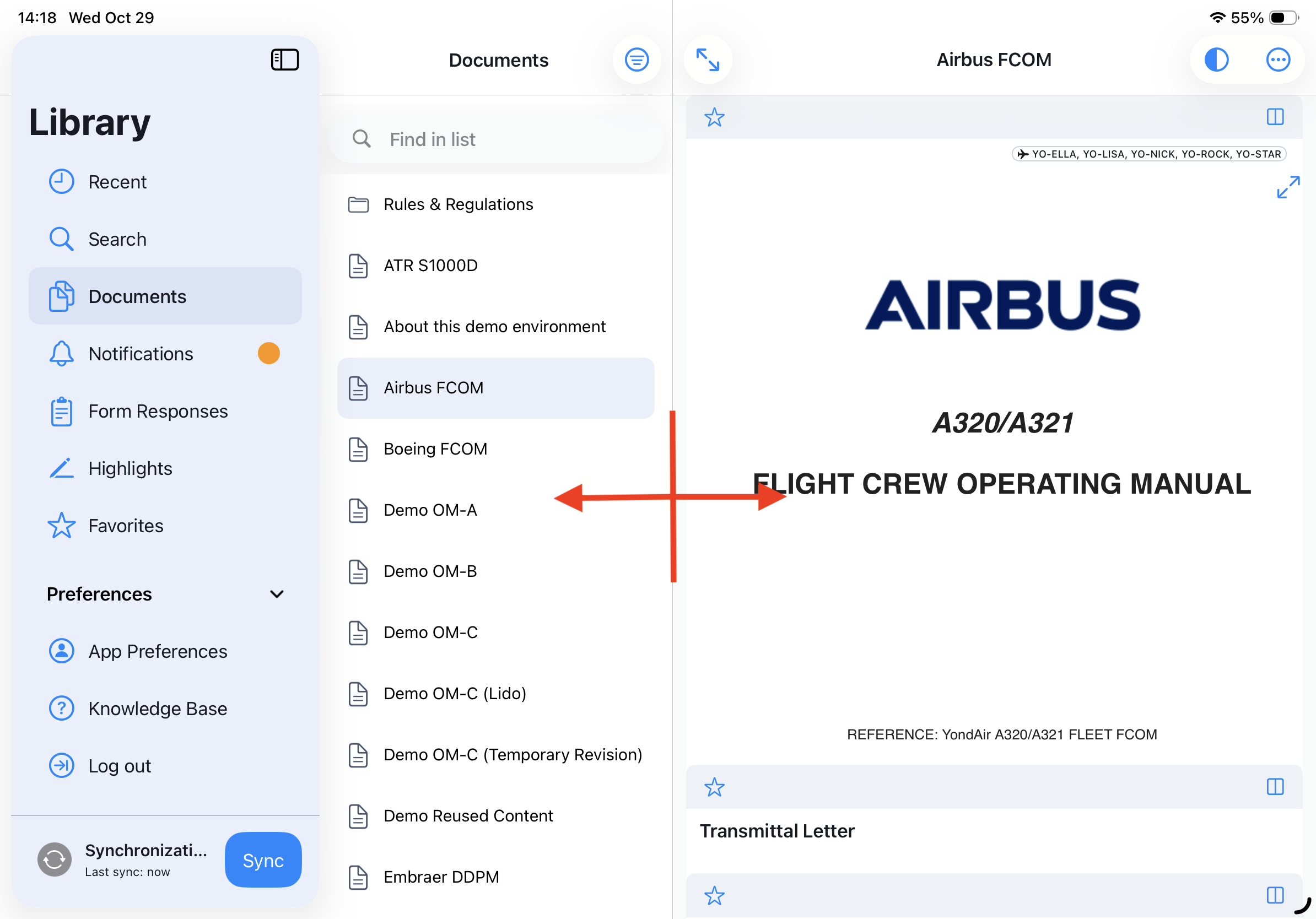
Note: On iOS, resizing is only supported in full-screen view. It is not available when the app runs in a minimized window.”
Content preview
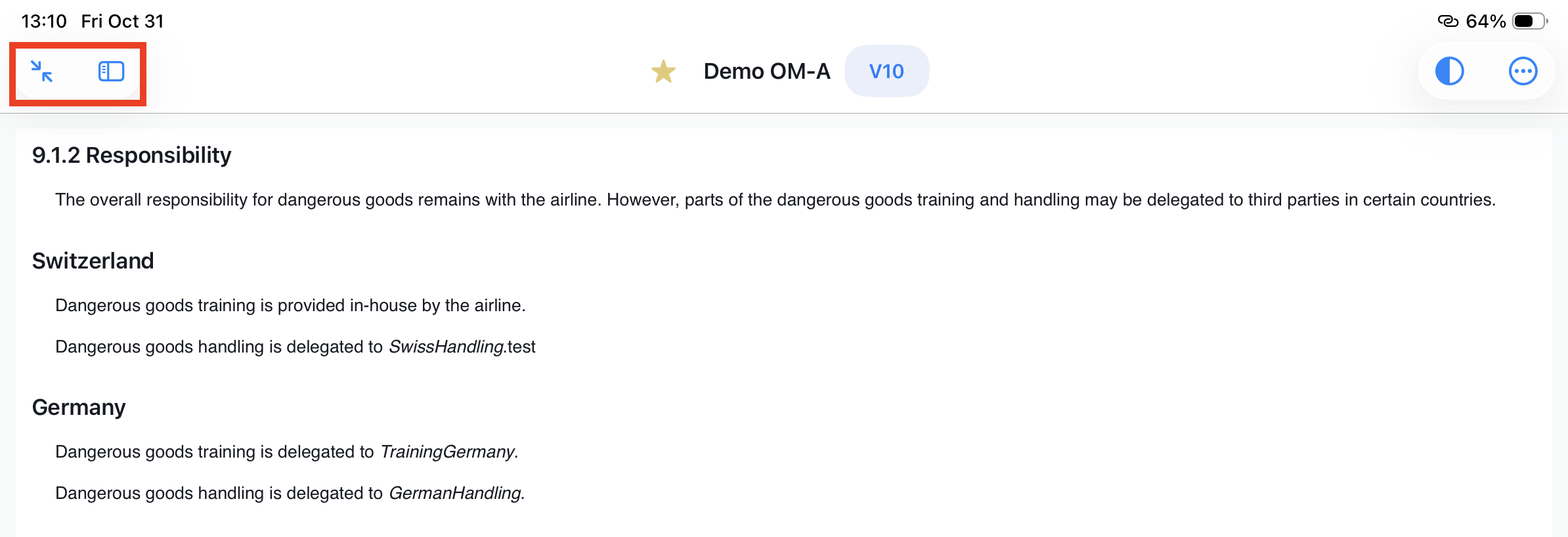
The third column in the document view provides a preview of the content, allowing users to quickly glance at the information without opening the full module. To see more details, click “Expand” to enlarge the preview:

For an even larger workspace, users can maximize the document viewport by hiding the outline:

Was this article helpful?
That’s Great!
Thank you for your feedback
Sorry! We couldn't be helpful
Thank you for your feedback
Feedback sent
We appreciate your effort and will try to fix the article