TABLE OF CONTENTS
- Introduction
- Main Editing Area
- Navigating the Document
- Panels
- Insert / Actions Toolbar
- Task-Specific Editing Features
- Writing Assistance
- Copy-Paste Functionality
- Other Funtionality
- Language & Character Support
Introduction
The OEM XML editor in Yonder is a web-based structured editor used to create and maintain XML-based documentation (e.g. Airbus FlightOps, Boeing FTID).
It looks and feels like a WYSIWYG editor, but it always enforces the document structure and rules defined by the underlying schema.
The screen is organized around a central document editor, supported by panels and toolbars that guide you to create valid, well-structured content.
Main Editing Area
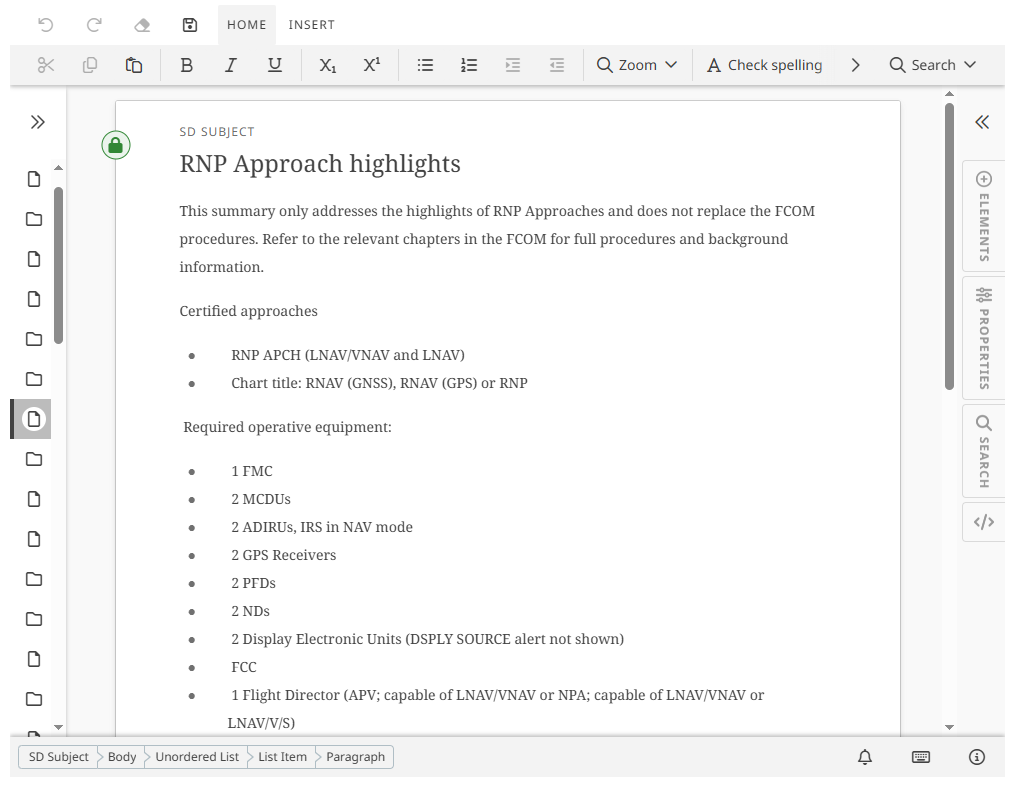
What you do here
- Write and edit the OEM XML content
- Insert sections, paragraphs, tables, images, and other elements
- Format text (bold, italic, lists, etc.)
How it works
- Content is displayed visually (not as XML tags)
- Only valid edits are allowed — invalid structures are prevented automatically
- Required elements appear as placeholders until filled
This area is optimized for smooth writing while ensuring structural correctness at all times.
Navigating the Document
Outline
In the editor, the Outline Sidebar is a tool that provides a hierarchical view of the document’s structure. It helps users navigate, manage, and modify the content especially in larger modules by displaying a tree-like representation of the document's elements. Here's how it's typically used:
- Navigation: The sidebar allows users to quickly jump to specific sections or elements within the document by clicking on them. This is particularly useful for large documents where scrolling can be inefficient.
- Document Structure: The outline shows the organization of the content, often reflecting a predefined structure or format (e.g., sections, subsections, modules). It helps users understand how different parts of the document relate to each other.
- Reordering: In some cases, the outline sidebar allows users to drag and drop elements to reorder them. This functionality is constrained by predefined rules (like those from Airbus), ensuring that the structure remains compliant.
- Editing and Management: Users can perform actions such as adding, removing, or modifying elements directly from the sidebar. It gives a high-level overview of the document's layout, making it easier to manage complex content.
In summary, the outline sidebar in the XML editor is a navigation and management tool that helps users organize, edit, and understand the structure of a document in an efficient way.
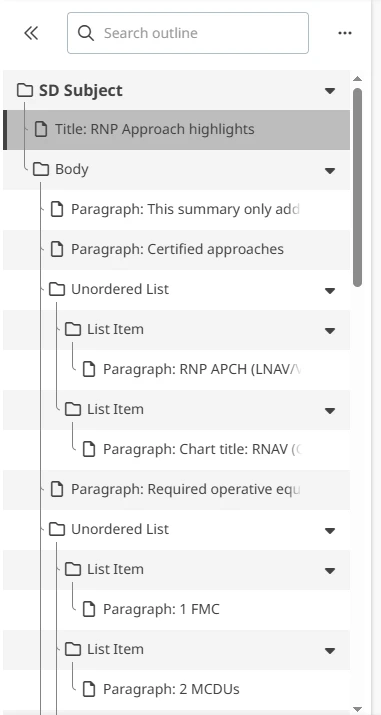
Purpose
- Shows the document structure as a tree
How to use
- Expand or collapse sections to understand large documents
- Click an item to jump directly to that location in the editor
Useful for orientation and fast navigation.
Breadcrumbs
The Breadcrumb Bottom Bar in the editor provides a clear, hierarchical navigation path that shows the user's current location within the document structure.
Here’s an explanation of its functionality:
1. Navigation Overview
- The breadcrumb trail displays the hierarchy of sections or elements in the document, from the root level to the current position.
- It acts as a dynamic map, helping users see where they are in the document and quickly navigate to higher-level sections.
2. Quick Navigation
- By clicking on any part of the breadcrumb trail, users can jump directly to that section of the document, making navigation faster and more efficient.
- It’s particularly useful in long or complex documents, as it reduces the need for scrolling and manual searching.
3. Contextual Awareness
- The breadcrumb bar adapts as users move through different levels of the document. For example, if you’re working within a specific section or module, the breadcrumb bar will update to reflect that position.
- It provides immediate context, so users always know where they are within the document structure.

Purpose
- Shows where you are in the document hierarchy
How to use
- Click any breadcrumb entry to jump to a parent section
- Quickly move up the structure without opening the outline
Panels
The panels in the right sidebar allows access to features that help users manage and interact with the document's content in more advanced ways. Sections like Elements, XML, Properties, and Find & Replace are integrated.
Panels can be opened, closed, or switched as needed, helping users stay focused while efficiently accessing additional information.
Elements Panel
The Elements section in the right sidebar allows you to view and interact with the structure of the document based on predefined rules (e.g., schema or templates) and to insert content.
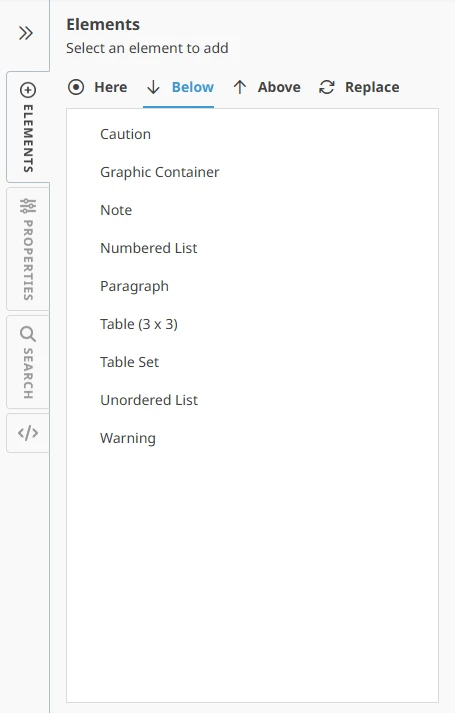
Purpose
- Insert or replace elements in a schema-safe way
How to use
The panel has four tabs:
- Here – insert at the cursor position
- Below – insert after the current element
- Above – insert before the current element
- Replace – replace the selected element
Only elements that are valid for the current position are shown.
Select an element and it is inserted immediately.
This is the primary way to add new structured content correctly.
Properties Panel (Attributes & Metadata)
The Properties section allows you to view and modify the attributes and settings of the selected element or content block.
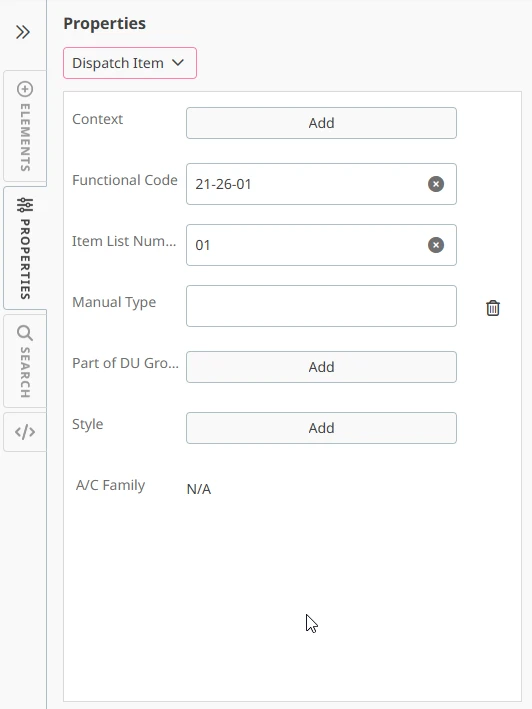
Purpose
- View and edit attributes of the selected element
How to use
- Select an element in the document
- Edit its metadata using form fields (dropdowns, text fields, etc.)
- Changes apply immediately
This keeps metadata separate from content, reducing clutter while writing.
Find & Replace Panel
Purpose
- Search and optionally replace text within the module
How to use
- Search results are highlighted directly in the document
- Navigate between matches
- Replacements respect document structure rules
XML Source View Panel
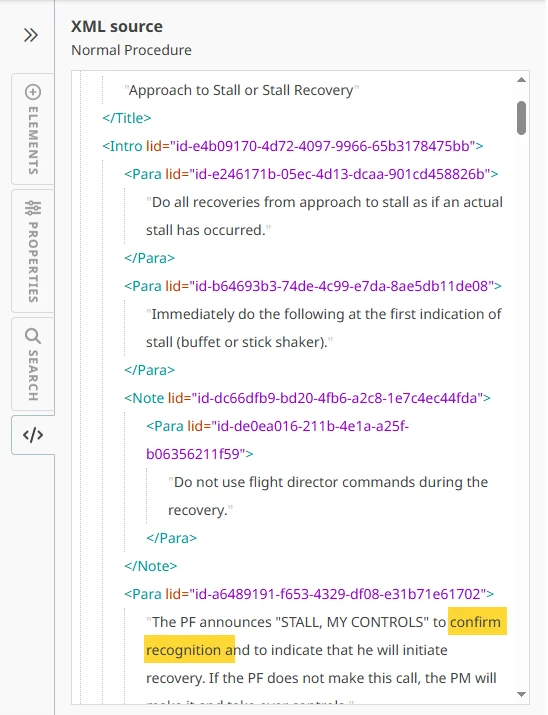
The XML section provides a view of the document's underlying XML code. This is where you can see the raw structure of the document, which may be hidden in the WYSIWYG (What You See Is What You Get) editor interface.
Purpose
- Inspect the underlying XML (read-only)
How to use
- Useful for advanced users, debugging, or validation
- Changes cannot be made here
Insert / Actions Toolbar

Purpose
- Quick access to common actions
Common actions
- Text formatting (bold, italic, sub/superscript)
- Lists (numbered, bullet, indent)
- Insert tables, images, cautions, warnings, notes
- Search, spell check, special characters
- Zoom controls
Task-Specific Editing Features
Image Insertion / Upload
What you can do
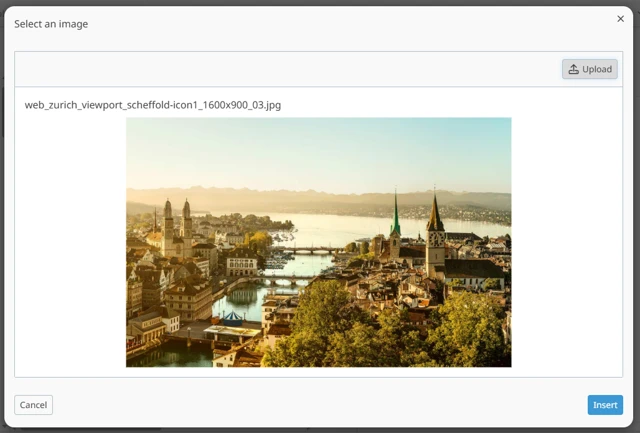
- Upload new images from your computer
- Replace existing images
How
- Trigger image insertion via the Elements Panel, toolbar, or context menu
- Images are stored in Yonder and linked automatically
Images can only be inserted where allowed by the document structure.
Table Editor
What you can do
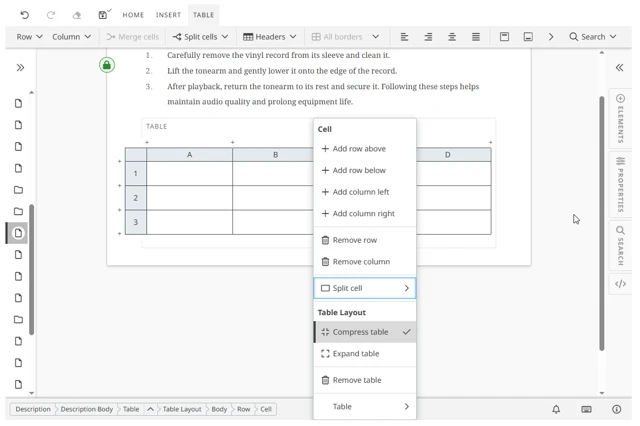
- Add or remove rows and columns
- Merge or split cells
- Set headers, borders, alignment, and column sizes
- Expand/collapse tables for easier editing
How
- Use the table toolbar, context menu, or popup actions
- Table tools appear automatically when the cursor is inside a table
Link Insertion
Purpose
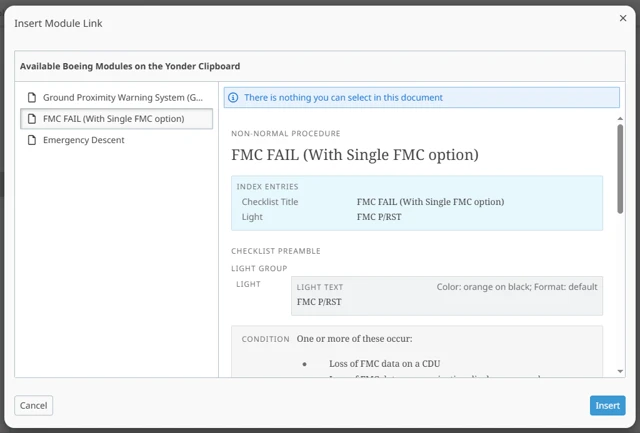
- Create links to other Yonder modules
How to use
- Choose Insert Module Link
- Select a module from the clipboard
- Preview the module
- Insert the link
Only allowed module types are shown, depending on the document type.
OEM Specifics
- In Boeing documents, links can reference any module type.
- In Airbus documents, only modules of type “DU Invariant” are allowed. To enforce this, the Yonder clipboard is automatically filtered in Airbus documents so that only eligible modules are shown for selection.
Aircraft Effectivity (Boeing only)
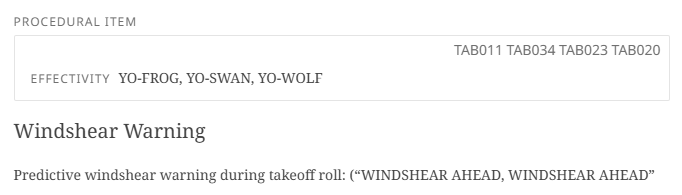
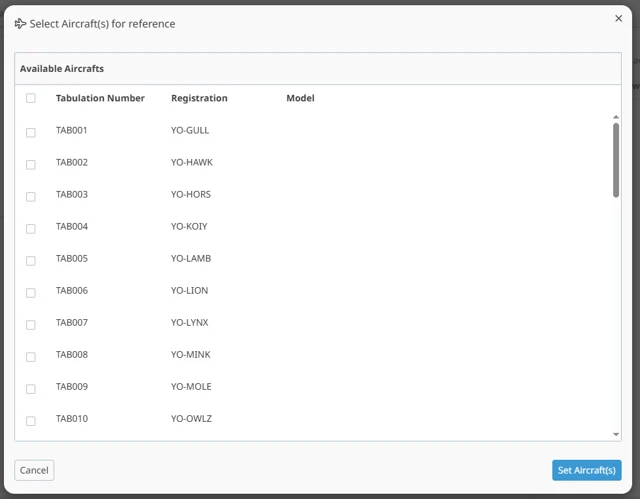
Dialogue for inserting / adjusting effectivities:
Purpose
- Restrict content to specific aircraft
How to use
- Insert an Effectivity element using the Elements Panel
- Open the aircraft selection dialog from the context menu
- Select applicable aircraft
- Apply the selection
This ensures aircraft-specific content is clearly and correctly defined.
Writing Assistance
Spell Checker
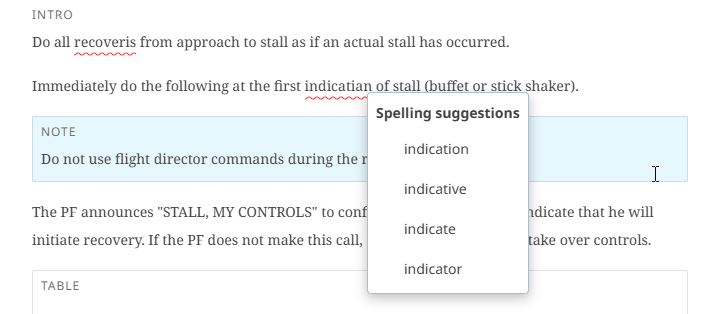
- Misspellings are highlighted as you type
- Right-click to see correction suggestions
- Works only on text content
Special Characters
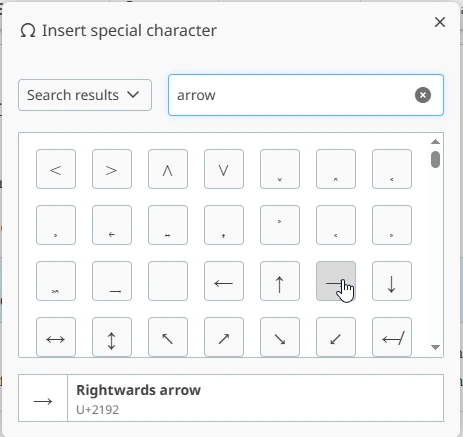
- Insert symbols and special characters from a searchable popup
- Characters are grouped by category
- Inserted at the cursor position
Zoom
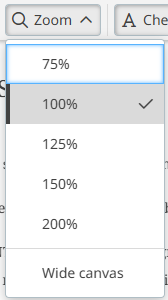
- Adjust zoom level and editor width
- Settings are temporary and reset when reopening
Copy-Paste Functionality
Copy/Paste operates differently depending on whether you're copying and pasting content within the Editor (Editor → Editor) or from an external source like Microsoft Word into the Editor (Word → Editor).
Within the Editor
When copying content from one part of the editor document and pasting it into another part of the same or a different document, the process ensures consistency and structural integrity.
- Retains Structure: The editor preserves the XML structure and document formatting (such as headings, tables, and custom elements) when copying and pasting within the same document or between different documents within the environment. This ensures that the content fits into the predefined structure and rules.
- Validation and Rule Compliance: Since the editor follows specific rules (like the Airbus DTD), pasted content will automatically adhere to these guidelines. If the pasted content doesn’t conform to the document’s structure (e.g., trying to paste an element where it’s not allowed), the editor may prevent the paste or prompt you to adjust the content to fit the rules.
- Modular Content Handling: If you copy a "documentary unit" or modular content (like a procedure, section, or table), the paste will link back to the original content source, preserving references, structure, and metadata. This ensures that modular content remains consistent across different parts of the document.
Word → Editor
When copying content from Microsoft Word and pasting it into the editor, there are a few key things to consider. The transition from a Word document to the XML-based editor requires some special handling to ensure the content is appropriately structured and formatted.
- Text Formatting Conversion: Word documents often contain complex formatting (like fonts, styles, and spacing) that doesn’t map directly to the XML structure. When pasting content into the editor, this formatting may be stripped or converted to fit the editors styling rules (such as heading levels, paragraphs, bold, italic, etc.).
- Conversion of Elements: While basic text elements like paragraphs and headings can be directly pasted into the editor, more complex elements like tables, images, and embedded objects (from Word) may need additional conversion. Fonto will typically attempt to convert these into its own equivalent elements (e.g., converting a Word table into a properly formatted table in the editor).
- Loss of Non-XML Content: Content that doesn’t fit into the XML schema of the editor, such as certain Word-specific objects (charts, complex embedded objects, etc.), may not be fully transferable or could result in data loss. However, basic text and inline formatting should transition with minimal issues.
- Validation and Rule Compliance: After pasting content from Word, the editor will validate the pasted content against the document's predefined structure and rules (Airbus DTD). If the pasted content violates any structural rules, the editor may either:
- Reformat or adjust the content automatically to align with the rules, or
- Flag the content for manual correction, prompting the user to adjust the pasted text or structure.
Summary
- Copying within the editor): This process ensures that content retains its structure and conforms to the rules of the document. It allows seamless reuse of modular content, preserves references, and validates compliance with predefined document standards.
- Copying from Word: When pasting from Word, the editor tries to convert Word's formatting and structure to its own XML-based system. While basic text and formatting can be preserved, more complex elements may require conversion, and content that doesn’t fit the structure may either be modified or flagged for review.
In both cases, the editor ensures that the content remains consistent and adheres to the rules of the document, though the specifics of formatting and validation differ depending on the source.
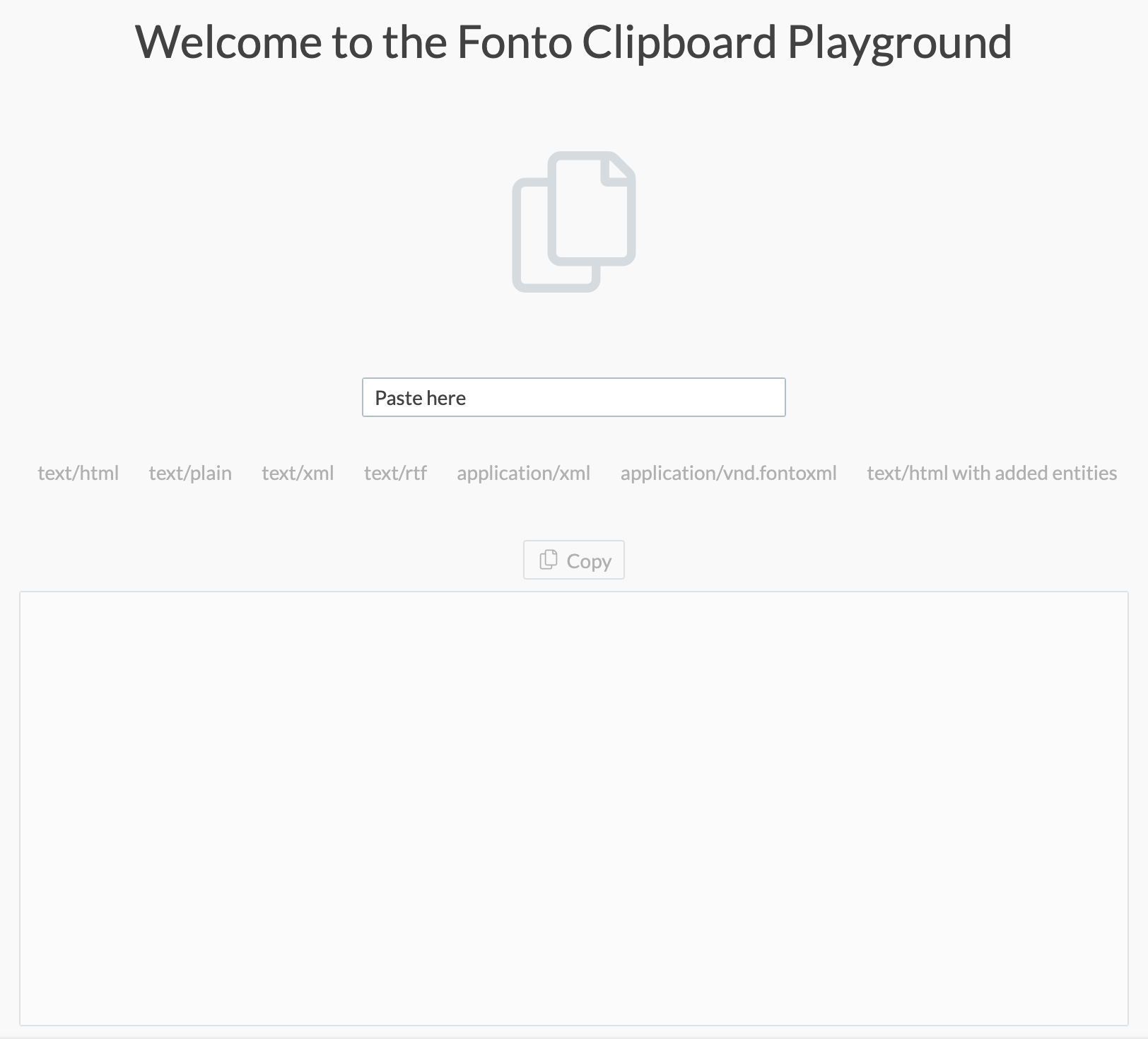
Clipboard
The Clipboard Playground is an external tool provided by Fonto to allow users to experiment with and explore clipboard functionality in a controlled environment. It is designed for testing and understanding how content can be copied, pasted, and referenced within the editor, without affecting any live content.
To access the Clipboard Playground, visit: Fonto Clipboard | Playground
Other Funtionality
Saving
- Manual save available via the toolbar
- Auto-save runs regularly in the background
- Saving stores XML and generates the related HTML
Real-Time Validation
- The editor continuously checks content against schema rules
- Errors and warnings appear immediately
- Invalid content is prevented before it can be created
Keyboard Shortcuts
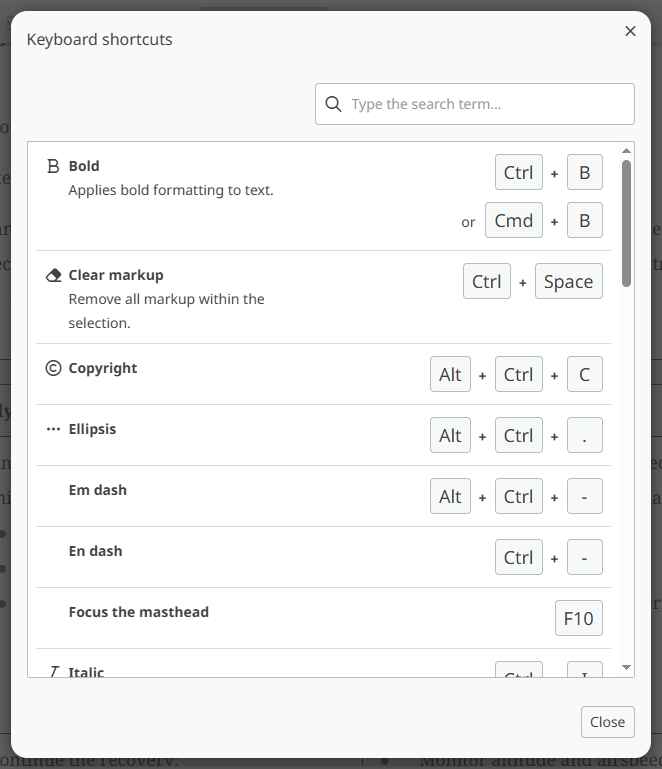
- View all available shortcuts via the shortcut icon in the lower toolbar
Language & Character Support
Unicode Support
- Supports all languages and scripts (UTF-8)
- Works consistently across editing, search, spell check, and export
Not Supported
- Formula editing (e.g. MathML) is currently not available in Yonder
Was this article helpful?
That’s Great!
Thank you for your feedback
Sorry! We couldn't be helpful
Thank you for your feedback
Feedback sent
We appreciate your effort and will try to fix the article