TABLE OF CONTENTS
Dashboard (Landing Page)
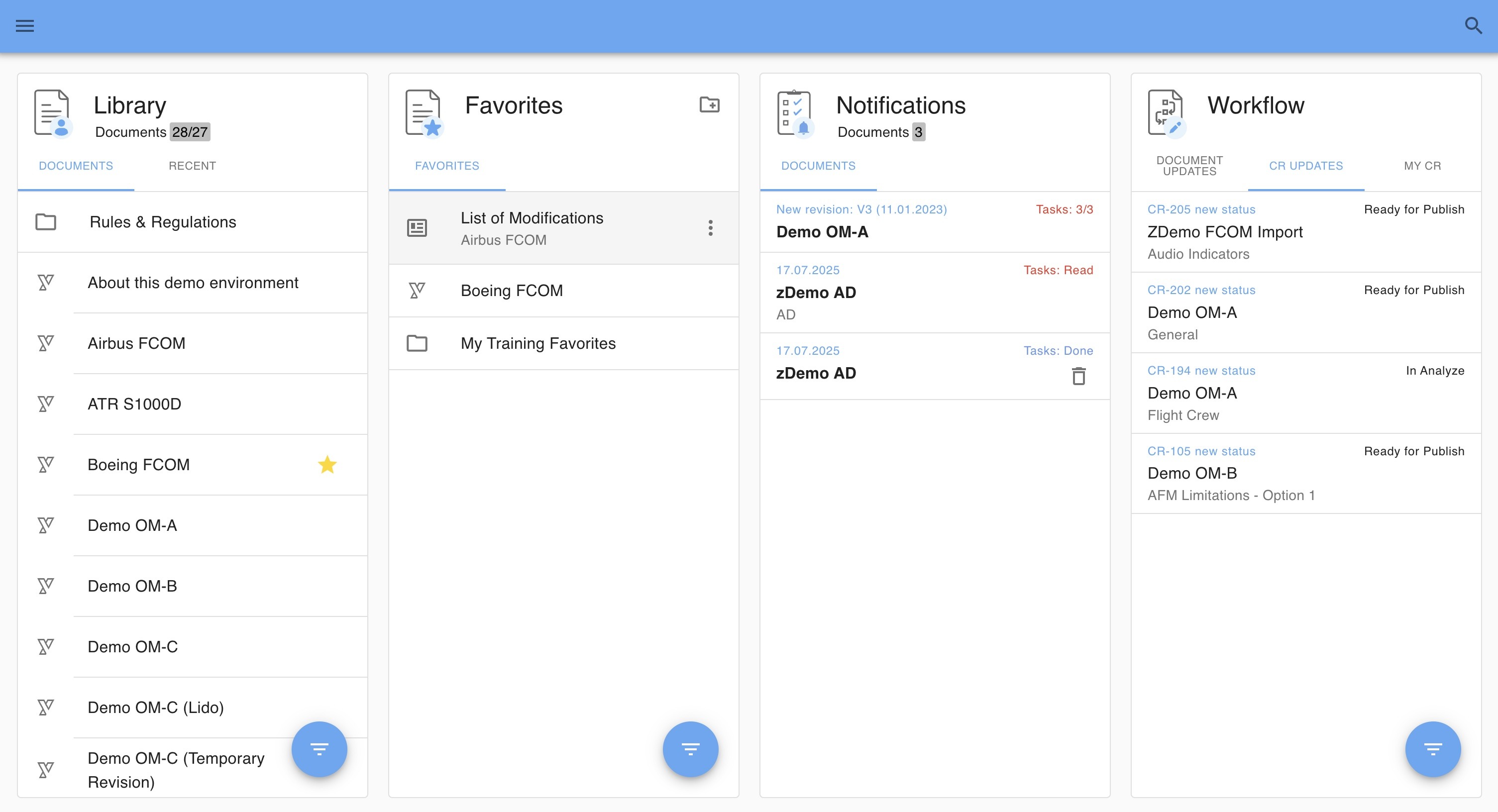
The image below shows the Dashboard, which serves as the landing page for end users accessing the library via the web URL.
The dashboard is structured into:
Top Bar – Provides navigation, search, and user options.
Cards – Visual sections that display the main functional areas of the library.
Top Bar
The Top Bar provides quick access to key functionalities:
Menu Icon – Opens the Menu Sidebar for navigation to settings, forms, analytics, and other options.
General Search – Allows users to search across the entire library.
Cards
The Dashboard contains four cards, organized as follows:
Left Two Cards – Document Library
Library – Displays all documents the user is entitled to access, based on role.
Favorites – Shows user-specific favorite documents for quick access.
Right Two Cards – Document Changes
Notifications – Displays user-specific notifications and the associated compliance tasks.
Workflow – Shows document revisions in which the user is involved, facilitating change incorporation.
Cards
Library
Supported Content Types
Yonder supports multiple content types, each identifiable by a specific icon.
Different content types offer distinct features and behaviors. Displaying the corresponding icon helps users understand how the content will be presented and what functionality is available for that type.
This visual distinction enables users to quickly manage expectations regarding display options and supported features within Yonder.
| CONTENT TYPE | Description | ICON |
|---|---|---|
| Smart Document | XHTML, XML content |  |
| Forms | Forms or reports that the end user can fill in and submit |  |
| Memo | Memos (HTML notes) |  |
| Files: PDF | PDF files |  |
| Files: Word* | Word documents |  |
| Files: Excel* | Excel spreadsheets |  |
| Files: PowerPoint* | PowerPoint presentations |  |
* Macros are generally restricted as they pose a security risk.
Smart Documents
Smart Documents are created directly in Yonder — either by using the built-in Yonder Editor or by importing existing content through supported import methods.
Document View
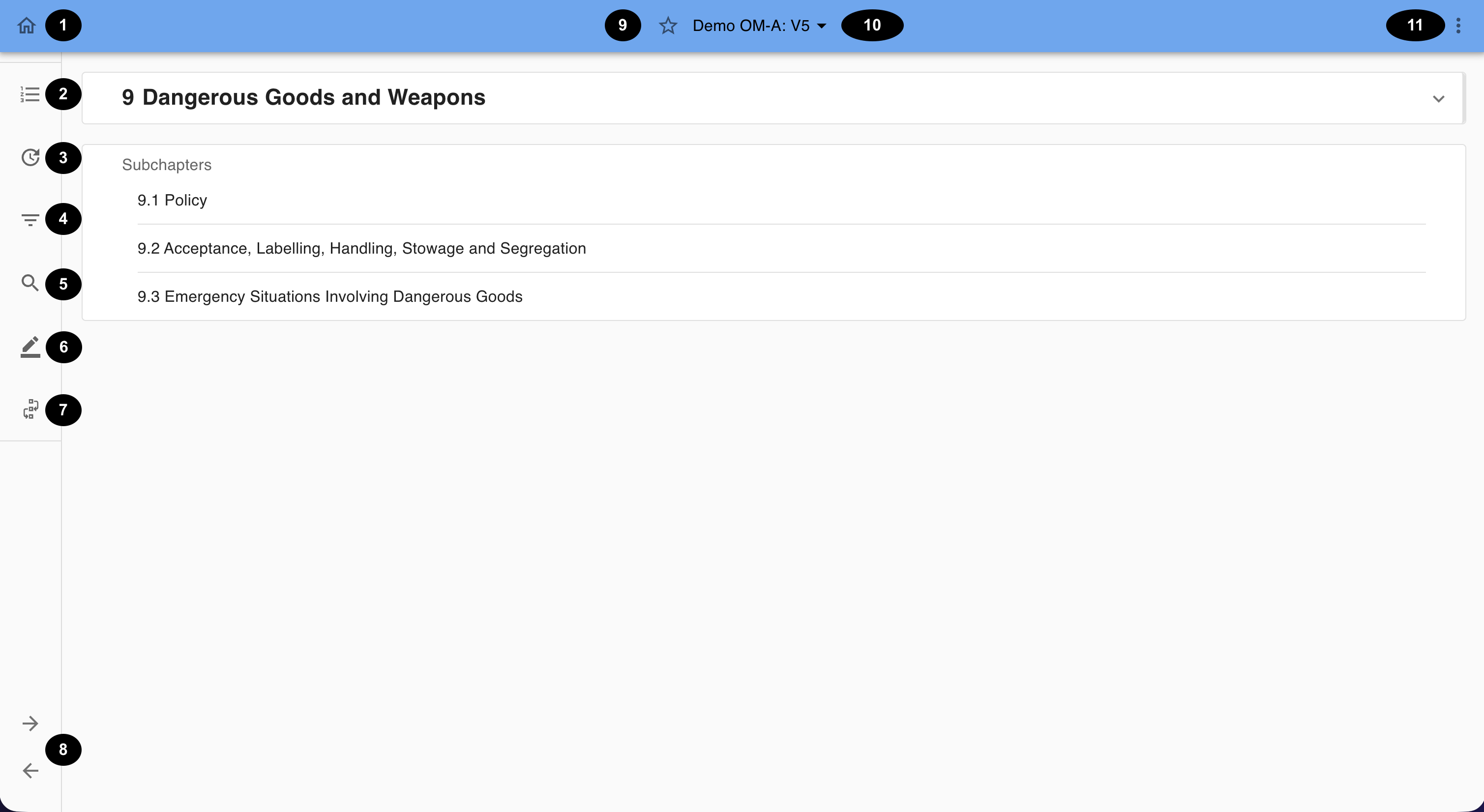
The image below illustrates the general layout displayed when accessing a document in Yonder.
For ease of reference, the available functionalities on the document level are marked with numbers that correspond to the numbered descriptions below the image.
| # | Feature | Description |
|---|---|---|
| 1 | Home | Navigate back to the dashboard. |
| 2 | Outline | Toggle the table of contents, allowing for navigation within the document. |
| 3 | Revision History | Displays items that were revised in the document’s latest revision, along with your My Tasks for this document. |
| 4 | Filters | Displays all available filter options for the document, allowing you to limit visible content to your role and mission. |
| 5 | Local Search | Allows searching within the selected document. |
| 6 | Highlights | Access and create new Highlights and Notes. |
| 7 | Workflow | Tracks the status of change requests for this document. |
| 8 | Page Navigation | Left arrow: Previous page. Right arrow: Next page. Use keyboard arrows for the same function. |
| 9 | Favorite | Set the document as a favorite. |
| 10 | Document Revision Selector | Select from the available document revisions. |
| 11 | More Options (Kebab Menu) | Displays additional viewing and document-related settings:
|
| # | Feature | Description |
|---|---|---|
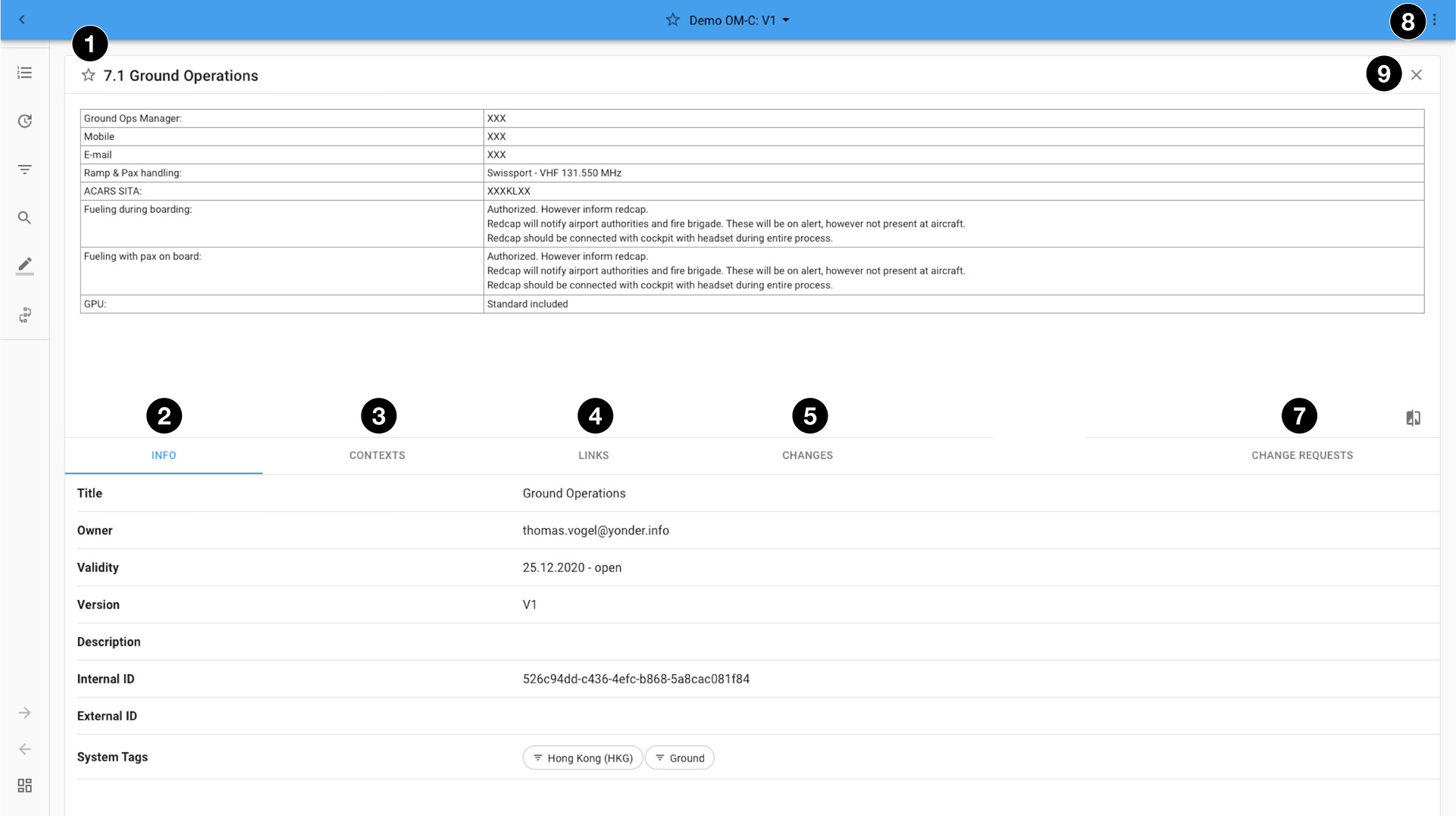
| 1 | Mark Favorites | Marks the module as a favorite. Favorites are shown in the Document Outline (TOC) and Dashboard (under Favorites). Click again to deselect. |
| 2 | Info | Displays general information related to this information module. |
| 3 | Context | Shows where this module is anchored (home icon) and where it is reused across your documentation landscape, if applicable. |
| 4 | Links | Displays additional links for the module, including internal dependencies, external dependencies (e.g., regulatory databases), language links, and user-specific links. |
| 5 | Changes | Shows all changes applied compared to the previous version of this module. |
| 6 | Change Requests | Issue or access change requests for this module. Issued requests enter the document-specific workflow. Only certain user groups can issue change requests. |
| 7 | Properties | Displays details and additional functionality for this module, such as adding it to the clipboard to create linked dependencies across your documentation landscape. |
| 8 | Close Information Module View | Closes the module view and returns to the previous screen. |
Forms
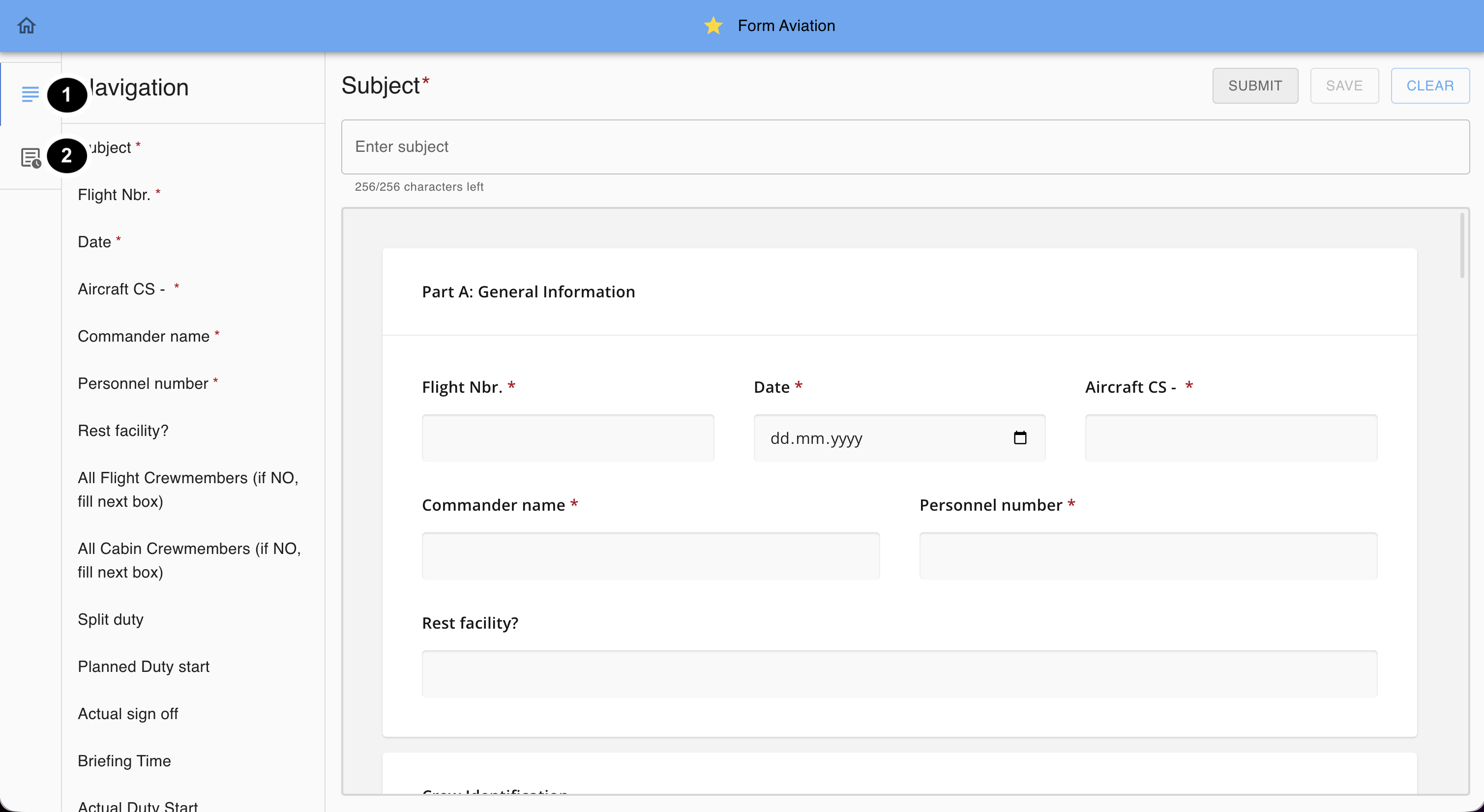
Forms are 'interactive PDFs' created within Yonder.
End users can fill out these forms (or Reports) and submit them to the back office for processing.
| # | Feature | Description |
|---|---|---|
| 1 | Form Navigation | Clickable outline to navigate to the selected form field. |
| 2 | Form Submissions | Navigate to submitted reports of this form. |
Files
Files are content not created directly within Yonder and are therefore treated as media objects.
Depending on the file type, they open in a dedicated view:
PDFs: Open in a dedicated PDF tab.
Other file types (e.g., DOCX, XLSX, PPTX): Open in a predefined viewer suitable for that format.
Was this article helpful?
That’s Great!
Thank you for your feedback
Sorry! We couldn't be helpful
Thank you for your feedback
Feedback sent
We appreciate your effort and will try to fix the article