TABLE OF CONTENTS
General
By selecting the menu icon (three horizontal lines - top left), a dedicated sidebar opens, providing access to a variety of key options within the app.
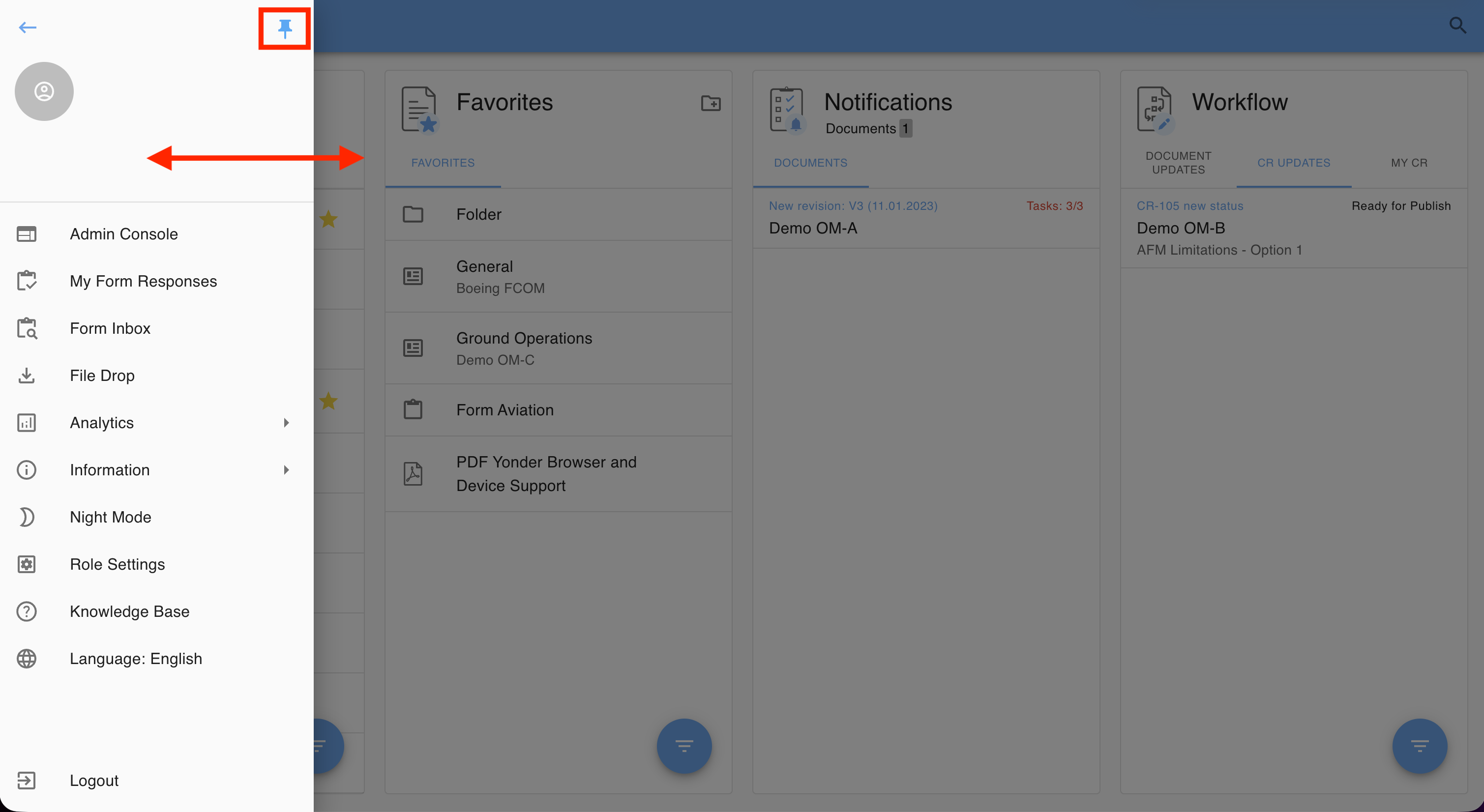
Sidebar Handling
The dashboard sidebar can be pinned to stay visible and resizes the main content area accordingly. Users can also adjust its width. Pin state and width are persisted.
Menu Options
| Option | Description |
|---|---|
| Admin Console | Access administrative settings and management tools (depending on user permissions). |
| My Form Responses | View and manage your submitted forms. |
| Forms Inbox | Manage submitted form responses (depending on user permissions). |
| File Drop | Upload and manage files. |
| Analytics | Access compliance reports, compare revisions, and view the history log (depending on permissions). |
| Information | View application version details. |
| Night Mode | Toggle between dark and light themes. |
| Role Settings | Set tag filters applied to the library. |
| Knowledge Base | Access online documentation and guides. |
| Language | Choose your preferred languagefrom the available options in Yonder. Note: Changing the language affects the Yonder application interface only. |
| Logout | Sign out of the Yonder application. |
Was this article helpful?
That’s Great!
Thank you for your feedback
Sorry! We couldn't be helpful
Thank you for your feedback
Feedback sent
We appreciate your effort and will try to fix the article