TABLE OF CONTENTS
- General
- Setting a Favorite
- Organize Favorites
- Filter
- Archived Content and Favorites
General
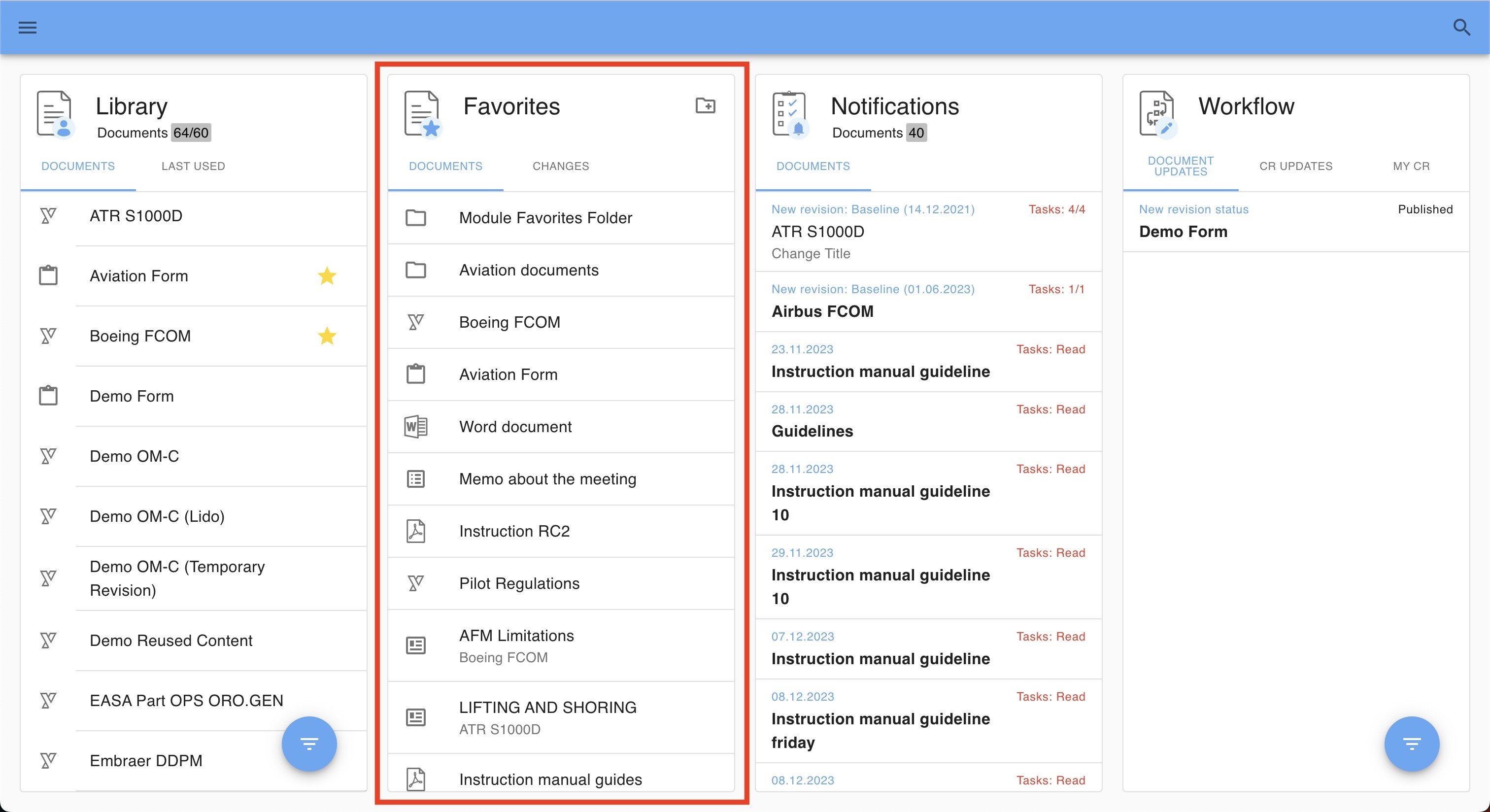
Favorites allow users to quickly access frequently used documents or chapters.
Favorites can be set on both documents and chapters.
Favorites are user-specific and visible only to the user who created them.
All favorites are displayed in the Favorites card for easy access.
Favorites can be organized within Favorite Folders for better management.
Both Favorites and Favorite Folders are synchronized between the Online Reader and the Offline Reader.$
Setting a Favorite
You can favorite all document types in Yonder.
Setting a Document Favorite
There are multiple ways to set your document as favorite:
- in the list of the Library
- in the opened document (document header)
- on a chapter within a document
Setting a Favorite in the Library Card
Hover over the list entries in the Library card and set the desired document as Favorite:
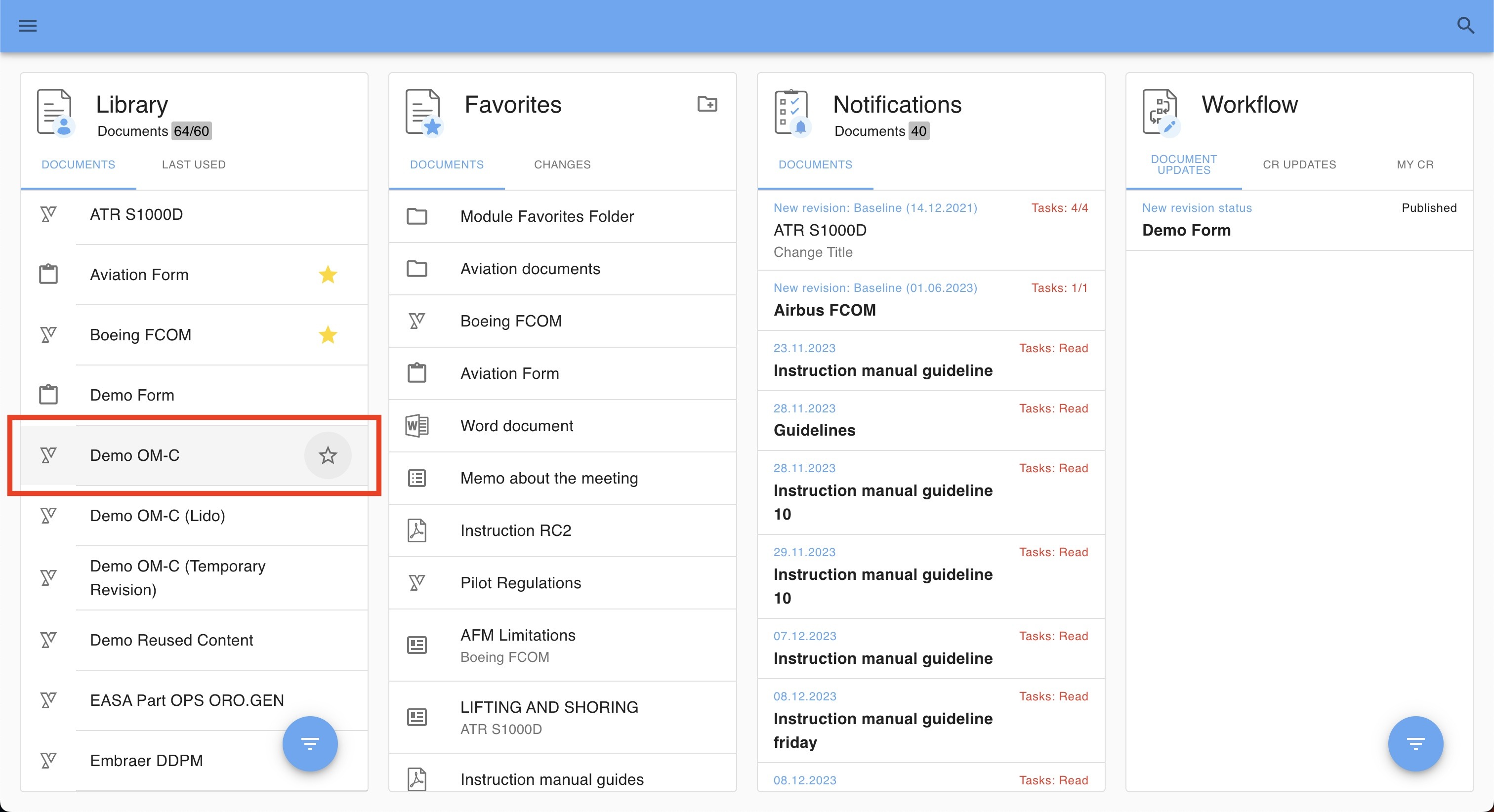
You can identify documents you already marked as favorite by the yellow star icon.
Set a Favorite in the Document
Open the document and click in the star icon left of the document title:

Set a Favorite on a chapter (module)
Open the document and make sure to click the ‘expand chevron’ to see the chapter functions’. Clicking the star icon in the toolbar of the chapter will set / remove the Favorite.
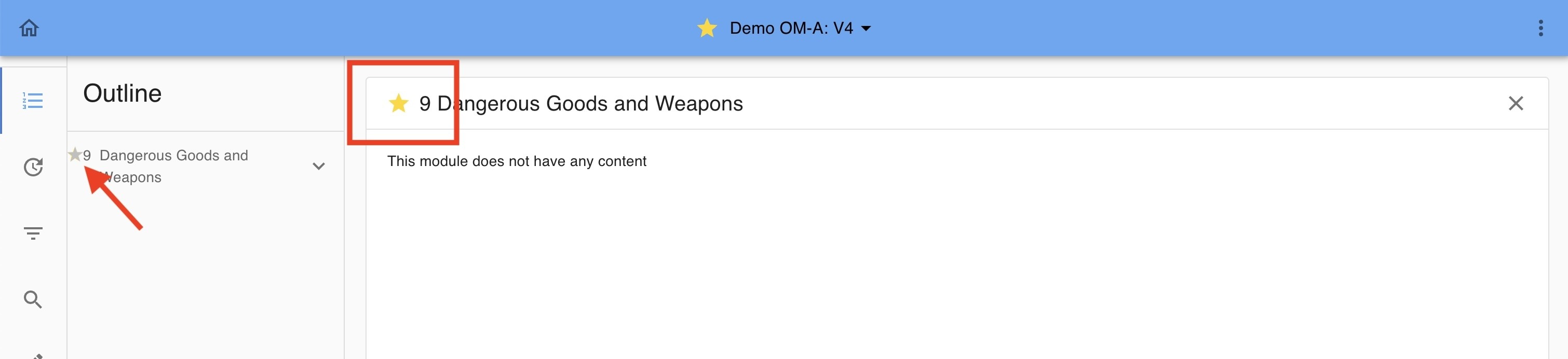
Note: You can identify chapters that you marked as favorite also in the outline (view only - no selection possible in the outline).
Organize Favorites
Favorites in Yonder allow users to quickly access documents and chapters that are important to them. Users can organize their favorites into folders, creating groups that help structure their content in a way that makes sense for their personal workflow. Favorites can be rearranged within these folders using drag-and-drop, giving users flexibility in how their favorites are displayed and prioritized.
Each user’s favorites, folders, and the sorting order within those folders are unique to that user and are not visible to anyone else. This ensures a personalized and private organization of content.
Important notes:
Favorite folders do not support sub-folders, so each folder exists at a single hierarchical level.
To move a favorite to a different folder, it must first be removed from its current folder and then re-added to the new folder.
Moving Favorites and Favorite Folders (Drag and Drop)
You can rearrange and order your Favorites and Folders in the ‘Edit’ mode.
Simply drag and drop the Favorite or Folder in the desired position.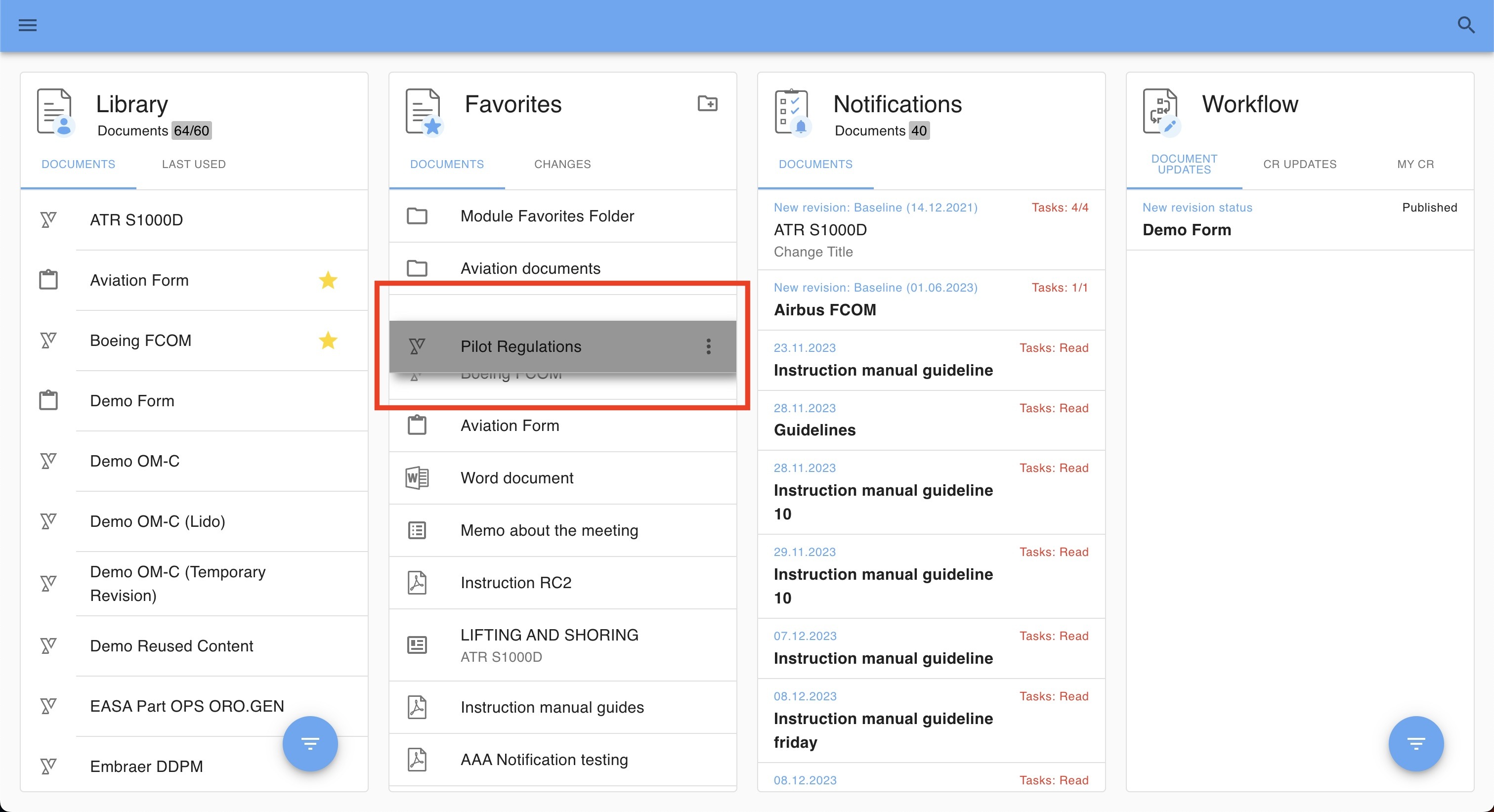
Keyboard shortcut
Select a favorite by clicking or navigate to it by using the ‘tab’ key. Then simply press space and move the element with the keyboard arrows up or down, and drop with the space again.
Create a Favorite Folder
Simply click on the "New folder" icon within the Favorites Card to create a new folder:
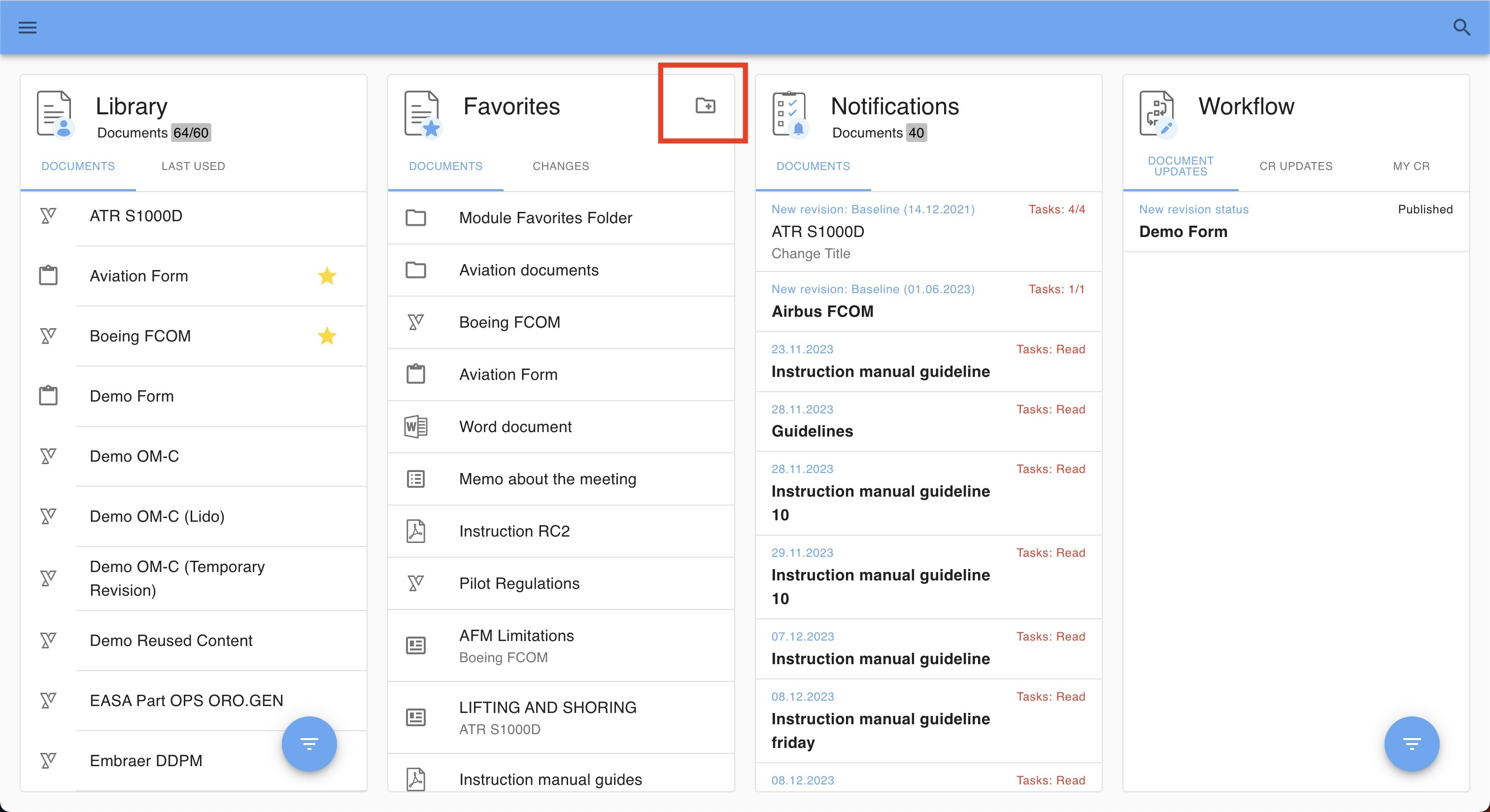
A dialog box will appear, allowing you to input the desired folder name:

Note: Please keep in mind that each folder must have a unique name
Add a new Favorite to a Folder
To add a new Favorite to a Folder follow below steps.
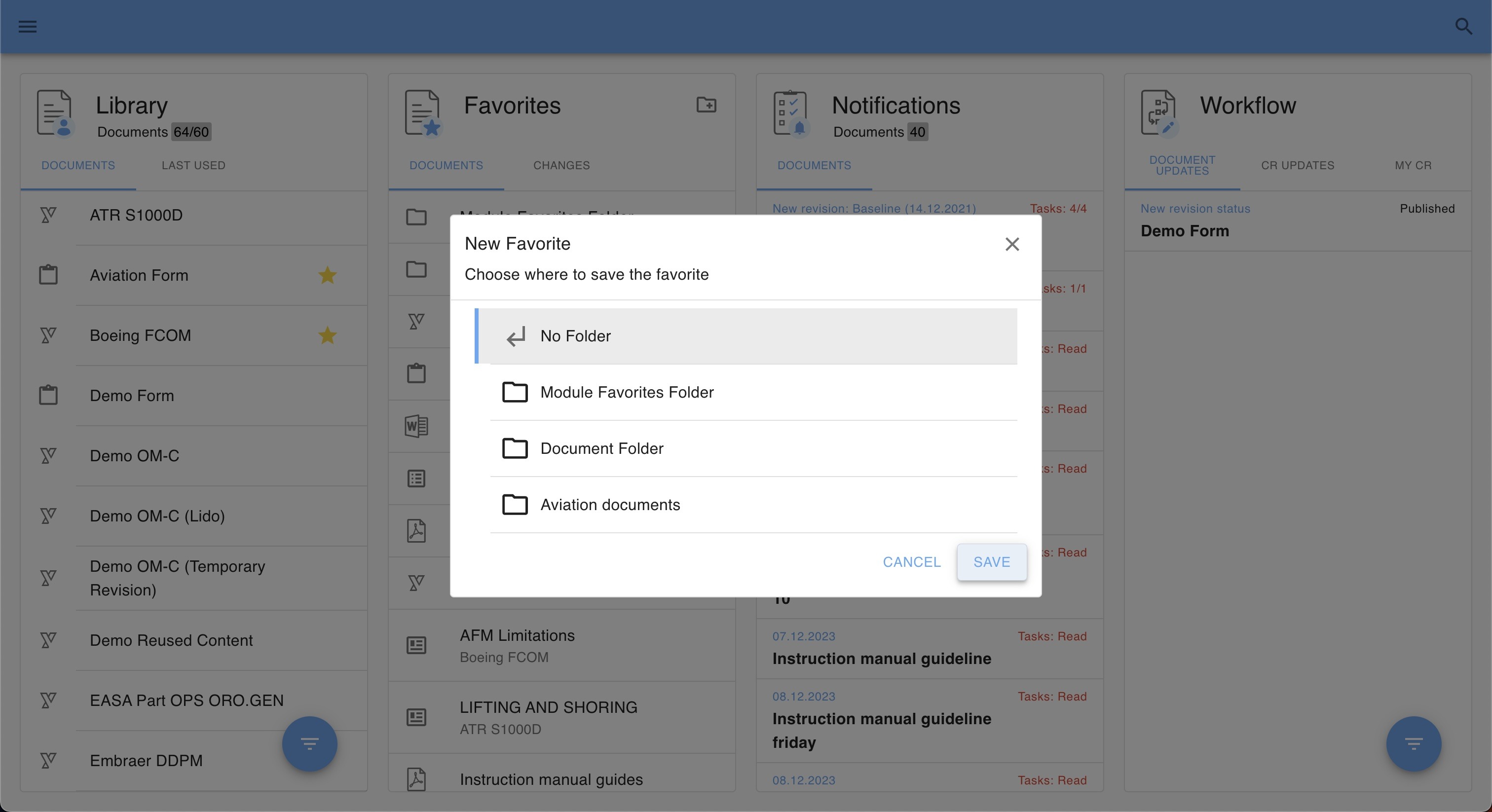
Add a new document Favorite to a Folder
Setting the document as favorite, a dialog box opens.
- Select ‘No Folder’ to keep your favorite in the root of the list.
- Select a Folder from the list to add the favorite in this group.
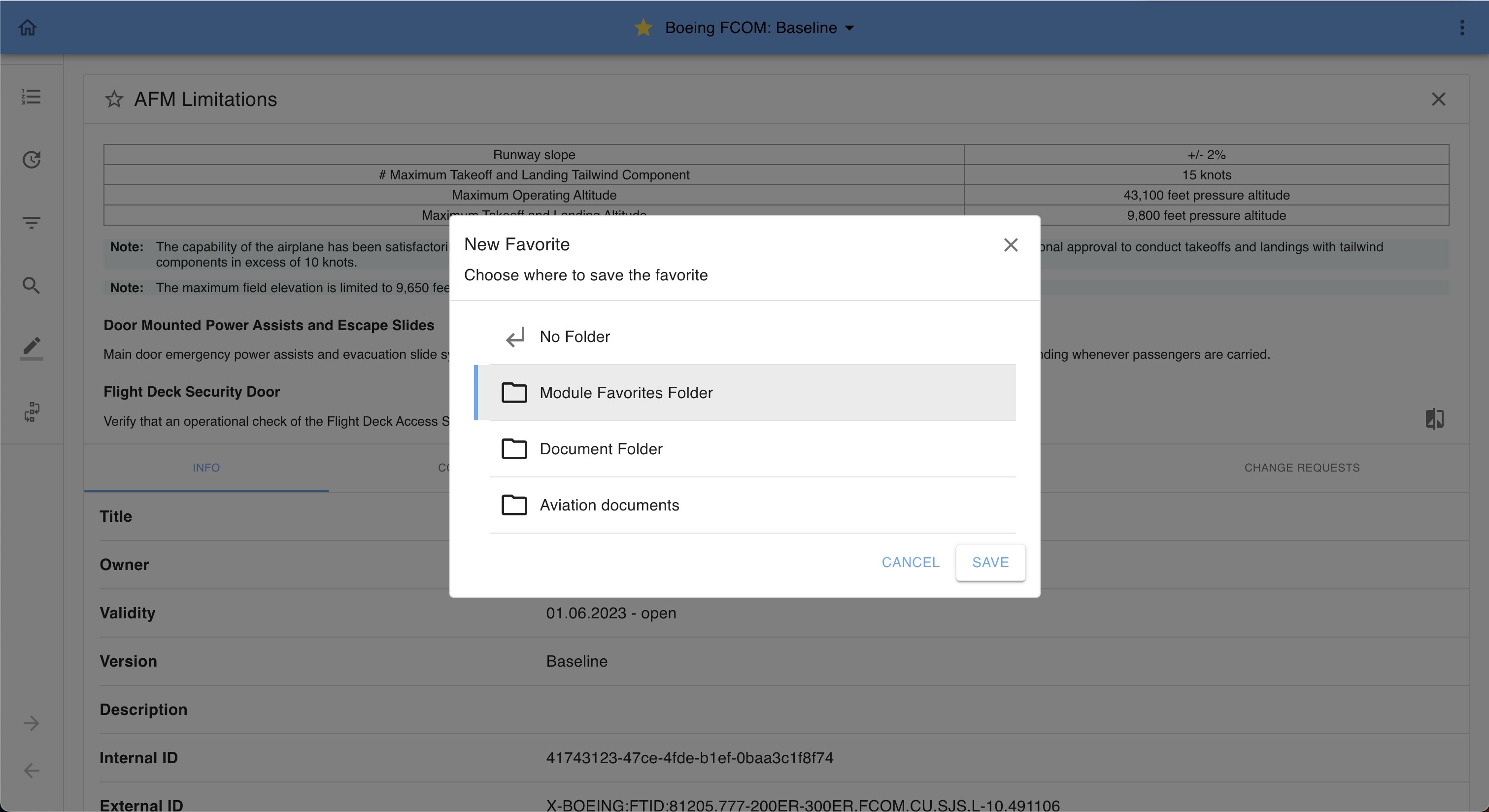
Add a new chapter Favorite to a Folder
Setting a chapter as favorite, a dialog box opens.
- Select ‘No Folder’ to keep your favorite in the root of the list.
- Select a Folder from the list to add the favorite in this group.
Add an existing Favorite to a Folder
Selegt Move from the three dot ‘kebab’ menue.
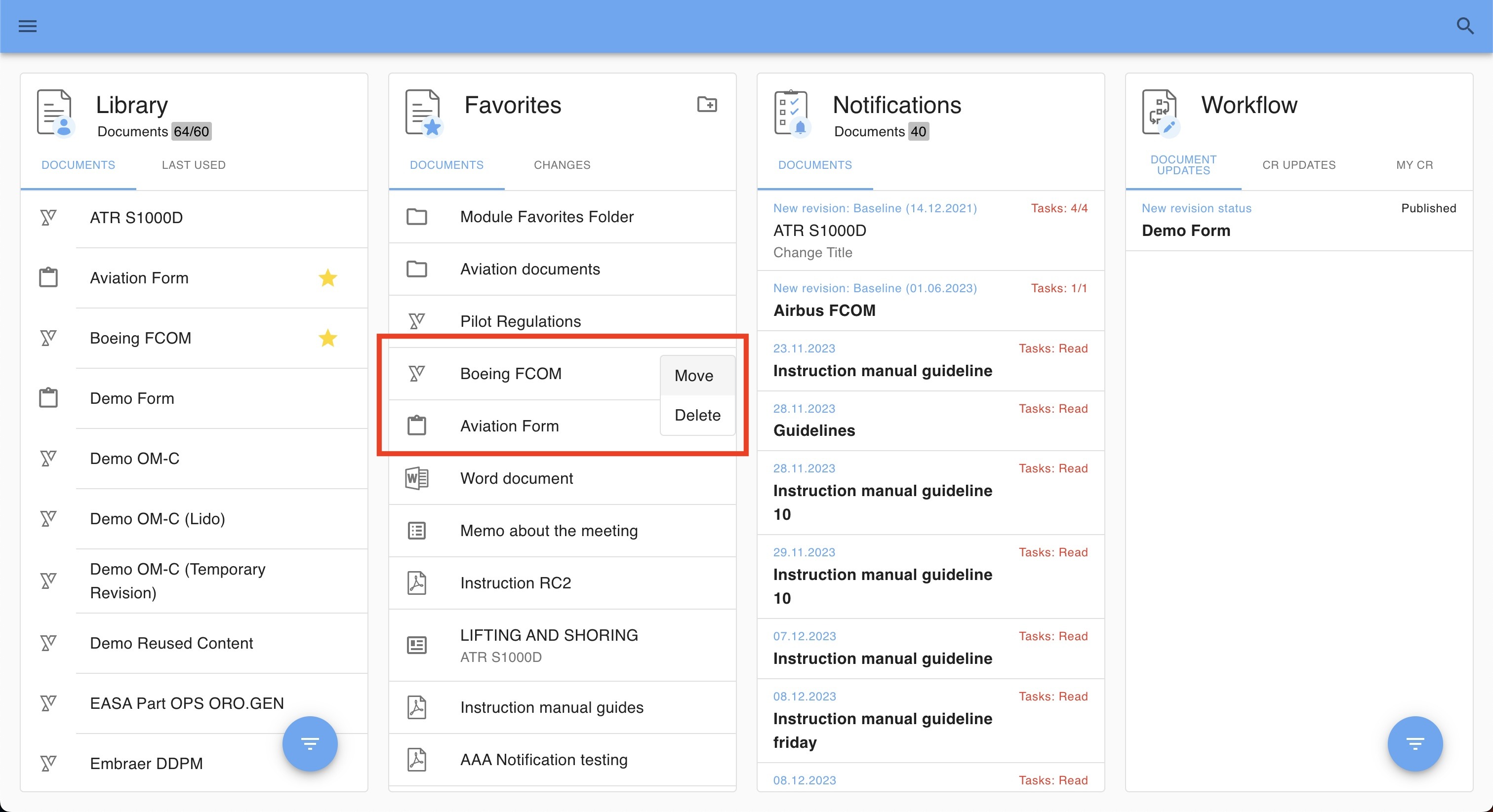
A dialog box opens and you can assign your favorite to a folder:

Move out of a Folder
Simply select the ‘arrow up’ symbol on the Folder list entry to navigate out of the folder:

Delete Folder and / or Favorites
To delete individual Favorites or Favorite Folders, open the edit mode and click the ‘delete’ icon:
Available options:
- Delete favorite
- Delete folder
- Including favorites in that folder
- Excluding favorites
The demo below illustrates all available options:
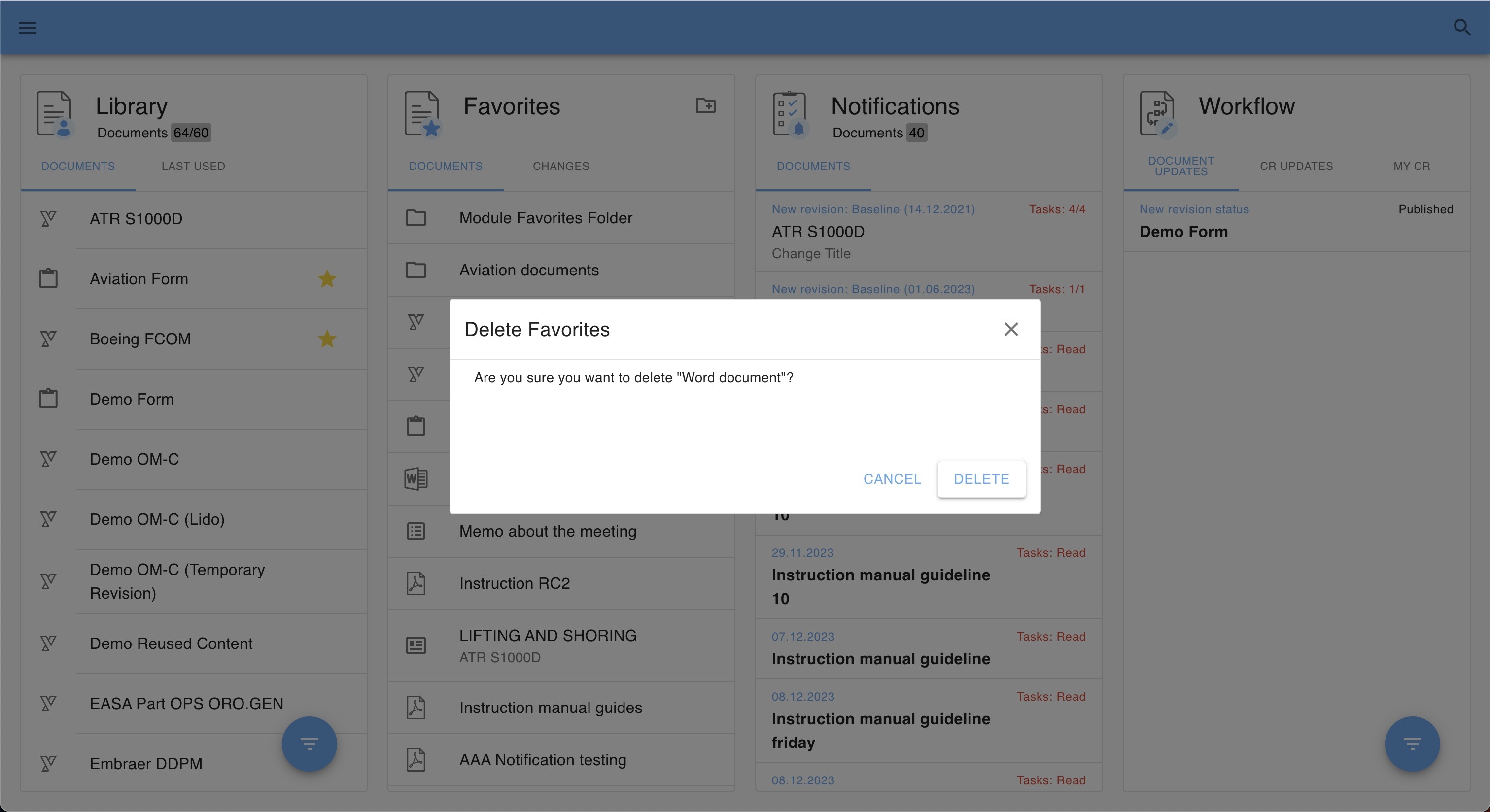
- If you choose to delete a Favorite, below dialog box opens:
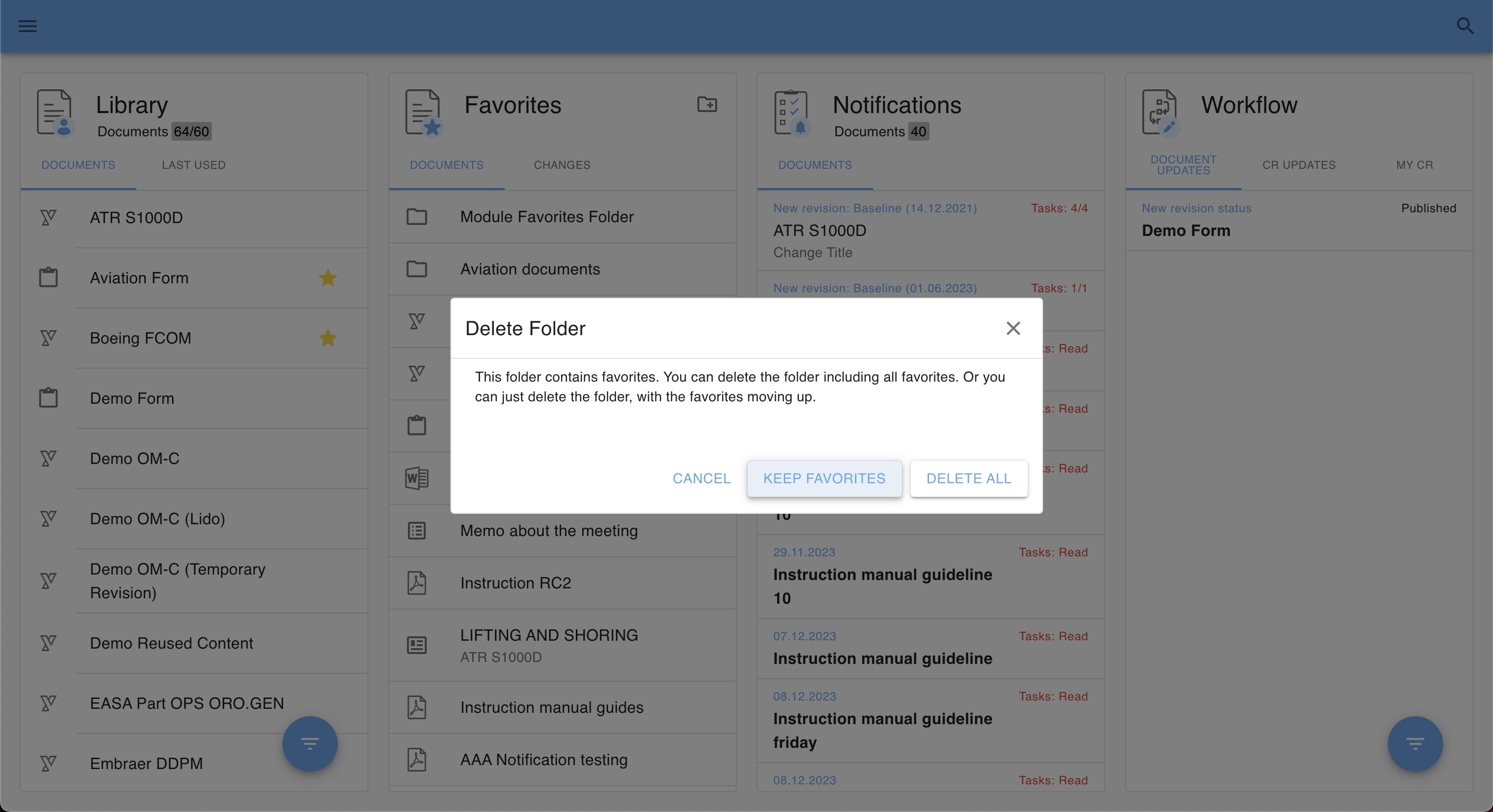
- If you choose to delete a Favorite Folder, a dedicated dialog box opens. You can select either to DELETE ALL (Folder including your Favorites) or to KEEP Favorites (the folder will be deleted but your favorites will be ungrouped and listed in the root of your Favorites card:
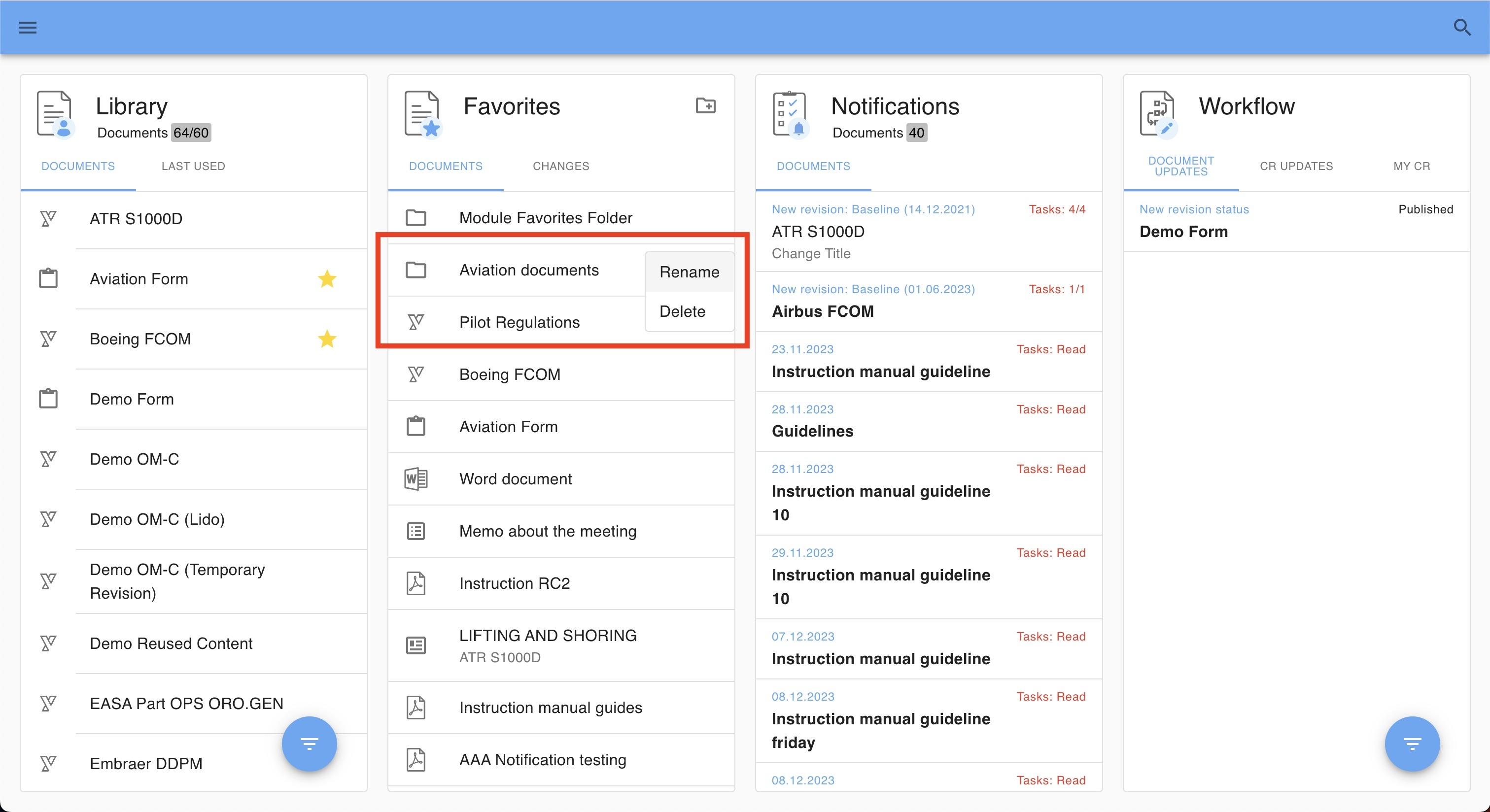
Rename Folders
You as well have the option to rename your Favorite Folder. Hover over the list entry and select Rename:

Note: Please keep in mind that each folder must have a unique name.
Filter
Favorites can also be filtered to quickly find specific items, either by:
Folder Title – displaying only favorites within a selected folder.
Favorite Type – displaying only favorites of a particular type of content.

Archived Content and Favorites
If a document has been archived and is no longer accessible, the message “Document has been archived” is displayed in orange.
Users have the option to irreversibly remove the favorite by clicking the trash icon displayed next to the archived document.
Alternatively, the favorite can be left in place. If the document is later un-archived, the favorite will become functional again, provided it has not been removed.
Was this article helpful?
That’s Great!
Thank you for your feedback
Sorry! We couldn't be helpful
Thank you for your feedback
Feedback sent
We appreciate your effort and will try to fix the article