TABLE OF CONTENTS
- General
- Setting a Favorite
- Organizing Favorites (drag and drop)
- Filtering Favorites
- Search for a Favorite
- Synch Behaviour for Favorites
General
Users can mark both documents and chapters as Favorites to quickly access frequently used content. Favorites are personal and designed to streamline your workflow.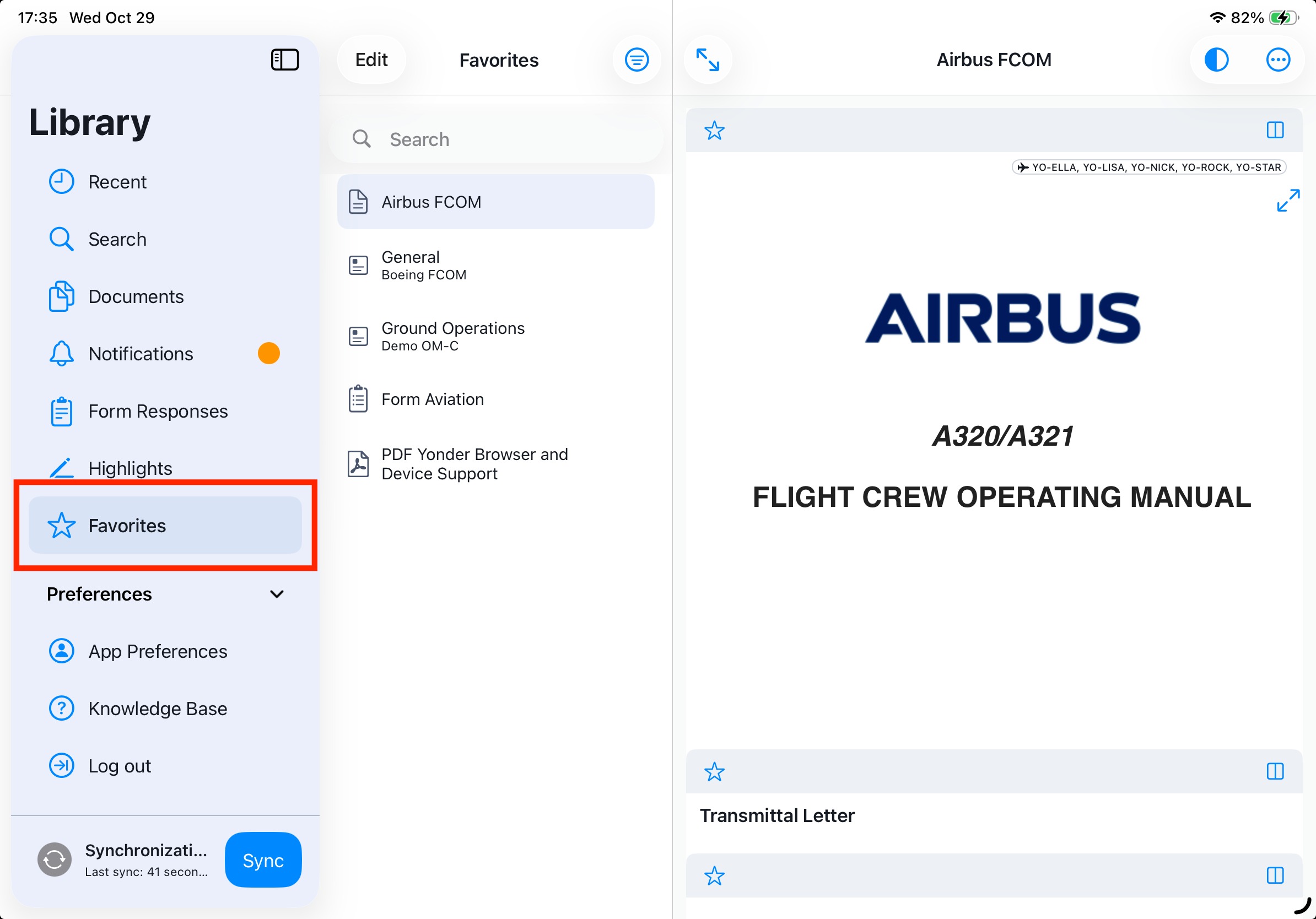
Key Characteristics
- User-Specific: Favorites are only visible to the user who created them.
Visibility: All Favorites are displayed in the secondary “Favorites Sidebar” and are user specific (not shown to other users),
Organization
Favorites can be grouped into Favorite Folders for better structure and navigation.
You can freely create, rename, or remove these folders as needed.
Synchronization
Both Favorites and Favorite Folders are synchronized between the Online Reader and the Offline Reader.
This ensures your personalized setup remains consistent across reading modes and devices.
Setting a Favorite
You can Favorite all document types in Yonder:
- Yonder Smart Documents
- Forms
- Files
Setting a document favorite
There are mulitple ways to set your document as favorite:
- in the list (secondary sidebar)
- in the opened document (document header)
- For a document
- For a chapter
Set document Favorite in the list
You can mark all document types directly in the documents list. This is especially helpful for media objects as they may open in an external viewer such as PDF, Microsoft office files etc.
Simply swipe the list entry in the secondary sidebar to the left and click on the ‘set favorite’ icon:

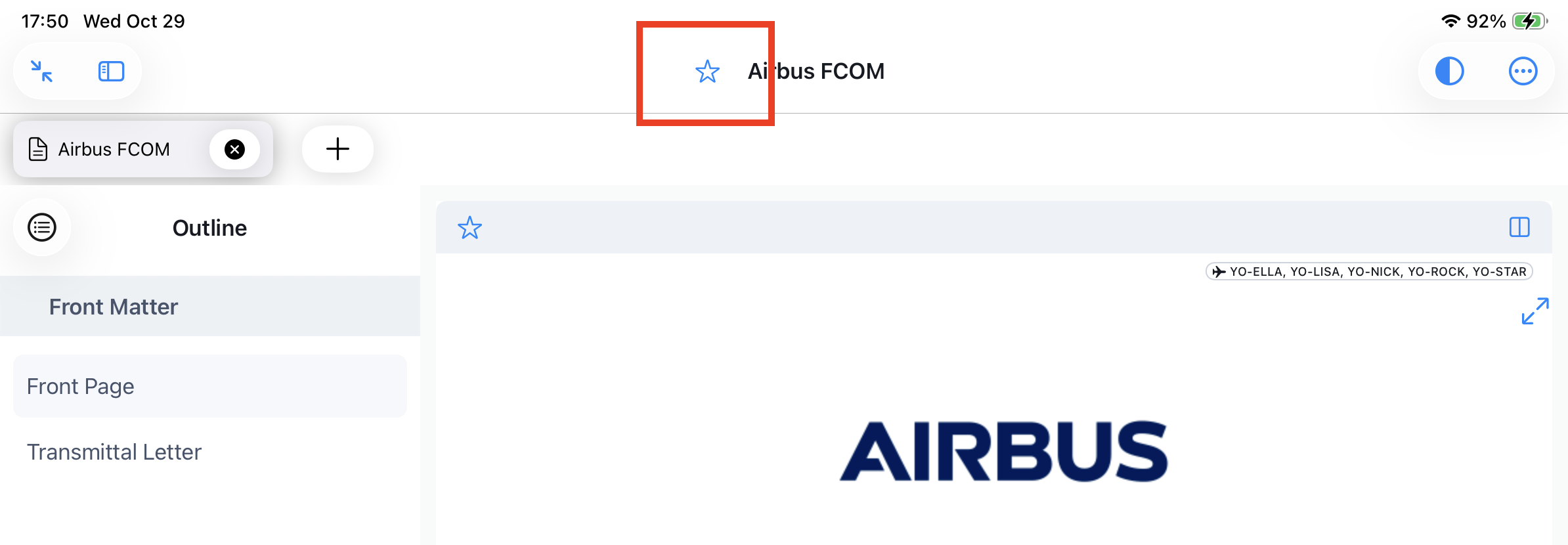
Set Favorite on an opened document
Open the document (of any document type) and click in the star icon left of the document title:
Set Favorite on a chapter (module)
Open the document and make sure that the ‘Show chapter functions’ in the settings menu are activated. Clicking the star icon in the toolbar of the destinct chapter will set / remove the Favorite.

Note:
A favorite will only be saved if it is assigned to a folder or placed in the unassigned list.
Assign a Favorite
If a Favorites folder is available, the user can assign the favorite accordingly; selecting and confirming “Ungrouped” assigns the favorite to the root level.
The Confirm action persists the favorite to the selected folder or root, while Cancel aborts the operation without saving.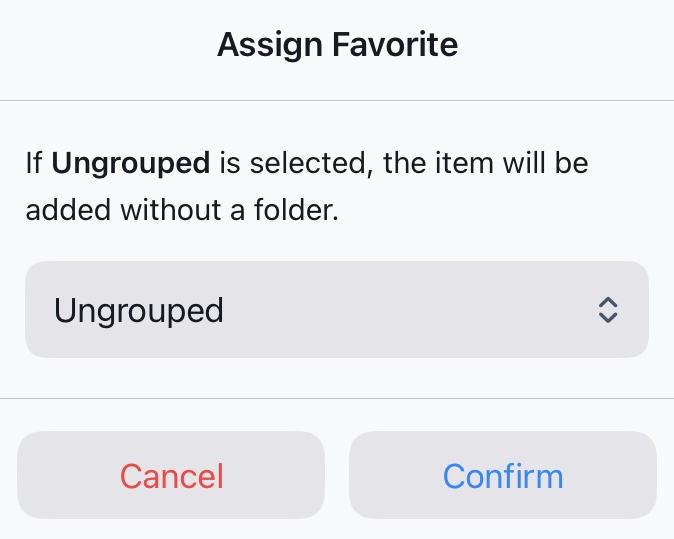
Organizing Favorites (drag and drop)
You can arrange your personal favorites in the secondary sidebar.
In the secondary sidebar you have the flexibility to change the sorting order and group your favorites into folders by dragging and dropping them.
It's important to note that your favorites, their folders, and their sorting order are unique to you and are only visible to the user who created them.
Notes:
- Favorite folders support no sub-folders.
- Moving a favorite to another group is currently not possible. It must be removed first and then set again so that the required favorite group can be selected
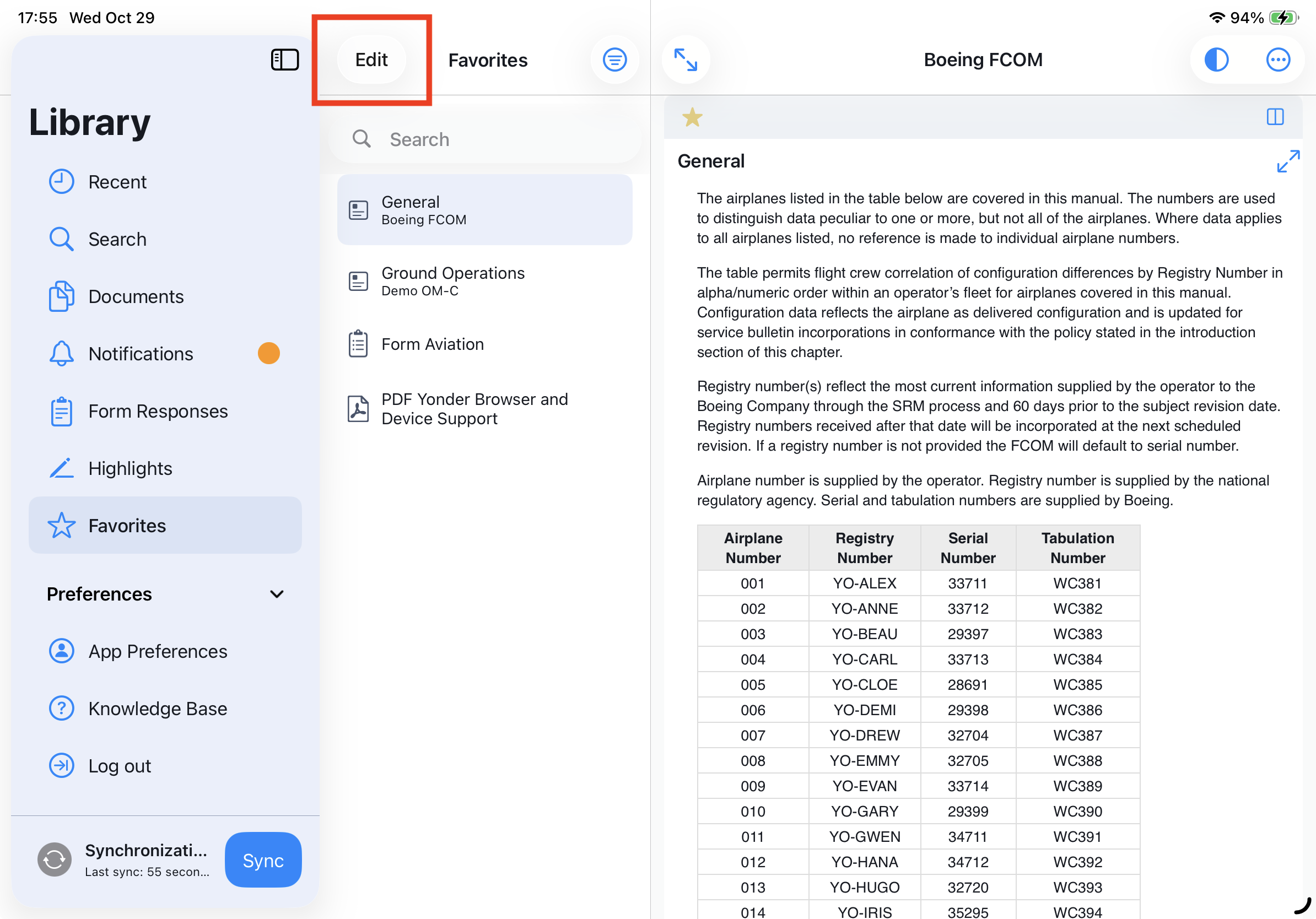
To organize your Favorites select Edit in the Favorites list:
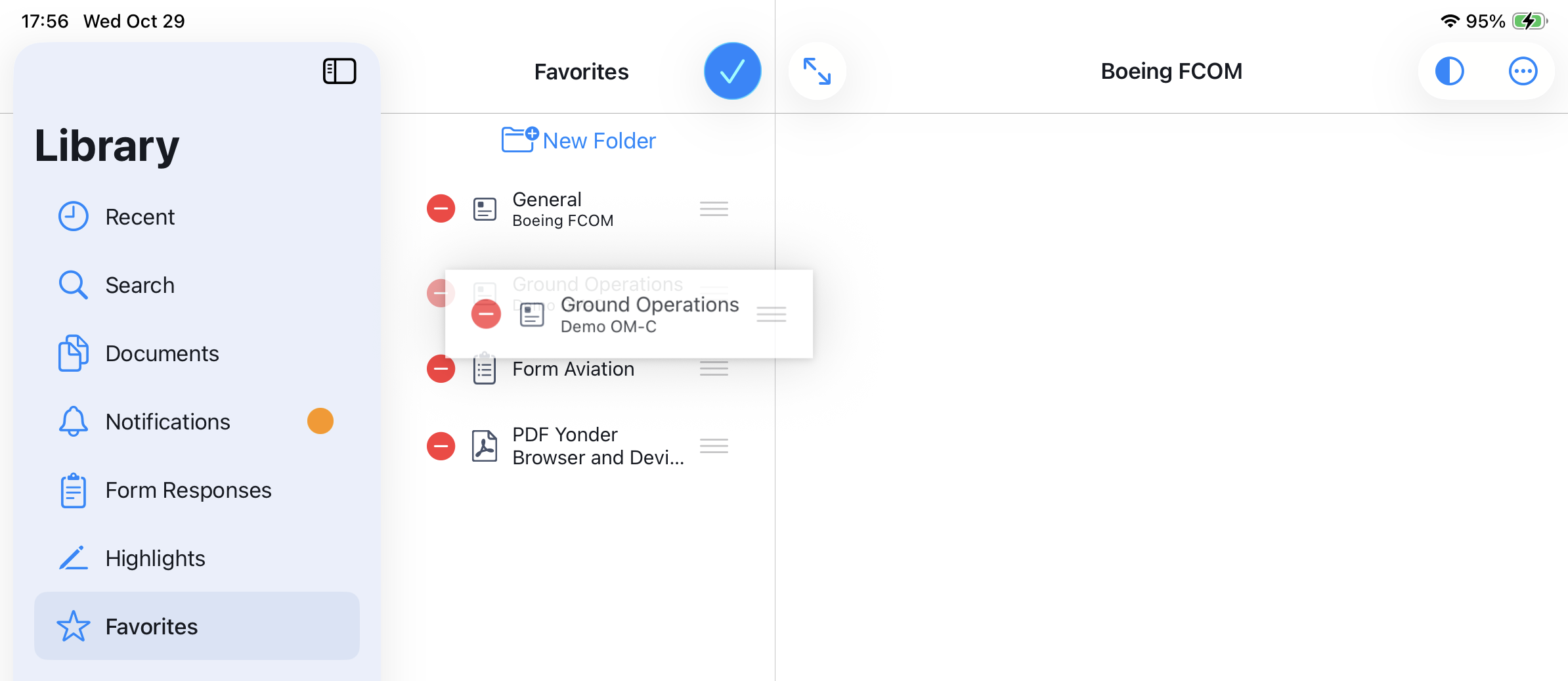
Change the order of Favorites and Favorite Folders (drag and drop)
You can rearrange and order your Favorites and Folders in the ‘Edit’ mode.
Simply drag and drop the Favorite or Folder in the desired position.
Create a Favorite Folder
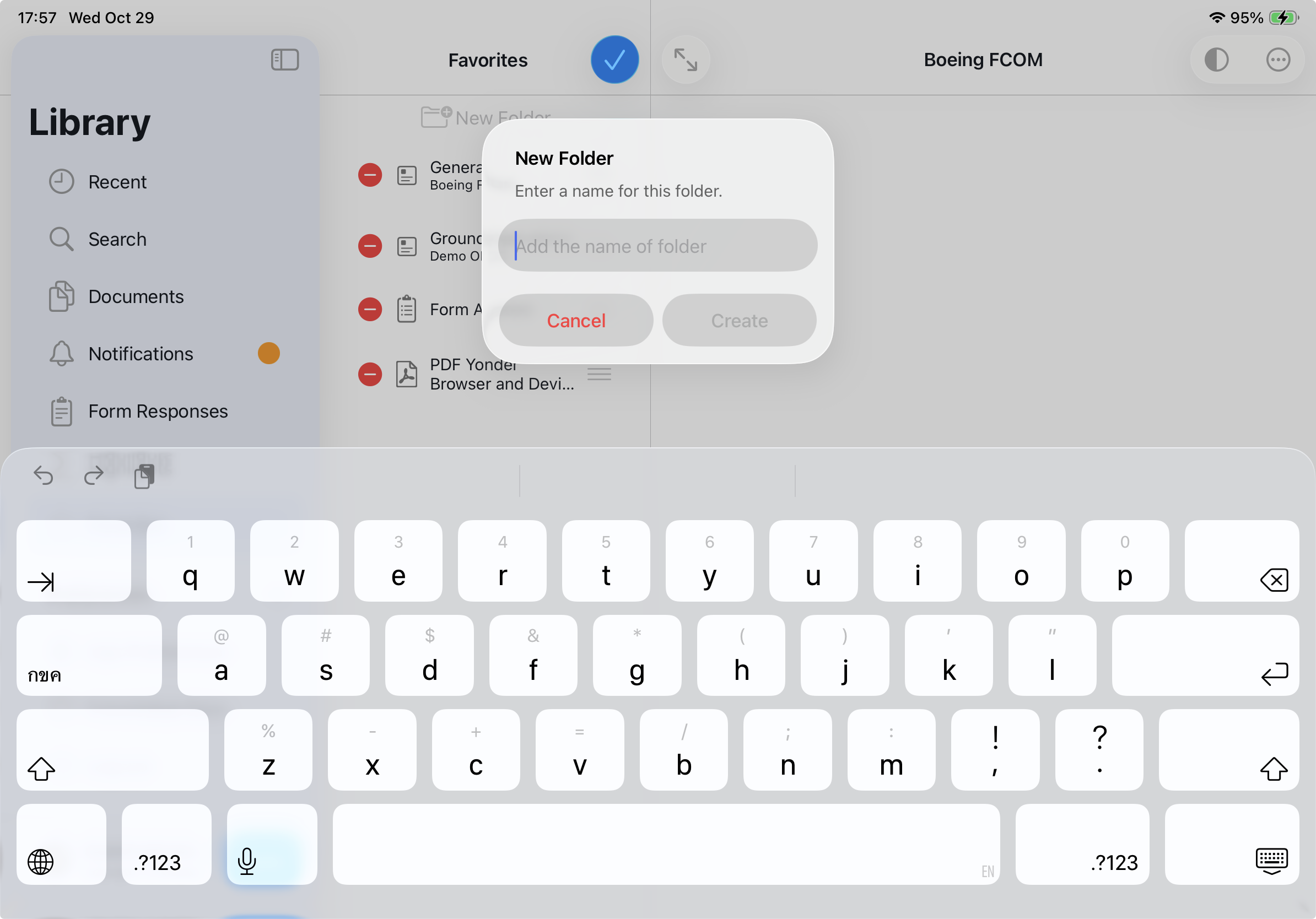
In Edit mode, simply click on "New folder" within the Favorites section to create a new folder. A dialog box will appear, allowing you to input the desired folder name.
Note: Please keep in mind that each folder must have a unique name.
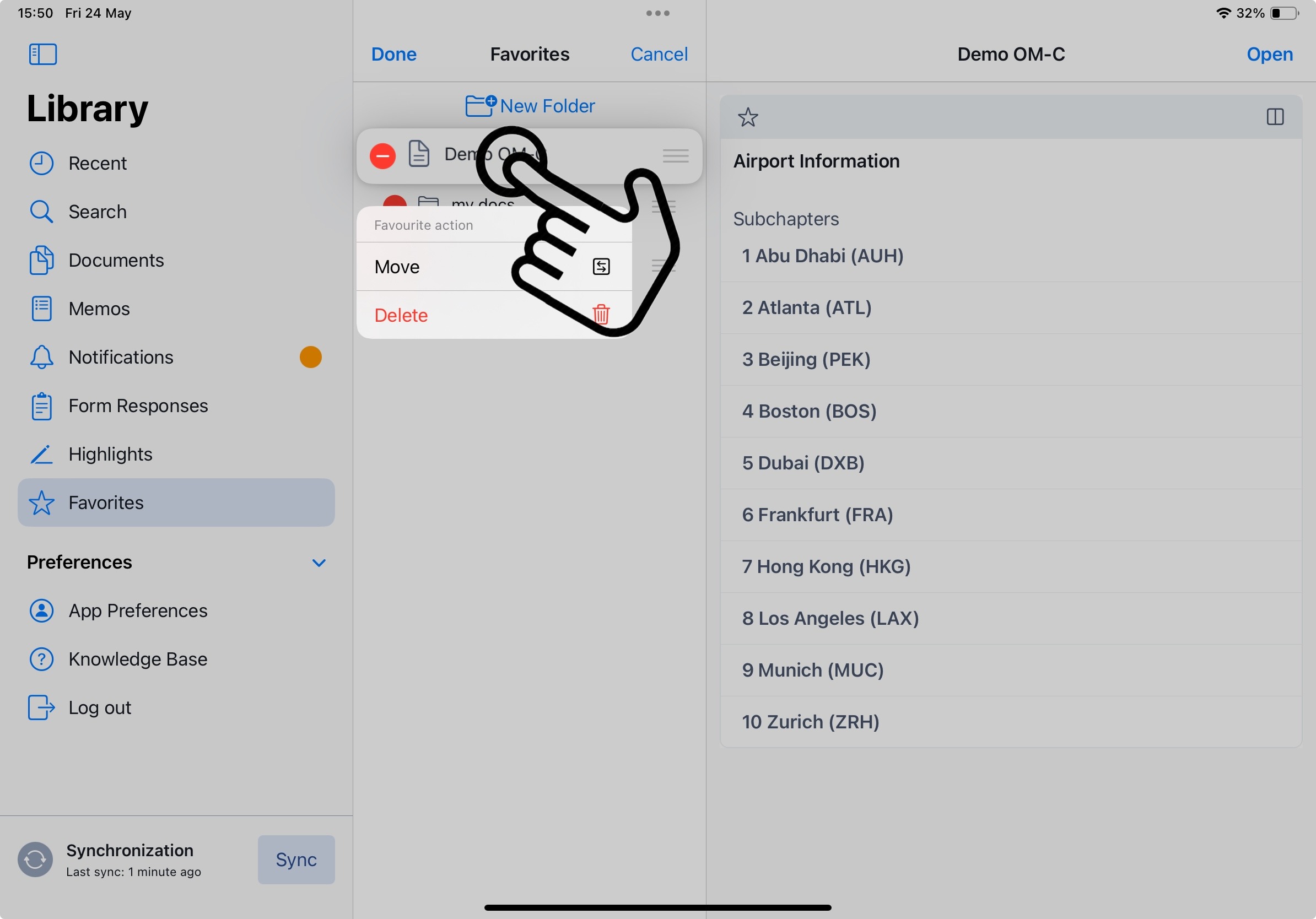
Move a Favorite
To move a Favorite into or out of a folder, long-press on the item in the Favorite list:
Delete a Favorite or Favorite Folder
To delete individual Favorites or Favorite Folders, open the edit mode and click the ‘delete’ icon:
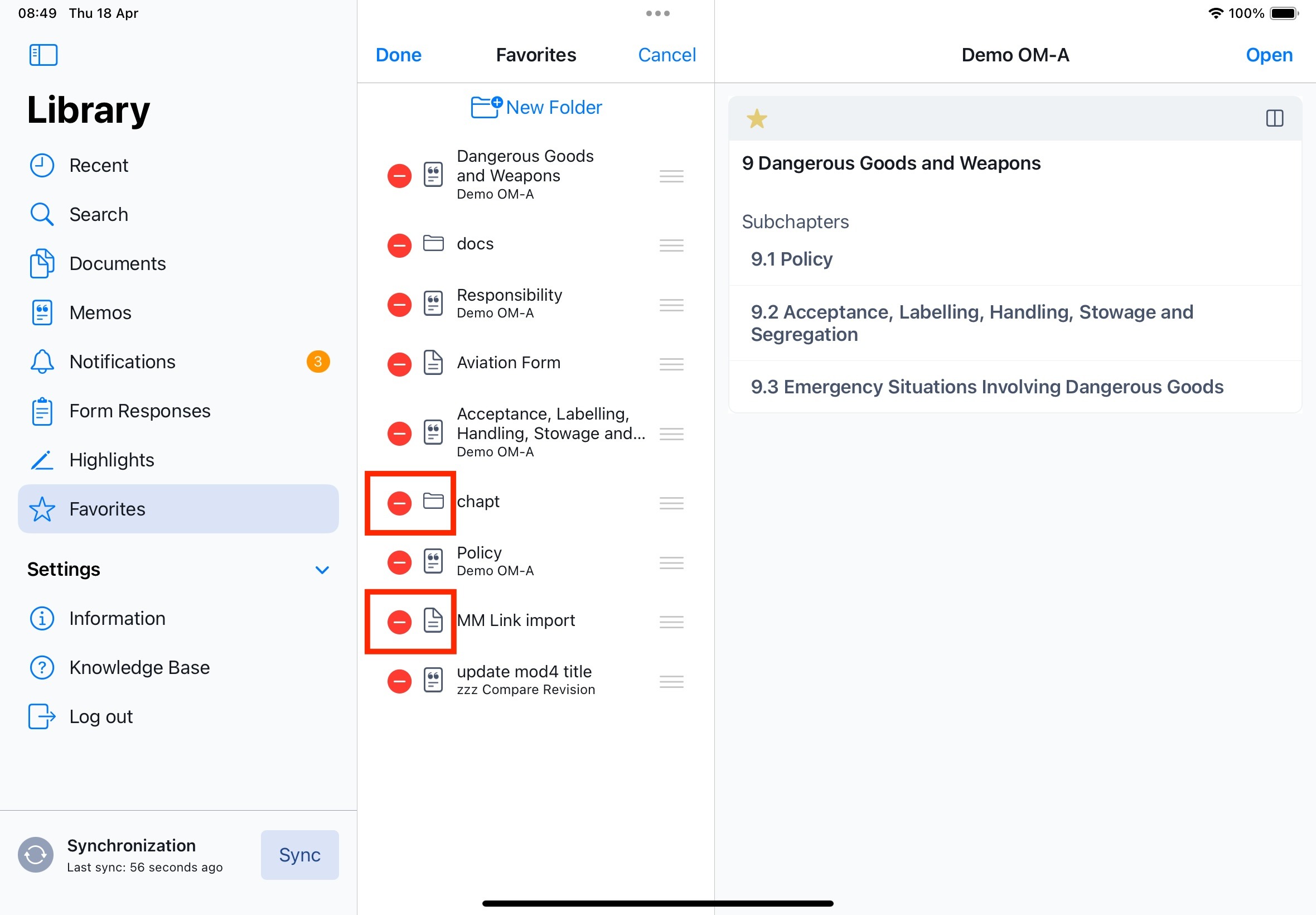
Alternatively, you can delete an item by long-pressing on it in the list and selecting the trash bin icon:
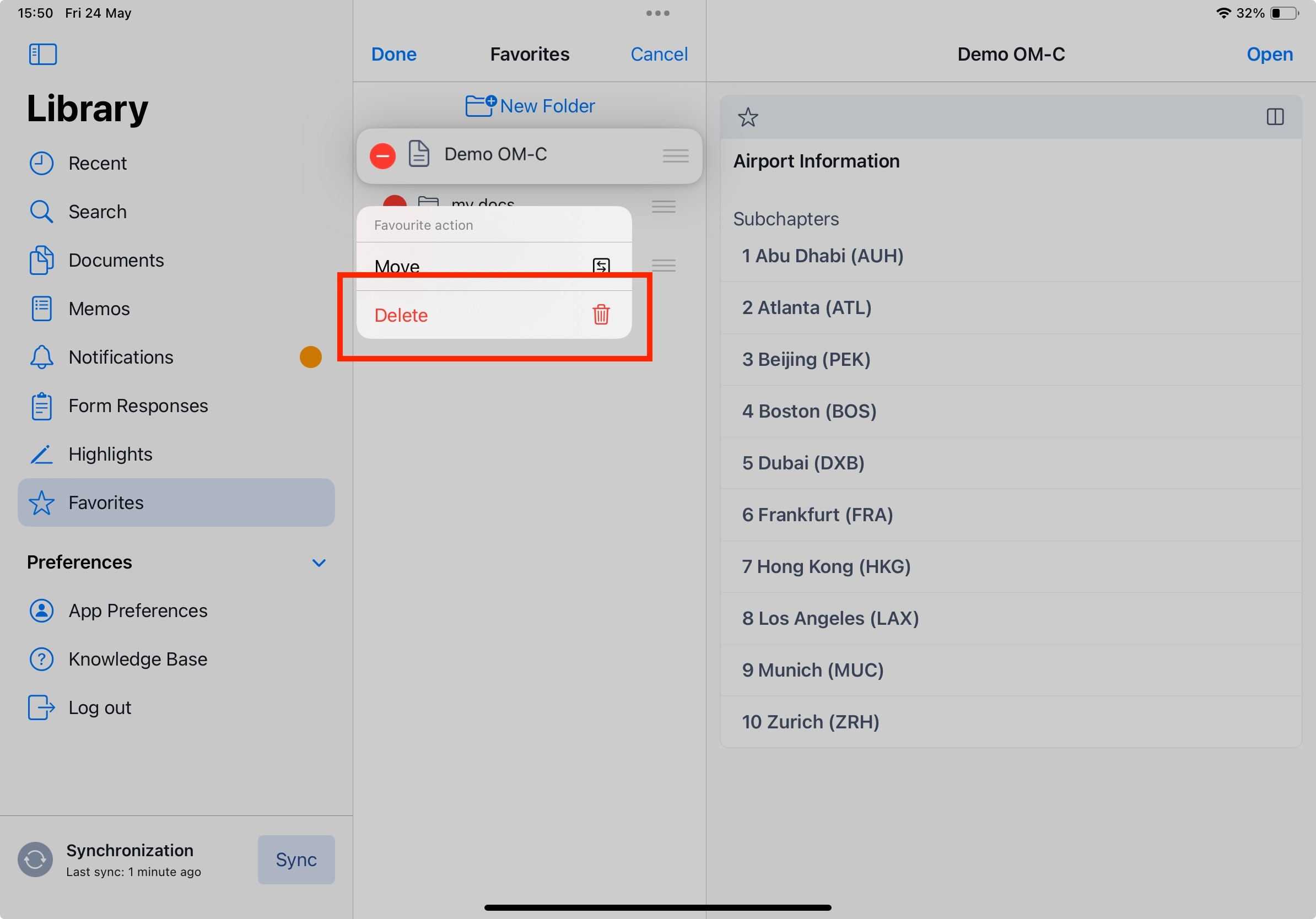
$Note:
- When deleting a Folder that contains Favorites, you will be prompted to decide whether to also delete all Favorites within the folder or retain them. If you choose to delete only the folder without its contents, all favorites will be moved to your ungrouped favorites for easy access.
Filtering Favorites
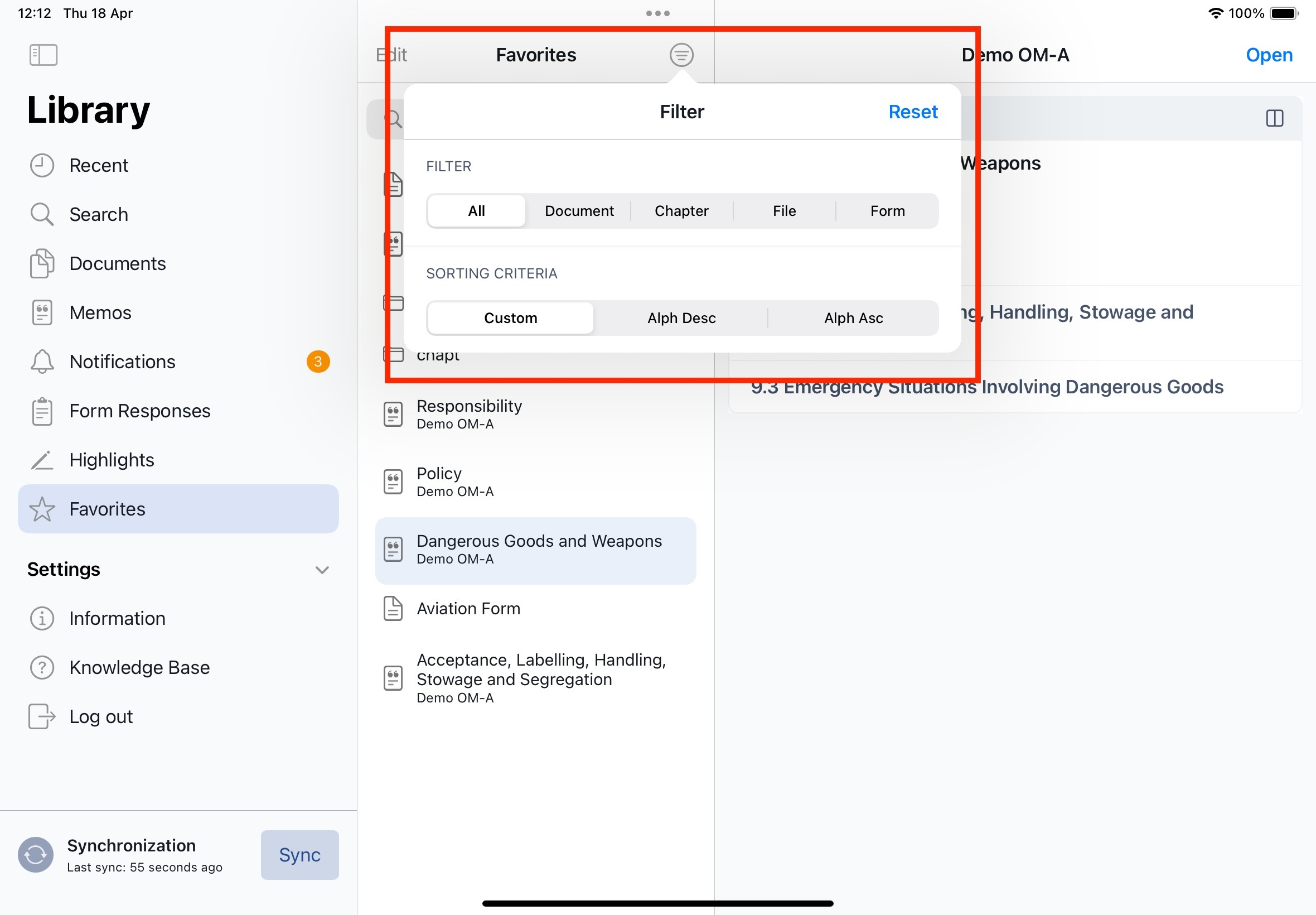
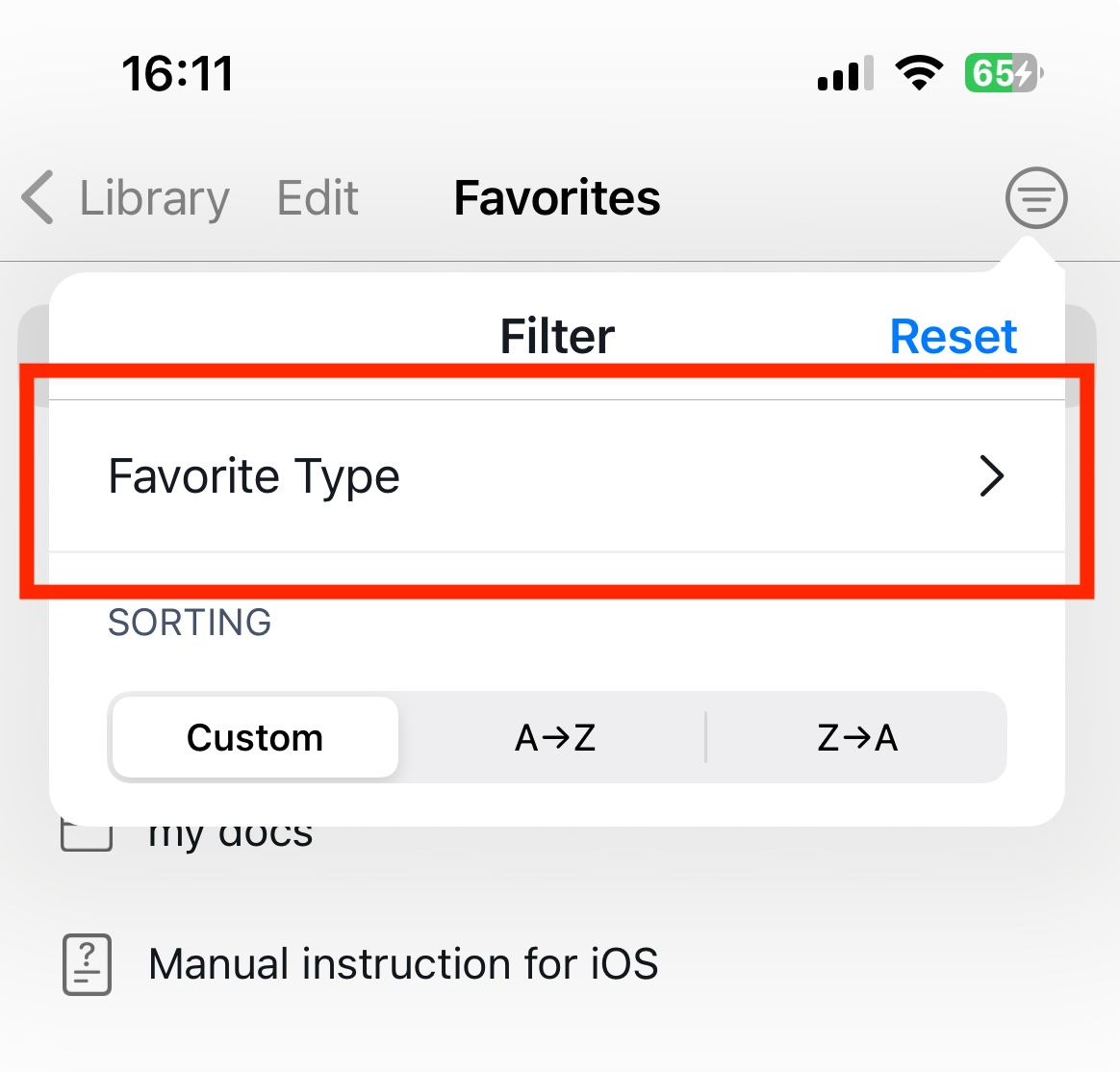
You can filter you favorites according to document type. Simply click on the filter icon in the secondary Favorites sidebar and select the desired file type.
On the iPhone (in compact mode), filters are presented in a list selector due to limited space.
Search for a Favorite
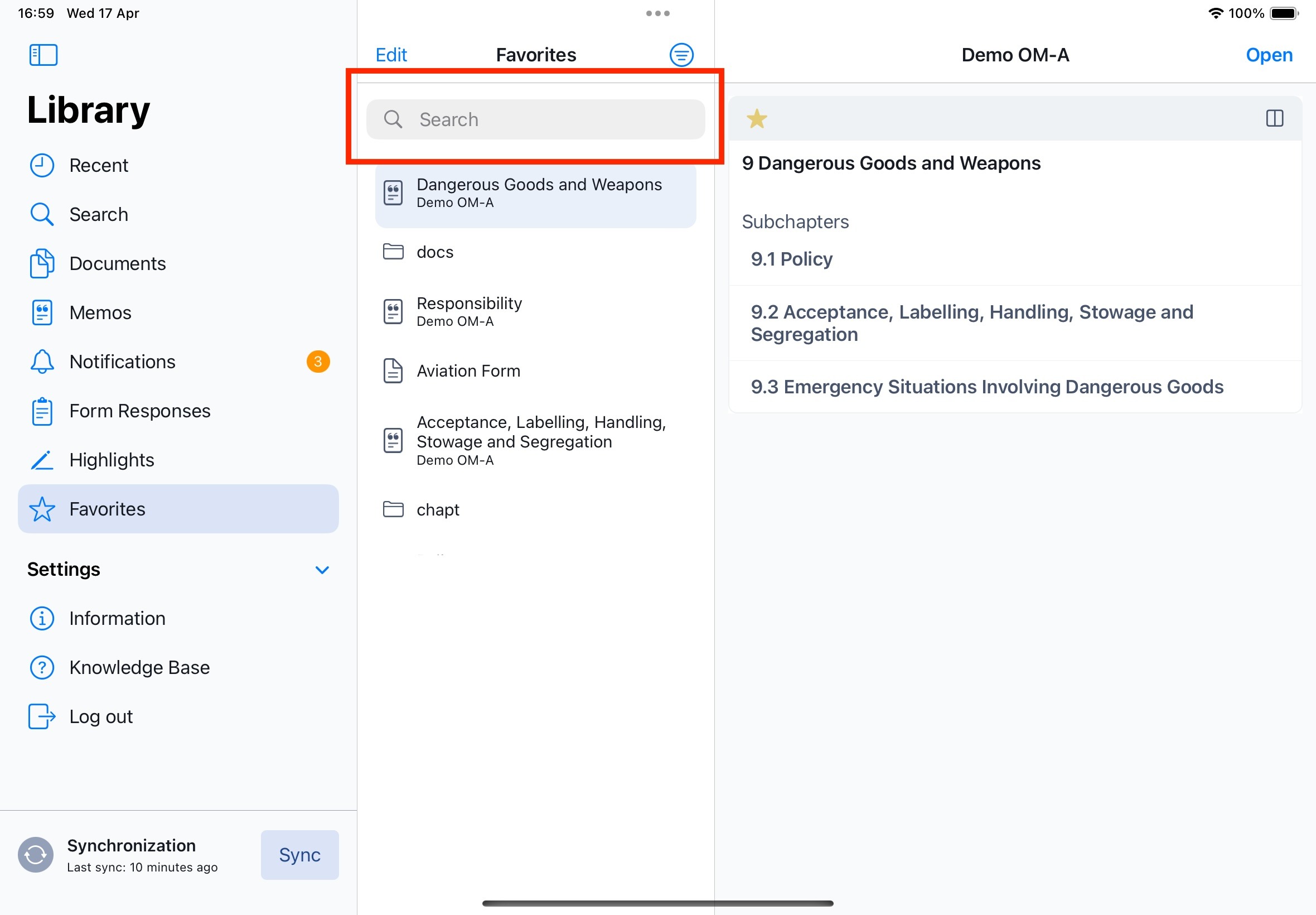
Simply enter the search term in the corresponding search field in the secondary Favorites sidebar.
Search results include all objects containing the search term:
- Favorites of all document types
- Folders
Synch Behaviour for Favorites
When synchronizing your offline mobile app, please proceed with caution to avoid data conflicts.
- Favorites are synchronized based on their last modified date.
- The most recent update always takes precedence — regardless of whether the change was made on mobile or web.
- The last update date reflects the exact moment a Favorite was added, updated, or removed by the user.Example Scenario
If you make changes to your Favorites while offline in the mobile app, be sure to:
- Reconnect to the internet.
- Allow the app to synchronize before making further changes in the web app.
If you modify Favorites on both platforms without syncing first, the system will use the most recent change (based on the last modified timestamp), potentially overwriting earlier updates.
This ensures data consistency but requires careful syncing to prevent unintentional loss of change.
Important!
When synchronizing your offline mobile app, please proceed with caution to avoid data conflicts. The most recent update always takes precedence - regardless whether the change was made on mobile or web.
Was this article helpful?
That’s Great!
Thank you for your feedback
Sorry! We couldn't be helpful
Thank you for your feedback
Feedback sent
We appreciate your effort and will try to fix the article