TABLE OF CONTENTS
Overview
The Quick Access Button (QAB) provides:
- Immediate access to a mission-critical document
- Tenant-wide configuration with per-user customization
- Full cross-platform synchronization (initially iOS only)
- A persistent, visible, and intuitive UI element
This feature is particularly suited for operational environments where fast access to critical documentation is essential.
The Quick Access Button (QAB) is a feature that can be enabled by the admin user. It provides users with fast access to a predefined document directly from anywhere within the application. The button appears as a floating element that is visible across all screens in both the web client and the offline app (if enabled).
This QAB and its size and color is configurable centrally for all users of the organization, the required document is customizable per user.
Enabling the Quicky
In the Admin Console under Global Settings you find new tab “Quick Access Button”: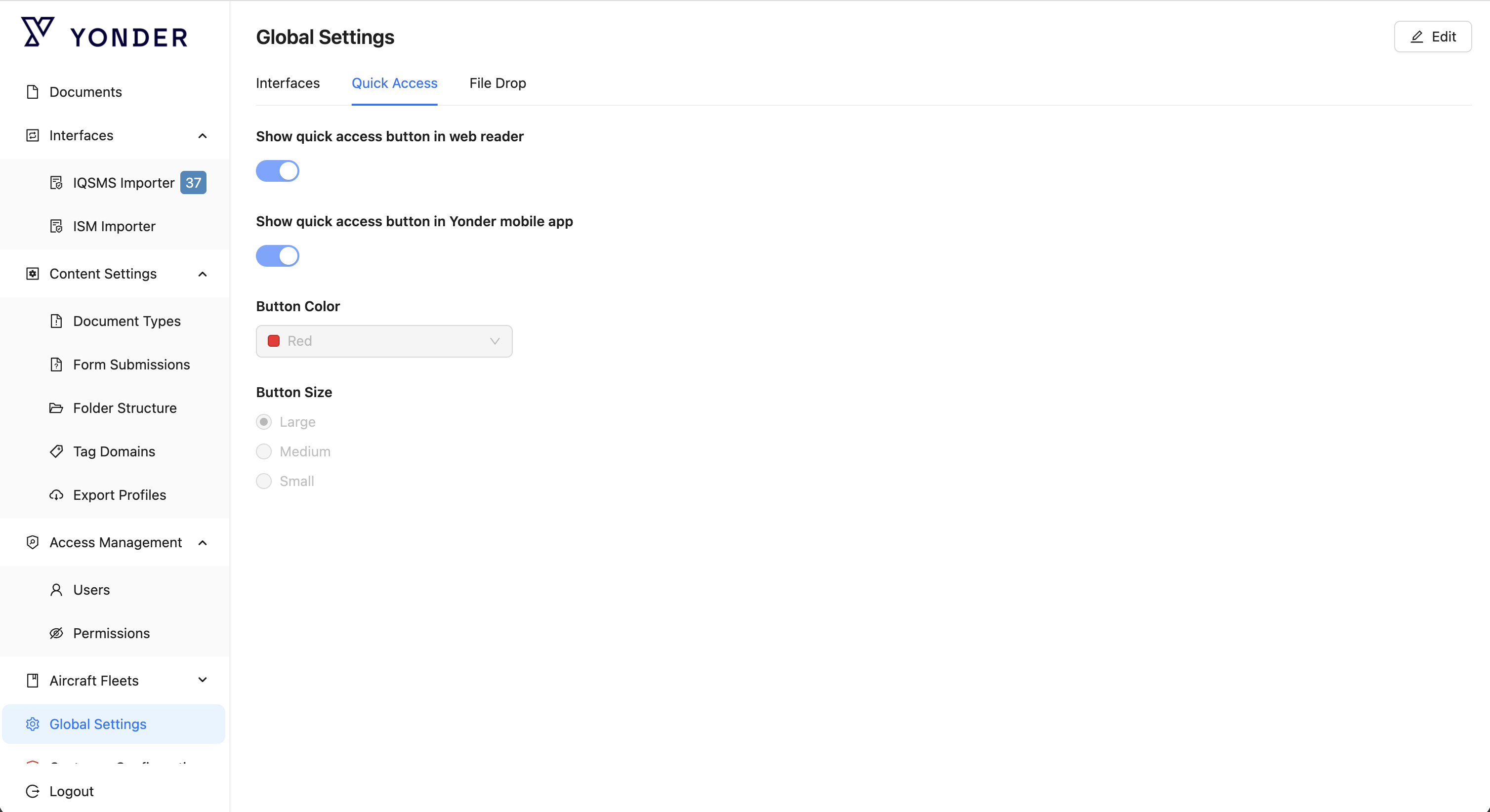
Configuration
Administrators can configure the following below options. To modify the settings, click Edit. To apply your changes, click Save.
Enable / Disable
- Turn the Quick Access Button on or off for all users in the Web Client
- Turn the Quick Access Button on or off for all users in the Offline App
The visibility of the button in each client strictly follows these global settings.
Button Appearance
Administrators can define:
Color (predefined options selectable via drop down):
- Yellow
- Red
- Purple
- Blue
- Green
- Black
Size (predefined options selectable via radio buttons):
- Large
- Medium
- Small
Note: If no Quick Access Document is set by the user, the button will appear in grey.
User Configuration
If the Quick Access Button is enabled globally, each user can define their own Quick Access Document.
The Quick Access Document can be:
- A Yonder Smart Document
- A File Drop file
This flexibility is essential for operational use cases.
Button Behavior
If a Quick Access Document is set:
- The button color follows the Global Settings
- The button label displays the title of the selected document
If no Quick Access Document is set:
- The button color is grey
- The label displays:
“No quick access document set”
When Clicking the Quick Access Button
When a user clicks the button:
- The currently valid version of the document is opened
- The document opens at the top of the first content flow
- The user is always directed to the latest applicable version
Synchronization
The selected Quick Access Document is synchronized between:
- Web Client
- Mobile / Offline App
The synchronization follows the same principle as Favorites, ensuring a consistent experience across devices.
- The Quick Access Button is made available or removed on the offline device through synchronization.
- Documents (including the Quick Access Document) are made available, updated, or removed across platforms by synchronizing the offline device.
The selected Quick Access Document is synchronized between Web and Mobile using the same principle as Favorites, ensuring a consistent experience across devices.
Was this article helpful?
That’s Great!
Thank you for your feedback
Sorry! We couldn't be helpful
Thank you for your feedback
Feedback sent
We appreciate your effort and will try to fix the article