TABLE OF CONTENTS
- Overview
- Setting the Quick Access Document
- Removing the Quick Access Document
- Using the Quick Access Button
- Synchronization
Overview
The Quick Access feature allows users to define a Quick Access Document for fast access to frequently used or mission-critical content.
The availability of the Quick Access Button is controlled by the company administrator. If enabled at company level, users can set their personal Quick Access Document.
The Quick Access Document can be set directly from the document list and is opened via a floating Quick Access Button that is visible throughout the app.
Button Appearance and Behavior
The following settings are defined by the administrator at company level (for all users) and not in the app:
- Button availability (enabled or disabled)
- Color (predefined color selection)
- Size (large, medium, small)
Users cannot change these visual settings.
If no Quick Access Document is set but the button is enables:
- The button's text appears in grey.
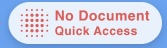
- The label indicates that no Quick Access Document is defined
- If the Quick Access feature is not enabled by the administrator, the button is NOT displayed in the app, and users cannot select or set a Quick Access document.
Setting the Quick Access Document
To set a Quick Access Document on iPad:
- Open the Documents list.
- Hover over the desired document.
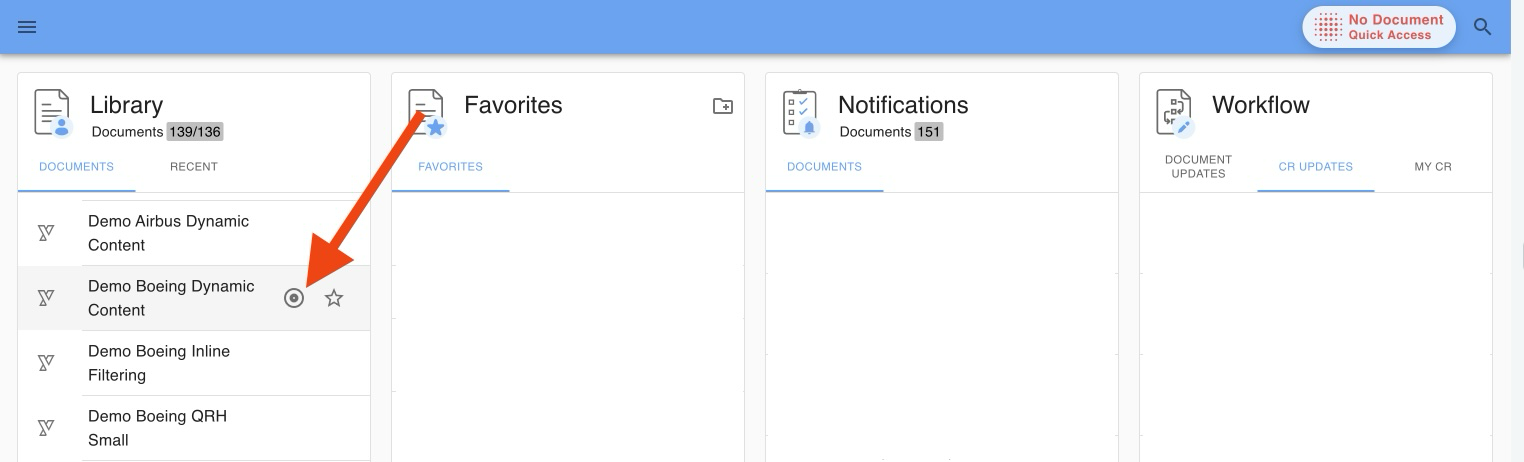
- Click on the button.
The selected document is now marked as your Quick Access Document.
The Quick Access Document can be:
- A Yonder Smart Document
- A File Drop file
Only one Quick Access Document can be defined at a time.
Removing the Quick Access Document
To remove your Quick Access Document via button:
- Long-press the Quick Access Button.
- Select Remove from Quick Access.
- Confirm the action.
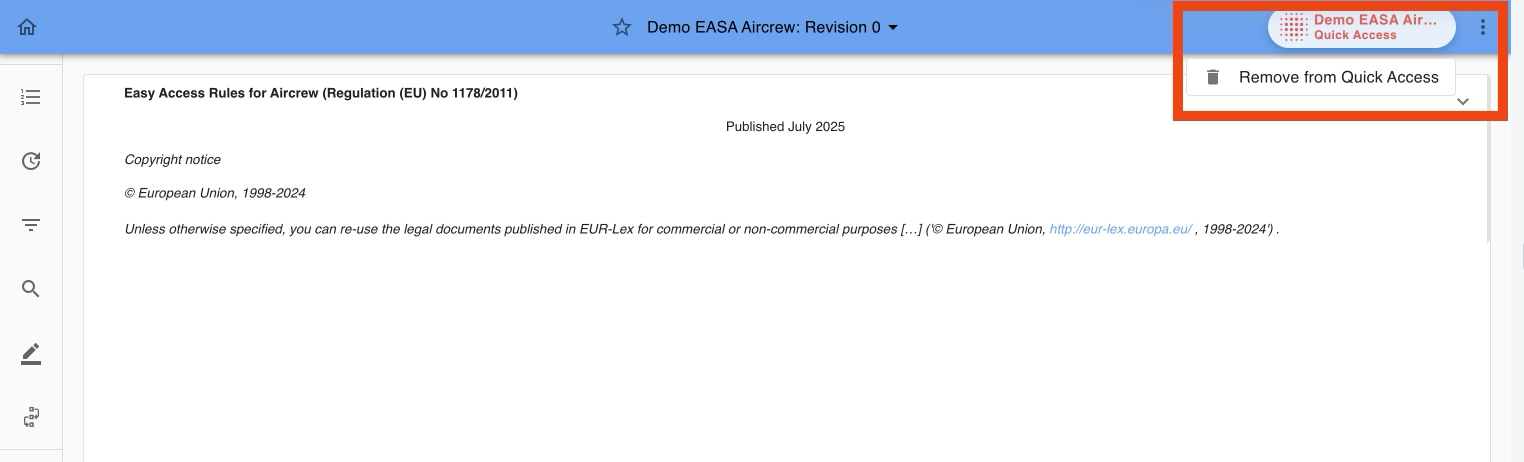
or in the documents list:
- Open the Documents list.
- Scroll to the desired document.
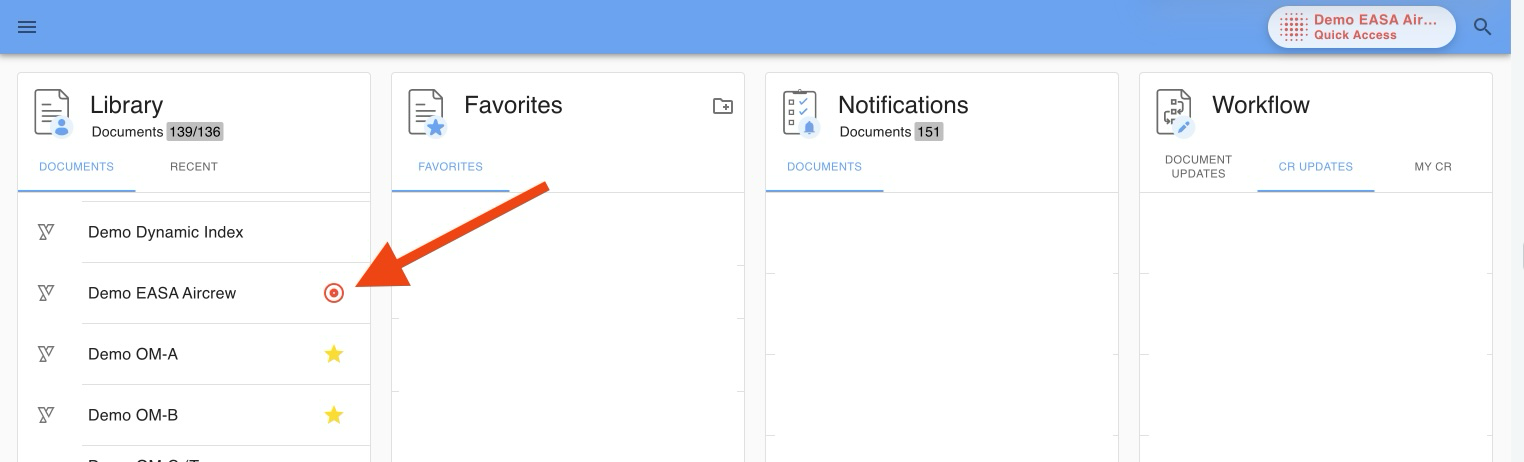
- Click on the button.
After removal:
- The Quick Access Button remains visible (if enabled by the administrator).
- The button's text appears grey.
- No document is assigned until a new Quick Access Document is set.
Using the Quick Access Button
Once a Quick Access Document is set:
- A round, floating button appears on all screens in the app.
- The button is semi-transparent and floats above the content.
- Tapping the button opens the currently valid version of your Quick Access Document.
- The document always opens at the top of the first content flow.
- The Quick Access Document can be opened multiple times.
Synchronization
The Quick Access Document is synchronized between Web and Mobile.
If you change your Quick Access Document on one device, the change will be reflected on other devices after synchronization.
Was this article helpful?
That’s Great!
Thank you for your feedback
Sorry! We couldn't be helpful
Thank you for your feedback
Feedback sent
We appreciate your effort and will try to fix the article