TABLE OF CONTENTS
Overview
The Email tab facilitates the settings allowing you to control how users are informed about newly released documents and revisions. Depending on your needs, you can choose between real-time notifications, daily summaries, or ad-hoc targeted announcements to specific groups.
These options are designed to balance speed of communication and email volume:
- Use Instant Release Emails for immediate awareness of changes
- Use Daily Email Summaries to reduce inbox noise by consolidating updates
- Use Email Announcements to send targeted communications to selected groups at the moment of release
Each type operates independently and does not interfere with the others’ delivery logic or content scope.
All settings can be configured under Global Settings > Email and work independently of workflow-driven notifications.
Daily Email Summaries
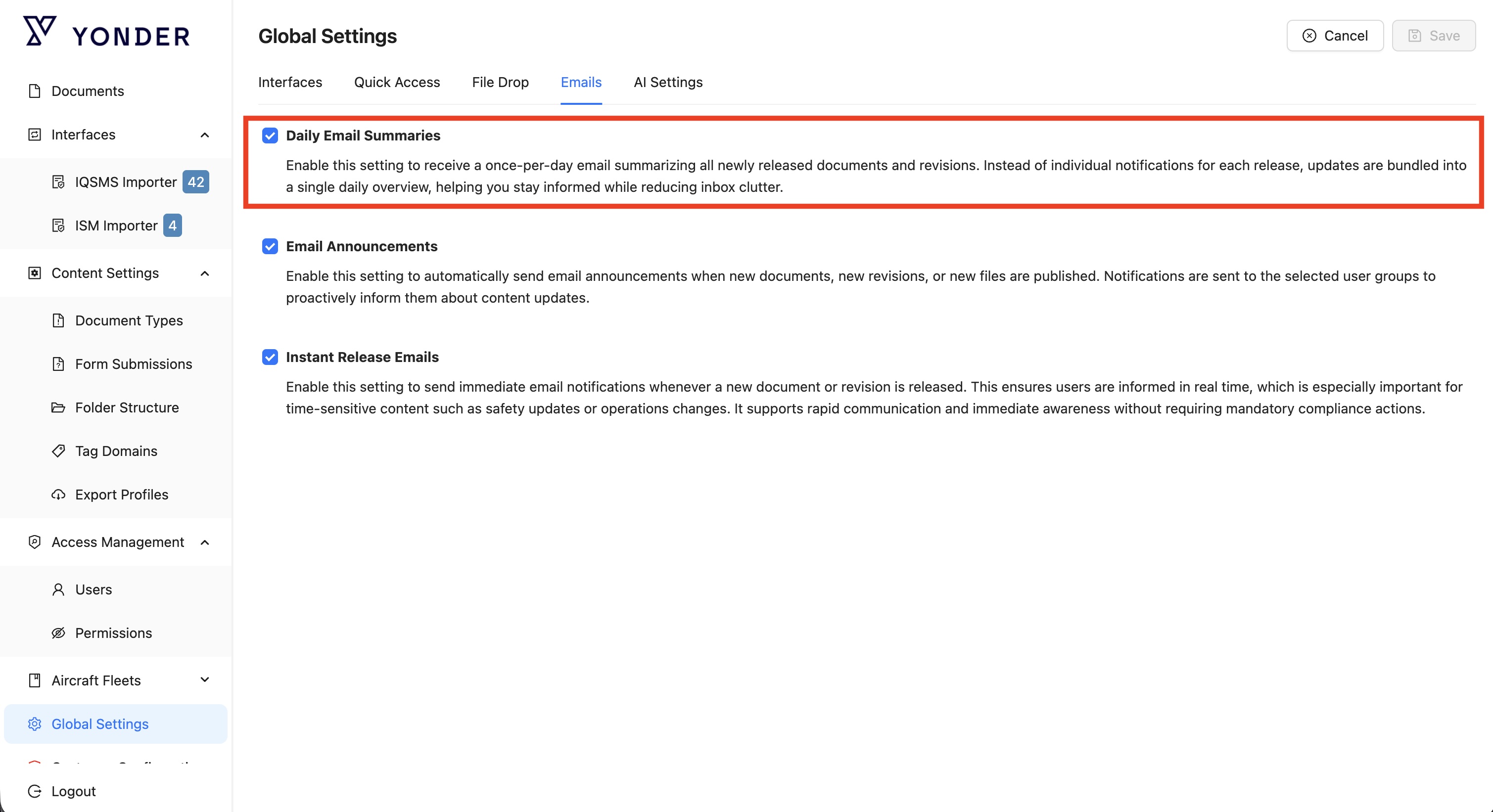
Enable this setting to receive a daily summary email of all newly released documents and revisions.
Behavior:
- Without this setting enabled:
→ An individual email is sent for each document release - With this setting enabled:
→ No per-release emails are sent
→ All updates are consolidated into a single daily summary email - Summaries will be sent midnight UTC.
This reduces email volume while ensuring all changes remain visible.
Enabling Daily Email Summaries
To enable it:
- Go to Global Settings > Email
- Activate Daily Email Summaries
Once enabled, the modal will appear when releasing a document:
Email Announcement
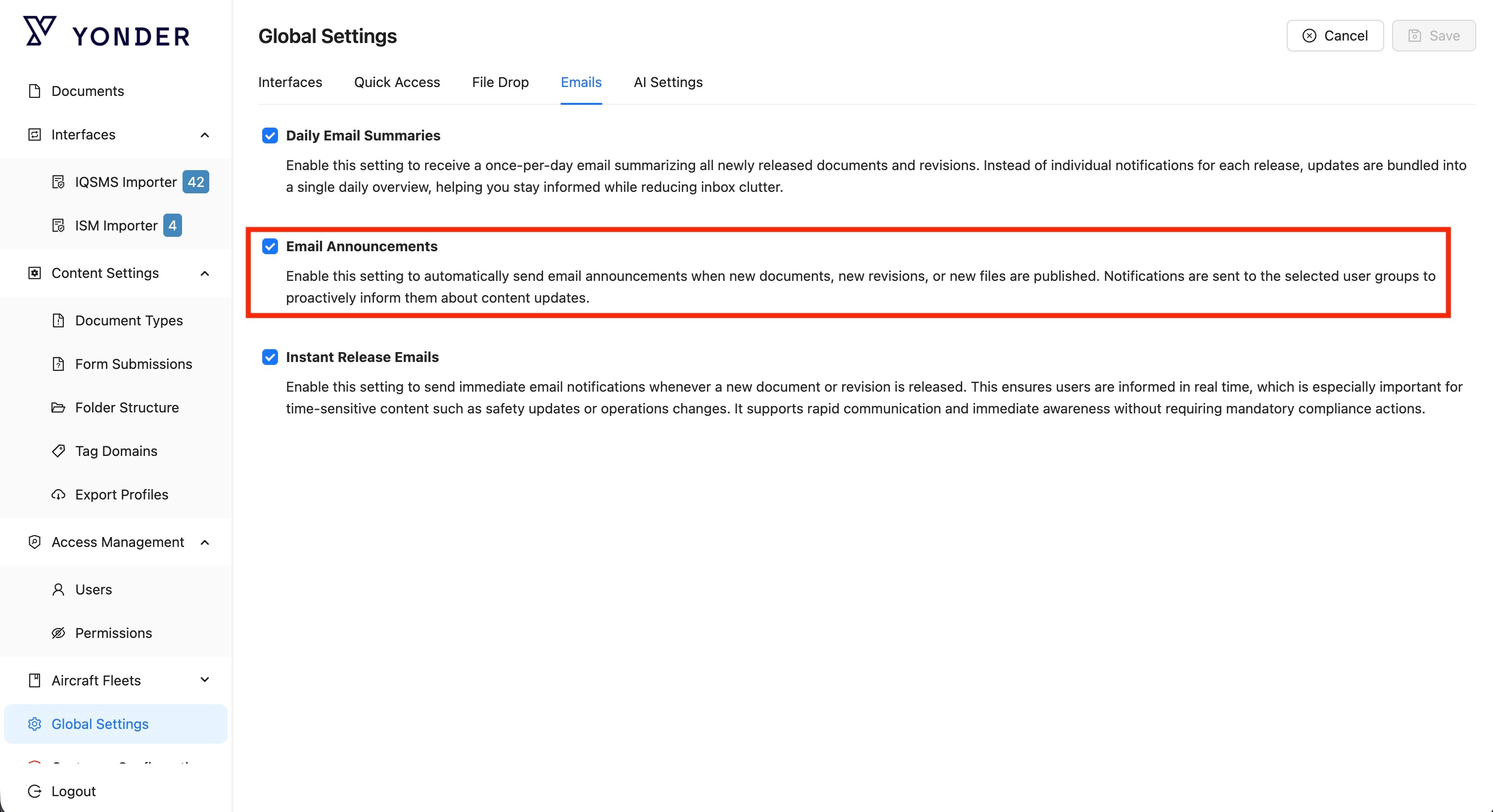
The Email Announcement feature allows admins to notify selected user groups immediately when a document is released independently of workflow notifications or tasks.
The Email Announcement feature allows admins to notify selected user groups immediately when a document is released.
Behavior:
- When enabled:
→ A selection modal appears during the release process
→ Admins can choose which groups should receive the email announcement
This provides direct and controlled communication at the moment of release.
Enabling Email Announcements
The modal is shown only if the feature is enabled.
To enable it:
- Go to Global Settings > Email
- Activate Instant Email Announcements
Once enabled, the modal will appear when releasing a document:
How to use Email Announcements
- Open a document or revision in the Admin Console
- Upon Release a popup appears:
- Select one or more organization groups
- Only groups with permission canReceiveChangeTasks = true are available
- Choose one of the following:
- Proceed with selected groups → sends email announcements
- Proceed without email announcements → skips email sending
What happens after release?
- Emails are sent immediately to all users in the selected groups
- This applies to:
- Smart Documents
- Filedrop files
- The selected groups are logged in the history
Additional capabilities
- Resend email announcements after:
- Releasing a smart document
- Updating a filedrop file
Notes
- Email announcements are separate from workflow notifications and tasks
- Group visibility may depend on user permissions
- The feature currently works via backend-triggered email dispatch after release
Summary
This feature gives admins a simple way to communicate important changes instantly, without relying on workflow-driven notifications—ensuring the right audience is informed at the right time.
Instant Release Emails
Enable this setting to send immediate email notifications whenever a new document or revision is released.
Behavior:
- When disabled:
→ No automatic email is sent on release - When enabled:
→ An email is sent instantly for each new document or revision
→ Notifications are delivered in real time, without delay
This ensures timely communication for critical updates, while remaining independent of mandatory workflow or compliance actions.
Enabling Instant Release Email
To enable it:
- Go to Global Settings > Email
- Activate Instant Release Emails
Once enabled, the modal will appear when releasing a document: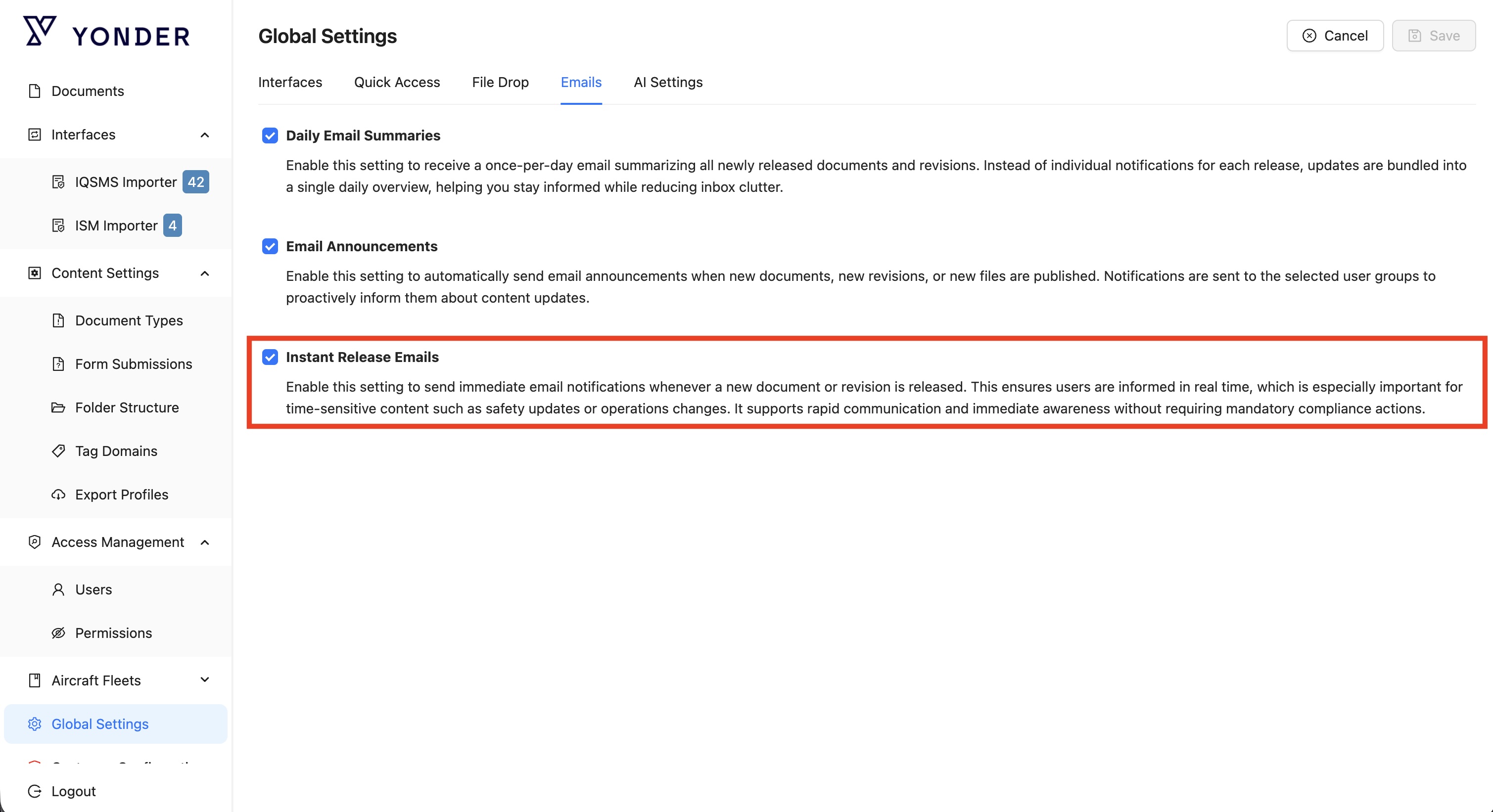
Was this article helpful?
That’s Great!
Thank you for your feedback
Sorry! We couldn't be helpful
Thank you for your feedback
Feedback sent
We appreciate your effort and will try to fix the article