TABLE OF CONTENTS
- General
- Change Requests, Changes & Compliance Tasks
- Task Life-Cycle
- Email Notifications
- Compliance
- Access Your Personalized Notifications (Tasks)
General
This specification outlines the Notifications and Tasks related to compliance within Yonder. It focuses on informing end users about Changes in documents, specifically when Change Requests (CRs) are incorporated, leading to the publication of a new content revision or version and does not consider workflow notifications.
Change Requests, Changes & Compliance Tasks
When new documents are made available or undergo changes, the following process ensures that end users are appropriately informed.
Yonder allows you to create notifications and their corresponding tasks based on Changes you want to communicate. This is typically done for following occurances:
- New content:
A new document is released and you want to inform your workforce accordingly - Revised content:
If Change Requests (CR’s) are incorporated, they result in a Change that is published as a content revision (aka version).
End users are selectively notified based on the necessity of communication. The options include:
- Does a change need to be communicated?
- If yes, a change task can be generated
- If yes, a change task can be generated
- Who needs to be notified?
s to users can be sent out so that they receive personal tasks in their inbos.- Notifications can be sent do defined audiences:
- Named users
- Groups
- Notifications can be sent do defined audiences:
- What is the compliance relevance of the task?
- Read – the task recipient just needs to read the task, no further action needed
- Read & Acknowledge – the task recipient needs to confirm / acknowledge the task
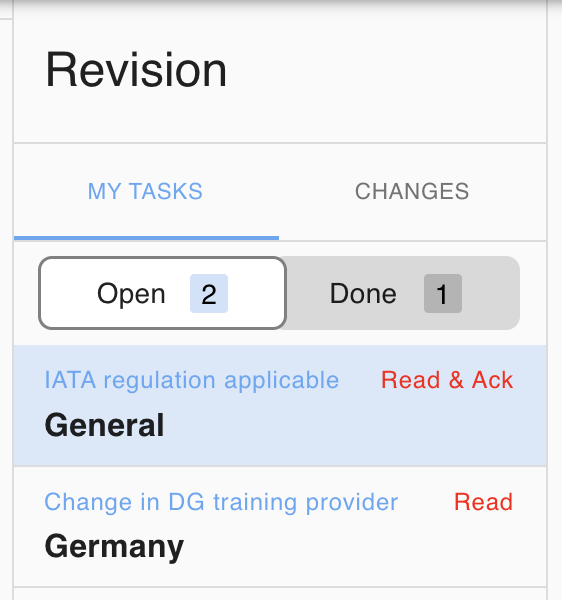
- What is the criticality of the task?
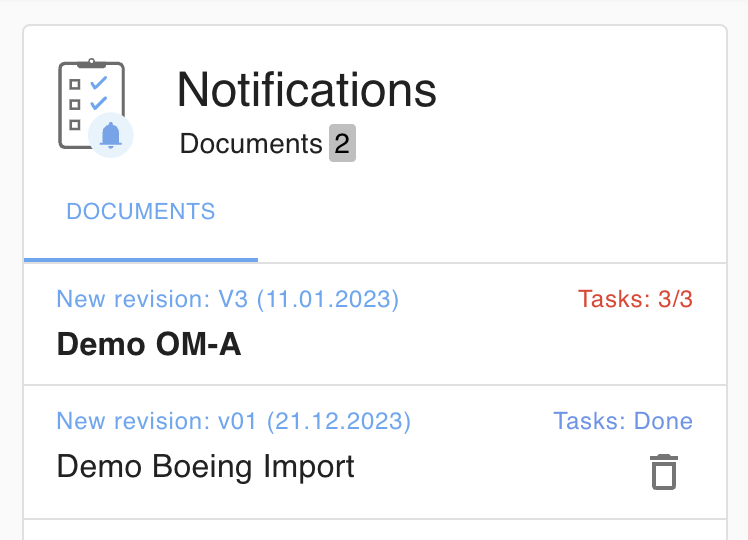
Depending on when the content is being effective, the criticalityof tasks is raised:- Blue: not critical, task has been done
- Orange: change will be effective in the future
- Red: change is effective (today or overdue)
Task Life-Cycle
Tasks undergo following life cycle:
Creation
Tasks are created in Yonder when a document is published respectively released and a change task has been generated.
At this point of time, the tasks are prepared in the system.
Visibility
Tasks respectively their entry in the Notification section are made visible to the recipient (their audicence) when the document is becoming visible.
For certain document types (such as files and memos) the visibility = effectivity and the receipients will be notified upon publication of the content.
Deletion
Tasks respectively their entry in the Notifications section can only be deleted once done (done = read respectively read & acknowledged). This is to ensure that compliance is tracked.
Email Notifications
Email notifications provide direct links to the relevant content, ensuring that you can quickly access and review updates without having to log into the app first.
Structure
Notification emails provide a clear structure and is in alignment with the dashboard tiles. Each notification element in the email is broken down into sections, with individual items listed as direct links.
- Workflow Document Updates
You have new workflow document updates in Yonder:- [Name of first document](link to first document)
- [Name of second document](link to second document)
- …
- Workflow CR Updates
You have new workflow CR updates in Yonder:- [Name of first document](link to first document)
- [Name of second document](link to second document)
- …
- General Notifications
You have new notifications in Yonder:- [Name of first document](link to first document)
- [Name of second document](link to second document)
- …
Compliance
The confirmation of tasks (read / read & acknowledge) is used to make sure that your team is informed about the defined changes.
Notifications and the contained tasks are not filtered so that the user has a complete overview over the personal reading status. Notifications can only be deleted once all tasks are done.
A notification with all tasks done is not compliance relevant anymore and can be deleted at any point of time.
The system will therefor log the task confirmation on a user basis. For further details on compliance, please refer to the section Compliance Reports.
Access Your Personalized Notifications (Tasks)
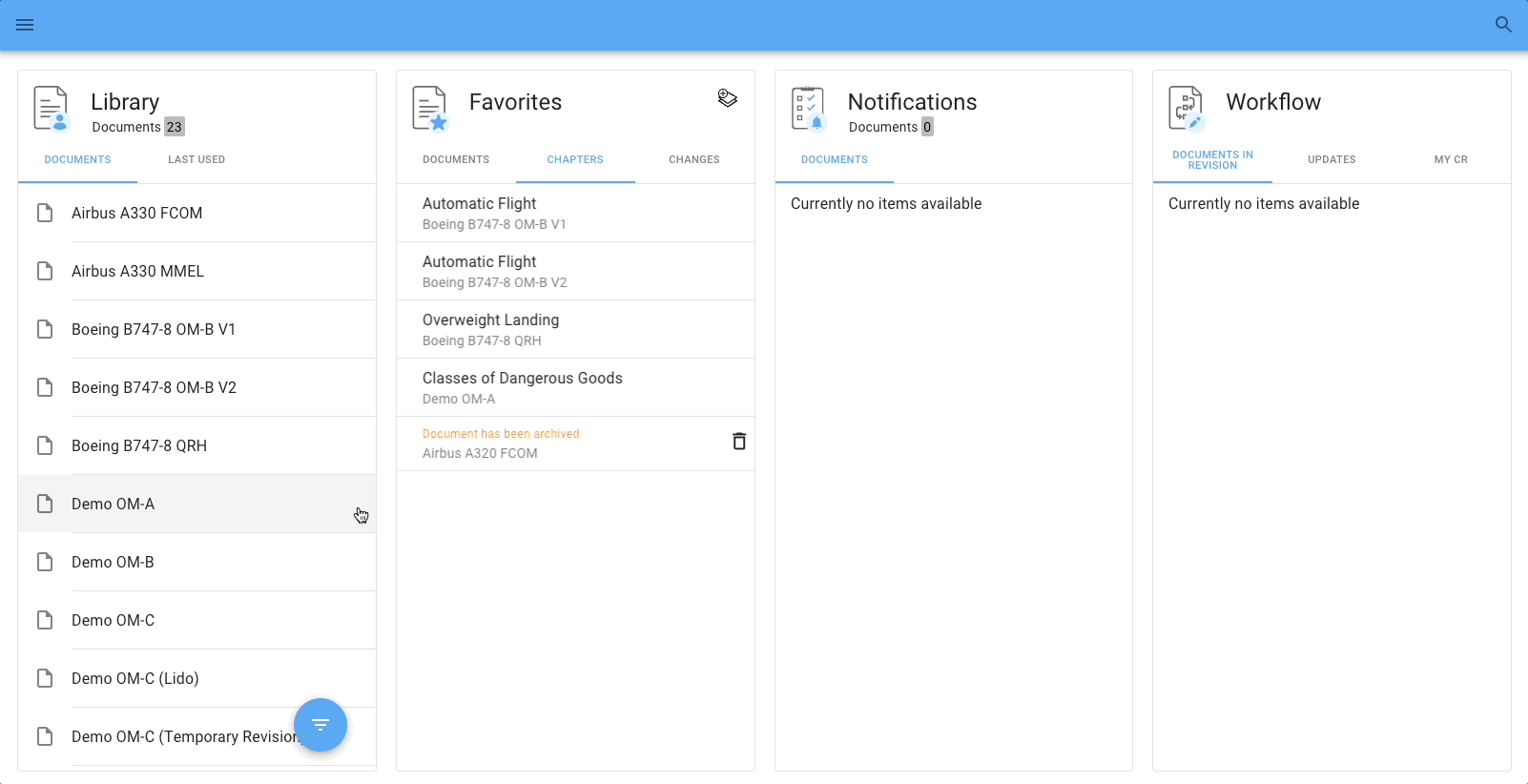
Users are informed about information updates (e.g. revised content, newly published documents) via Yonder's Notifications Center, located on the Yonder Reader Dashboard. These notifications are personalized to your needs, meaning that you are only notified about changes and newly published documents that are relevant to your particular role and mission.
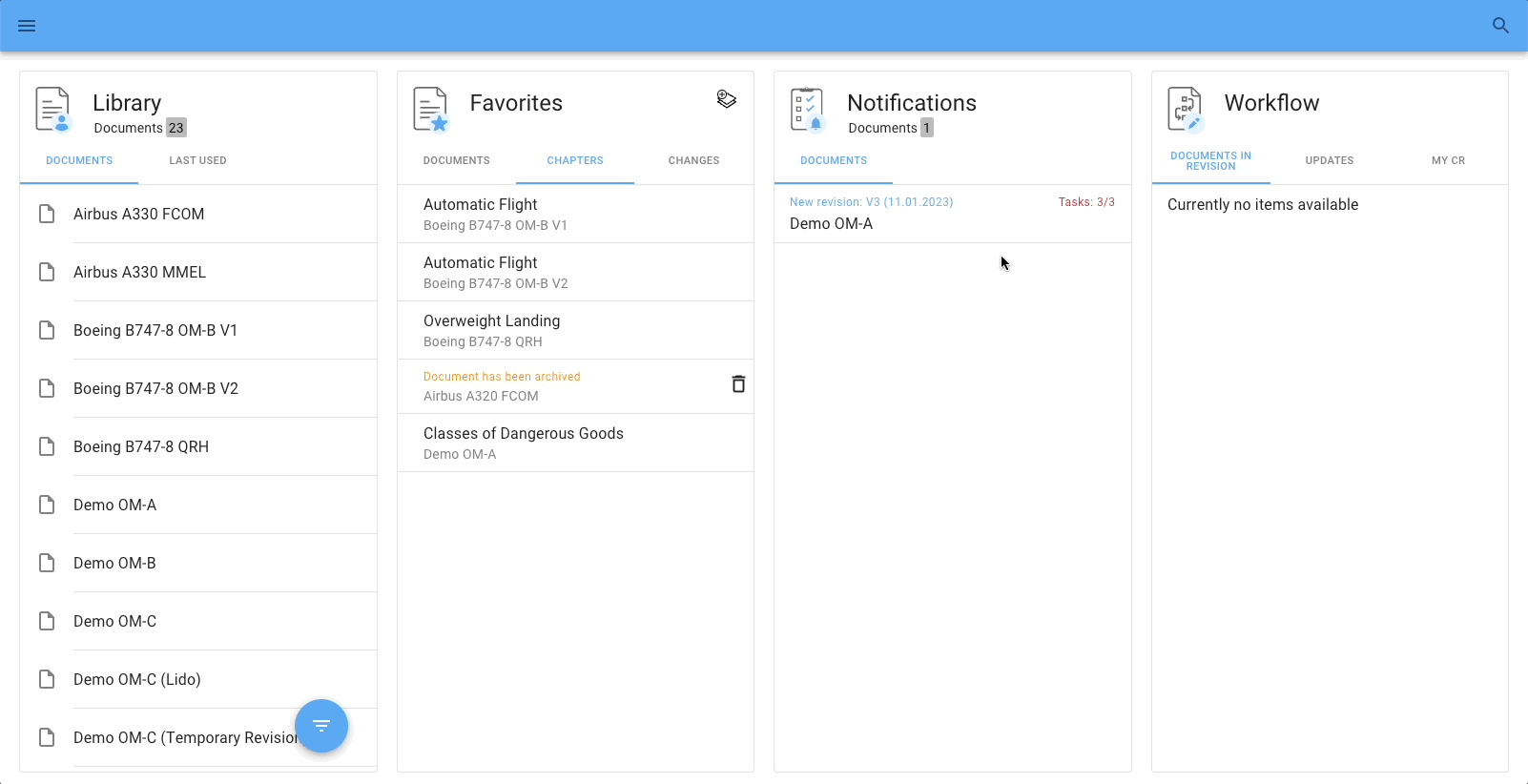
The Notification Center is located on the Yonder Reader Dashboard.
Notifications related to a document revision are always always grouped in the Notification Center. In the example below, there are three changes to a document relevant for the particular user, indicated by the number of tasks shown (= Tasks 3/3).
Explanation of grouped tasks per document and according to the illustration further below:
Tasks 3 / 3 = Open tasks / Total tasks
The illustration below shows how to access and work through these changes.
Notification Types
There are various types of notifications you can receive:
- New document
- New document version
- New file
- New file version
Important note:
- Tasks on files need will only be considered as ‘read’ when you open the task from the Notifications card. If you open the file another way, you still have to ‘confirm’ the task from your notifications to be compliant.
Delete Notifications (Tasks)
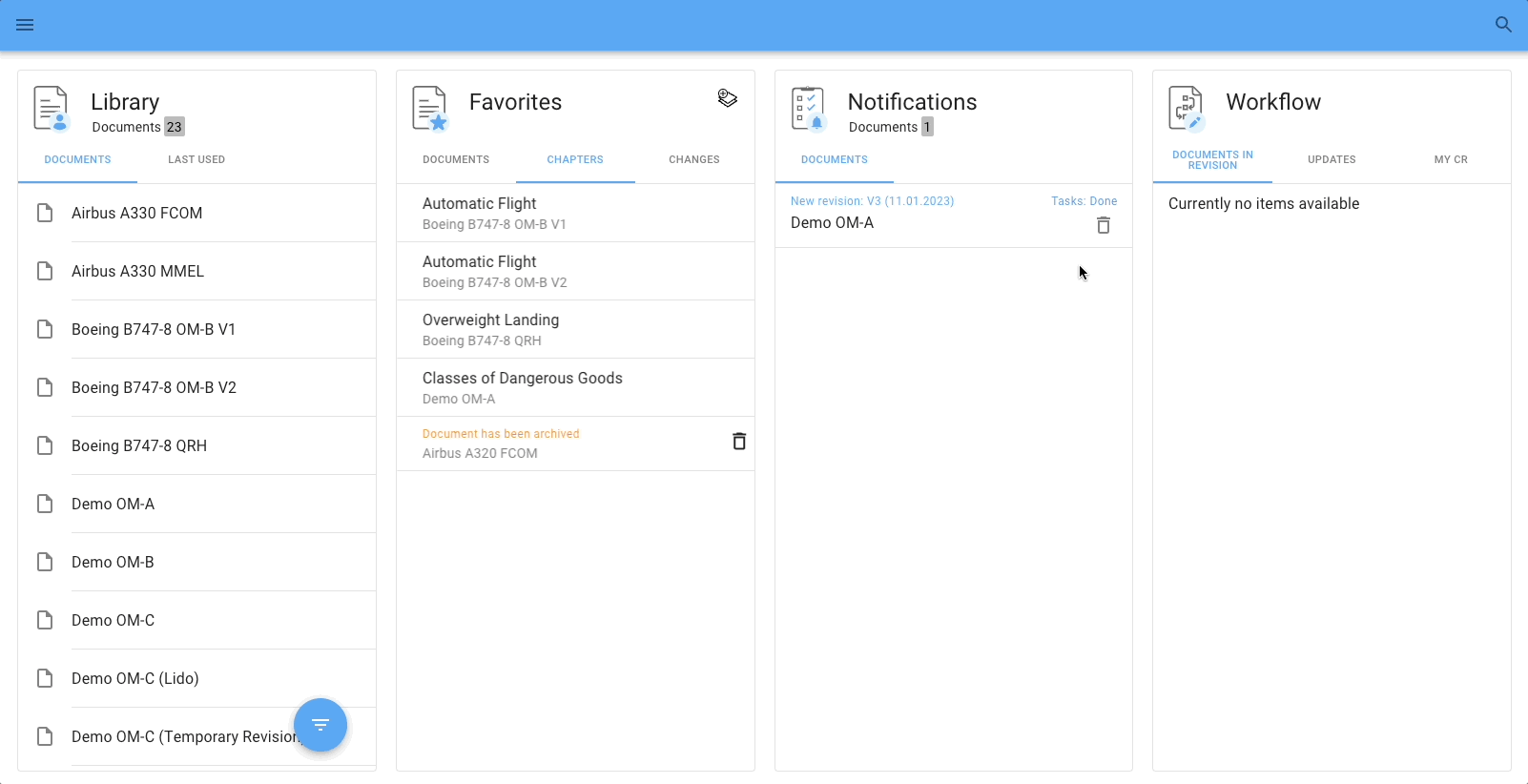
It's possible to remove a notification once users have worked through all of the the related tasks, as visible below.
Important: It's still possible to access these notifications even if they had been deleted. Namely, via navigating to the document and accessing the revision details via the sidebar. This is also illustrated in the illustration below.
Overview Document Changes
All changes to a document can be inspected, namely via the revision tab located in the sidebar of the document view. The revision subtabs display these changes based on the scope:
- MY TASKS: Displays all of the revised items that users have also initially received via the Notification Center, as previously alluded to above (= the changes relevant to their role and mission)
- CHANGES: Displays all of the changes that were part of the latest document revision, regardless whether they are relevant to a user's particular role and mission.
The illustration below shows how to access the change history. It also shows
1. How to compare an item to its predecessor (= click on compare symbol)
2. How to view a change in the context of the document (= close module view)
Was this article helpful?
That’s Great!
Thank you for your feedback
Sorry! We couldn't be helpful
Thank you for your feedback
Feedback sent
We appreciate your effort and will try to fix the article