TABLE OF CONTENTS
Notifications
A Notification is a delivery mechanism that informs users about pending Tasks. It helps ensure that important actions within documents are noticed and addressed promptly.
Key Characteristics
Task Reference: A Notification can reference one or more Tasks.
Non-Compliance: Notifications themselves are not compliance-relevant. They may include additional metadata such as:
Urgency
Due date
Optional message
Deletion: Notifications can be deleted or suppressed without affecting the compliance status, as long as the associated Tasks remain intact.
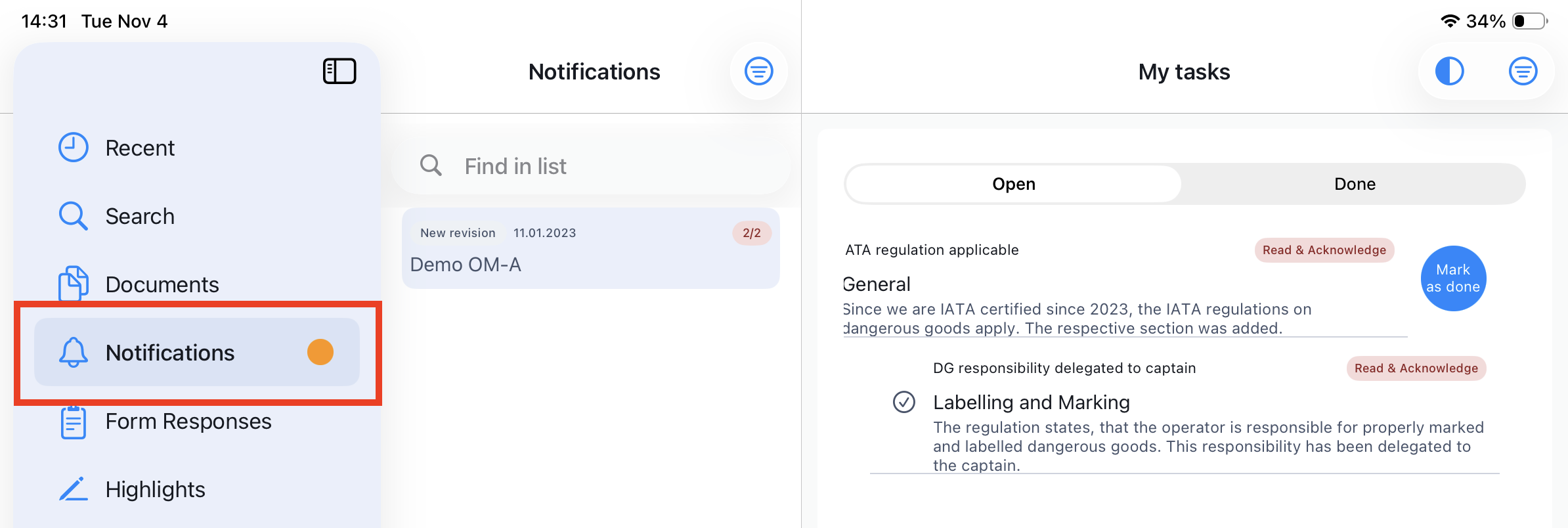
Notification Types
In Yonder, notifications inform you about updates and changes to your documents and files. Each notification type highlights a specific type of activity.
- New Document
- Alerts you when a new document is added to the system.
- New Document Version
- Notifies you when an existing document has been updated with a new version.
- New File
- Indicates that a new file has been uploaded or attached to a document.
- New File Version
- Informs you when an existing file has been updated with a new version.
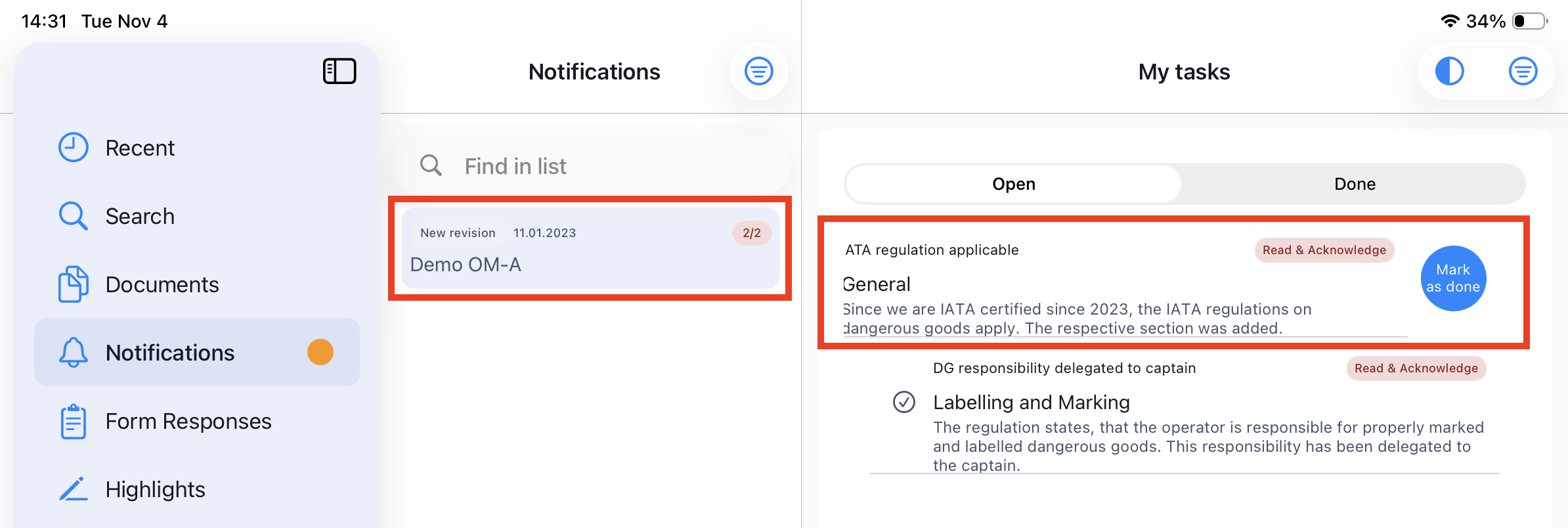
Color coding of the labels (notification & compliance tasks:
Blue: notification (and its tasks) are done
Red: notification (and its tasks) are not yet done
Compliance Task
When working with tasks in your document, you can swipe the task to the left to mark as done.
Note: if the task needs to be acknowledged for compliance reasons, a confirmation message has to be verified.
- A Task represents a compliance-relevant action required from a user in relation to a document (e.g., Read, Read&Acknowledge) to confirm the understanding.
- Compliance status is derived solely from the state of the Task, not from the Notification.
- Tasks are:
- Created based on Change Requests and user / group assignment.
- Immutable
- Auditable, time-stamped, and user-specific.
- The source of truth for audit trails and compliance reporting.
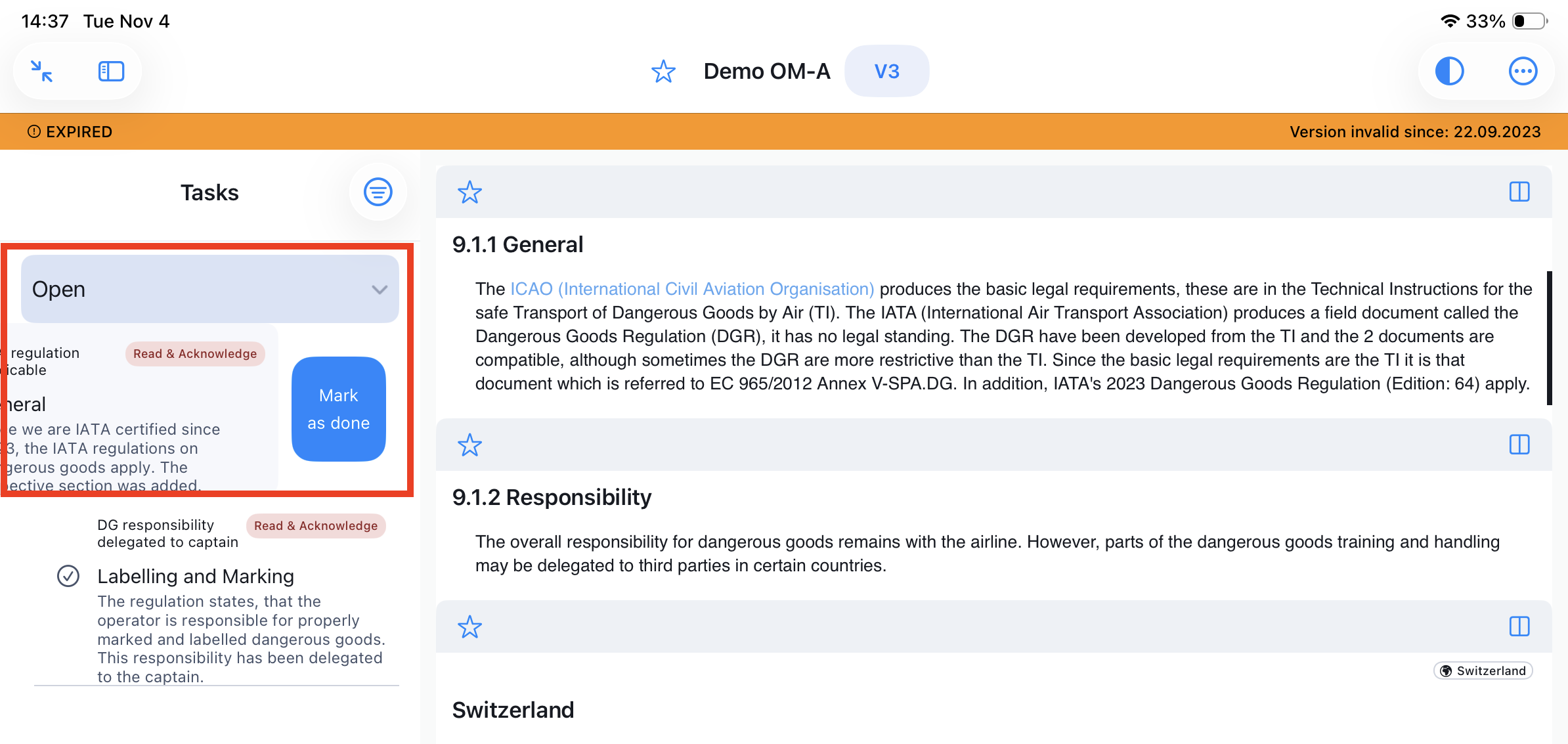
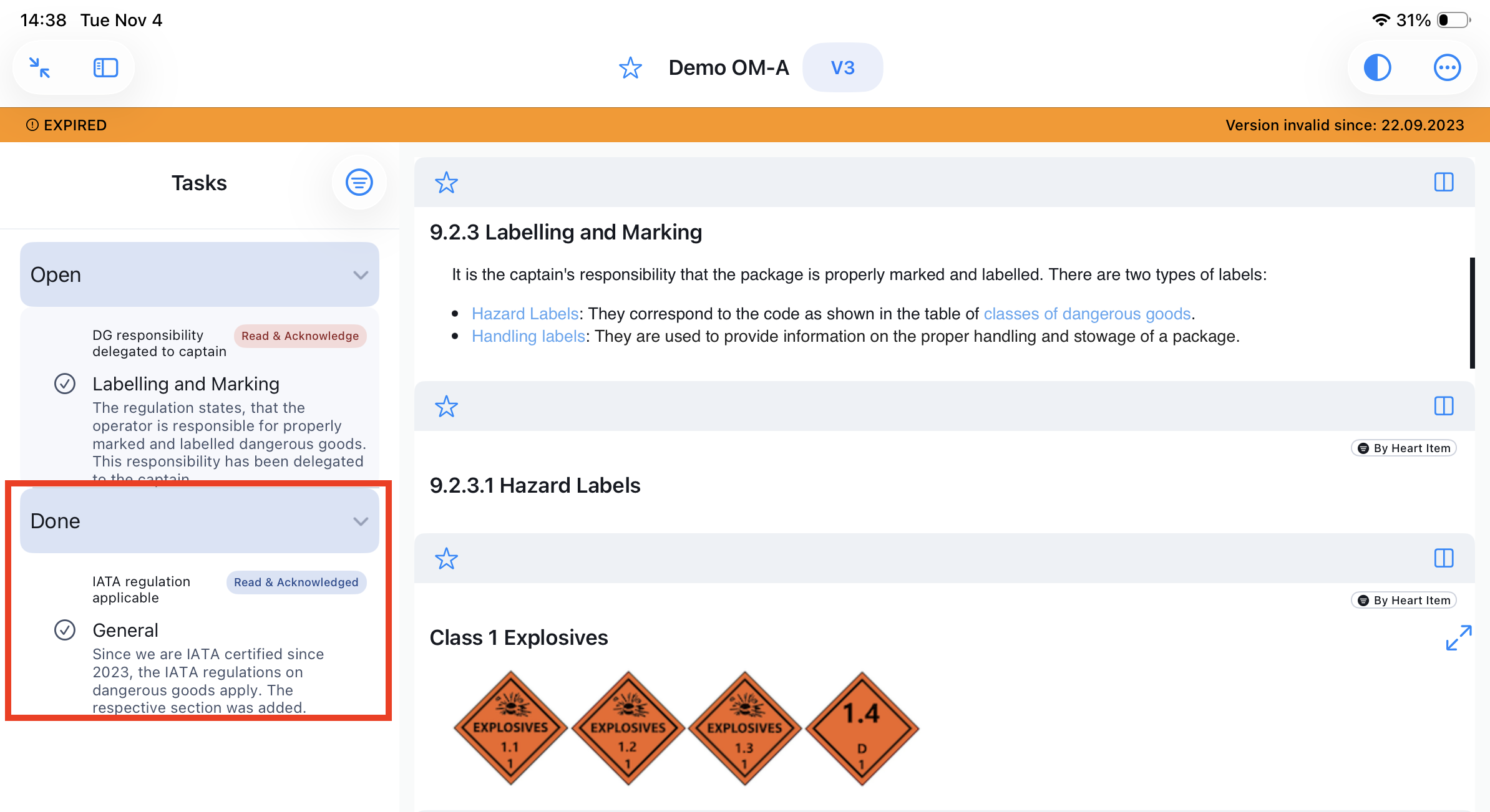
You can find all done tasks under the done section:
Important Note:
- Notifications for files are added in your Notifications card. As files are opened in other applications (PDF reader, Office tools), the task will be marked as ‘read’ when you open the file from the entry in your Notifications list.
It will not be marked as read, if you open the file in other ways - the task notification needs to be confirmed!
Task Management
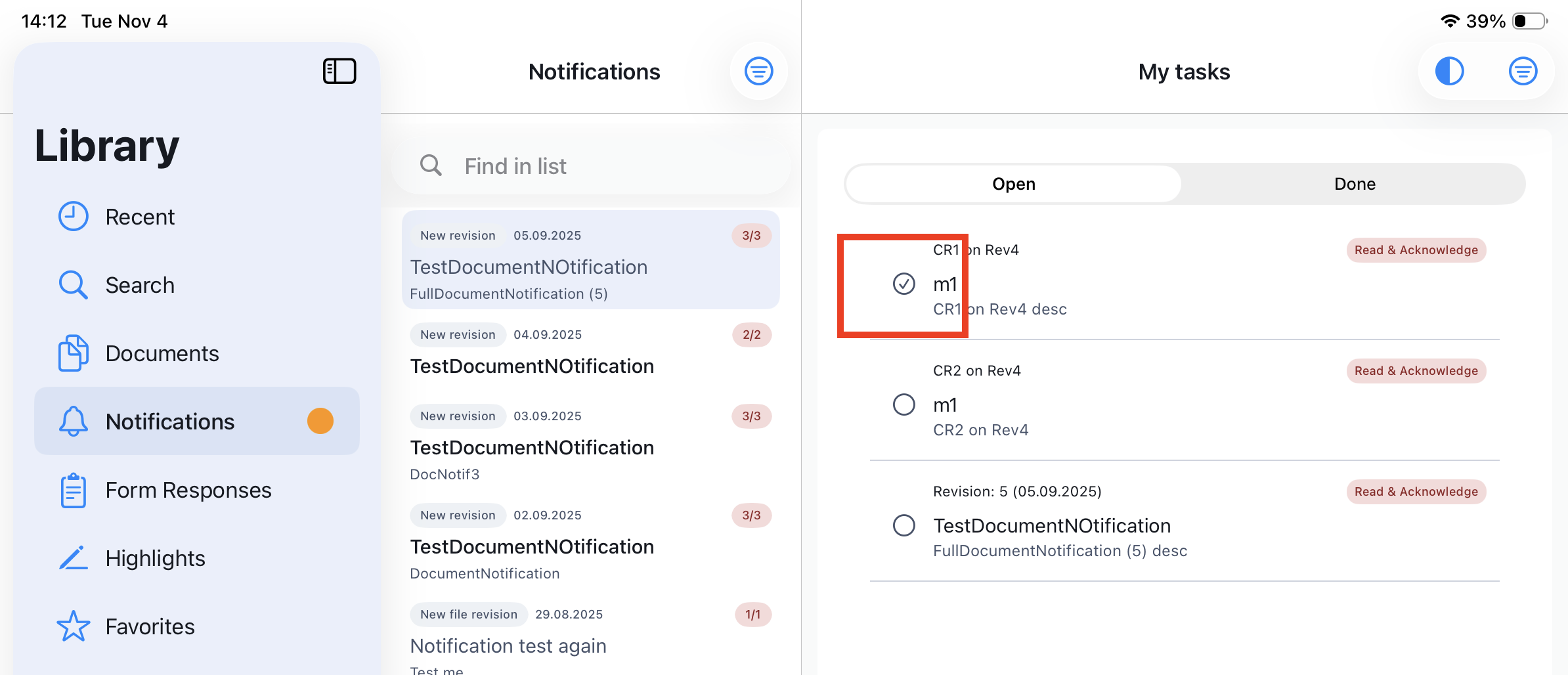
A checkmark now indicates when a task has already been opened (but not yet acknowledged). To acknowledge the task, the functionality remains the same: simply swipe left to confirm.
Display Changes
Simply select ‘Display Changes’ in order to display the changes applied in the latest revision:
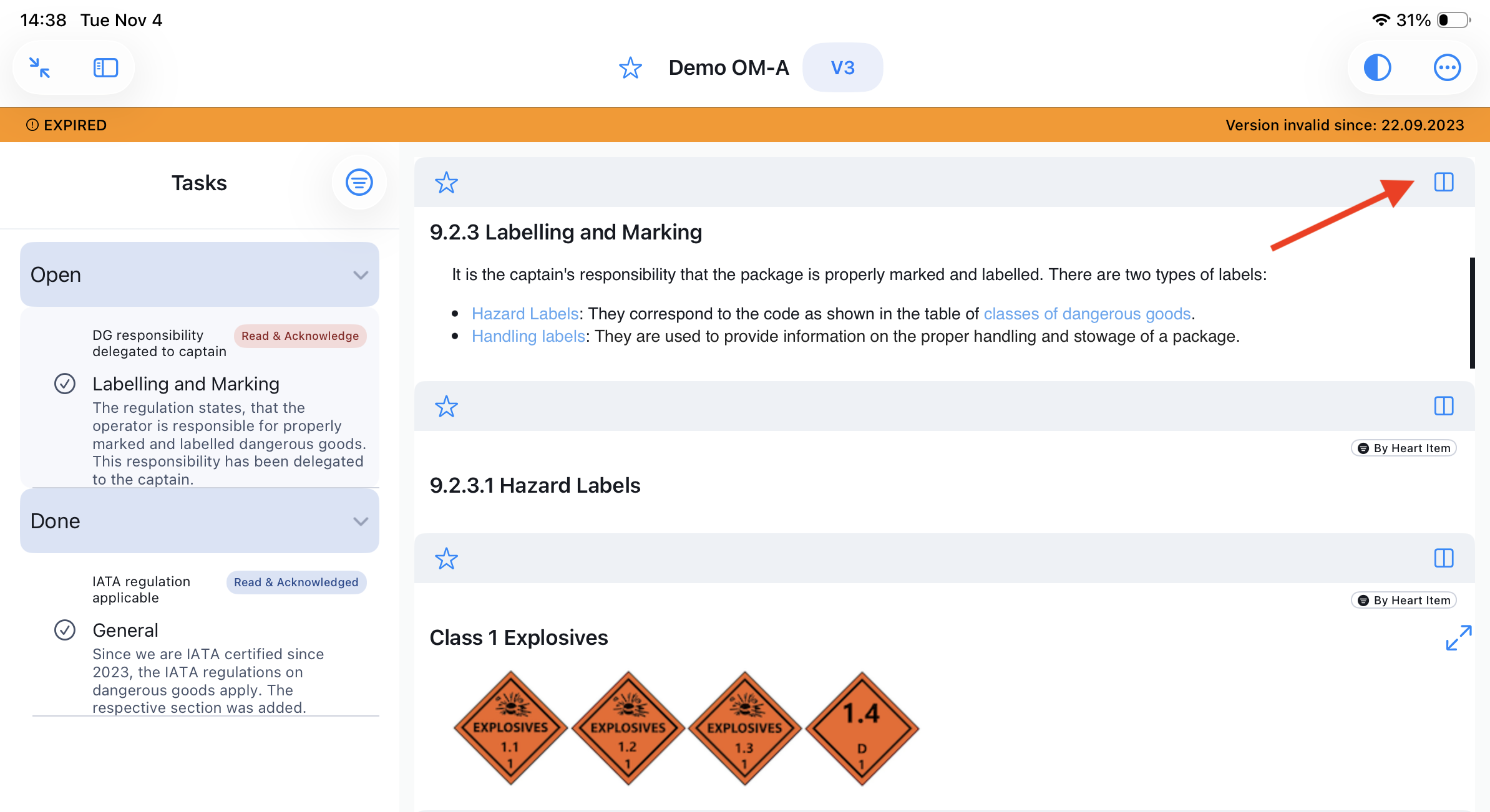
For details concerning changes please refer to: (here)
Was this article helpful?
That’s Great!
Thank you for your feedback
Sorry! We couldn't be helpful
Thank you for your feedback
Feedback sent
We appreciate your effort and will try to fix the article