Documents - Mulit-Tab View
Modified on Thu, 12 Mar at 11:18 AM
TABLE OF CONTENTS
- Working with Multiple Windows and Tabs
- Opening a Document in a Tab
- Opening Documents on iPhone
- Behavior and Rules
- Tab Limits and Management
- Independent Tab State per Window
- Window Termination and Persistence
- New Windows
- Opening a new window while at least one scene is still running starts with no persisted tabs, beginning with a clean state.
- Each new scene allows users to open and manage a different set of documents independently.
- Change Tab Order
Working with Multiple Windows and Tabs
Yonder supports working with multiple app windows and multiple documents within each window.
This flexibility allows you to view, compare, and reference different documents side by side, improving your workflow efficiency.
Multiple Windows
You can open several Yonder windows simultaneously — each functioning as an independent app instance.
Each window maintains its own:
Open tabs
Tab order
Multiple Tabs
Yonder supports multiple tabs within a single window, allowing flexible document handling.
Case A: Different Documents per Tab
Users can open multiple documents simultaneously, each in its own tab.
Tabs can be switched instantly, without the need to open new windows.
Case B: Same Document in Multiple Tabs
The same document can be opened in several tabs at once.
This allows users to view different sections of the same document in parallel (e.g., Document A open at Chapter 12 in one tab and Chapter 27 in another).
Terminology
Note:
Apple uses different terms for what we refer to as a “window,” including scene or app instance.
Throughout this article and related documentation, we consistently use the term window for clarity.
Opening a Document in a Tab
In Yonder, you can open documents in tabs from two different views, depending on how you are currently working. This flexibility allows you to manage multiple documents efficiently within the same app instance similar to browser tabs.
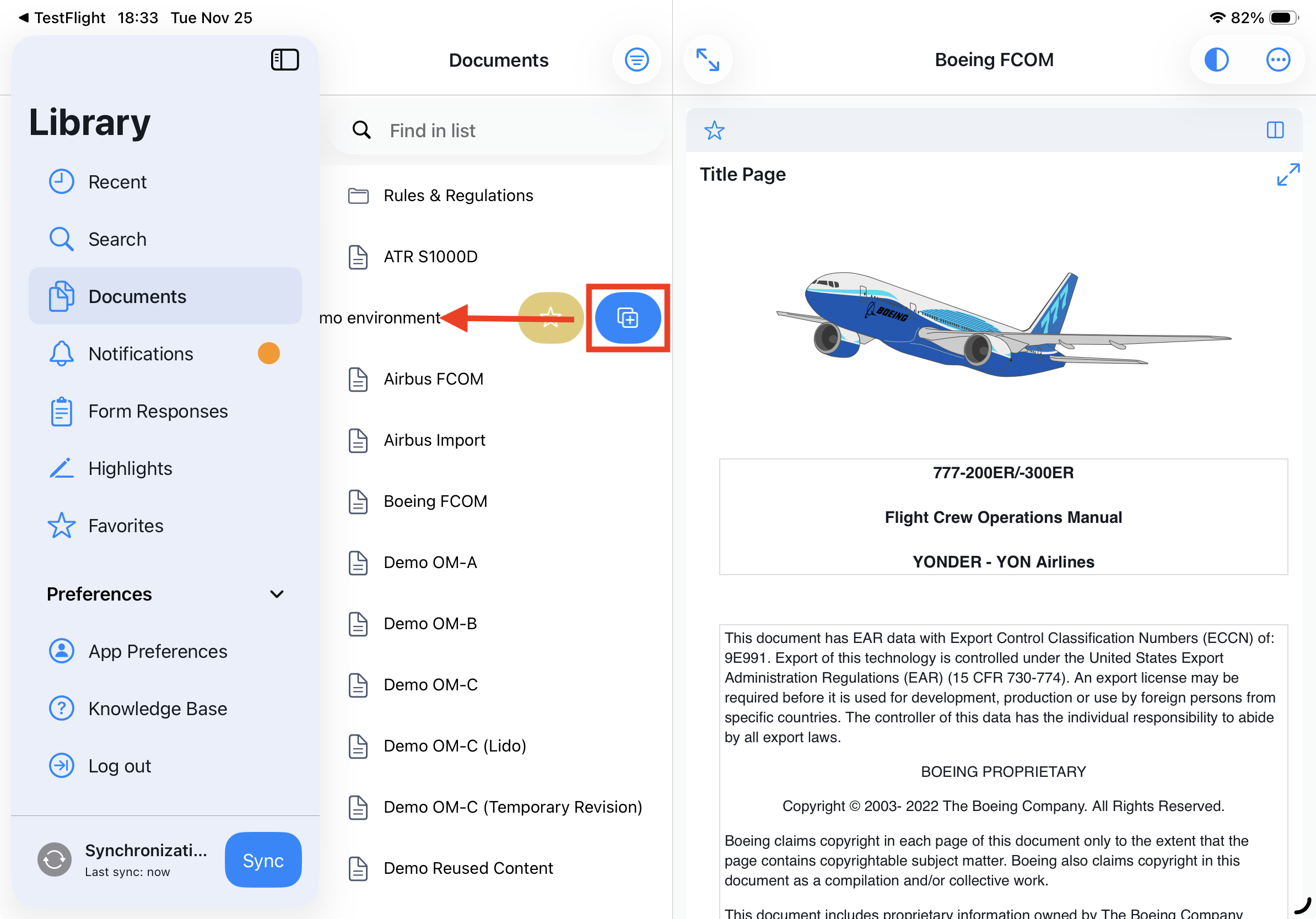
1.a From the Dashboard - Swipe (minimized document preview)
When using the preview mode:
- Go to the Documents List.
- Swipe the desired document entry to the left.
- Tap the “Open in Tab” icon.
- The document will open in its own dedicated tab within the same app instance.
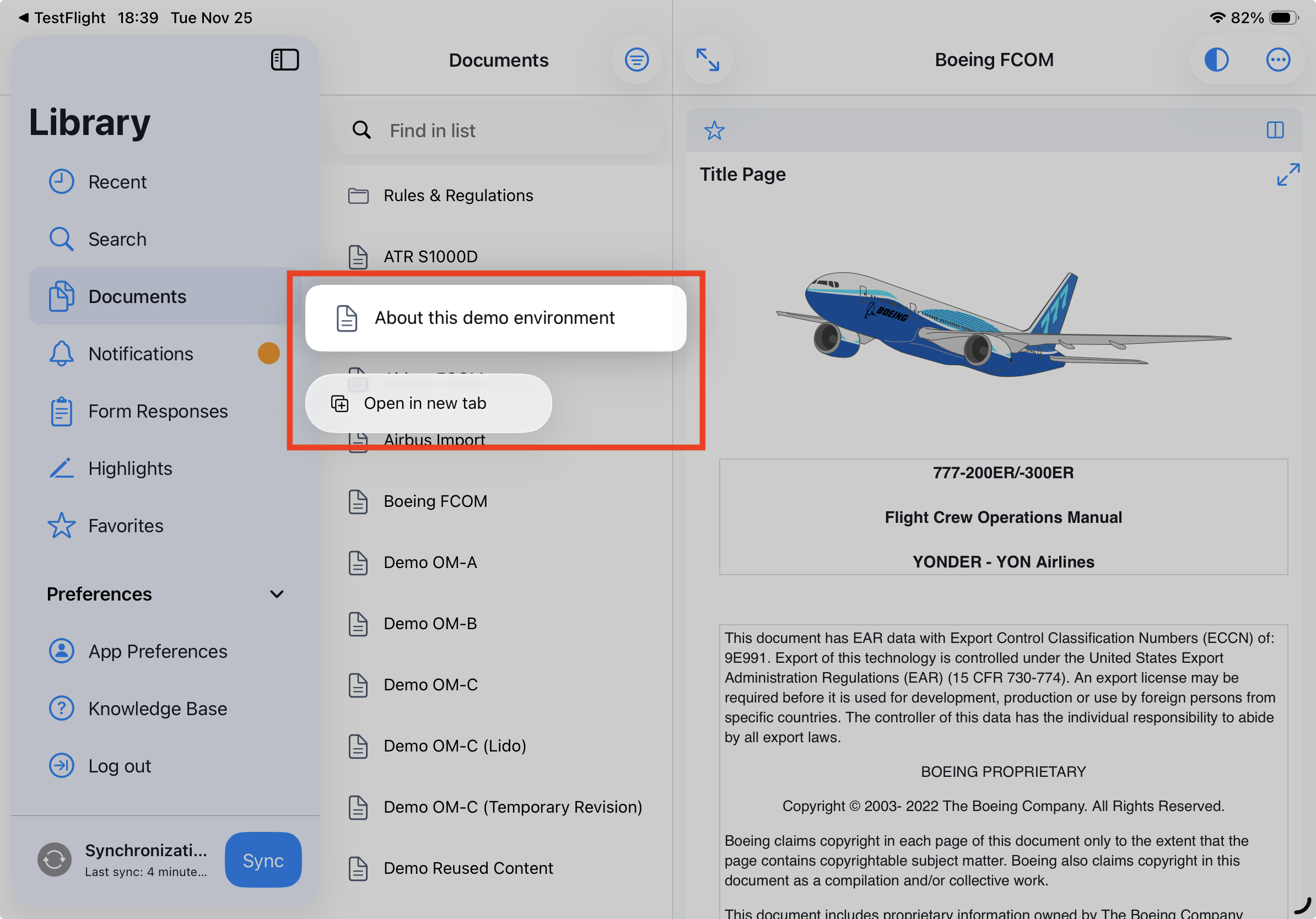
1.b From the Dashboard - Long Press (minimized document preview)
When using the preview mode:
- Go to the Documents List.
- Long press on the desired document entry.
- Select “Open in new tab” pop over.
- The document will open in its own dedicated tab within the same app instance.
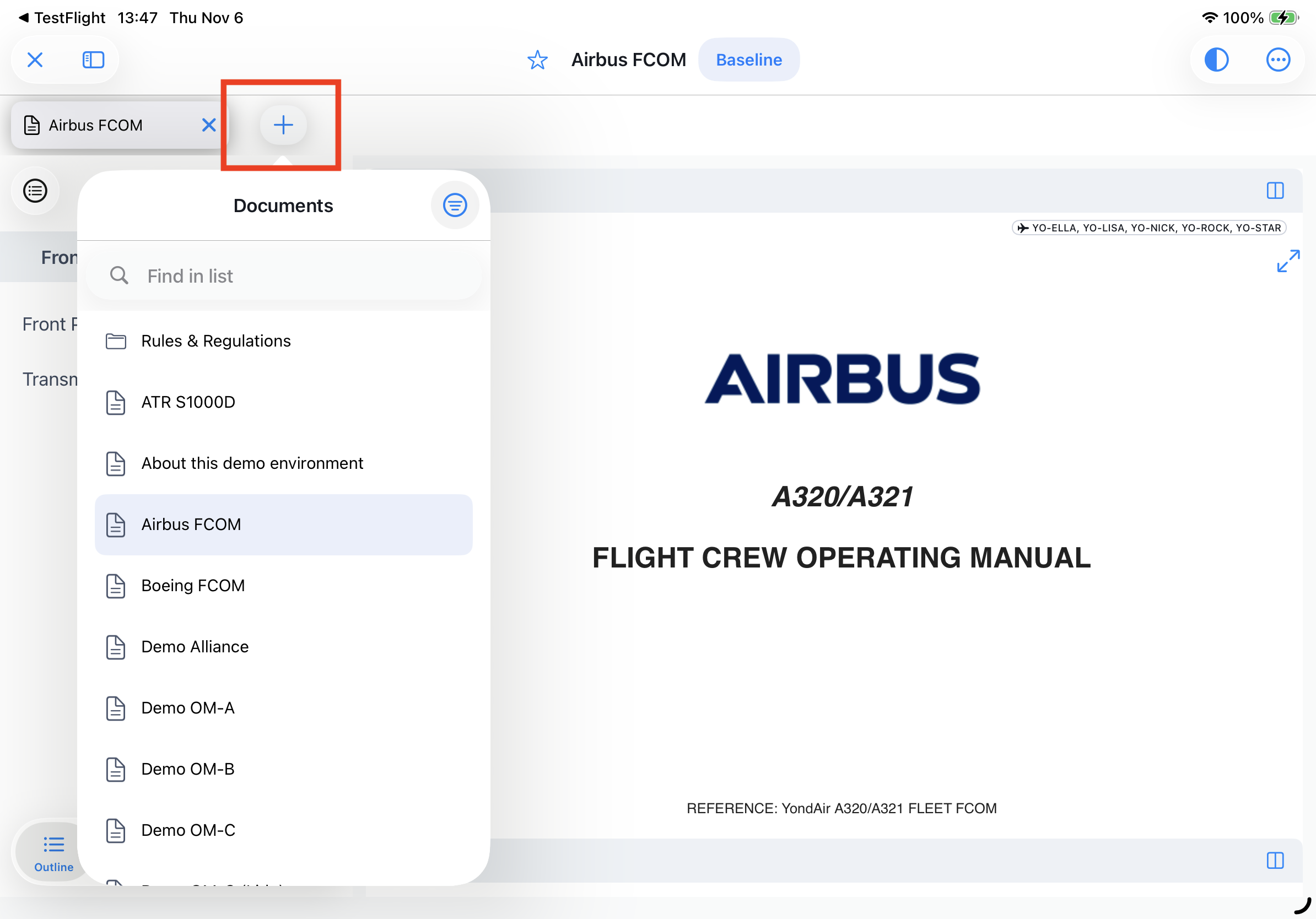
2. From the Expanded Document View
When the document view is expanded:
- Click the ‘+’ button in the tab bar.
- The Document Selector will appear.
- Choose the desired document to open it in a new tab.
Opening Documents on iPhone
Due to the limited screen size, the tab behavior intentionally deviates from the iPad behavior.
On iPad OS, opening a document always creates a new tab, even if another tab is already active.
On iPhone OS,the active tab is reused (overwritten) when opening a document. A new tab should only be created if the user explicitly selects “Open in new tab” via a long press or swipe-left action.
Working with Multiple Tabs in Yonder
TABLE OF CONTENTS
- Working with Multiple Windows and Tabs
- Opening a Document in a Tab
- Opening Documents on iPhone
- Behavior and Rules
- Tab Limits and Management
- Independent Tab State per Window
- Window Termination and Persistence
- New Windows
- Opening a new window while at least one scene is still running starts with no persisted tabs, beginning with a clean state.
- Each new scene allows users to open and manage a different set of documents independently.
- Change Tab Order
Working with Multiple Windows and Tabs
Yonder supports working with multiple app windows and multiple documents within each window.
This flexibility allows you to view, compare, and reference different documents side by side, improving your workflow efficiency.
Multiple Windows
You can open several Yonder windows simultaneously — each functioning as an independent app instance.
Each window maintains its own:
Open tabs
Tab order
Multiple Tabs
Yonder supports multiple tabs within a single window, allowing flexible document handling.
Case A: Different Documents per Tab
Users can open multiple documents simultaneously, each in its own tab.
Tabs can be switched instantly, without the need to open new windows.
Case B: Same Document in Multiple Tabs
The same document can be opened in several tabs at once.
This allows users to view different sections of the same document in parallel (e.g., Document A open at Chapter 12 in one tab and Chapter 27 in another).
Terminology
Note:
Apple uses different terms for what we refer to as a “window,” including scene or app instance.
Throughout this article and related documentation, we consistently use the term window for clarity.
Opening a Document in a Tab
In Yonder, you can open documents in tabs from two different views, depending on how you are currently working. This flexibility allows you to manage multiple documents efficiently within the same app instance similar to browser tabs.
1.a From the Dashboard - Swipe (minimized document preview)
When using the preview mode:
- Go to the Documents List.
- Swipe the desired document entry to the left.
- Tap the “Open in Tab” icon.
- The document will open in its own dedicated tab within the same app instance.
1.b From the Dashboard - Long Press (minimized document preview)
When using the preview mode:
- Go to the Documents List.
- Long press on the desired document entry.
- Select “Open in new tab” pop over.
- The document will open in its own dedicated tab within the same app instance.
2. From the Expanded Document View
When the document view is expanded:
- Click the ‘+’ button in the tab bar.
- The Document Selector will appear.
- Choose the desired document to open it in a new tab.
Opening Documents on iPhone
Due to the limited screen size, the tab behavior intentionally deviates from the iPad behavior.
On iPad OS, opening a document always creates a new tab, even if another tab is already active.
On iPhone OS,the active tab is reused (overwritten) when opening a document. A new tab should only be created if the user explicitly selects “Open in new tab” via a long press or swipe-left action.
Yonder allows you to work efficiently by opening and managing multiple documents in tabs within each app window. This lets you easily switch between documents and organize your workspace as needed.
Behavior and Rules
Tab Limits and Management
Each app window (instance) can hold up to twelve open tabs.
If the user tries to open a sixth tab, a pop-over message will appear, asking to close one of the existing tabs before opening a new one.
The user can close any currently open tab and then proceed to open a new one.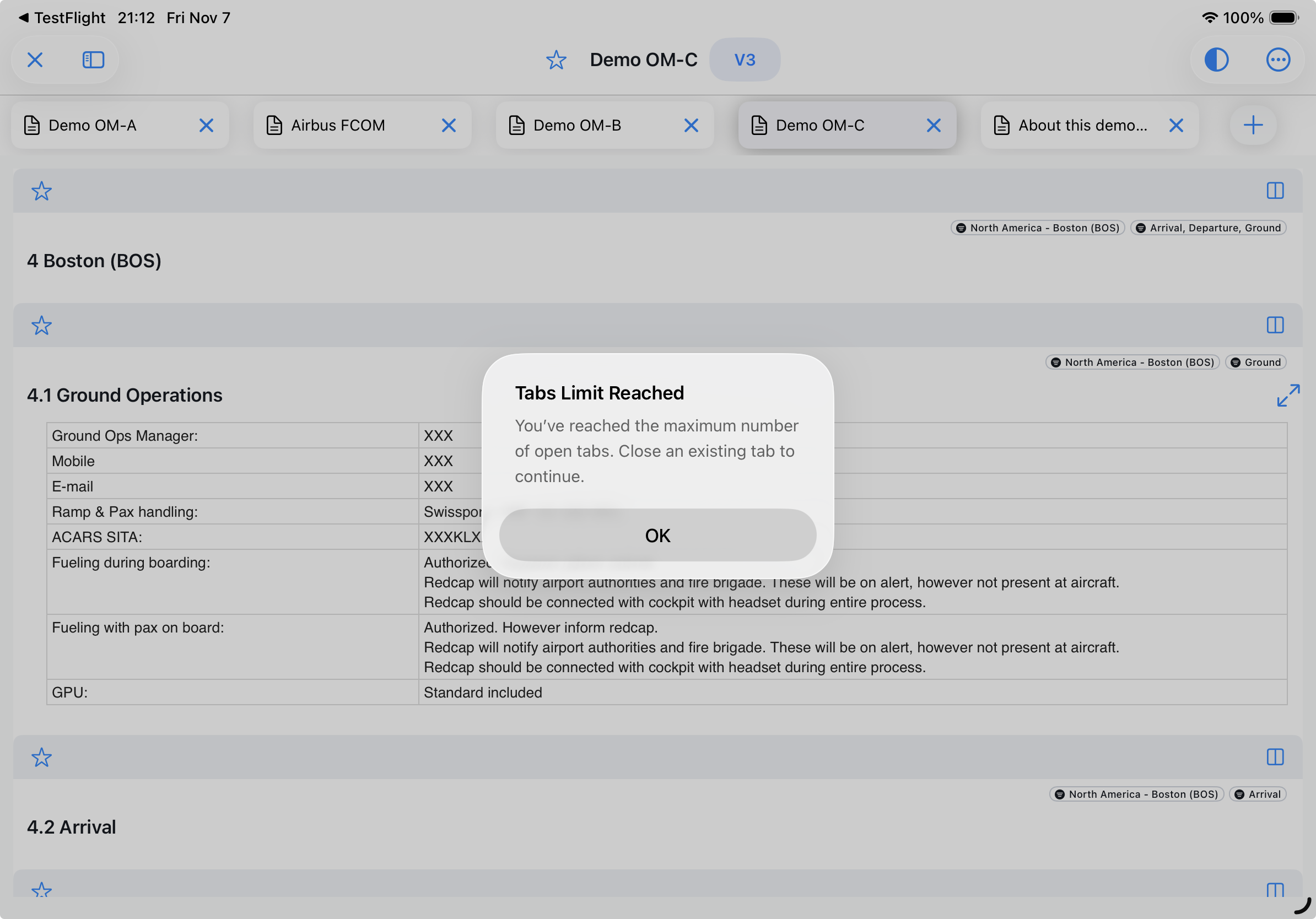
If the device is operating with limited available memory (for example on older hardware or when multiple applications and tabs are open) a message will appear prompting the user to close some tabs in order to improve performance and ensure stable operation.
The user can open the same document in multiple tabs within the same app instance; for example, to view different chapters or revisions.
Filters (tags) are applied only to the document in the active tab, ensuring that filter settings do not affect other open documents or tabs.
Independent Tab State per Window
- Tabs opened in one window are not synchronized with other windows or scenes — each window operates independently with its own tab configuration.
Window Termination and Persistence
- Tabs are persistedas long as the window remains open.
- If a window is closed (terminated; e.g. swipe to kill), the tabs associated with that scene are deleted. This applies only when multiple scenes are open.
- If all scenes are terminated, the tabs from the last closed scene are saved.
- Reopening the app (creating a new scene) restores the tabs from the last saved scene automatically.
New Windows
Opening a new window while at least one scene is still running starts with no persisted tabs, beginning with a clean state.
Each new scene allows users to open and manage a different set of documents independently.
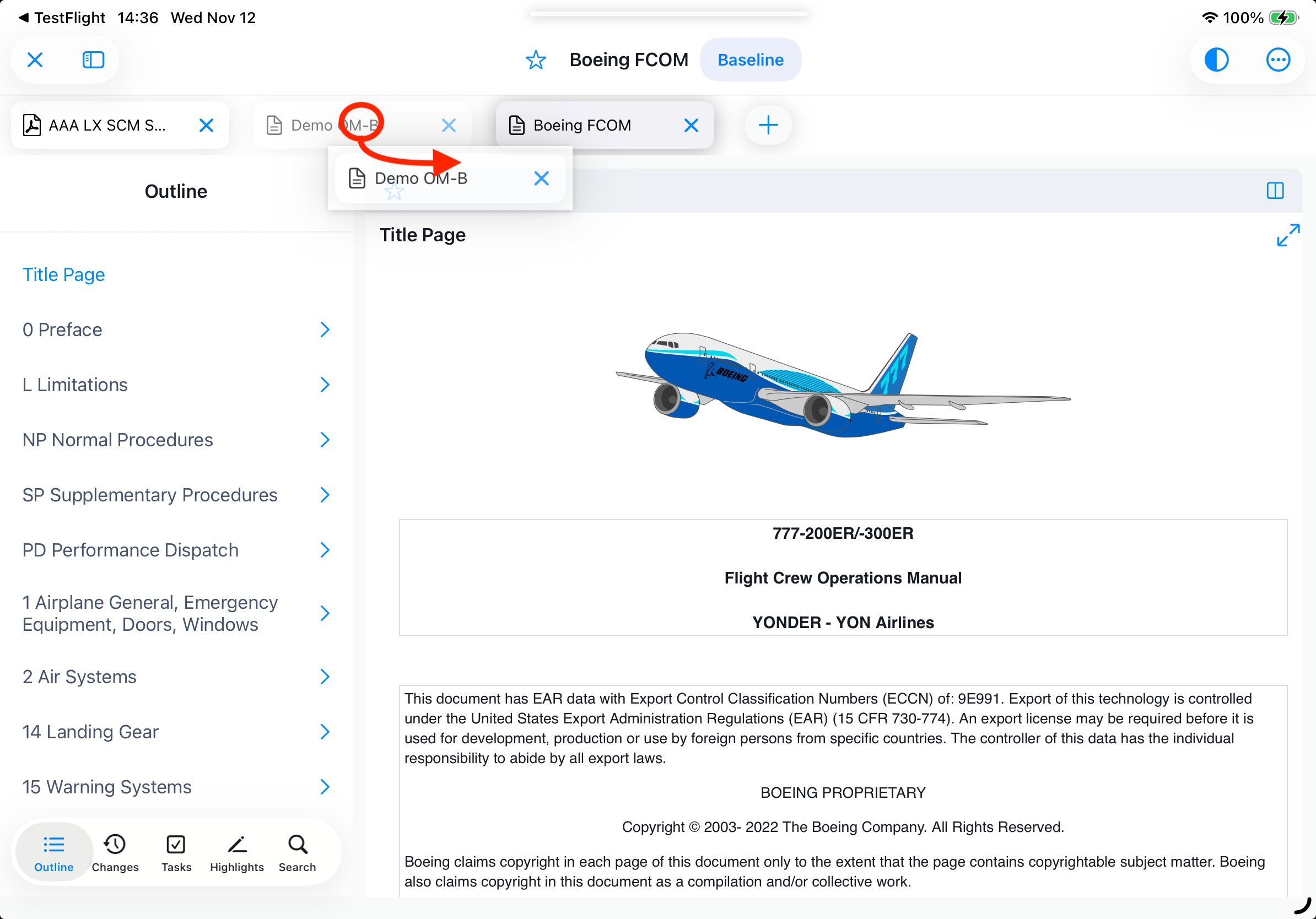
Change Tab Order
The feature to reorder tabs feature allows you to customize the order of your open tabs for easier navigation.
This helps you keep frequently used tabs in a convenient position for quick access.
How to Reorder Tabs
Locate the tab you want to move.
Long-press (click and hold) the tab title.
Drag and drop the tab to its new position in the tab bar.
The new order is applied immediately.
Was this article helpful?
That’s Great!
Thank you for your feedback
Sorry! We couldn't be helpful
Thank you for your feedback
Feedback sent
We appreciate your effort and will try to fix the article