TABLE OF CONTENTS
Archive / Delete Documents
Documents can be archived or deleted to keep the system clean and relevant. Archiving removes documents from the active list while allowing future restoration, whereas deletion is permanent and intended for documents no longer needed.
Both actions remove related notifications and compliance tasks to avoid unnecessary clutter and ensure consistency.
Archive documents
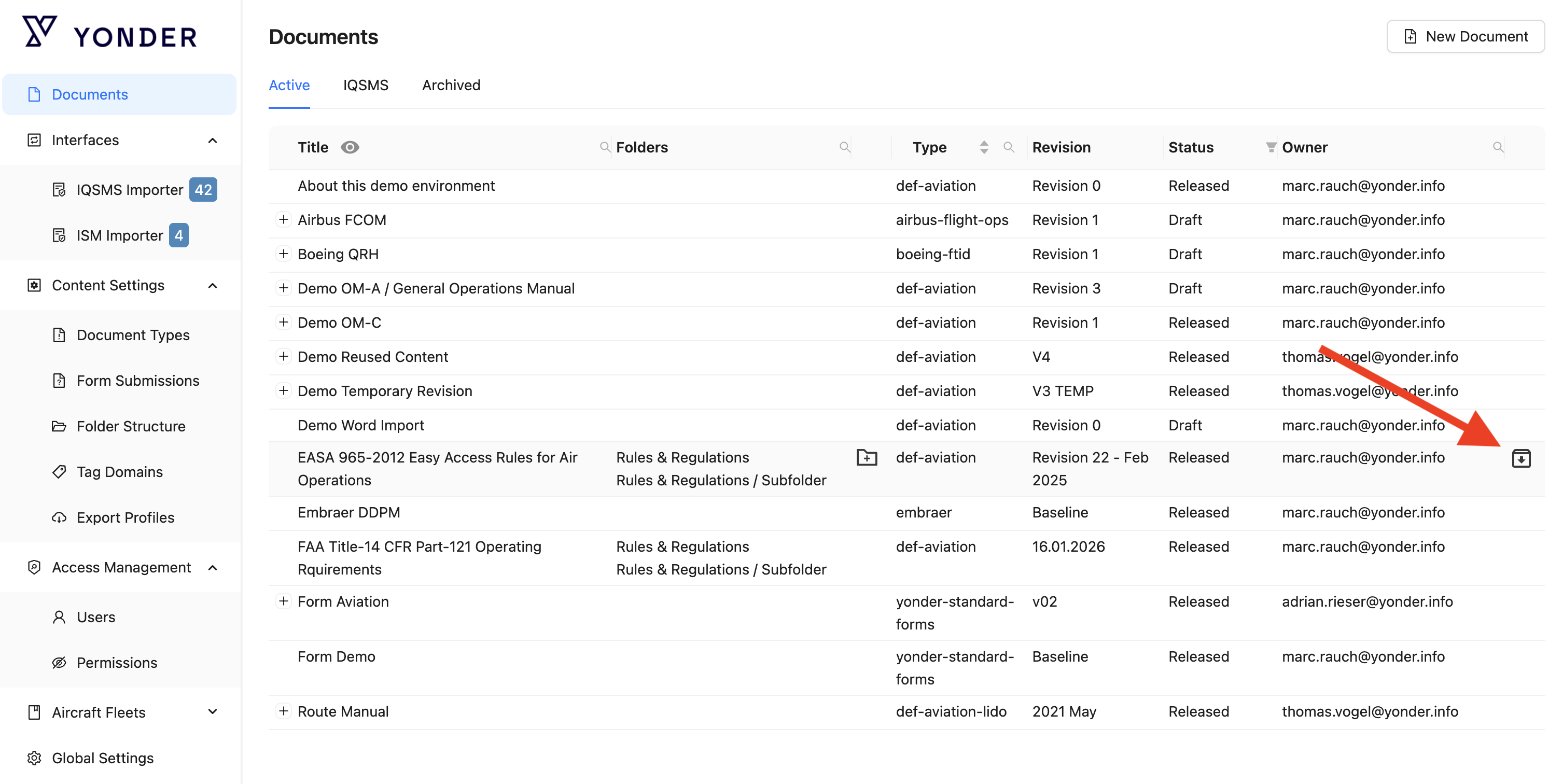
Documents can be archived to remove them from the active list. As part of this process, related notifications and compliance tasks are also removed. Archiving is intended for documents that may become relevant again in the future and can therefore be restored (e.g., annually recurring documents).
Draft documents
Draft documents can be archived to remove them from the active list.
Preconditions
- A documents can be archived if at least one revision (baseline or any subsequent revision) has been released.
Standard Steps
- Select the Active tab in the document list.
- Hovers over the document to be deleted.
- The system displays the.active Archive icon only if:
- If there is only a Draft version
- The document has no released version
- Click the Archive icon.
- The system displays a confirmation dialog.
- After confirmation, the document will be removed from the Active list and made available in the Archived list.
Released documents
A document with released version(s) can be deleted. Deletion is only permitted if no draft version exists. Before deletion, the document must be archived.
Preconditions
- The document list is open in the Admin Console
- The user has the Edit role
- The document has at least one Released version
- No Draft version exists for the document
The document and all related information are permanently deleted from Yonder.
Standard Steps
- Selects the Active tab in the document list.
- Hover over the document to be deleted.
- Click the Archive Document icon.
- The system archives the document.
- Switches to the Archived tab.
- Hovers over the document.
- The system displays the Delete Document icon only if:
- No draft version exists
- Click Delete Document icon.
- The system displays a confirmation dialog.
- Confirm the Delete in the dialog.
Un-Archive
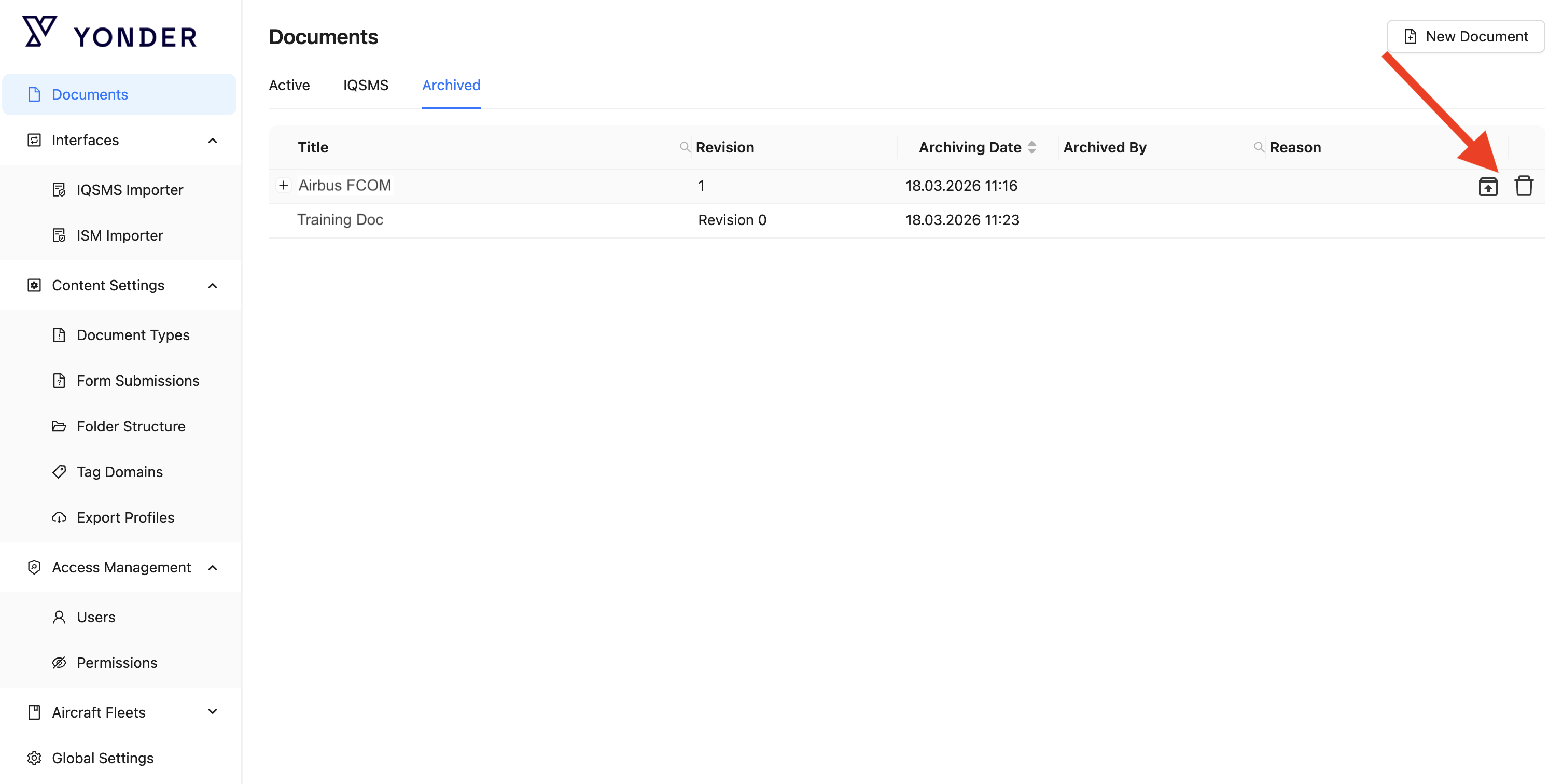
Archived documents can be restored (unarchived) and returned to the active list when they become relevant again. Notifications and compliance tasks that were removed during archiving are not re-created as part of the unarchiving process.
Standard Steps
- Selects the Archived tab in the document list.
- Hover over the document to be un-archived.
- Click the Unarchive icon.
- Switches to the Active tab.
- The document will be available again.
Delete documents
Documents can be permanently deleted when they are no longer needed and will not be used again. As part of this process, all associated notifications and compliance tasks are removed. Deletion is irreversible and should only be performed when there is no expectation that the document will be required in the future (e.g. outdated or test documents).
Draft documents
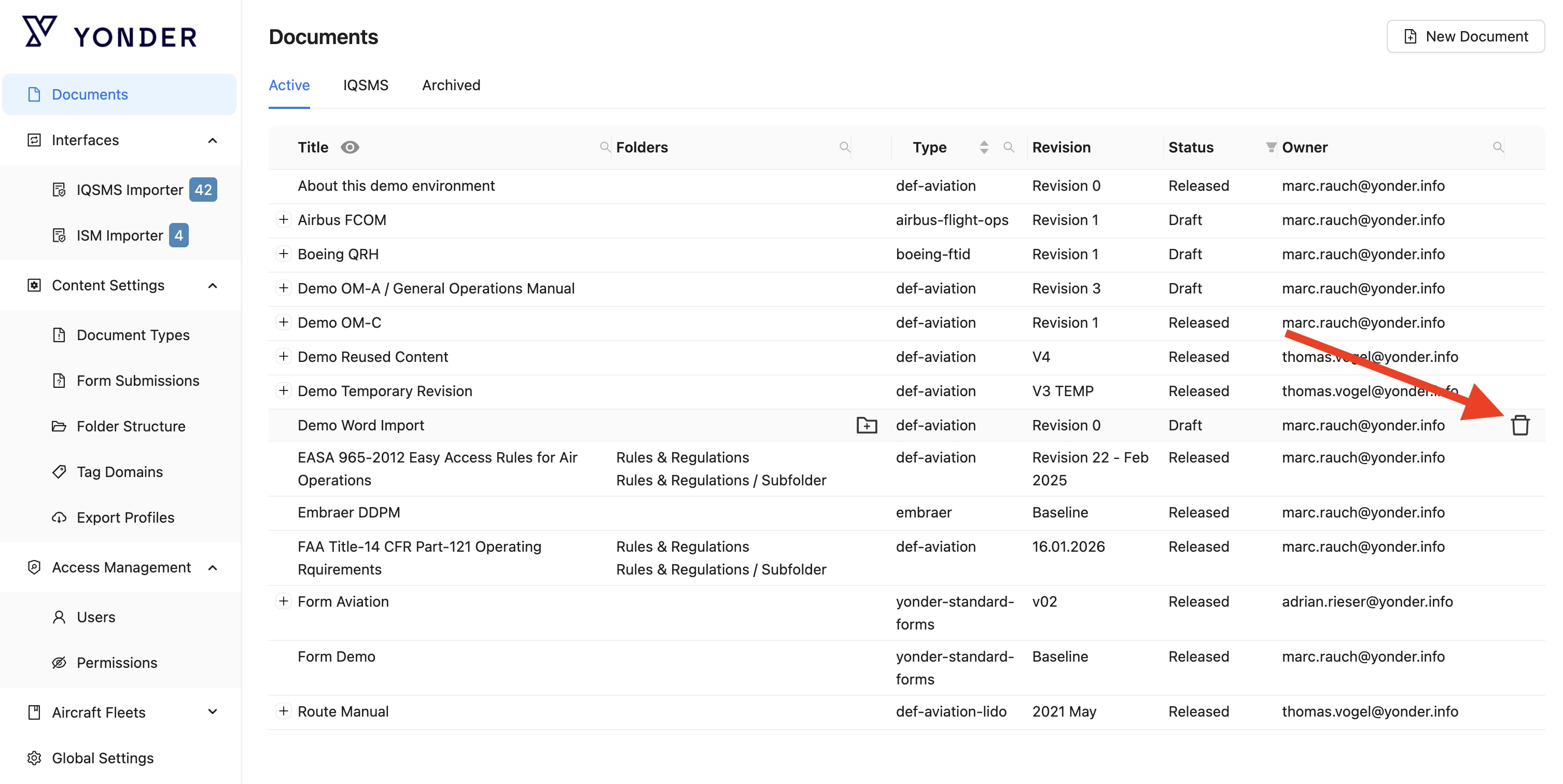
A draft document can be deleted if it's not yet released.
Preconditions
- The document does not yet have a released version (only a single draft version is available)
Standard Steps
- Select the Active tab in the document list.
- Hovers over the document to be deleted.
- The system displays the Delete Documenticon for the list entry only if:
- The revision status is Draft
- The document has no released version
- Click the Delete Document icon.
- The system displays a confirmation dialog.
- Confirm the Deletion in the dialog.
- Deleting a document: all notifications including the compliance tasks for that document are now automatically deleted for all users. The user performing the archive is informed via a pop-over. Actions are logged in the history for audit purposes.
Released documents
A document with released version(s) can be deleted. Deletion is only permitted if no draft version exists. Before deletion, the document must be archived.
Preconditions
- The document list is open in the Admin Console
- The user has the Edit role
- The document has at least one Released version
- No Draft version exists for the document
The document and all related information are permanently deleted from Yonder.
Standard Steps
- Selects the Active tab in the document list.
- Hover over the document to be deleted.
- Click the Archive Document icon.
- The system archives the document.
- Switches to the Archived tab.
- Hovers over the document.
- The system displays the Delete Document icon only if:
- No draft version exists
- Click Delete Document icon.
- The system displays a confirmation dialog.
- Confirm the Delete in the dialog.
Impact on Notifications and Compliance Tasks
To maintain a clear and relevant user experience, notifications related to document lifecycle are automatically removed to prevent unnecessary clutter in the notification center of the end users.
This ensures that users can focus on current and actionable items without distraction from obsolete information.
Deleting a document is a permanent action with broader implications. In particular, it affects compliance:
All compliance-related tasks associated with the document are also removed as part of the deletion process. This ensures data consistency and prevents users from interacting with tasks that are no longer valid.
- Archiving a document:
- All notifications for that document are now automatically deleted for all users.
The user performing the archive is informed via a pop-over, while compliance tasks remain unaffected. - Reports do not show compliance tasks anymore.
- Actions are logged in the history for audit purposes.
- All notifications for that document are now automatically deleted for all users.
- Deleting a document:
- All notifications including the compliance tasks for that document are now automatically deleted for all users.
The user performing the archive is informed via a pop-over. - Reports do not show compliance tasks anymore.
- Actions are logged in the history for audit purposes.
- All notifications including the compliance tasks for that document are now automatically deleted for all users.
Was this article helpful?
That’s Great!
Thank you for your feedback
Sorry! We couldn't be helpful
Thank you for your feedback
Feedback sent
We appreciate your effort and will try to fix the article