Document LInks

Modified on Tue, 17 Mar at 4:06 PM

TABLE OF CONTENTS


General Link Behaviour

Links connect related documents and ensure that referenced information stays consistent across the system. When a document is updated through an approved Change Request (CR), the system evaluates whether other documents referencing or being referenced by that document might also require review.


To support this process, the system can automatically generate Change Requests in linked documents. This mechanism helps maintain document integrity while ensuring that potential downstream impacts are not overlooked.

The following sections describe how links behave and under which conditions Change Requests are automatically created.


Link Properties

Each link type is defined by a set of configurable properties that determine what the link references, how it is displayed, and how the system reacts to changes in the linked document.

These properties allow link behaviour to be tailored to different use cases such as informational references, operational dependencies, or regulatory compliance.


Links are always defined from Source → Target, meaning the source document contains the link pointing to the target document.

However, triggers work in the opposite direction:

  • When a relevant event occurs in the target document,
  • the configured action is executed in the source document.

This ensures that documents referencing changed content are automatically informed or prompted for review when the linked document is updated.


The Target Type defines whether the link references a document dynamically or a specific fixed version.

  • MODULE
    The link always resolves to the latest effective version of the target document.
    This is useful when the referencing document should always point to the current version of another document.
  • MODULE_VERSION
    The link points to a specific fixed version of the target document.
    This ensures that the reference remains tied to the exact version that was valid at the time of linking, which is particularly important for regulatory or traceability purposes.

The Display Option determines how and where the link is presented in the document interface.

  • INLINE
    The link is embedded directly within the document content, appearing as part of the text.
  • REFERENCE
    The link is displayed in a dedicated “References” section of the document, separate from the main content.
  • HIDDEN
    The link exists only in the system logic and is not visible to users.
    Hidden links are typically used for system dependencies or automated processes.

3. Trigger Event — When the System Reacts

The Trigger Event defines which change in the target document causes the system to react.

  • UPON_RUN_OUT
    Triggered when the referenced target version expires or is superseded by a newer version.
  • UPON_EFFECTIVE
    Triggered when a new version of the target document becomes effective.
  • UPON_CR_READY_FOR_PUBLISH
    Triggered when a Change Request in the target document has been approved and is ready for publication.

4. Trigger Action — What the System Does

The Trigger Action specifies the system response once the trigger event occurs.

  • INFORM
    The system sends a notification to the document owner, informing them about the change.
     No workflow or review process is initiated.
  • CR
    The system automatically creates a Change Request in the source document, initiating a review workflow.

Link Types

The following sections describe how the currently available link types behave and under which conditions Change Requests are automatically created.


An Internal Link connects two documents within the same system.
One document acts as the source (the document containing the link), and the other acts as the target (the referenced document).

Example

Document A: Safety Procedures
 Contains a link to:

Document B: Emergency Evacuation Guidelines

Scenario

  1. A Change Request updates evacuation routes in Document B.
  2. The Change Request in Document B is approved.
  3. The system detects that Document A references Document B.

Result

  • The system automatically creates a Change Request in Document A.
  • This allows reviewers to verify whether the reference to the evacuation guidelines still reflects the updated information.

Important

  • If a Change Request is approved in Document A, no Change Request is created in Document B.$

Change Request Logic

A Change Request (CR) is automatically created when:

  • A document contains an internal link to another document, and
  • A Change Request in the target document is approved.

Result:

  • The system automatically creates a Change Request in the source document.
  • This prompts a review to verify that the reference remains valid after the change.

Important

  • The trigger works only from the target document to the source document.
  • If a Change Request is approved in the source document, no Change Request is created in the target document.

A Legal Link references regulatory or legally relevant documents and is displayed in a dedicated “References” section of the document.

Unlike standard internal links, a Legal Link always points to a fixed version of a document (MODULE_VERSION). This ensures that the exact regulatory version used as a reference is clearly documented.

Example

Document A: Aircraft Maintenance Procedure
 Contains a Legal Link to:

Regulation X – Version 2

The reference appears in the References section of Document A.

Scenario

  1. Regulation X v2 is valid and referenced by Document A.
  2. The regulation authority releases Regulation X v3, which supersedes v2.
  3. Version v2 becomes obsolete or runs out.

Result

  • The system detects that the referenced version is no longer valid.
  • A Change Request (CR) is automatically created in Document A.
  • This prompts a review to ensure that the document still complies with the updated regulation.

Important

  • If Document A is revised, no Change Request is created in Regulation X.
  • The trigger only occurs when the referenced regulation version expires or is superseded.

Change Request Logic

A Change Request is automatically created when:

  • A document contains a Legal Link to a fixed version of another document, and
  • The referenced version expires, runs out, or is superseded by a newer version.

Result:

  • A Change Request is created in the source document to ensure regulatory compliance is reviewed.

Add Links to one or multiple documents /modules

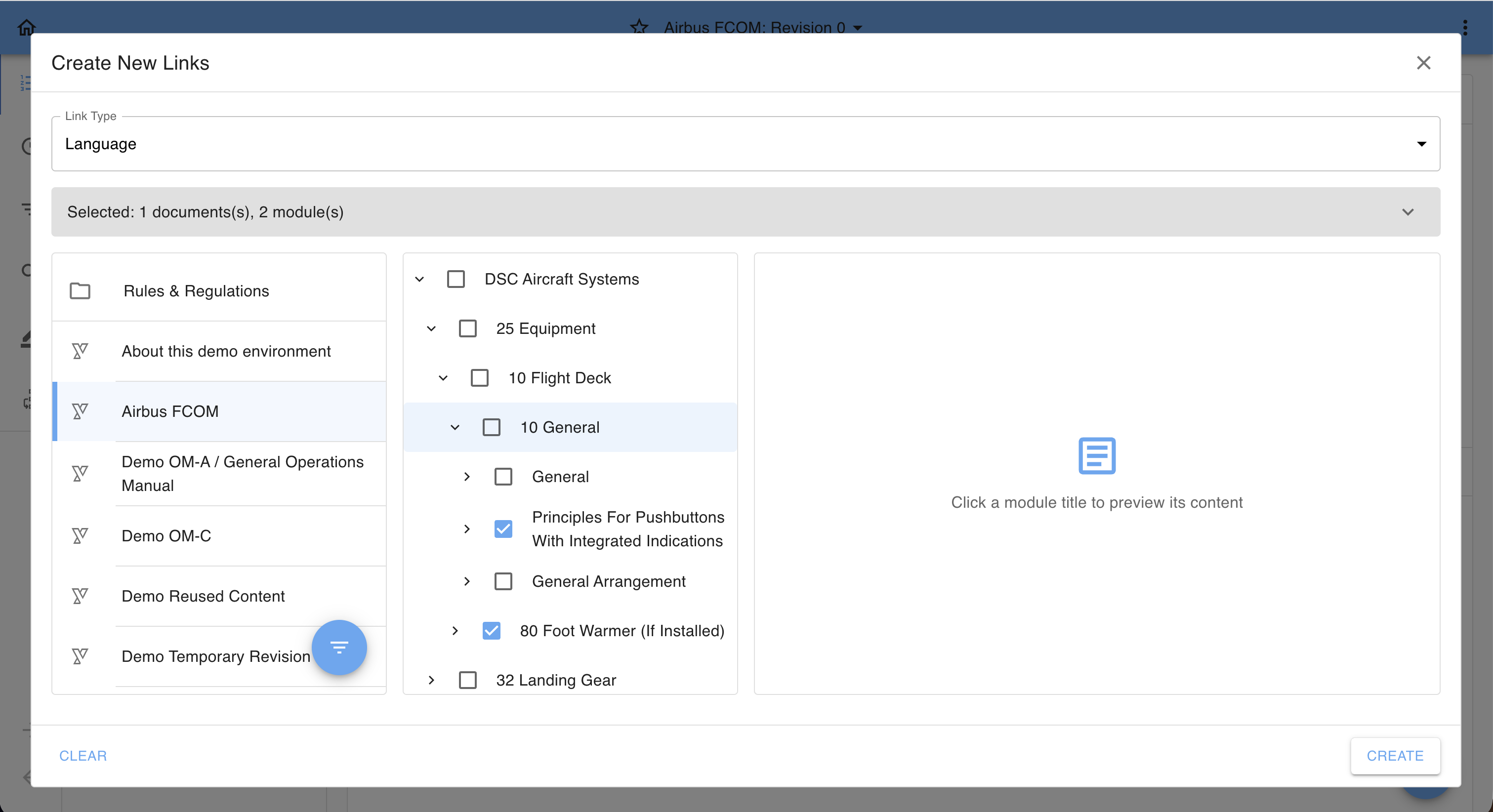
The Add Link functionality has been enhanced to support selecting and linking multiple modules across one or more documents within a single workflow. A dedicated modal guides users through document selection, module selection, and link configuration, including a preview to ensure accuracy before saving.

This feature improves efficiency and reduces errors when creating multiple links, especially across complex document structures.

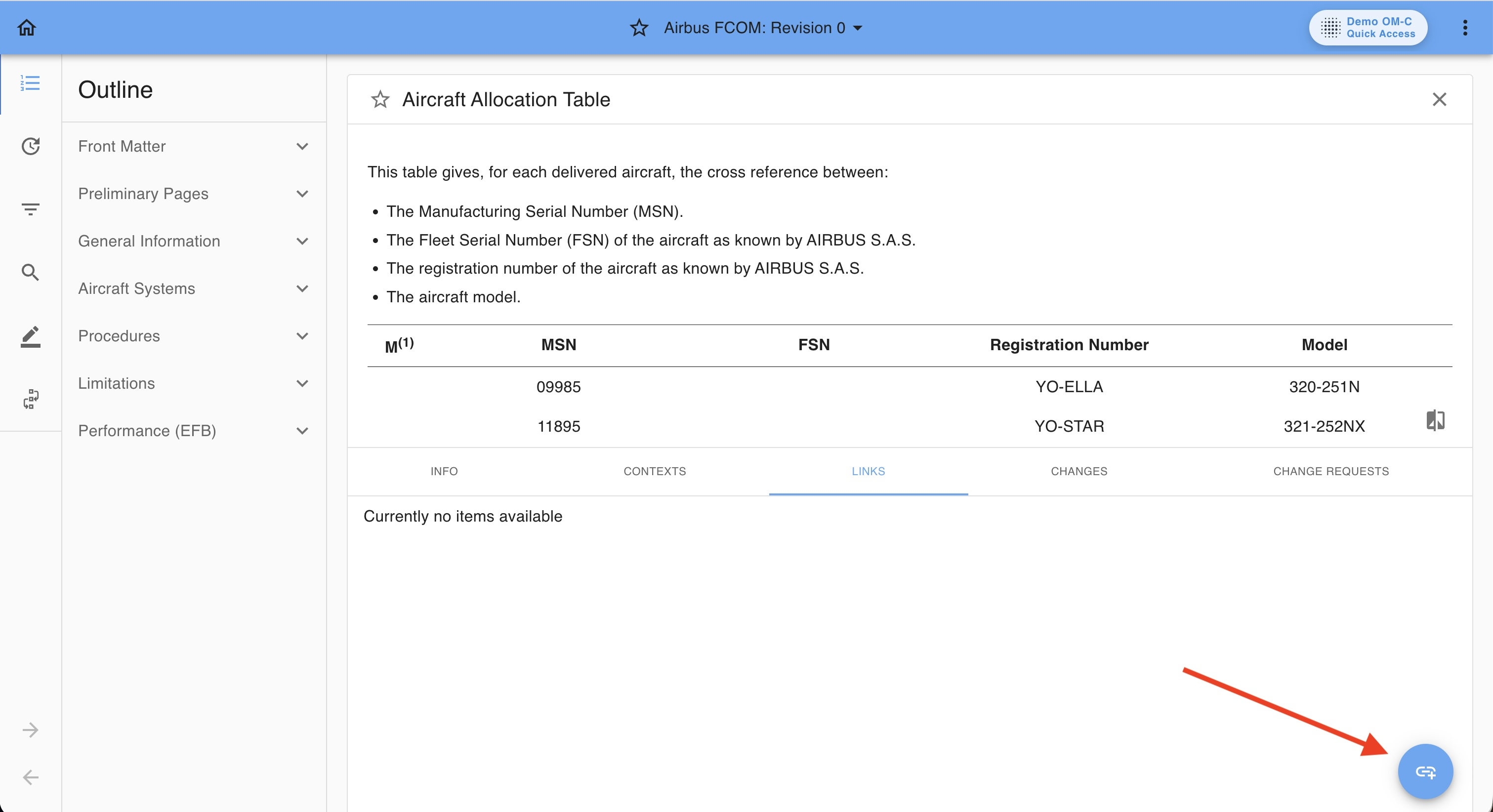
  1. Open the document and navigate to the desired module.
  2. Select Add Link.
  3. The Add Link modal opens, guiding you through the configuration steps.
Step-by-Step Instructions

1. Select link type
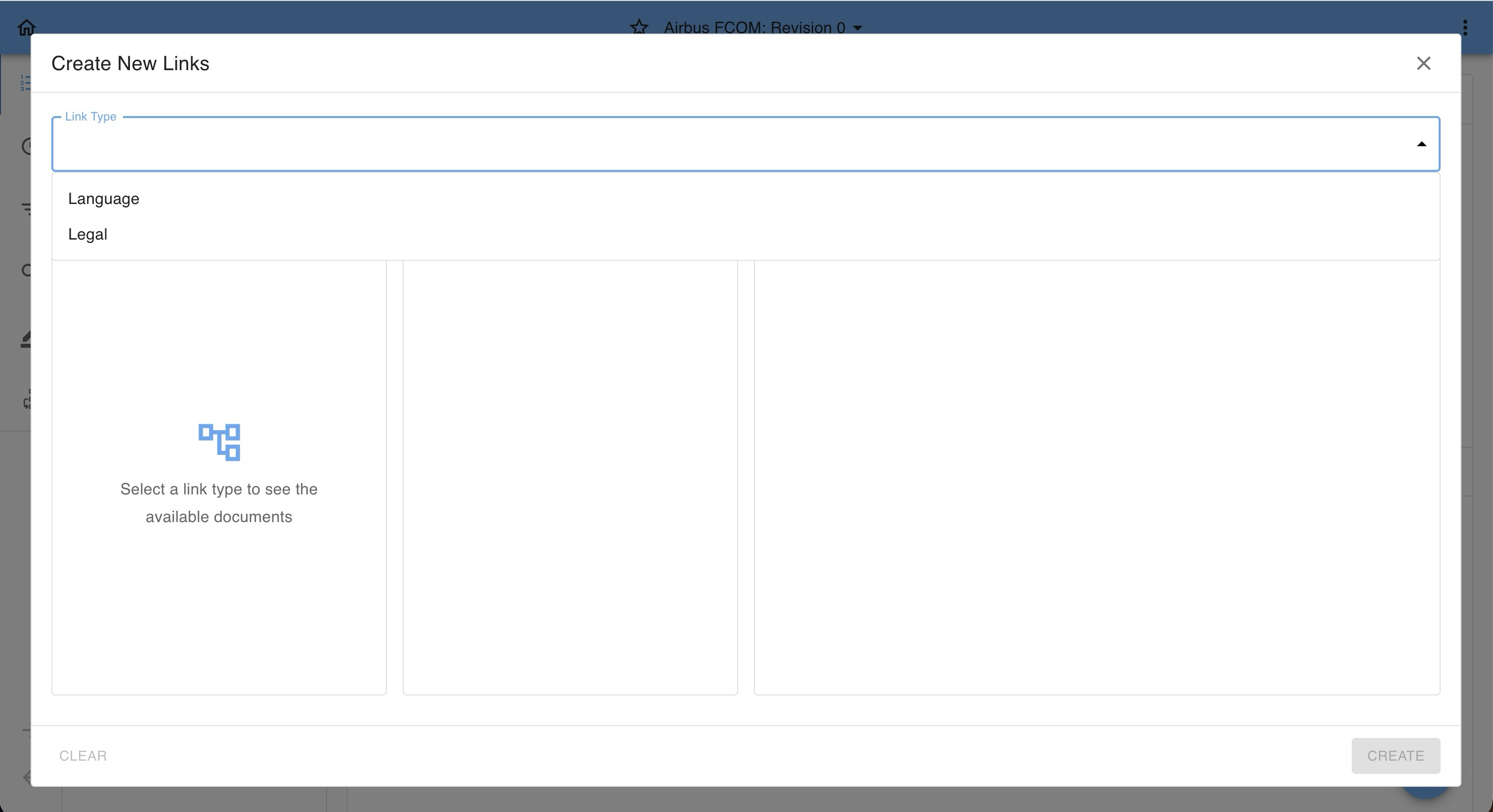
  • If only one link type is configured, it is pre-selected.
  • If multiple link types are available, select the desired type from the dropdown.

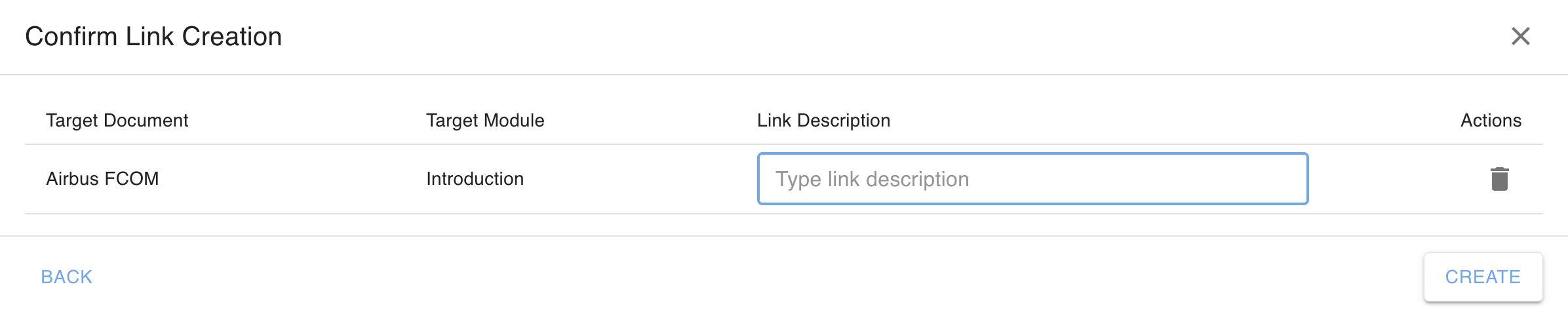
2. Link Description (optional)

  • Enter a description if needed.
  • This field is optional

3. Select Link Targets

3.1 Select Document

  • Choose the document containing the target module(s).
  • Available options:
    • Active documents
    • Draft documents
    • IQSMS documents
  • Use the search field to find documents by name.
  • Documents are displayed using the standard library structure (folders and filters).
    Note: Filedrop files are excluded.

3.2 Select Modules

  • Select one or more modules from the document outline.
  • The outline is displayed as a tree structure with numbering.
  • Use checkboxes to select multiple modules.

3.3 Preview Modules

  • Click on a module title to display its content preview.
  • Review the content to ensure the correct target is selected.

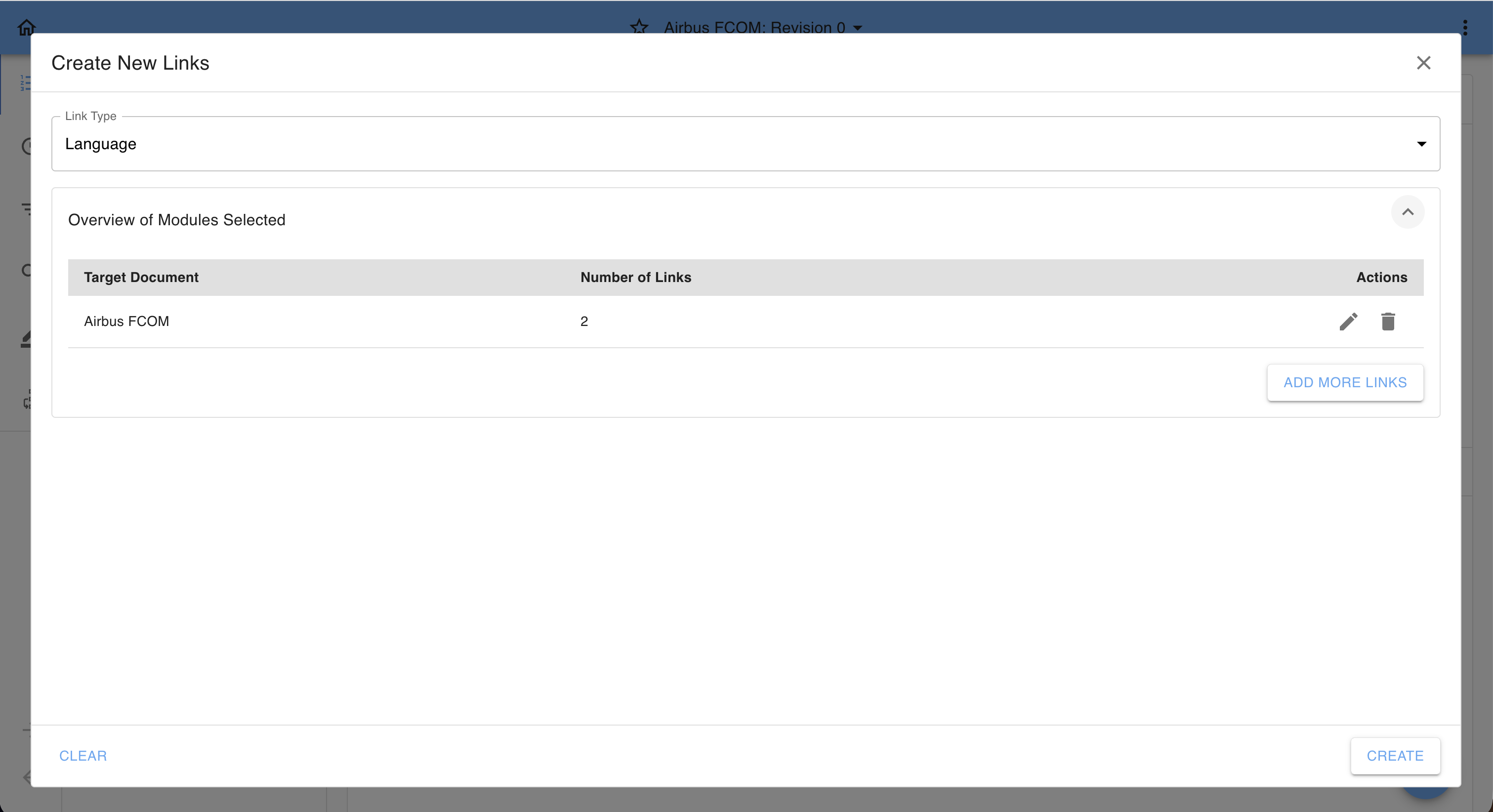
4. Add Additional Link Targets (Optional)

  • If links to modules in different documents are required, you can start an additional selection flow directly within the modal.

5. Create Links

  • After verifying all selections and previews, confirm to CREATE the links.
  • Multiple links will be created based on the selected modules.


Was this article helpful?

That’s Great!

Thank you for your feedback

Sorry! We couldn't be helpful

Thank you for your feedback

Let us know how can we improve this article!

Select at least one of the reasons
CAPTCHA verification is required.

Feedback sent

We appreciate your effort and will try to fix the article