TABLE OF CONTENTS
General
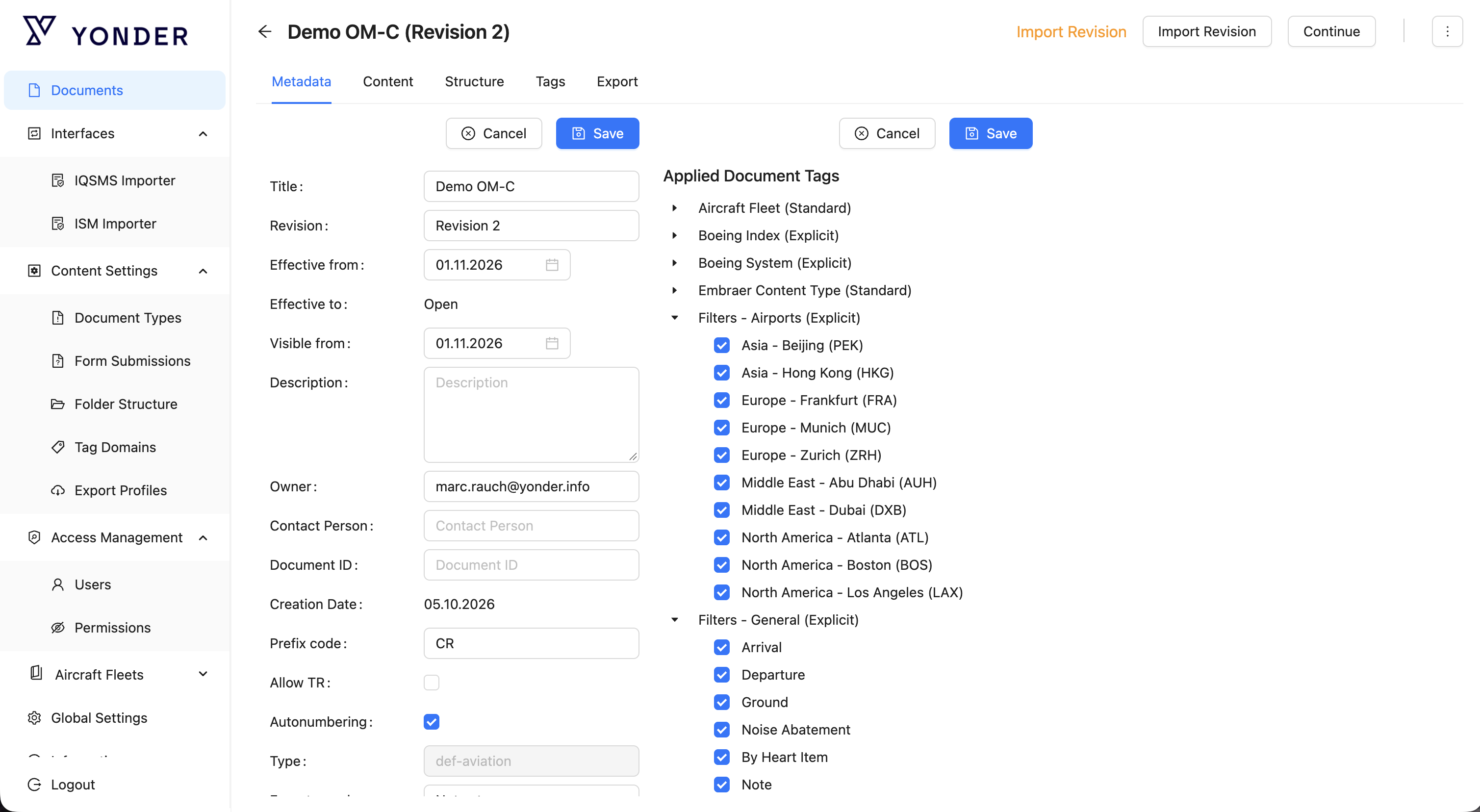
The “Metadata” tab allows selected users to define various properties that apply to the document as a whole.
For ease of reference, its properties are market with numbers that refer to the tabs below the image.
Metadata Fields
Metadata fields define key properties and administrative details of a document.
These fields help manage visibility, ownership, and version control throughout the document lifecycle.
| Metadata Field | Description |
|---|---|
| Title | Specifies the document title. |
| Revision | Defines the version number of the document. |
| Effective From | Indicates the start date from which the document becomes effective. |
| Effective To | Specifies the end date until which the document remains effective. Tick “Open” if the document should remain valid indefinitely. |
| Visible From | Defines the date from which the document becomes visible to relevant user groups in the Yonder Reader. A document can be made visible before its “Effective From” date (e.g., to prepare users for upcoming changes). |
| Description | Provides a short description or summary of the document. |
| Owner | Identifies the owner responsible for the document as a whole. |
| Contact Person | Person to be contacted if different from owner. |
| Document ID | Customer document ID. |
| Creation Date | Identifies when a document was initially created. |
| Prefix Code | Specifies a prefix used for automatically generated change requests. Example: Prefix “CR” results in IDs such as CR-1, CR-2, etc. |
| Allow TR | Tick to enable the use of Temorary Revisions. |
| Autonumbering | When enabled (checked by default), it activates automatic numbering of information modules. For more information, see Define Structure. |
| Type | Displays the document type assigned when the document was created. This property cannot be changed after initial creation. For more details, see Create New Document. |
| Export on release | Select an export formatfor a document version to enable automatic export upon release.
This ensures seamless integration with external workflows and systems. |
| Applied Document Tags | Defines which tag domains can be used within the document’s content. New tag domains can be created in the “Definitions” section of the Yonder Admin Interface. |
| Aircraft Allocation | Select an export formatfor a document version to enable automatic export upon release.
This ensures seamless integration with external workflows and systems. |
Export on Release
Yonder can be configured to automatically generate an export package when a document is released.
This package can be accessed either in the Export tab (similar to manually triggered exports) or automatically via the Yonder API (application programming interface).
Set the trigger to export automatically on release
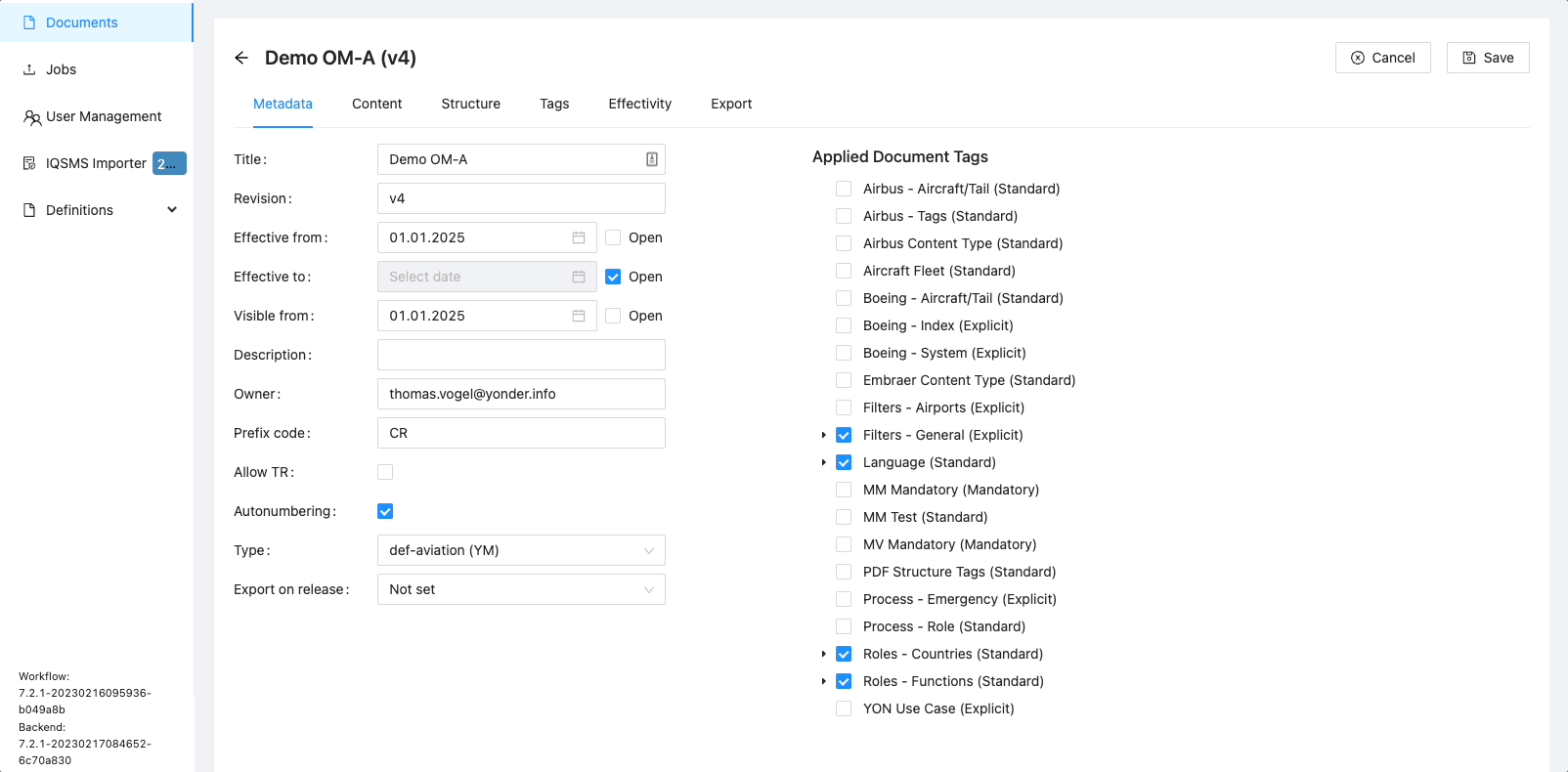
Select the document revision in the admin console and select the desired export profile under ‘Export on release’:
Prerequisites:
- Document revision must be in draft (not released yet).
- open the desired document version and enter the edit mode
- in Metadata go to ‘Export on release’' and select the desired export profile and save
→ the export package is generated using the selected profile when the document version is released
Manually retrieve a generated export profile
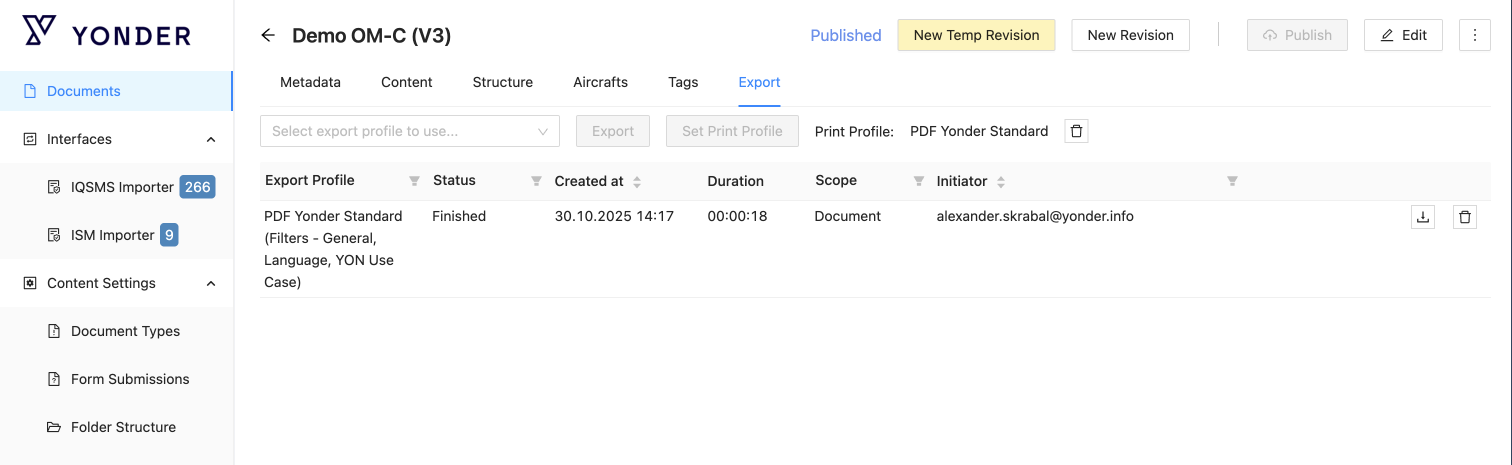
Select the Export tab in the admin console and select the desired export profile.
Prerequisites:
- Document revision must be released
Automatically retreive an export package via API
For the Yonder API details consult the interface control document.
Was this article helpful?
That’s Great!
Thank you for your feedback
Sorry! We couldn't be helpful
Thank you for your feedback
Feedback sent
We appreciate your effort and will try to fix the article