TABLE OF CONTENTS
General
The Form designer allows to create structured digital form templates (interactive documents) using a predefined set of elements.
Forms are used to collect structured information in a consistent and traceable way. They replace unstructured inputs such as emails, free-text documents, or spreadsheets with standardized data that can be reviewed, processed, and analyzed more efficiently.
Forms are particularly valuable when information needs to be:
- Collected repeatedly
- Compared across multiple submissions
- Reviewed for completeness and accuracy
Typical Use Cases
- Incident and Event Reporting
Examples
- Bird strike reports
- Safety or hazard reports
- Technical irregularities
- Operational Reports
Examples
- Daily or shift reports
- Equipment or asset condition reports
- Maintenance observations
- Inspections and Checklists
Examples
- Pre-operation or pre-flight checks
- Safety inspections
- Quality assurance checks
- Acceptance or handover protocols
- Feedback and Assessments
Examples
- Training feedback
- Quality or service assessments
- Post-event evaluations
- Satisfaction ratings
Creating a new Form template
To create a new form, follow the steps below.
Step 1: Create a New Document
- Navigate to Documents.
- Select Create new document.
- Enter a Document title.
- Select the Document type:
yonder-standard-forms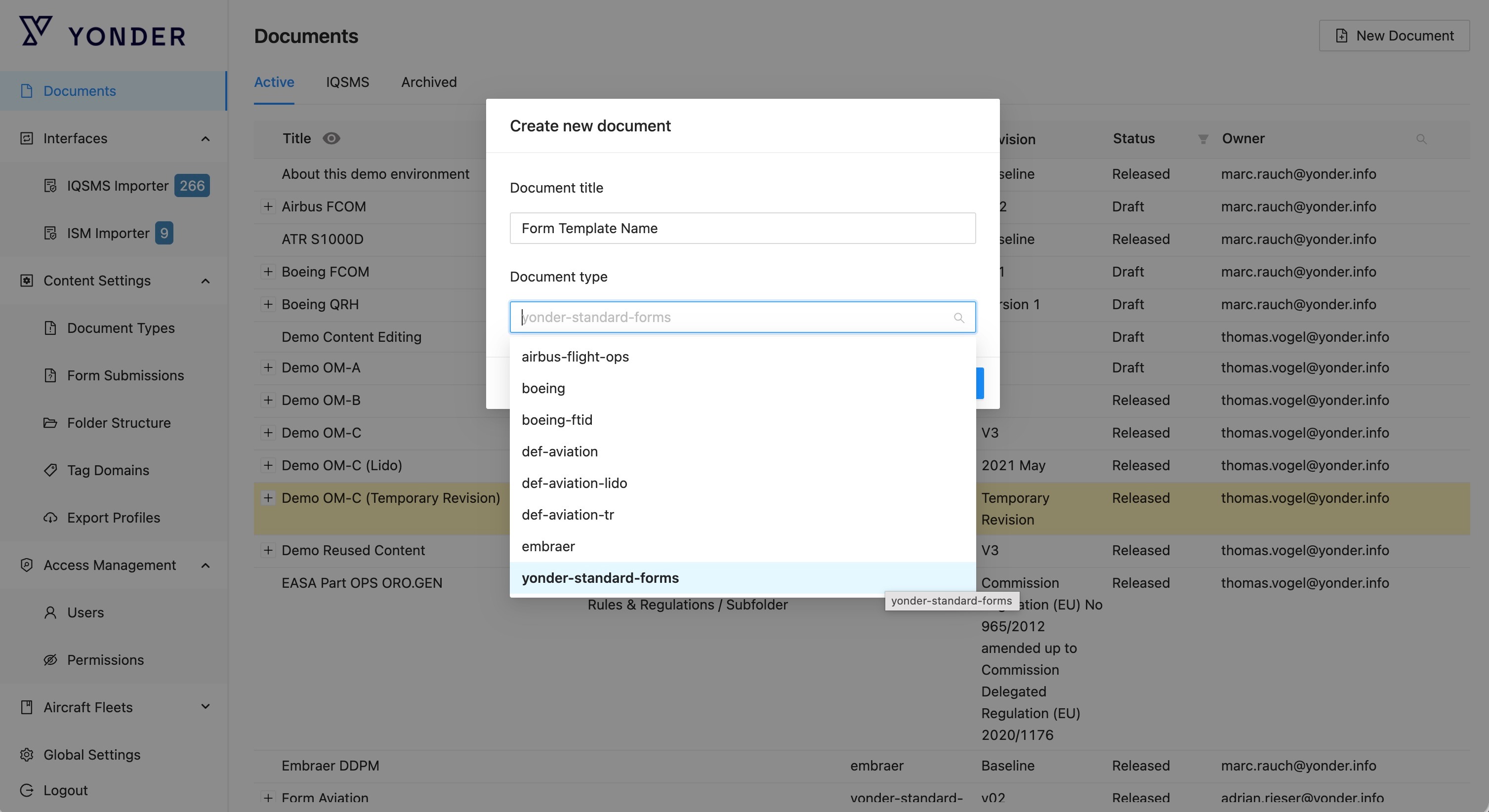
Step 2: Define Metadata
- Select Edit next to the metadata section.
- Configure the required metadata fields.
Metadata handling is identical to Yonder Smart Documents and follows the same structure and rules.
Step 3: Edit Form content
- Open the content tab
- Select Edit.
- Use the Form Designer to add and configure the required form elements.
- Arrange and group elements as needed to structure the form logically.
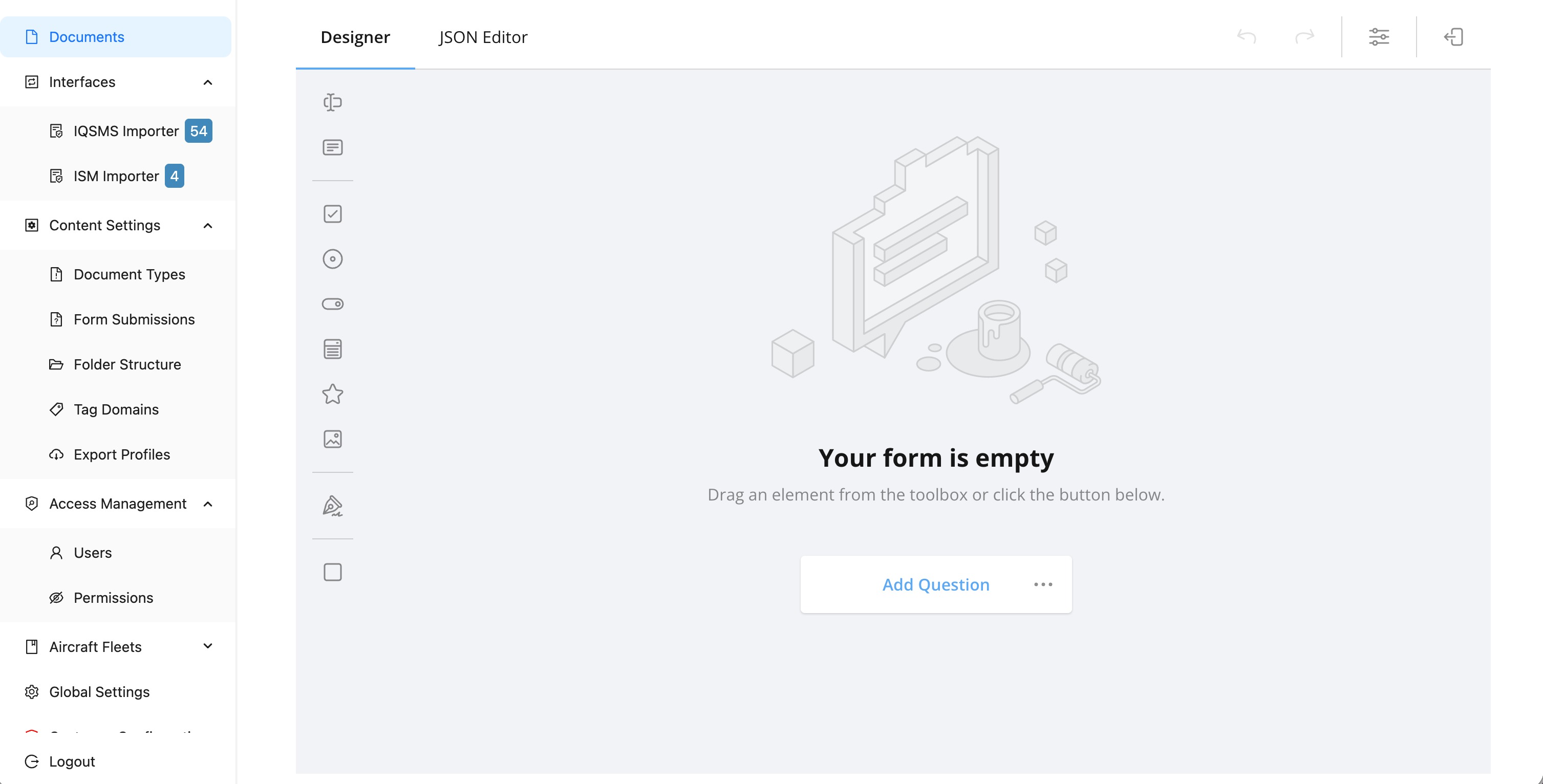
Form Elements
The following elements are available when creating forms. Only these elements are supported.
Single Line Input
Use this element to capture short text values.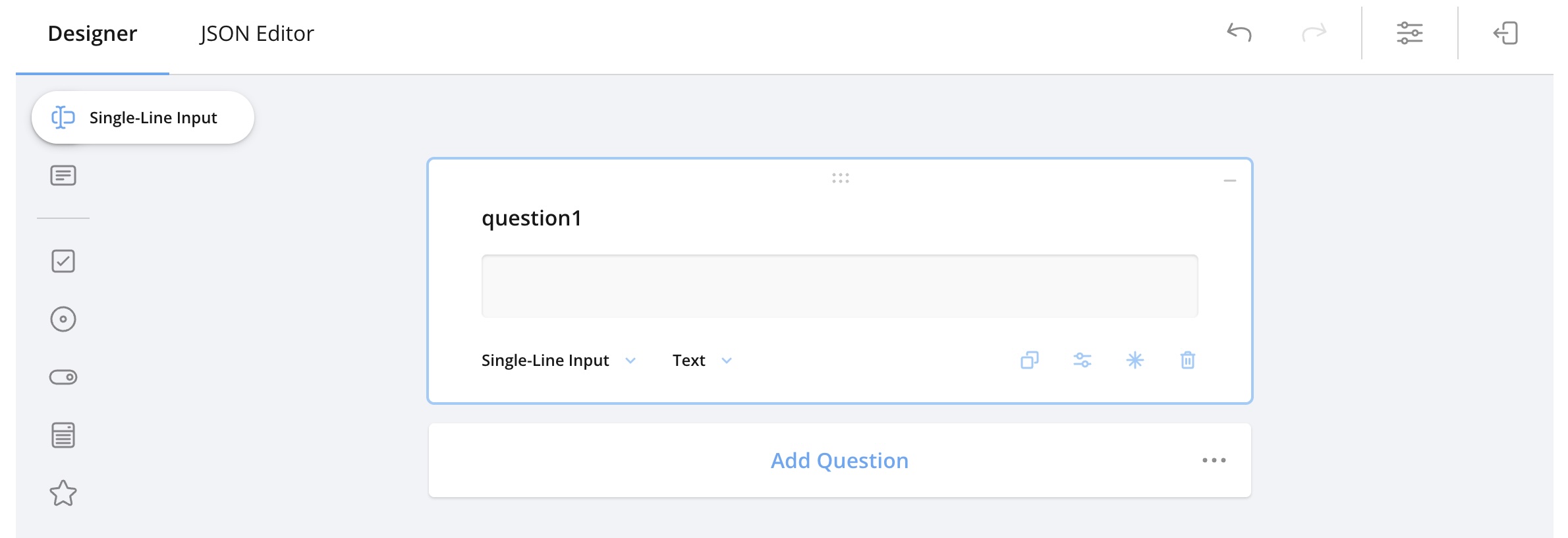
Typical use cases
- Name
- Email address
- ID or reference number
Long Text
Allows users to enter longer, multi-line text.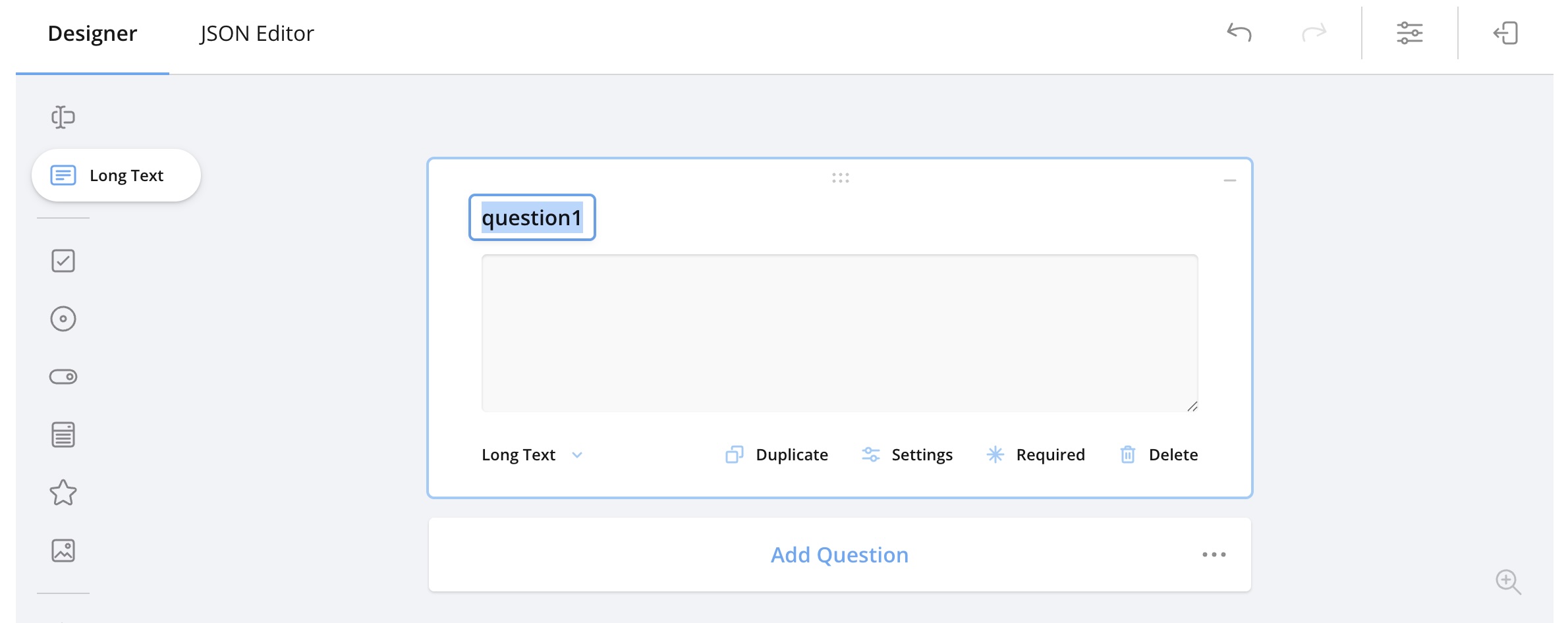
Typical use cases
- Comments
- Descriptions
- Feedback or explanations
Check Boxes
Allows users to select multiple options from a list.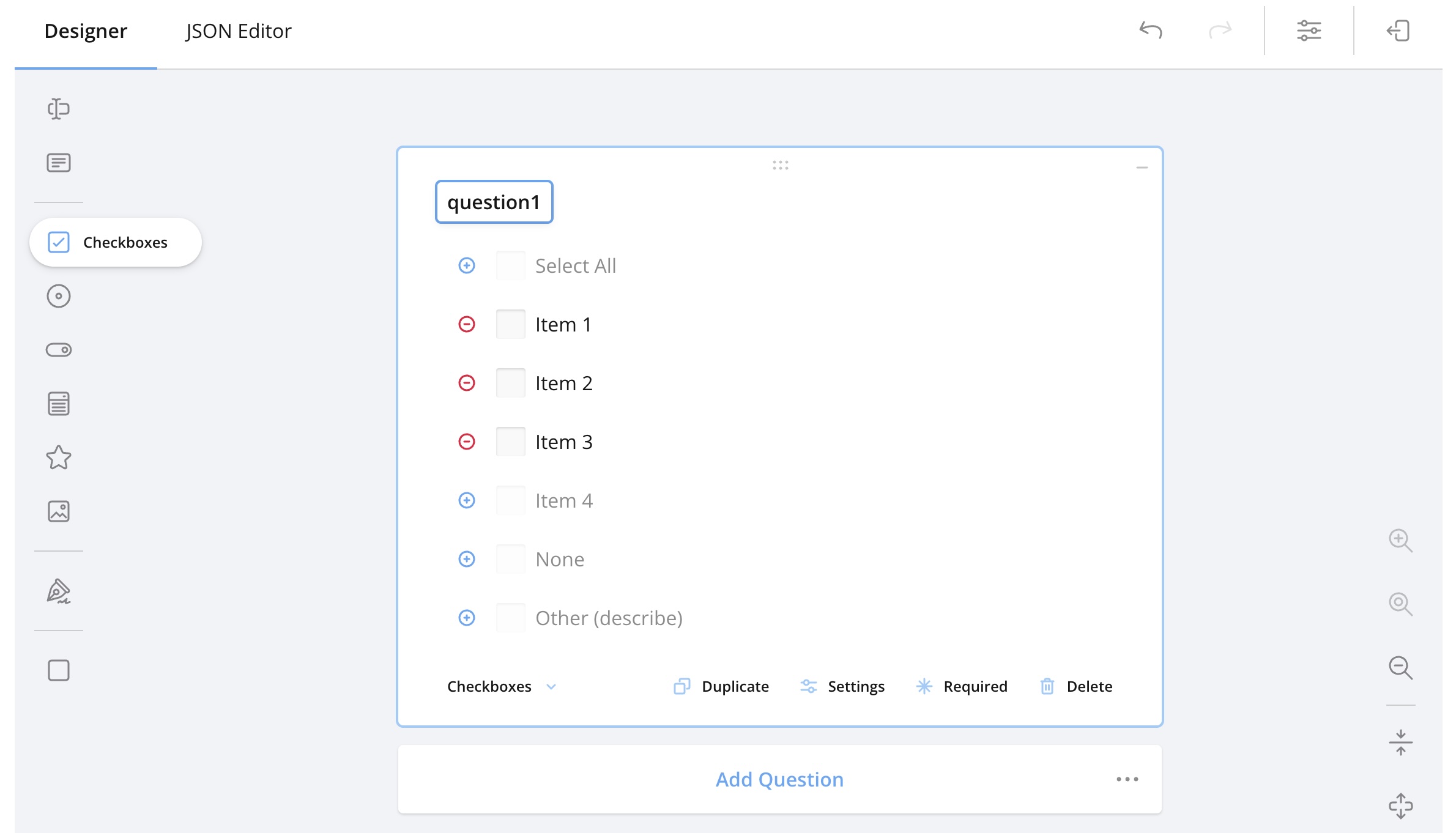
Typical use cases
- Selecting multiple applicable items
- Feature or option selection
Radio Button Group
Allows users to select one option only from a predefined list.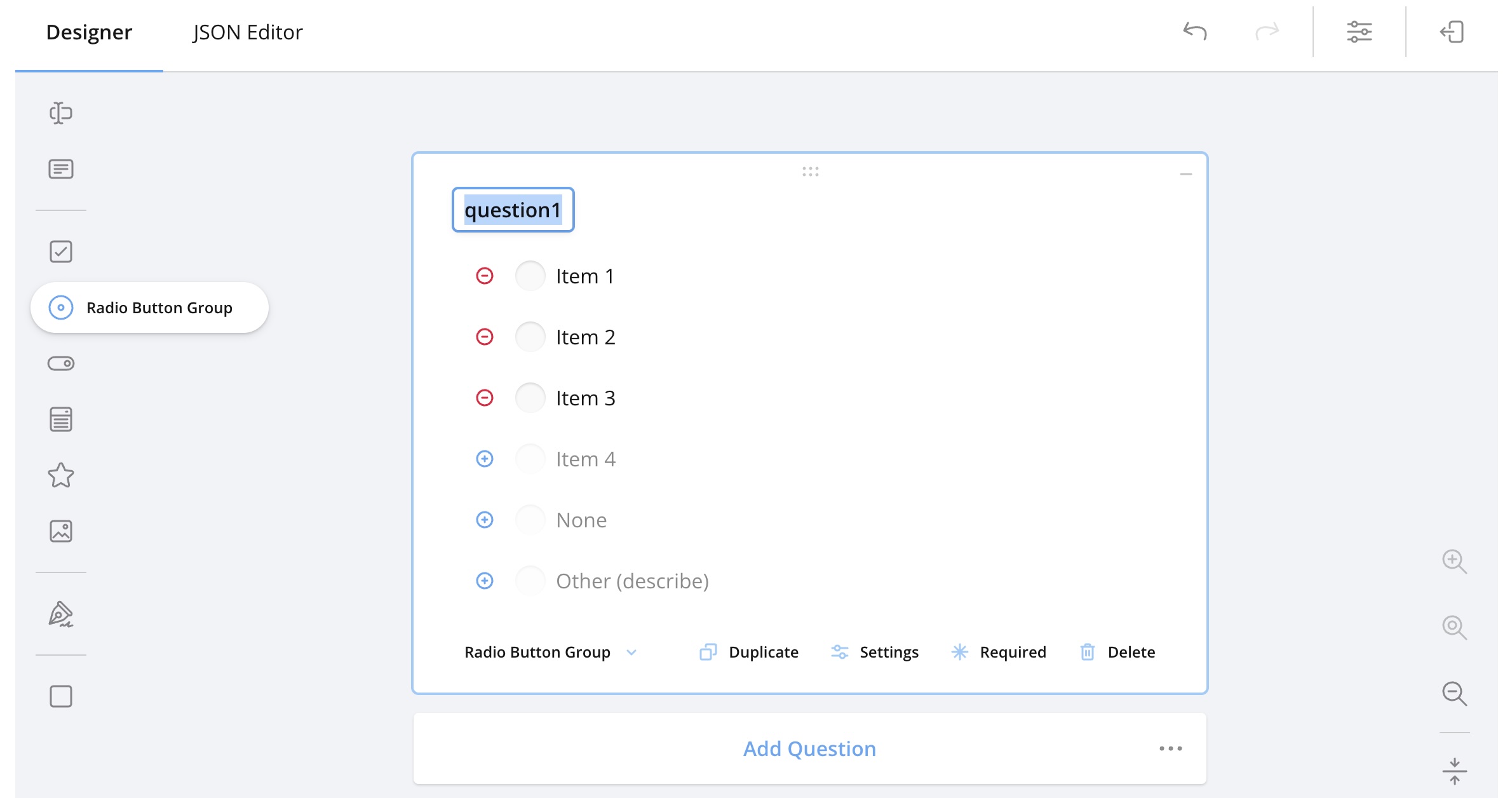
Typical use cases
- Single-choice questions
- Mutually exclusive options
Yes / No (Boolean)
A simplified choice for binary decisions.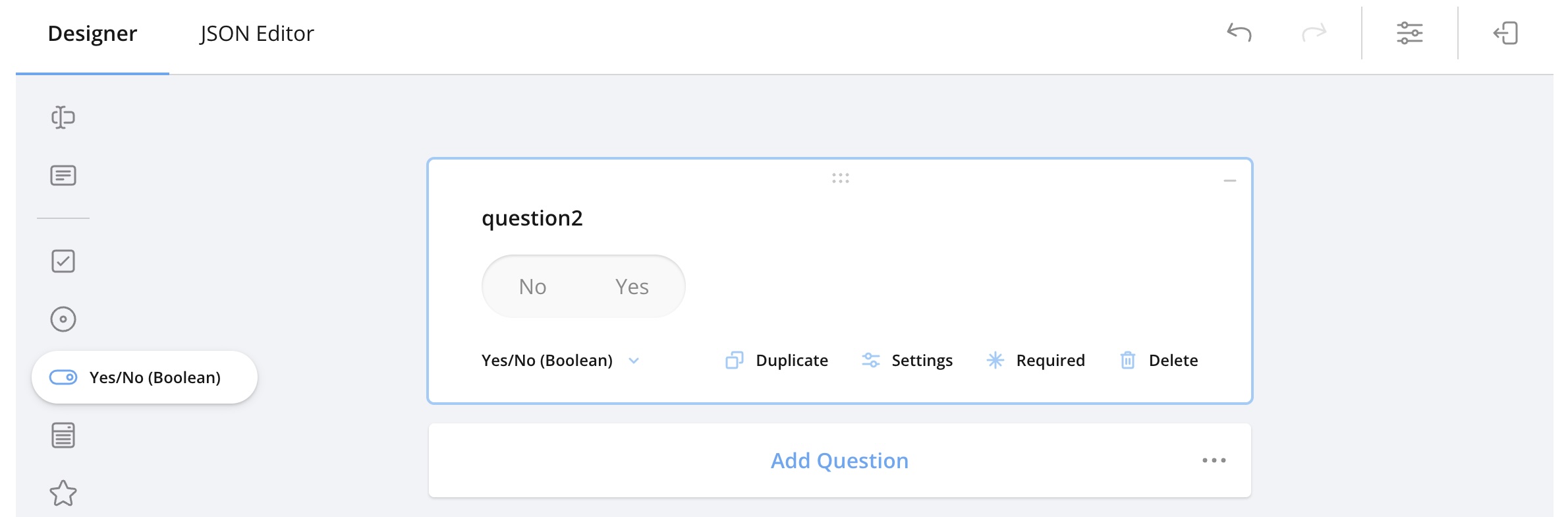
Typical use cases
- Confirmations
- Approvals
- True/false questions
Drop Down
Displays a list of options in a compact drop-down menu.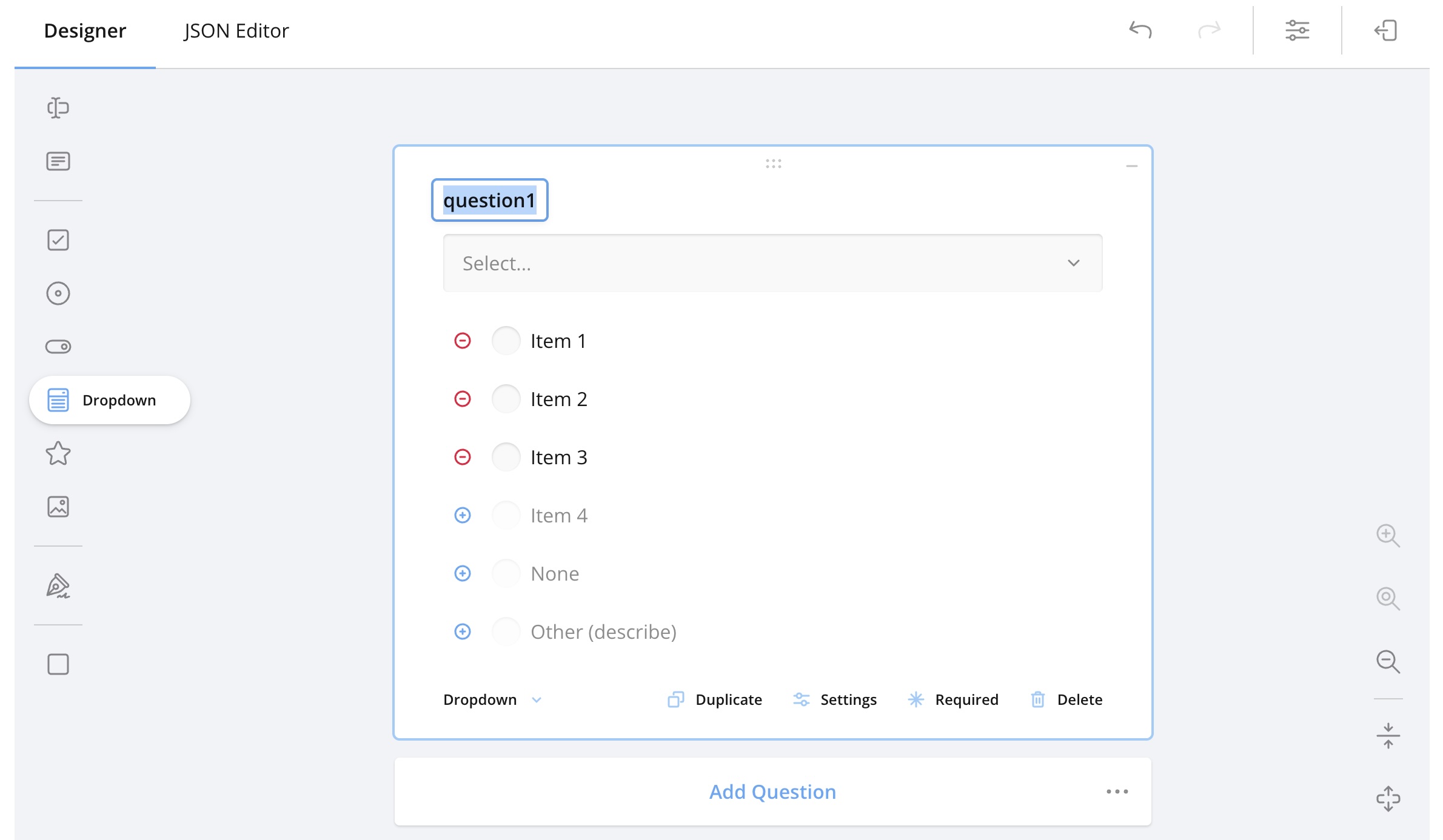
Typical use cases
- Long option lists
- Country, category, or status selection
Rating Scale
Allows users to provide a numeric or scaled rating.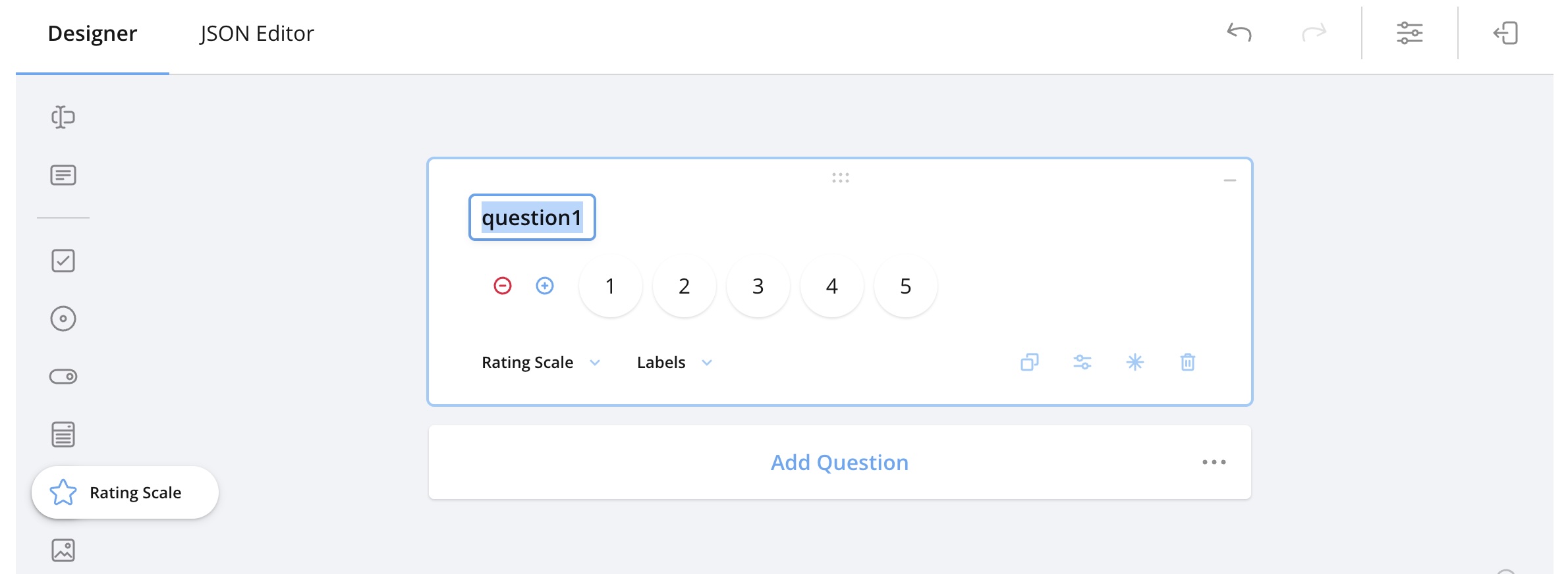
Typical use cases
- Satisfaction surveys
- Quality or performance ratings
Image Upload
Allows users to upload an image file as part of the form.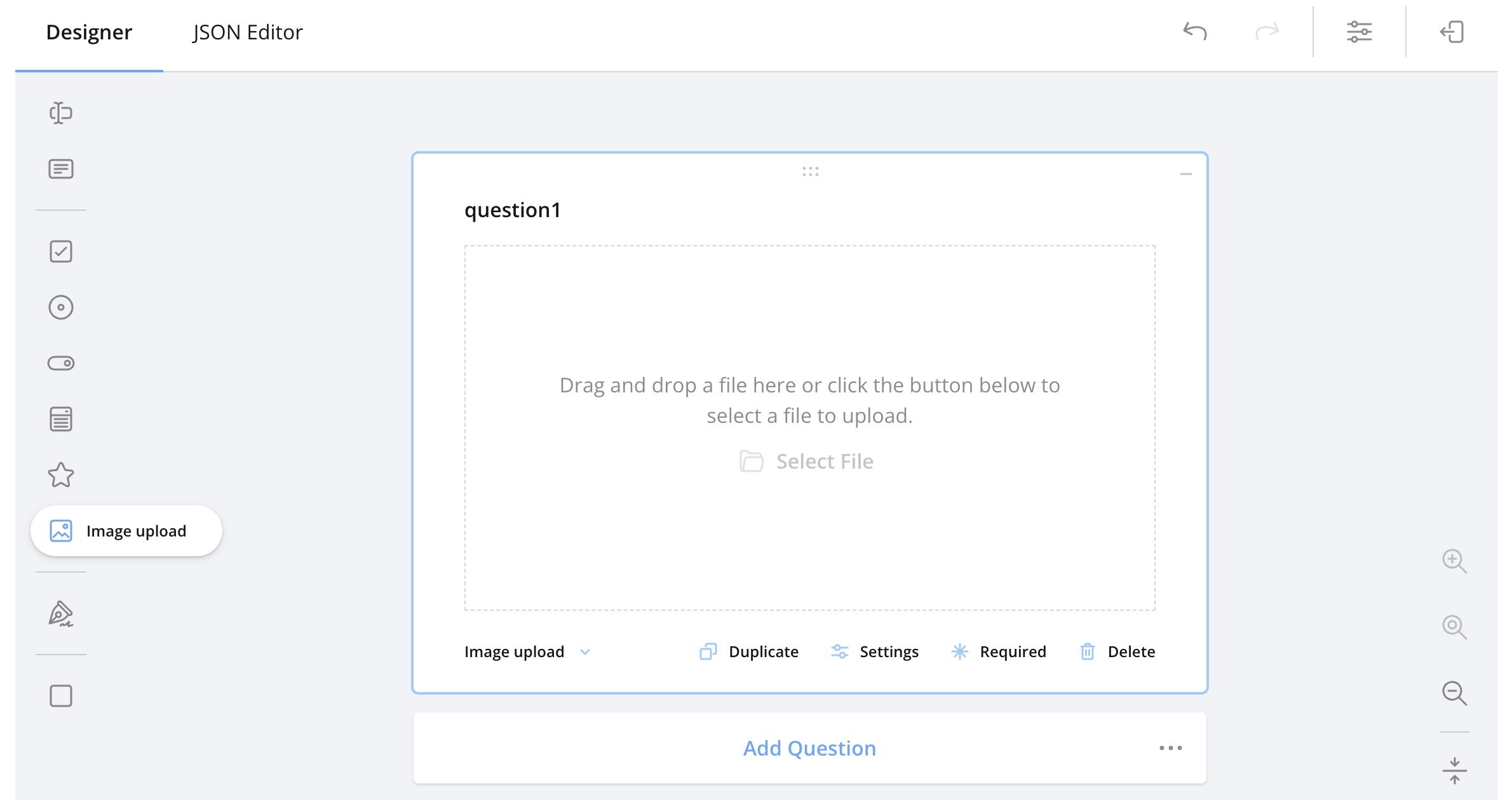
Typical use cases
- Photo documentation
- Evidence or visual confirmation
Signature
Captures a handwritten digital signature.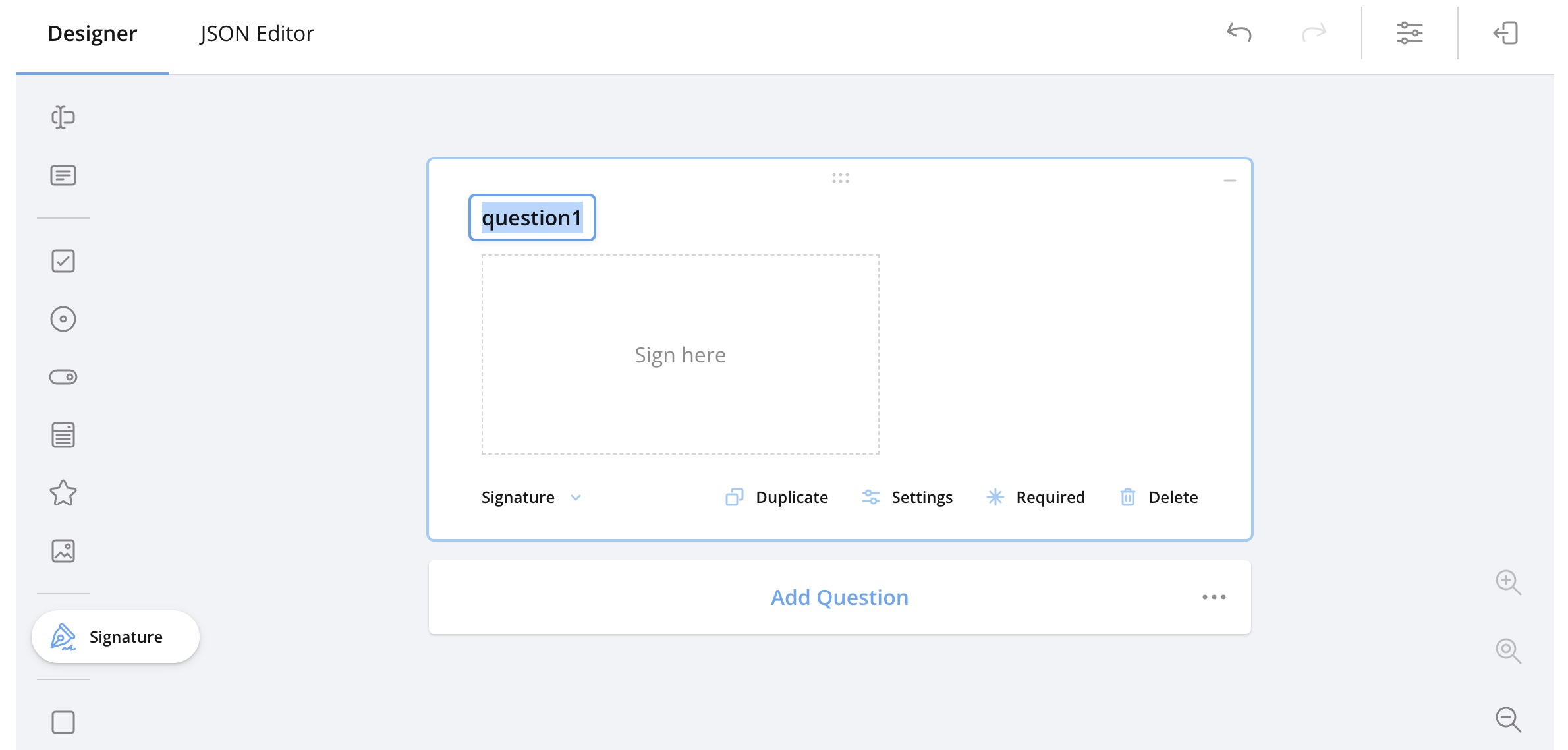
Typical use cases
- Confirmations
- Approvals
- Legal or compliance-related forms
Panel
A container element used to group multiple elements together.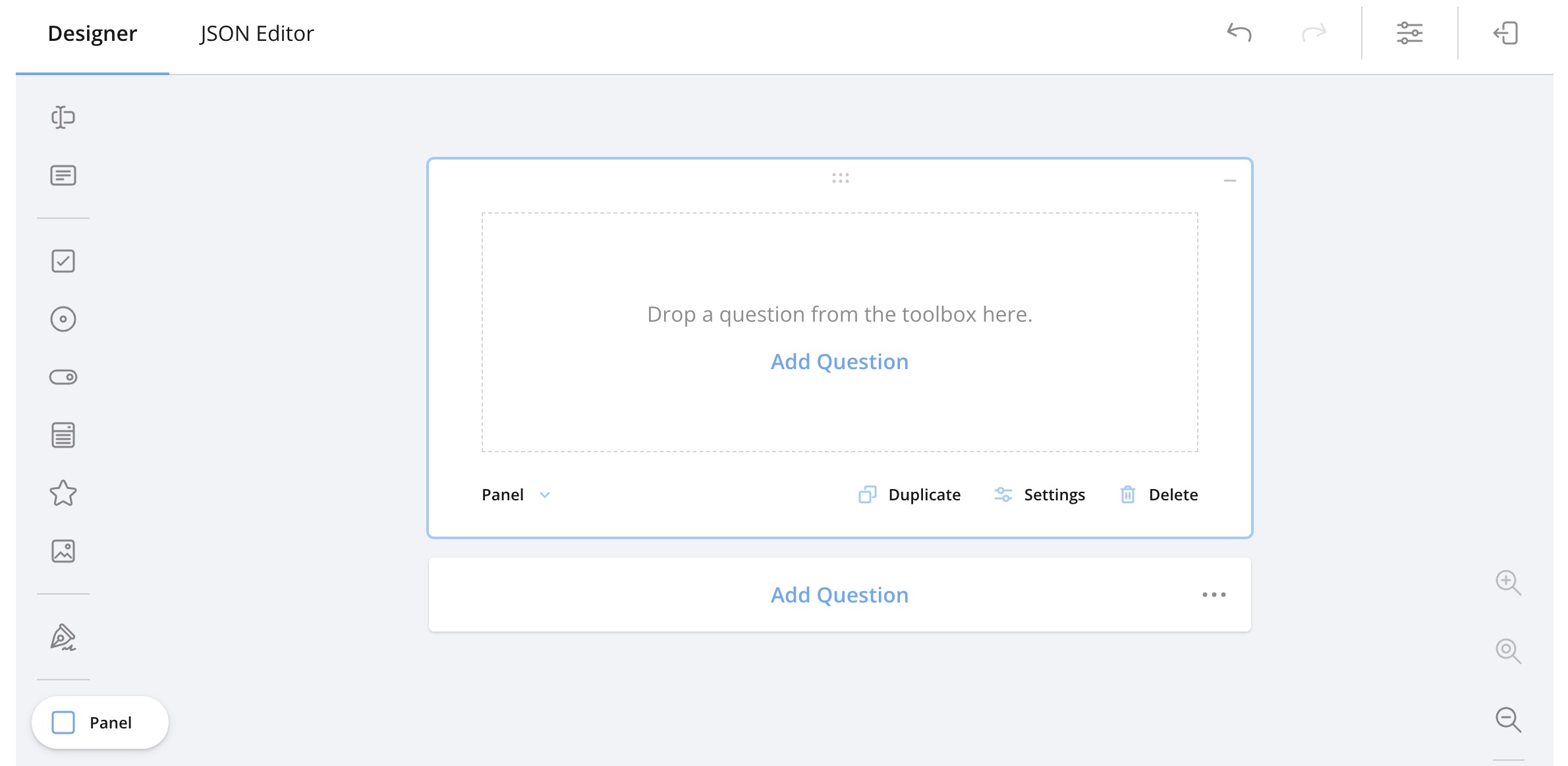
Typical use cases
- Structuring complex forms
- Grouping related questions
- Repeating sections
Was this article helpful?
That’s Great!
Thank you for your feedback
Sorry! We couldn't be helpful
Thank you for your feedback
Feedback sent
We appreciate your effort and will try to fix the article