TABLE OF CONTENTS
General Document Structure
In Airbus Flight Ops XML content, chapters, invariants, group of invariants, and solutions are key elements that structure and manage Airbus and generally aviation data, particularly for operations and maintenance documentation. Here’s a breakdown of each:
Chapters
Chapters in Airbus Flight Ops XML organize the content into logical sections, similar to a table of contents in a document. Each chapter groups information on specific operational procedures, maintenance tasks, or system descriptions. Structuring content into chapters ensures that information is easy to navigate and reference, aligning with standardized aviation documentation practices. These chapters follow an established hierarchy and can contain nested sections for detailed subtopics.
Invariants
Invariants in Airbus Flight Ops XML represent stable or unchanging data elements that remain consistent across various document versions or aircraft configurations. They ensure that critical information, such as specific aircraft characteristics, regulatory standards, or safety protocols, stays accurate even as other details may vary. Each invariant is always associated with at least one variant, which allows for tailored adjustments based on different operational needs or aircraft specifications. This setup maintains consistency while enabling flexibility in how information is applied across different configurations.
Solutions
Solutions are specific procedures, instructions, or corrective actions provided to address particular scenarios, issues, or maintenance needs. In Airbus Flight Ops XML, solutions are linked to operational contexts or troubleshooting tasks, guiding users in performing corrective actions efficiently. Each solution typically includes step-by-step instructions, references to required tools or parts, and safety precautions, ensuring standardized execution by aviation personnel.Together, chapters, invariants, and solutions in Airbus Flight Ops XML help create structured, consistent, and easily navigable operational and maintenance documents, supporting safe and efficient aircraft operations.
Add Content
Select Add Structural Module to add an element. Beside the title you can define what type of element it is:
- Chapter
- Group of invariants
- Invariant
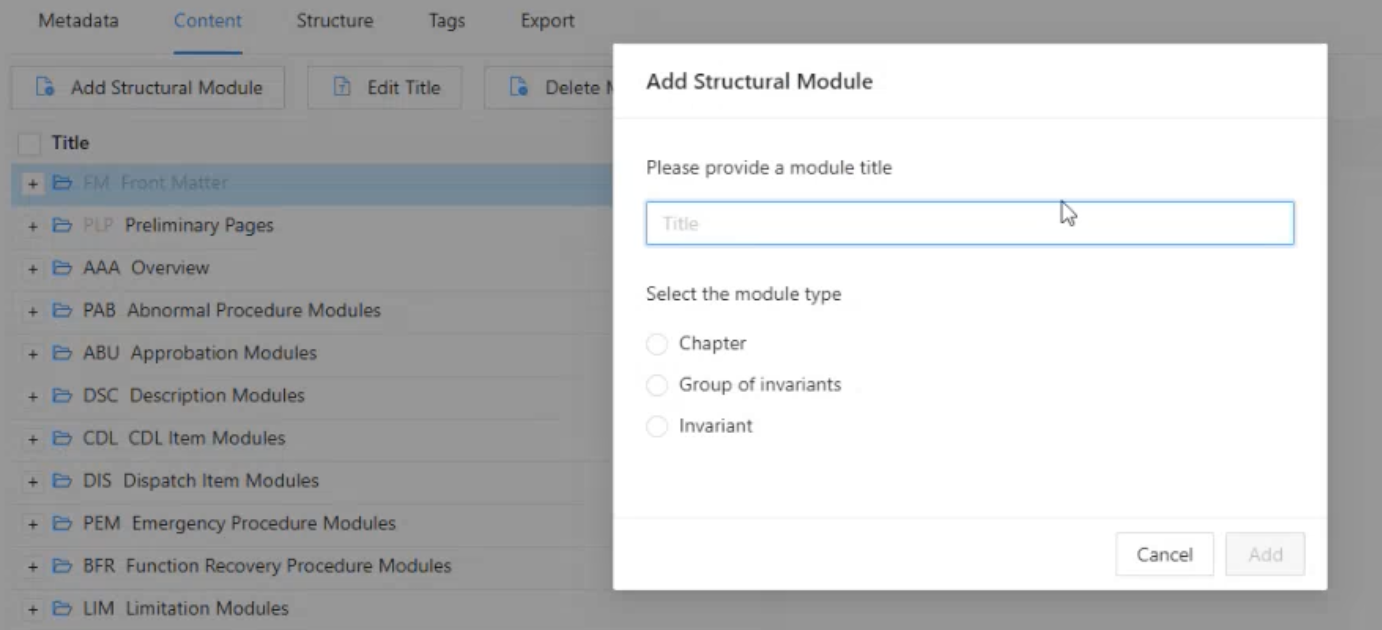
Note: The document outline is generated dynamically according to a set of rules established by Airbus. These rules determine the structure and content of the document. For example, when adding a Structural Module to an Invariant, the Airbus rule set, defined by a Document Type Definition (DTD), limits the available options. In this case, only one valid solution can be added, as the DTD enforces these constraints
A solution then again is defined by selecting a template from the available options.
The elements selected will be presented with their default styling.
Outline
The editor now intelligently supports drag-and-drop functionality for rearranging structure elements in the outline. However, a move is only permitted if it aligns with the structure rules set by Airbus.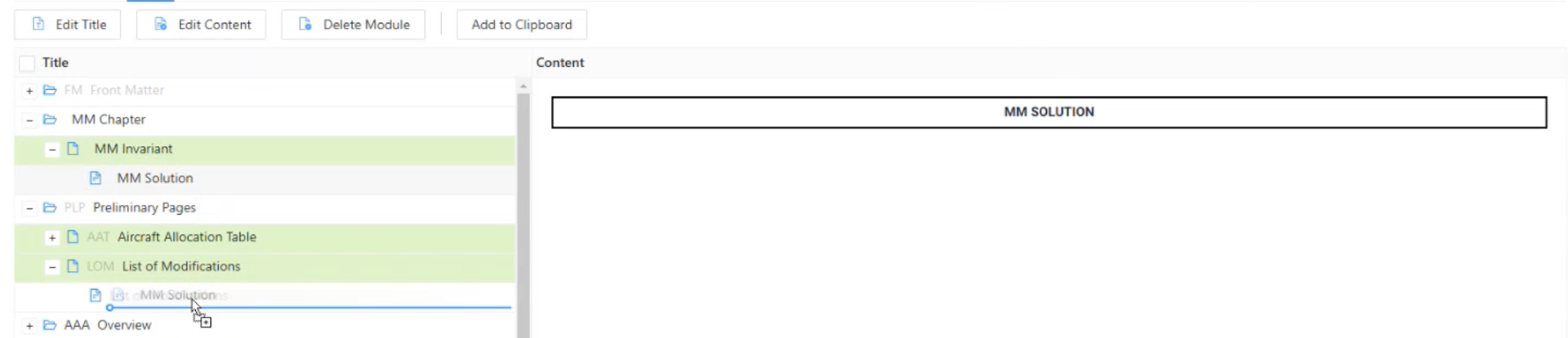
Edit Content
To edit content, select the required element and click on edit.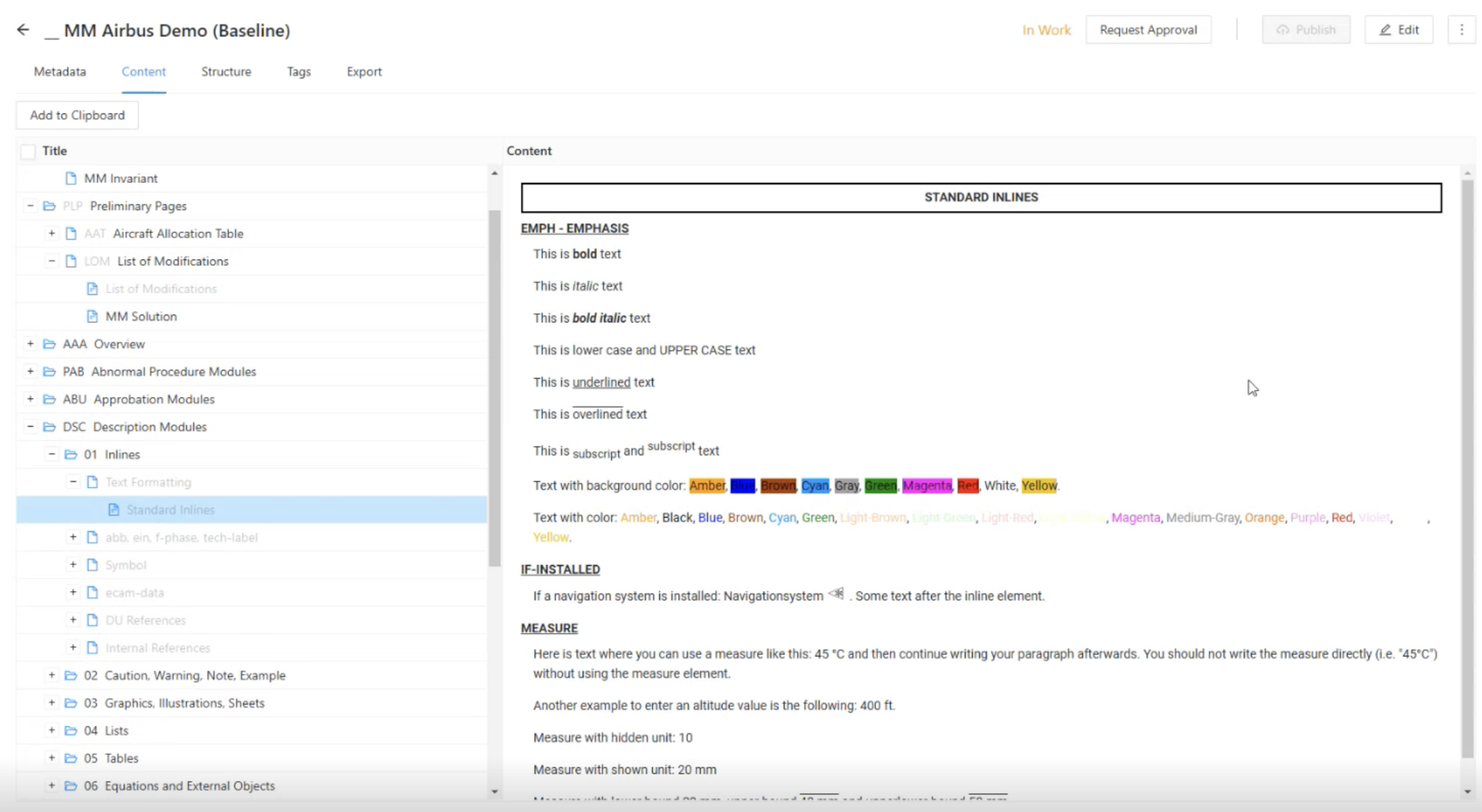
The XML editor will open and allow you to edit the content.
XML Vocabulary
Airbus User Guide
The Airbus DTD (document type definition) defines 292 XML elements. These elements define how a module has to be structured and what is allowed where. Airbus provides a detailed description of the DTD in their user guide which is provided in every XML document that our customers download from the Airbus World platform.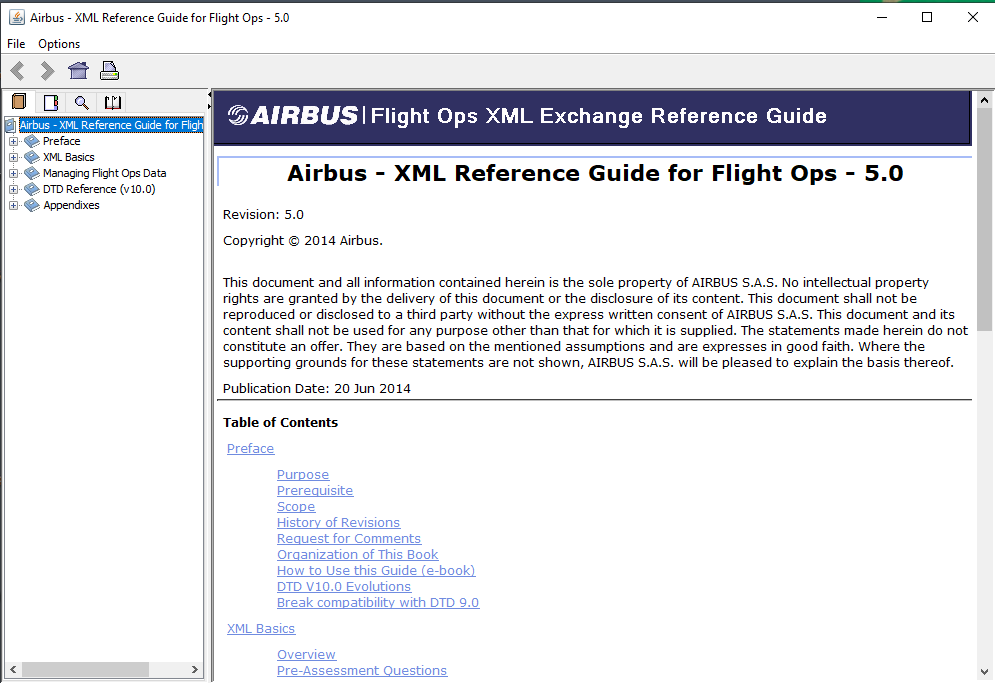
Friendly XML in Yonder
In the Yonder Editor we do not show the original Airbus element names (e.g. ex-desc-cond). Instead we have more friendly label (Exclusive Conditions Block). Below is a list of all available XML elements and their mappings (see XML Elements).
Editor Functions
In the HOME tab you find the most commonly used authoring tools as you know it from many WYSIWIG editors.
The INSERT tab allows users to easily add various elements to the document. It provides a quick way to enrich the conten:
- Table
- Graphics
- Symbols
- Caution
- Warning
- Note
- DU Reference
Tables
Editing tables in the Fonto editor is straightforward and allows you to manage table content and structure efficiently. There are multiple ways to edit a table.
Eventually there must be a dedicated chapter about editing tables
1. Adding a Table
To add a table in Fonto:
- Use the Insert Toolbar (typically located at the top bar) to select the Table option.
- Choose the desired number of rows and columns. Once inserted, the table will appear in your document.
2. Editing Table Content
- Click into a Cell: To edit the content of a cell, simply click inside the desired cell and start typing. You can input text, numbers, or other content types based on the table’s purpose.
- Formatting Text: Use the standard text formatting tools (such as bold, italic, font size, etc.) available in the editor to format the text inside individual cells.
3. Adding or Removing Rows and Columns
- Insert Rows/Columns: To insert a row or column, right-click on a row or column where you want to add a new one. A context menu will appear, offering options to insert rows or columns either above, below, or to the left or right of the selected row/column.
- Delete Rows/Columns: To delete a row or column, right-click on the respective row or column header. From the context menu, select the option to delete the row or column.
4. Resizing Cells, Rows, and Columns
- Resize Columns/Rows: Place your cursor at the border of a column or row header. Once the cursor changes to a resize icon (usually a double-headed arrow), click and drag the border to resize the column or row.
- Cell Width Adjustment: The column width can be adjusted automatically based on the content, or manually by dragging the column borders.
5. Merging Cells
- Merge Cells: To merge two or more cells, select the cells you wish to merge by clicking and dragging your mouse across them. Then, use the toolbar to click on the Merge Cells button (usually represented by a merge icon). This will combine the selected cells into one.
6. Table Properties and Styling
- Access Table Properties: Right-click on the table itself or a cell to open a context menu that allows you to modify the table’s properties, such as adjusting the border style, cell padding, background color, etc.
- Apply Styles: Fonto might also provide a set of predefined styles or formatting options that can be applied to the entire table or specific rows/columns.
7. Navigation and Selection
- Select Multiple Cells: To select multiple cells, click and drag your mouse across the cells, or use Shift + click to select a range. You can then perform actions such as merging, formatting, or deleting.
- Table Navigation: Use the keyboard's arrow keys to navigate between cells. Press Tab to move forward through cells and Shift + Tab to move backward.
8. Table Deletion
- Delete Table: To remove the entire table, right-click anywhere within the table, select Delete Table, or use the delete key to remove it from the document.
DU References
In Airbus XML editing, Documentary Unit References (DURs) provide a structured way to manage and link content across different sections of a document. They help ensure that references are consistent, maintain modularity, and enable automatic updates when content changes, all while adhering to the Airbus rules for document structure and content.
The clipboard only displays references that can be linked to according to the Airbus rule set. As a result, the available links in the clipboard vary depending on the context.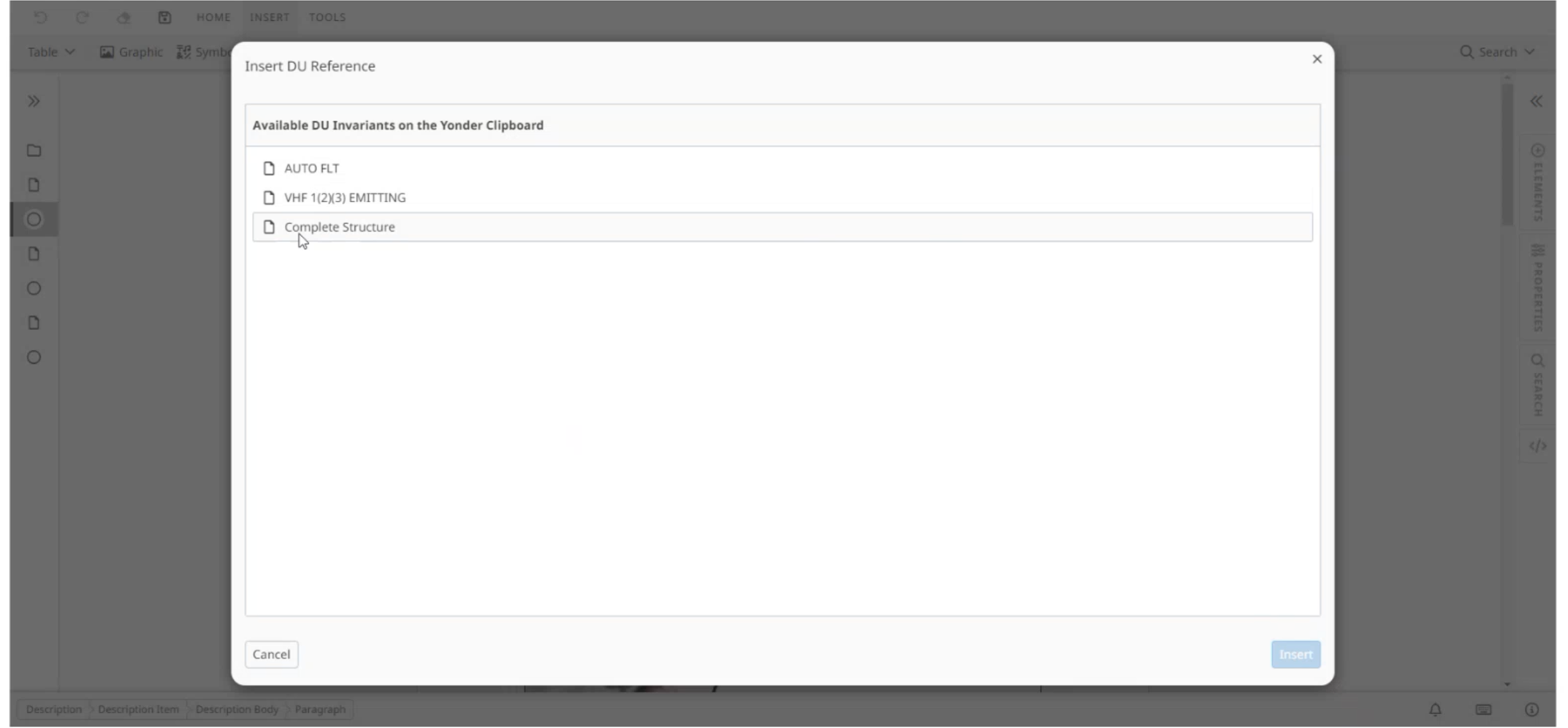
The preview only functions within the context of the current document. If the content source belongs to a different document than the one being edited, no preview will be shown.
Was this article helpful?
That’s Great!
Thank you for your feedback
Sorry! We couldn't be helpful
Thank you for your feedback
Feedback sent
We appreciate your effort and will try to fix the article