TABLE OF CONTENTS
General
The “Export” tab allows selected users to export the document as XML or PDF and/or generate document-related reports, if available.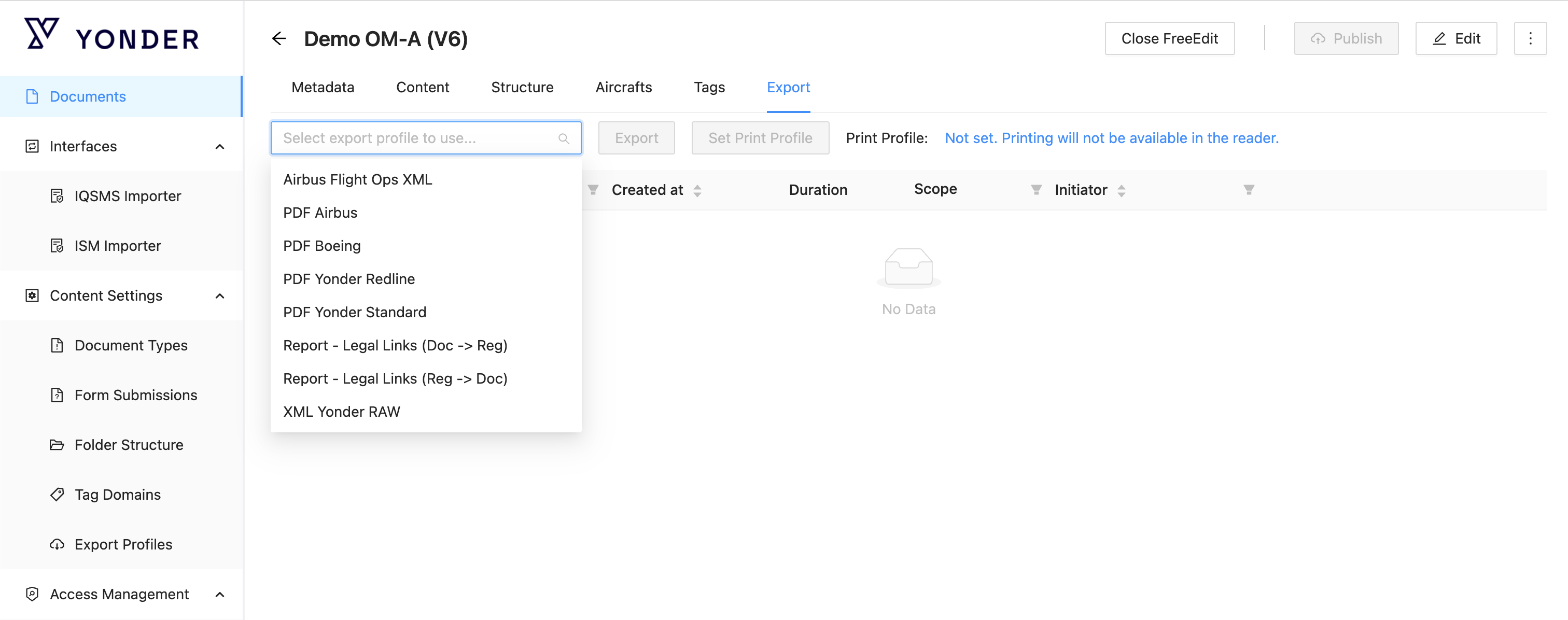
Functionality
For reference, the functionalities are numbered as described below:
| Functionality | Description |
|---|---|
| Select Export Profile | Allows users to export the document or report based on the available export profiles. Remark: To choose an export profile, users must exit Edit Mode if applicable. |
| Execute Export | Allows users to export the document or report based on the previously selected export profile. |
| Set Print Profile for the Yonder Reader | Allows users to specify the print profile based on the selected export profile. Once set, the respective print option becomes available via the Yonder Reader. |
| Download Export | Allows users to download the exported document or report. |
| Delete Export | Allows users to delete the generated document or report. |
Export Status
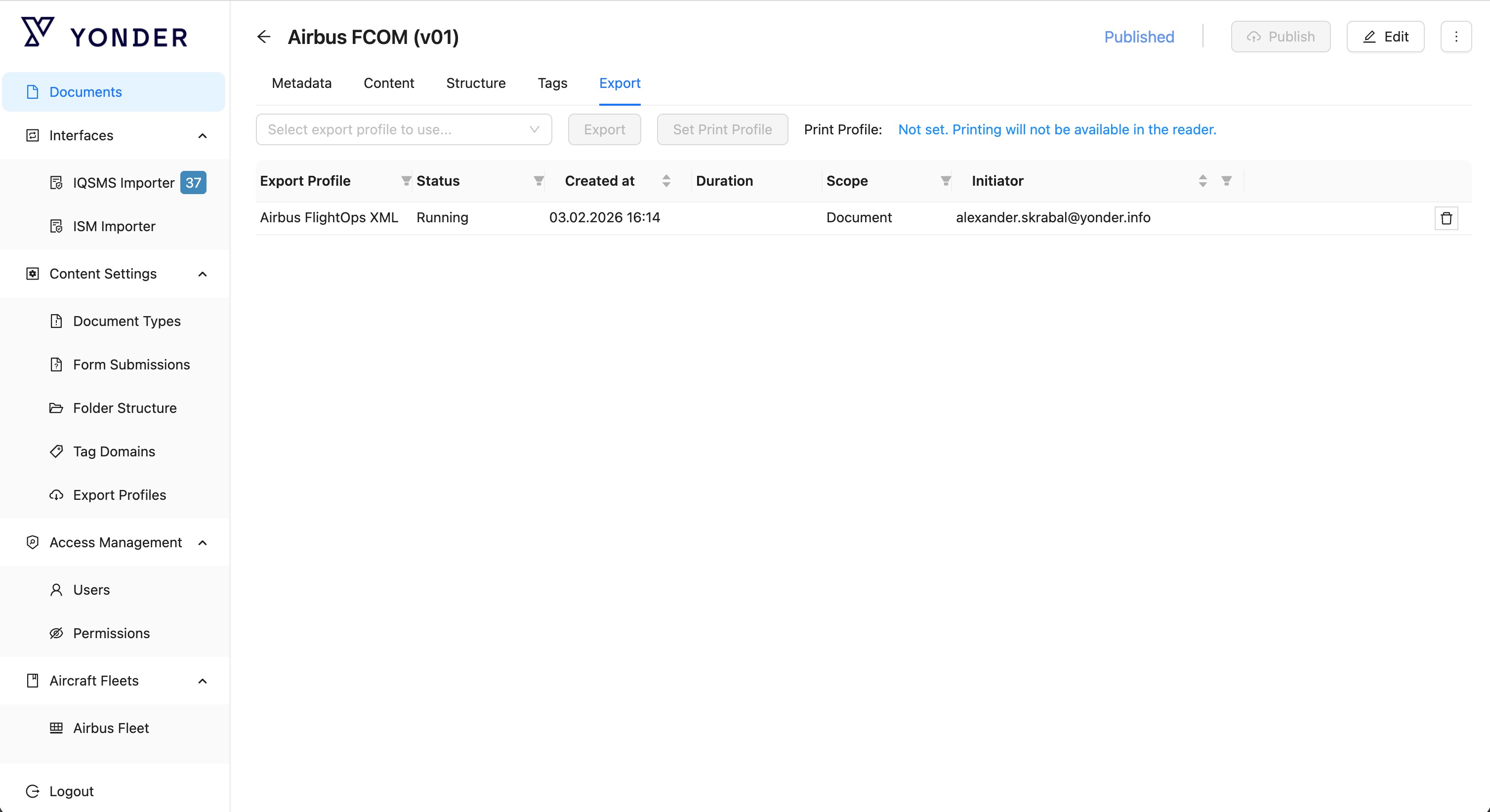
During the export process, the system displays the current status:
- Pending – The export request has been created and is waiting to be processed.
- Running – The export is currently being generated.
- Finished – The RAW XML file has been successfully created and is available for download.
- Failed – The export process was not successful. Please retry or contact support if the issue persists.
Exporting in PDF
Once a PDF Export Profile is selected, click the Execute button.
A pop-up window appears allowing you to select to print only tagged modules.
Example: Clicking on "Roles - Countries (standard)", then the small triangle, displays the tags in the document (e.g., countries).
Selecting a tag (e.g., Sweden) exports only the modules tagged with that tag.
To export the entire document, simply click the Export button.
The resulting PDF can then be downloaded using the Download icon.
Remark:
Available export profiles are linked to the profiles set up via the “Export Profiles” tab in the Admin Interface.
Boeing PDF Export Styling
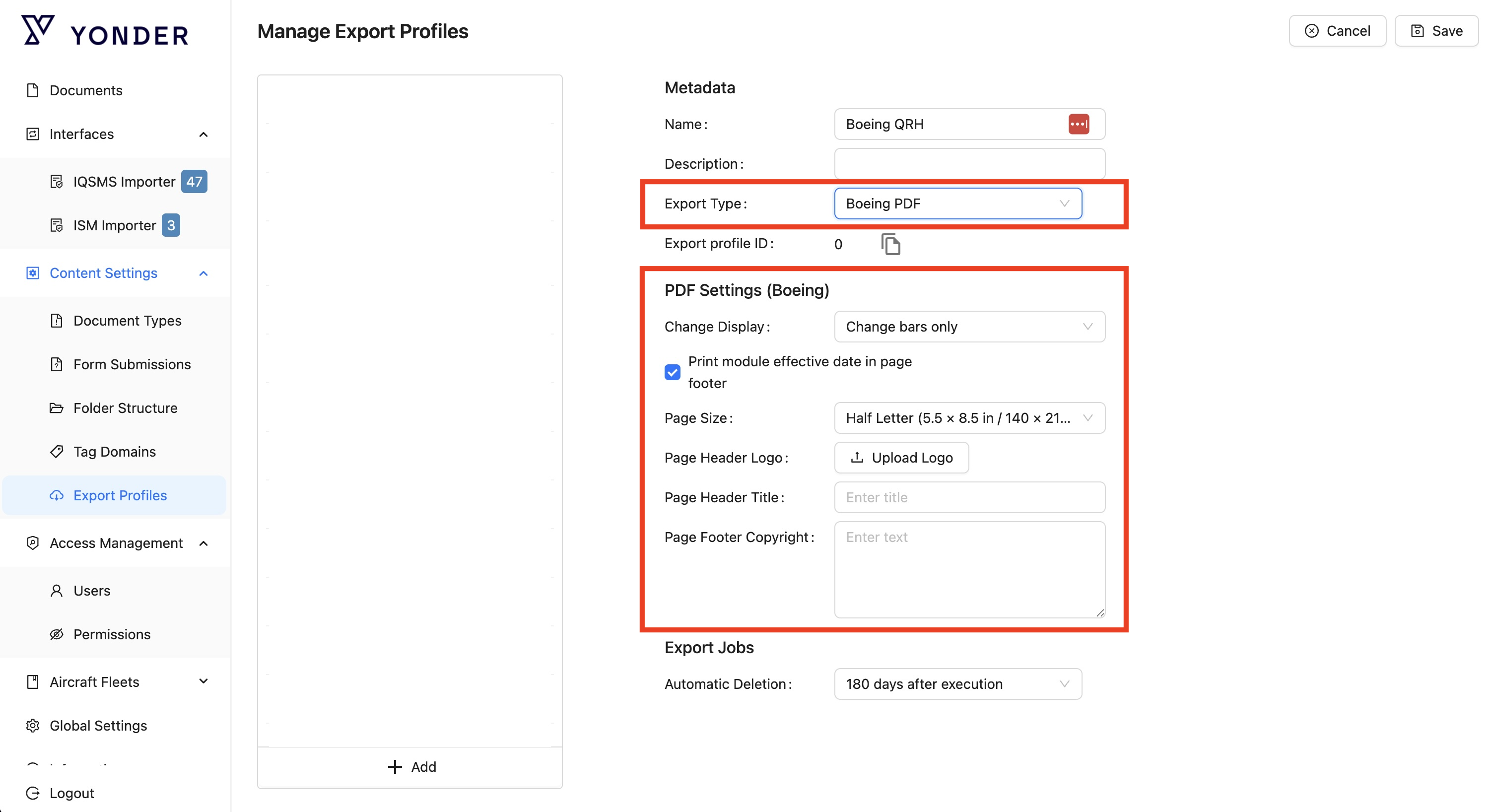
The Boeing PDF export type now supports Boeing-specific features, styles, and aircraft-based filtering options.
Settings
The Boeing PDF allows to adjust these settings:
| Setting | Control | Description |
|---|---|---|
Change Tracking | DropDown | Possible values:
|
Print revision date on each page | Checkbox (default is unchecked) | Specifies if the revision date is of modules is printed on each page |
Page Size | DropDown | Specifies the standard size of a PDF page Possible values:
|
Page Header Logo | Image selection control | Specifies the logo that is shown in the page header (default = empty) |
Page Header Title | Text box | Specifies the title that is shown in the page header (default = empty) |
Page Footer Copyright | Text box | Specifies an option text that is shown in a separate line in the page footer |
Create New Boeing PDF Export Profiles
When creating a new export profile, the user has to select the export type: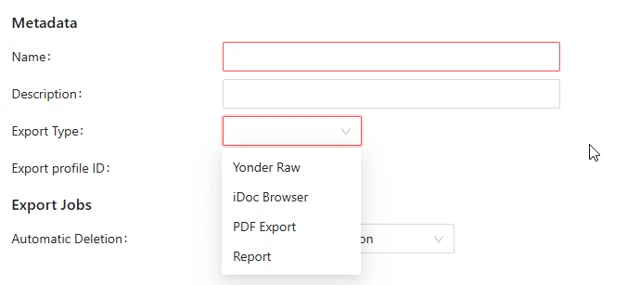
The Boeing PDF entry is only visible in the dropdown list if Boeing FTID XML has been enabled in the customer configuration.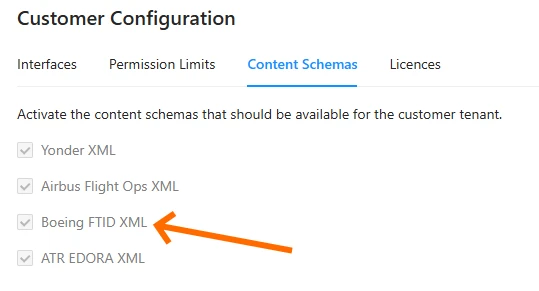
Triggering a Boeing PDF export
Boeing PDF exports can now be triggered for documents whose document types are associated with Boeing FTID XML content schemas.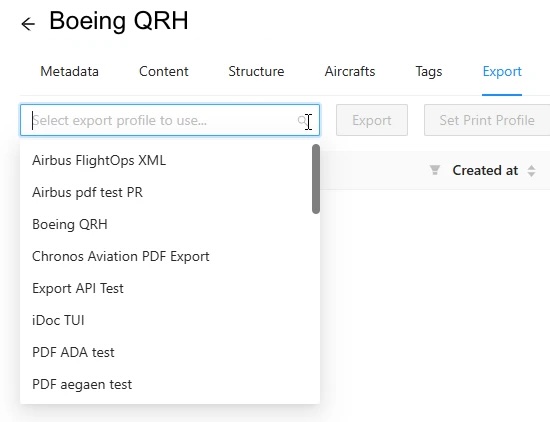
Exporting in XML
Airbus XML
Yonder allows you to export Airbus documents in their original Airbus FlightOps XML structure in the native Airbus XML format. The exported XML file can be used in Airbus-native environments and systems that require the standard Airbus XML format.
How to export Airbus
Follow these steps to generate a RAW XML export:
- In the Admin Interface under Documents open the Airbus document you want to export.
- Select the Export tab.
- Select the export profile Airbus FlightOps XML.
- Confirm by clicing the Export button.
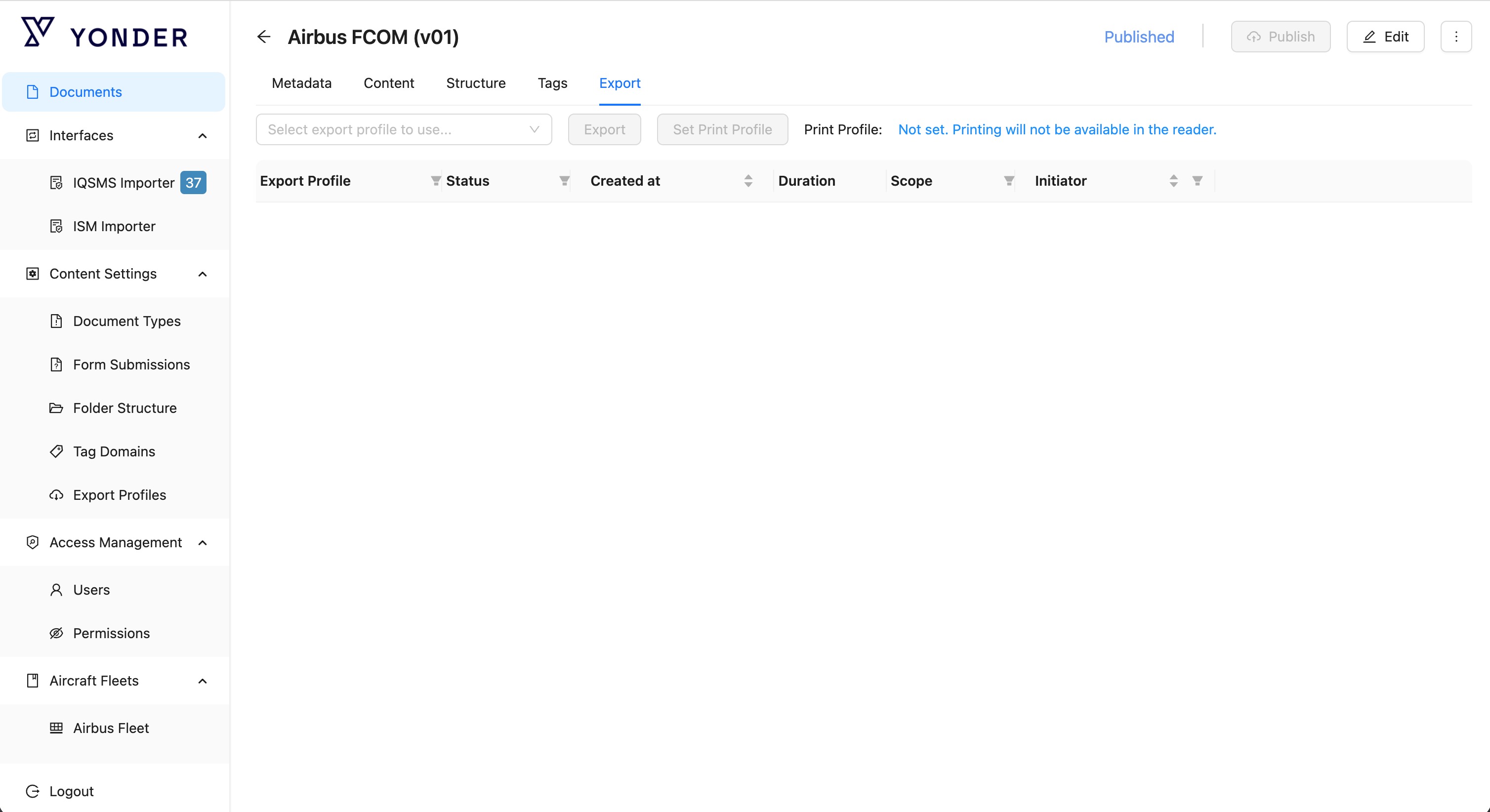
After triggering the export, the system will generate the RAW XML file. Once completed, the file will be available for download.
Important Notes
- Ensure the correct export profile (Airbus FlightOps XML) is selected.
- Only Airbus document types support XML export.
- Always verify the exported file before reusing it in Airbus-native systems.
Was this article helpful?
That’s Great!
Thank you for your feedback
Sorry! We couldn't be helpful
Thank you for your feedback
Feedback sent
We appreciate your effort and will try to fix the article