TABLE OF CONTENTS
General
Configurable PDF allows you to create PDF styling configurations based on specific formatting and styling requirements, without requiring Yonder involvement or additional costs.
It provides similar styling options to those available in Yonder-managed PDF exports, while allowing you to configure and maintain the PDF output yourself. This includes:
- Cover pages
- Headers and footers
- Fonts and font sizes
- Colors
- Other formatting options
How to Customize the PDF Styles
By modifying an export profile, you can customize the default styling, review the result in the Preview, and fine-tune the layout before generating the final PDF.
Configuring a PDF export
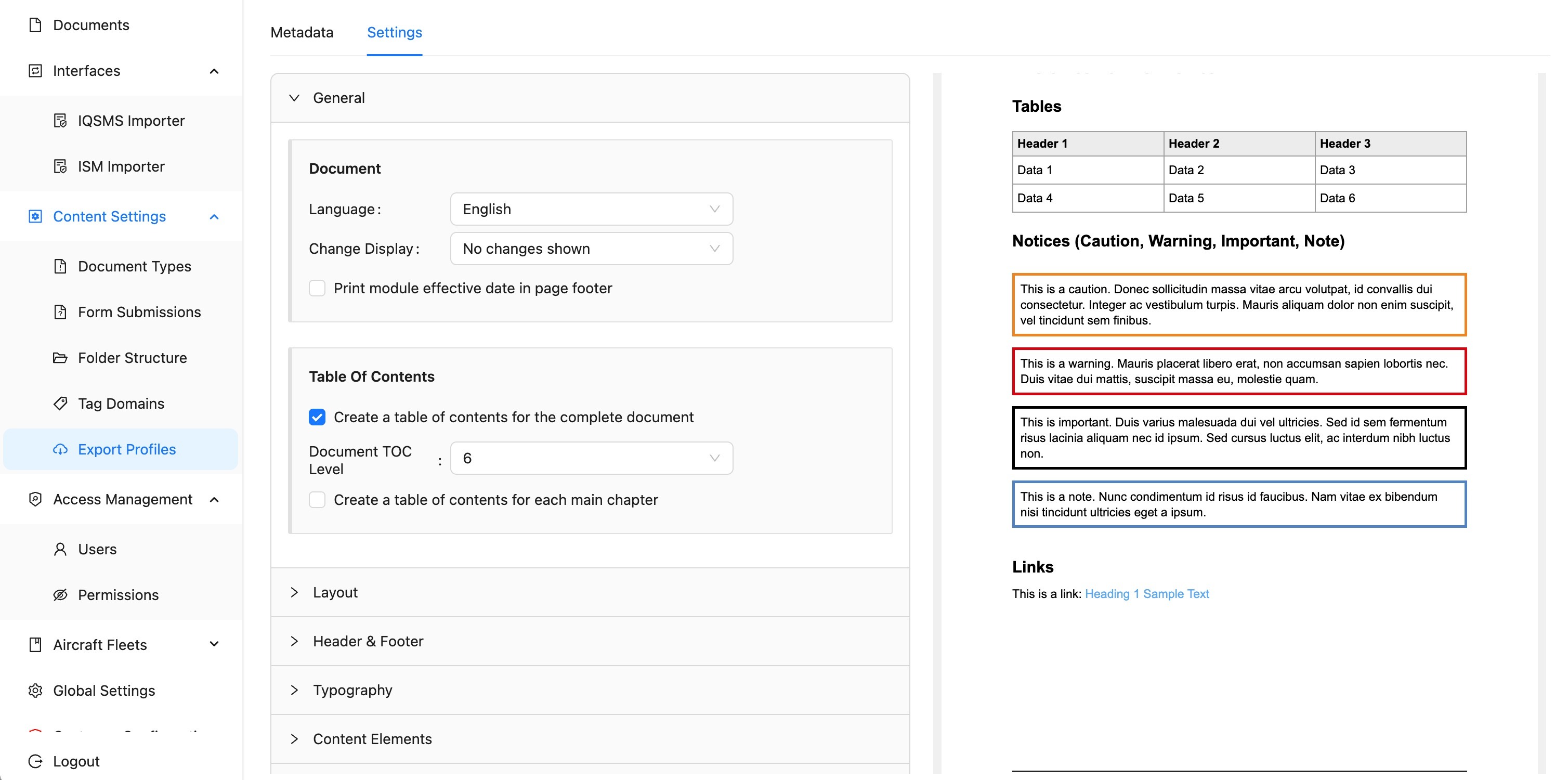
- Under Content Settings select Export Profiles.
- Select Configurable PDF.
- Click Edit to modify the default styling in the Settings-tab.
- Review the changes using the Preview.
- Adjust the styling as required.
- Save the configuration.
- Export the document as a PDF.
Preview
The Preview provides an immediate sneak peek of how the final PDF will look based on the current styling configuration before the PDF is generated.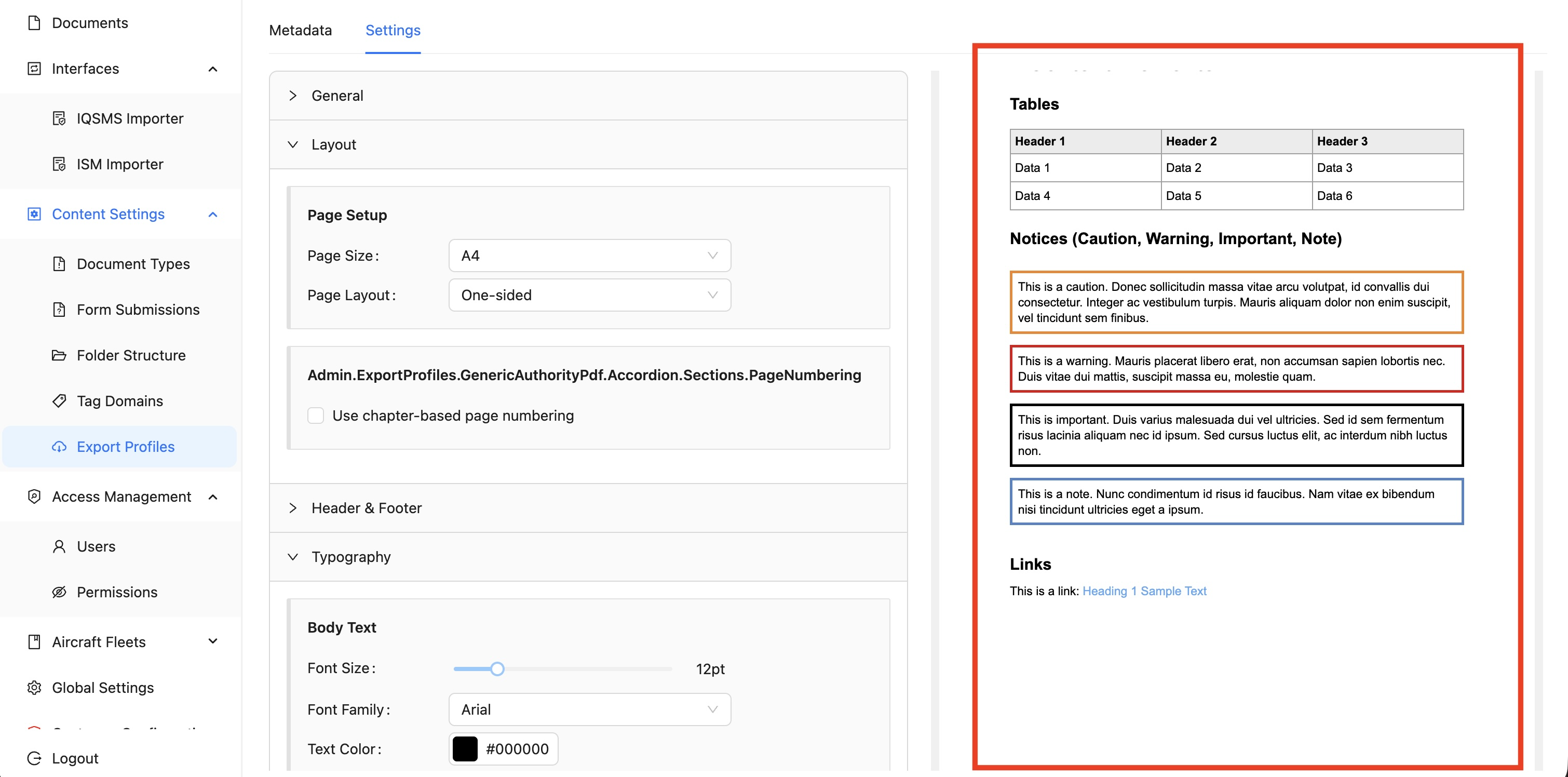
Use the Preview to verify the applied styling changes and ensure that all manipulations are reflected as expected. Changes are displayed immediately, allowing you to validate the appearance before exporting. For final verification, always perform an actual PDF export to ensure the generated document matches the expected output.
Main Features
The PDF Configurator provides a range of options to customize the layout, formatting, and appearance of exported documents without requiring CSS knowledge. This chapter describes the main features. Additional configuration options are also supported by Yonder.
User Interface
PDF styling can be configured directly in the Admin Console. No CSS knowledge is required.
Basic Document Information
- Select the document language.
- Define how changes between document versions are displayed:
- No change markup
- Simple bars in the margin to indicate changed sections
- Full tracked-change markup showing added and removed content
Title Page
- Enable or disable the title page.
- Fully customize the layout and appearance of the title page.
- Place elements at specific positions on the page.
- Supported elements include:
- Images
- Automatically generated information, such as document title, revision number, or export date
- Static text
- Decorative lines
- Configure the position and appearance of each element, including font, color, size, and alignment.
- Add a full-page background image behind all other elements.
Table of Contents
- Add a table of contents for the entire document or selected main chapters.
- Define the number of heading levels included in the table of contents.
Page Layout
Configure the page layout, including:
- Paper size, such as A4 or US Letter
- Single-sided or double-sided printing
- Header and footer space
- Page margins
- Spacing above and below the main content
- Whether page numbering restarts at the beginning of each chapter
Fonts and Colors
- Define the default font, font size, and text color for the document.
- Configure the appearance of each heading level, including:
- Font size
- Bold or regular style
- Italic style
- Color
- Underline
- Use these settings to create a consistent visual hierarchy.
Headers and Footers
- Customize the information displayed at the top and bottom of each page.
- Add text, images, divider lines, and automatically generated information such as page numbers or chapter titles.
- Configure headers and footers using the same approach as the title page.
Tables
- Customize table borders, text size, and header row background color.
- Prevent tables or individual rows from being split across pages.
Notice Boxes
- Customize notice boxes for warnings, cautions, and other callouts.
- Choose from different visual styles, including standard colored boxes and industry-specific Airbus or Boeing styles.
Links
- Customize clickable links with their own color, font style, and underline.
- Choose whether to automatically display the page number referenced by a link. This is useful for printed documents.
Tag Markers
- Add visual markers for conditional sections identified by tags.
- Indicate where a tagged section starts and ends.
- Customize the marker text, color, and formatting.
Watermark
- Add a semi-transparent text watermark to every page.
- Configure the watermark text, color, transparency, rotation angle, and size.
Advanced Configurations
These options extend the standard export profile settings and can be used to adapt the PDF output to specific document structures and formatting requirements.
Display of Module Effective Dates in Page Headers and Footers
The Configurable PDF export supports displaying the effective date of individual modules in the page header or footer, similar to the existing Boeing PDF export.
To provide this information, the document is processed twice on the server:
- During the first pass, the module boundaries on each page are identified.
- During the second pass, the effective date for each page is determined and added to the configured header or footer.
The feature is enabled automatically when the Effective Date (module) variable is configured in the header or footer of the export profile.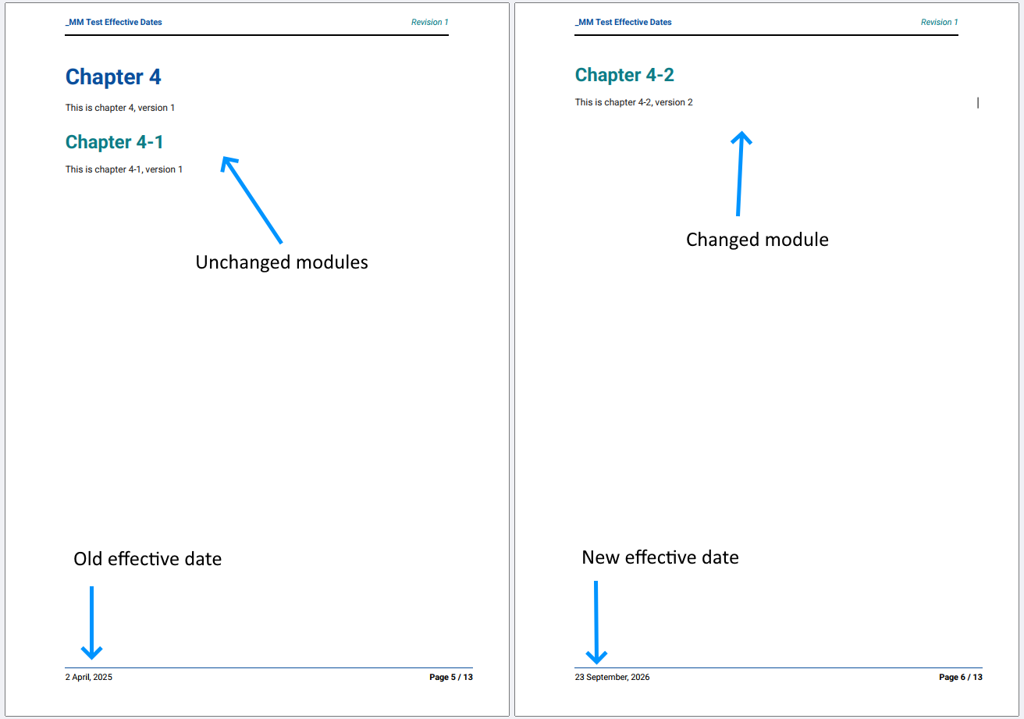
Display of Tag Markers in the PDF
- Only tags with a tag domain configured as “Visible in Content” are displayed.
- Tags are grouped by domain:
- Multiple tags within the same domain are separated by commas.

- Multiple domains are separated by a pipe character (
|).
- Multiple tags within the same domain are separated by commas.
- Tags assigned to a submodule are not displayed if they are identical to the tags assigned to its parent module.
- If content is filtered during export using the tag selection mask, only the tags relevant to the selected content are displayed.
- For example, if a module has the tags Cabin and Cockpit and the export is filtered for Cabin, only Cabin is displayed in the PDF.
- Tag marker styling can be configured in the export profile.
- A start marker is always displayed in the content and can be styled accordingly.
- End markers can optionally be enabled and styled independently.
Document-Specific Module Formatting Controls
The Configurable PDF export supports layout tags assigned to modules within a document. These tags allow specific formatting options, such as page breaks or page orientation, to be defined directly in the document.
Module-level layout tags override the corresponding settings defined in the export profile.
To use these tags, the tenant must have a tag domain named PDF Layout with the following tags:
Tag | Description |
Insert page break before | Inserts a page break before the module. |
Insert local TOC | Inserts a local table of contents listing all descendant modules within the module. |
Use compact table font | Uses a compact font for tables within the module. The font size is set to 60% of the configured body text font size. |
Prevent page breaks in tables | Prevents page breaks within tables in the module. |
Prevent page breaks in table cells | Prevents page breaks within table cells. |
Use landscape page | Uses landscape page orientation for the module. |
Rotate content | Rotates the module content without changing the page orientation. |
Was this article helpful?
That’s Great!
Thank you for your feedback
Sorry! We couldn't be helpful
Thank you for your feedback
Feedback sent
We appreciate your effort and will try to fix the article