TABLE OF CONTENTS
General
Here’s a cleaned, well-structured version of your text for technical documentation, with consistent tone, formatting, and a table for the key functions.
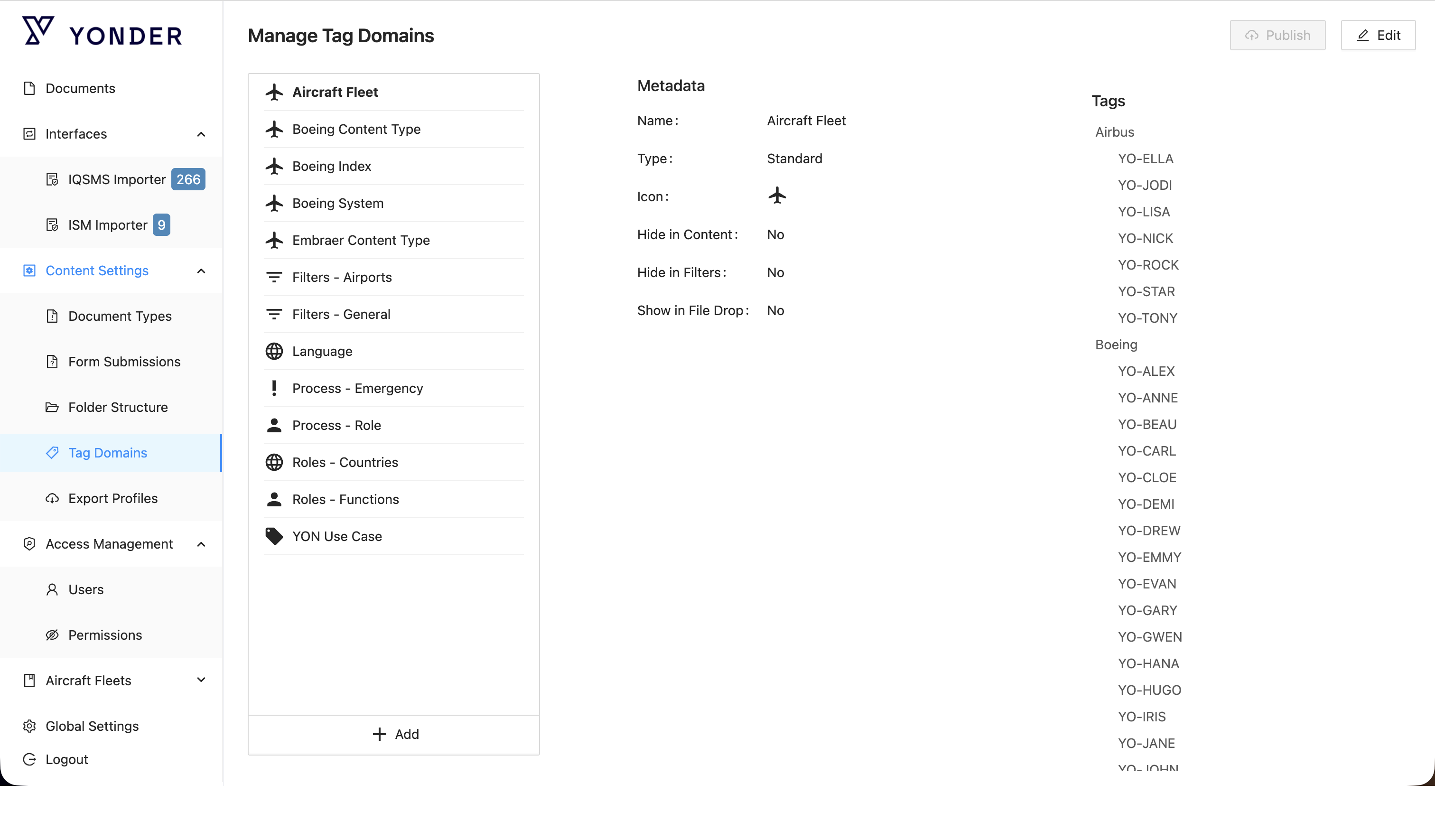
Manage Tag Domains
The Tag Domains functionality of the Yonder Admin Interface allows selected users to create, edit, or delete tag domains.
The overview page provides access to several key functions, described below.
| Action | Description |
|---|---|
| Delete | Deletes the selected tag domain. Remark: A confirmation is required before the tag domain is deleted. |
| Add | Adds a new tag domain. |
| Publish | Publishes all changes made after editing one or more tag domains. |
| Edit | Opens the edit mask where the items of a tag domain can be modified. |
Deleting a Tag Domain
Click Delete next to a tag domain.
A confirmation message will appear, requesting you to type the tag domain’s name before deletion.
⚠️ Important: Deleting a tag domain will also delete all of its tags in every document where those tags were used.
Adding a New Tag Domain
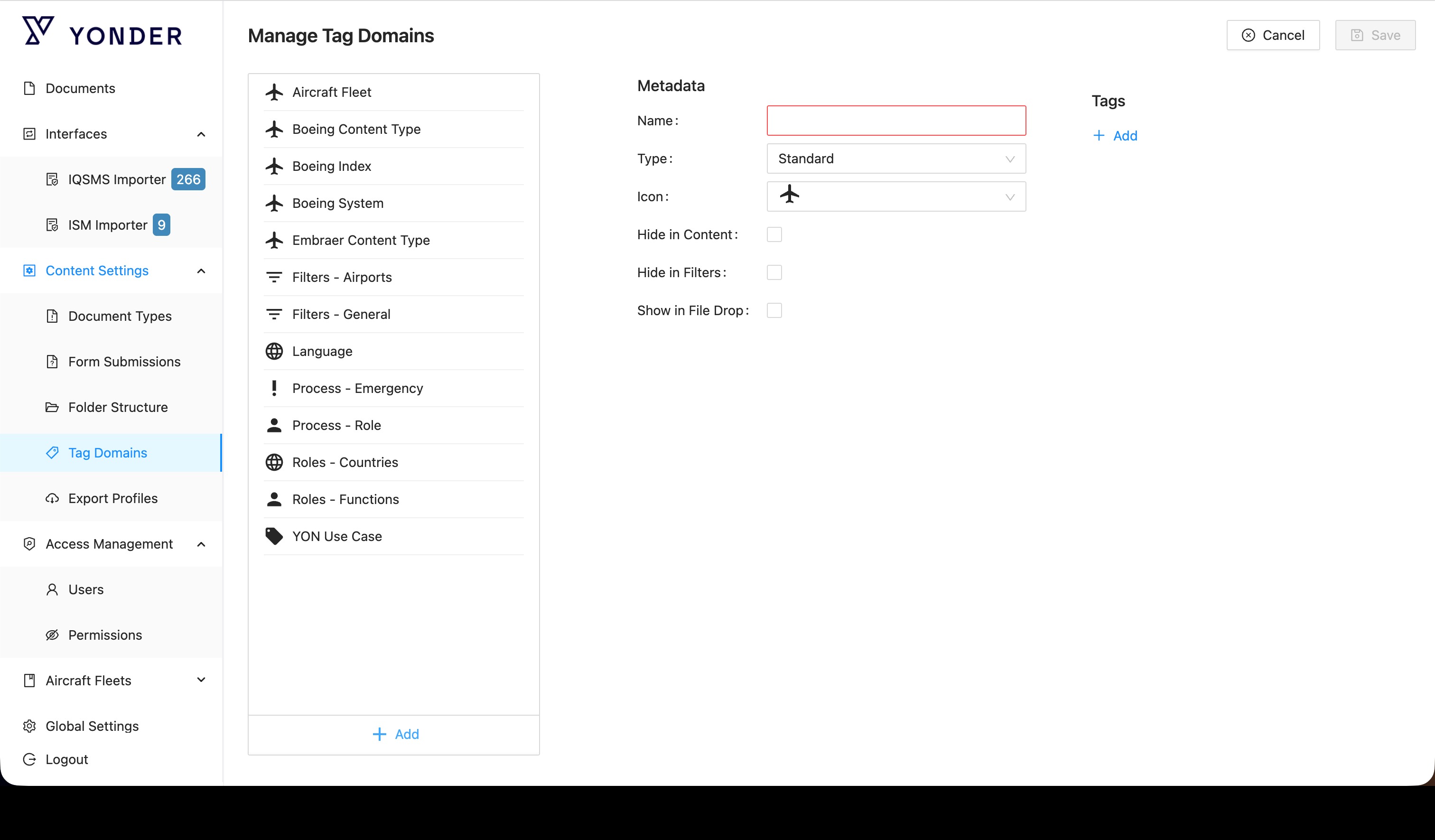
Click Add under the list of existing tag domains to open the creation mask.
For details about the available tag domain options (e.g., Type, Hide in Content, Hide in Filters), refer to your Content Concept document.
You must create at least one tag in the new tag domain before it can be saved:
Click Add under Tags to create a new tag.
Click Save to complete the process.
Publishing Changes
After any change to one or more tags within a tag domain, the changes must be published.
To do so, click Publish in the upper-right corner of the page.
The Publish icon becomes active (not greyed out) whenever there are unpublished changes.
Editing a Tag Domain
Click Edit in the upper-right corner of the page to open the edit mask.
Within this view, you can:
Change Metadata: Modify the tag domain’s Name, Type, Icon, Hide in Content, or Hide in Filters options.
Rearrange Tags: Drag and drop tags to reorder or nest them under other tags.
Add, Edit, or Delete Tags: Click on a tag to open its context menu.
When selecting Edit from the tag menu, the edit mask opens where:
Roles can be assigned to the tag.
An External ID can be added if applicable.
Was this article helpful?
That’s Great!
Thank you for your feedback
Sorry! We couldn't be helpful
Thank you for your feedback
Feedback sent
We appreciate your effort and will try to fix the article