TABLE OF CONTENTS
General
In the primary sidebar pane you find the global search tab. Clicking on this will open the supporting sidebar with the search field and sort and filter options.
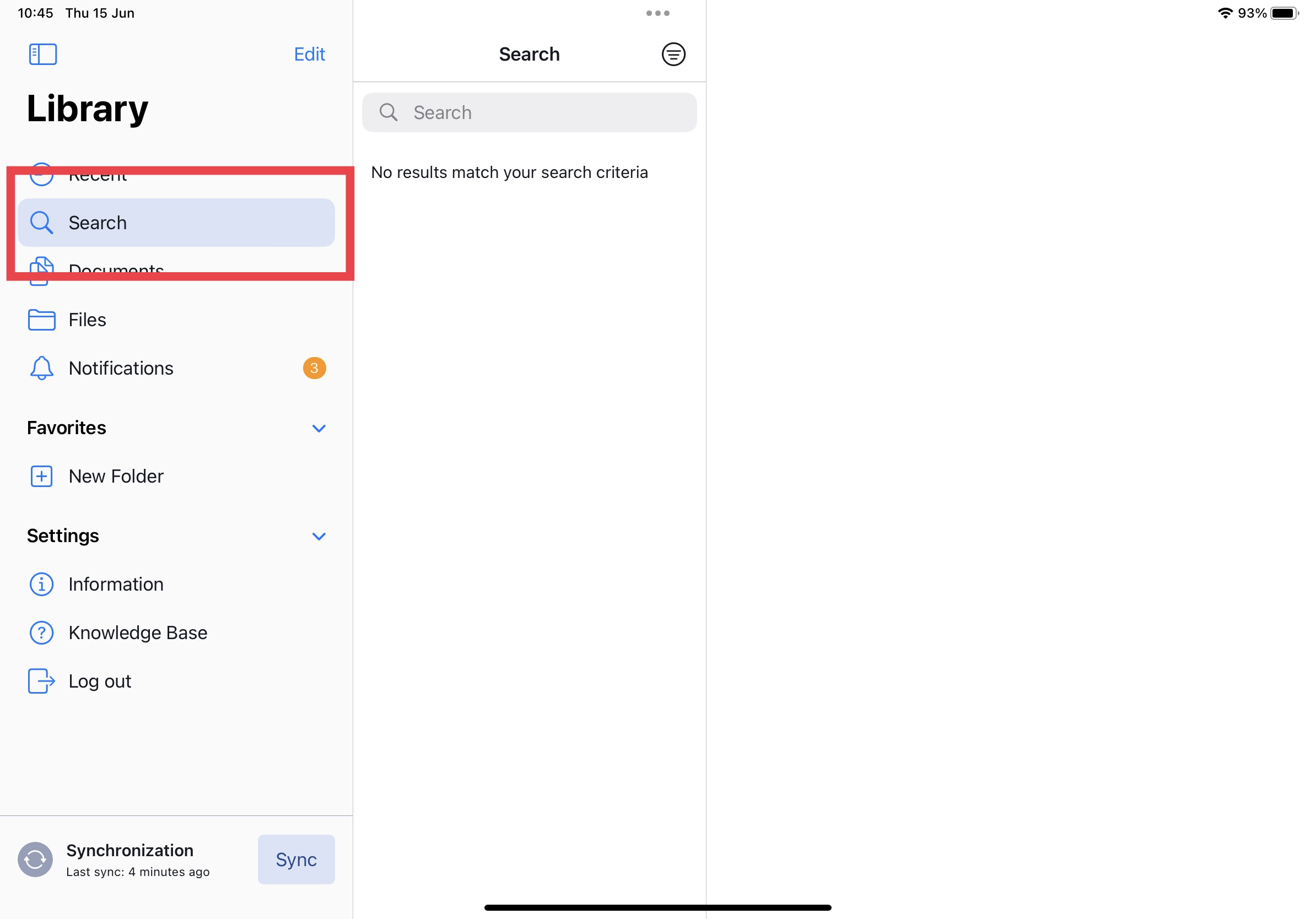
Search is designed to enable you to quickly and easily locate specific information within Yonder. Here are some typical steps that a search function might take:
- Enters a search term in the 2nd sidebar → the search results will be listed
- Results are displayed in the supporting (2nd) sidebar:
- Refine the search by adjusting the search term or applying sort and filter functions (see below)
- Select a result: you can click on a specific search result to access more detailed information about it.
Note: when a result is selected, the search tab is opened in the sidebar - you are now automatically in the document search. Clicking the ‘close icon’ (x) top left will bring the user back to the global search.
Search Logic
Various search algorithms are implemented to support you in finding the correct results. These algorithms are described in the following sub chapters below.
Exact search
The exact search allows to find search results for exactly the entered term:
- put the search term in apostrophe or quotes eg. ‘carrier’ or “carrier”
Wildcard search
A wildcard search lets you search for a word or phrase while leaving part of it open. The wildcard character stands for one or more unknown characters.
flight→ finds flight, flights, flightdeck, flight-related, etc.
Filter & Sort Options
Overall, sort and filter options help you to effectively manage and manipulate larger sets of data, making it easier to find, organize, and analyze your information.
Filter
Filter options allow you to narrow down a dataset by selecting specific criteria or conditions. Filtering can help you focus on relevant data and exclude irrelevant or redundant information.
- Tags
- Users can filter information based on the available tag domains
- Owners
- Users can filter information based on document owners
Sort
Sort options allow you to arrange data in ascending or descending order based on a selected column or criteria. For example, in a list, you can sort a list of names alphabetically or sort a list of numbers from smallest to largest. This can make it easier to find specific information.
- Document name (A → Z)
- Document name (Z → A)
Reset
Resetting the filter and sort options sets your criteria back to your standard user settings based on your roles in the system. All manually added or removed tags will be reset.
Search Interruption
If a search term causes the application to take too long retrieving the results, click “x” in the search field to interrupt the search and enter a more precise term.
Global Search
Global Search allows you to search across the entire library. All documents are included, and any document containing matching results will be listed.
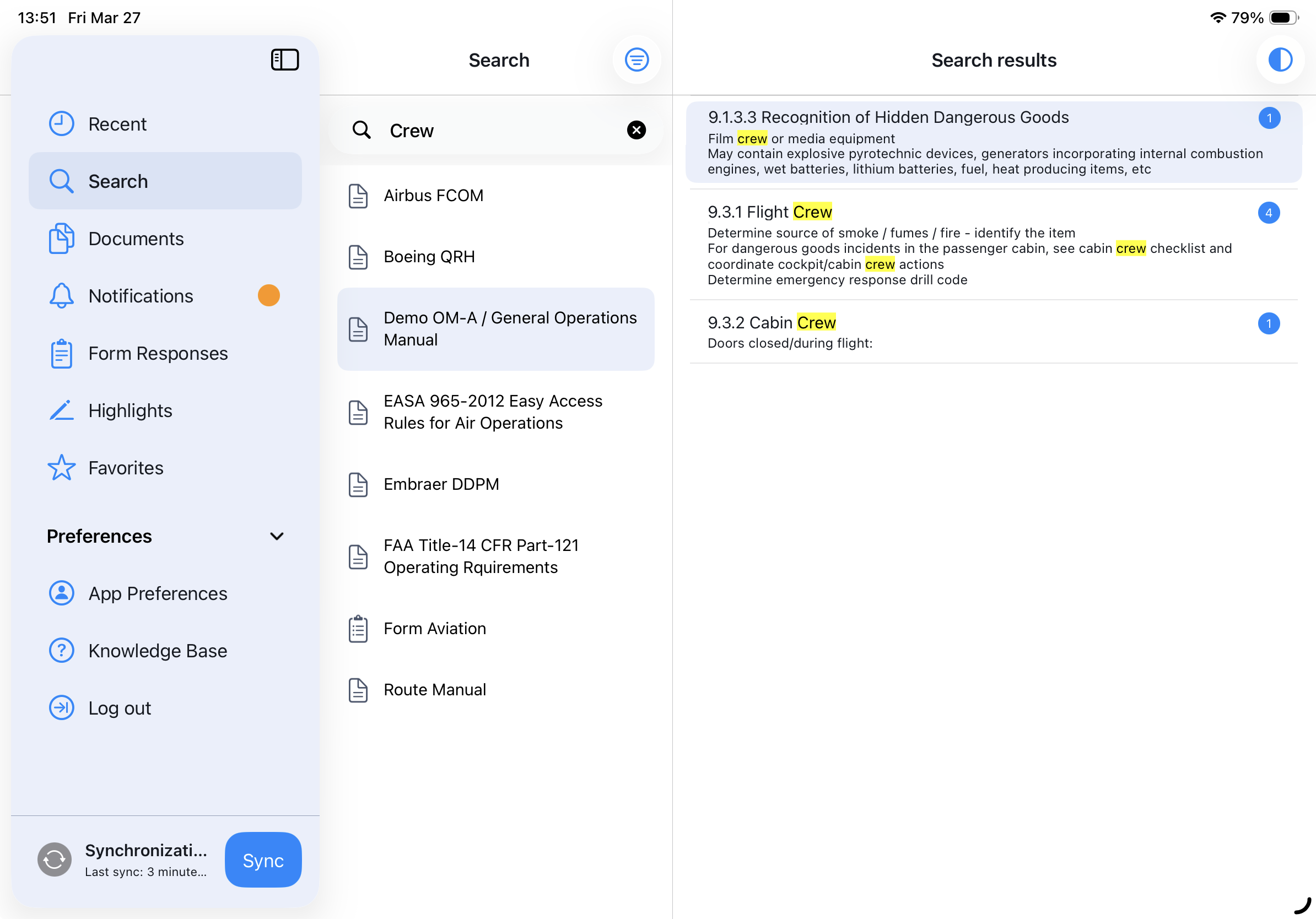
When you select a document from the results, it opens and displays all search hits within that document. The order of results follows the document structure (outline).
Clicking on a module will open the document and bring the selected module into focus in the viewport.
Local Search
Local Search (document search) is limited to the content of a single document. You can access it in two ways
by selecting a document from Global Search that contains results
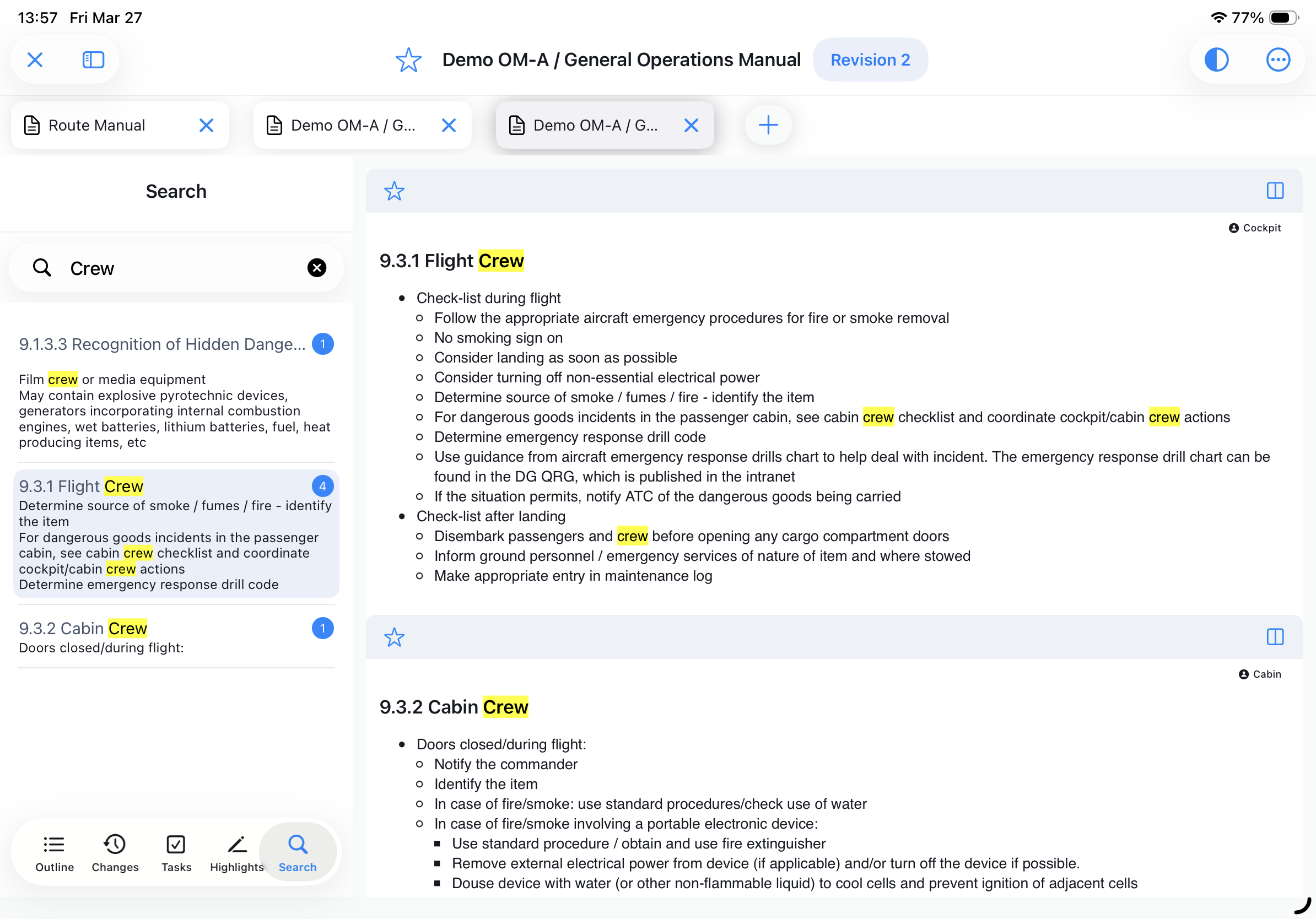
Search results are displayed in the left navigation panel.
Clicking on a module will open the document and bring the selected module into focus in the viewport.
Note: Local Search can display search results from non-effective revisions. This feature requires the appropriate user roles and is not available in Global Search.
Search Hit Counter
Each content module includes a search hit counter showing the number of matches within that section.
The Hit Counter is available in both, the Global Search and the Local Search.
Was this article helpful?
That’s Great!
Thank you for your feedback
Sorry! We couldn't be helpful
Thank you for your feedback
Feedback sent
We appreciate your effort and will try to fix the article