TABLE OF CONTENTS
Search Logic
Yonder provides two ways to search for information:
- Global Search searches across all documents you have access to, making it ideal when you are unsure where the information is located.
- Local Search searches only within the document you are currently viewing, allowing you to quickly locate information in a specific manual or publication.
Both search methods use the same search logic to return relevant results.
Single-Term Search
Various search algorithms are implemented to support you in finding the correct results. These algorithms are described in the following sub chapters below.
Exact search
The exact search allows to find search results for exactly the entered term:
- put the search term in apostrophe or quotes eg. ‘carrier’ or “carrier”
Wildcard search
A wildcard search lets you search for a word or phrase while leaving part of it open. The wildcard character stands for one or more unknown characters.
- flight → finds flight, flights, flightdeck, flight-related, etc.
Multiple-Term Search
When you search for multiple words without quotation marks, Yonder returns results that contain:
- All entered search terms together.
- Individual search terms.
- Stemmed variations of the entered terms.
This broadens the search and helps locate relevant information even when the exact wording differs.
Exact Phrase Search
To search for an exact phrase, enclose the search terms in quotation marks (").
Example
Searching for:
"Dangerous Goods"
returns only results that contain the exact phrase Dangerous Goods in that word order. Results containing only Dangerous or Goods individually, or other word combinations, are not returned.
Global Search
Global Search allows you to search across all documents you have access to in Yonder. It is the fastest way to locate information when you are unsure which document contains the content. Search results can be refined using filters such as document, role, or other available criteria.
Using Global Search
- Open the Global Search from the top-right of the dashboard.
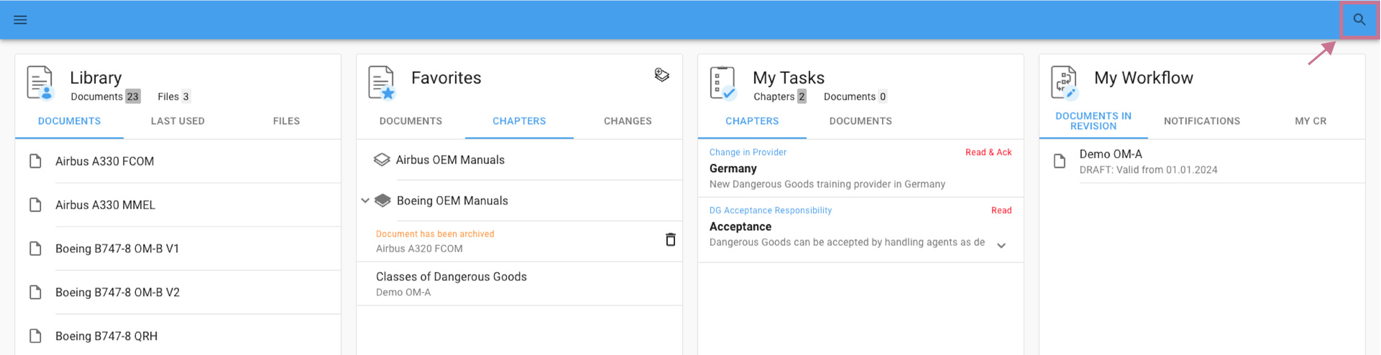
- Enter a search term and press Enter,
- Review the returend documents and hit count
- Global Search lists all documents containing search results.
- The hit count for each document indicates how many modules within that document contain search hits.
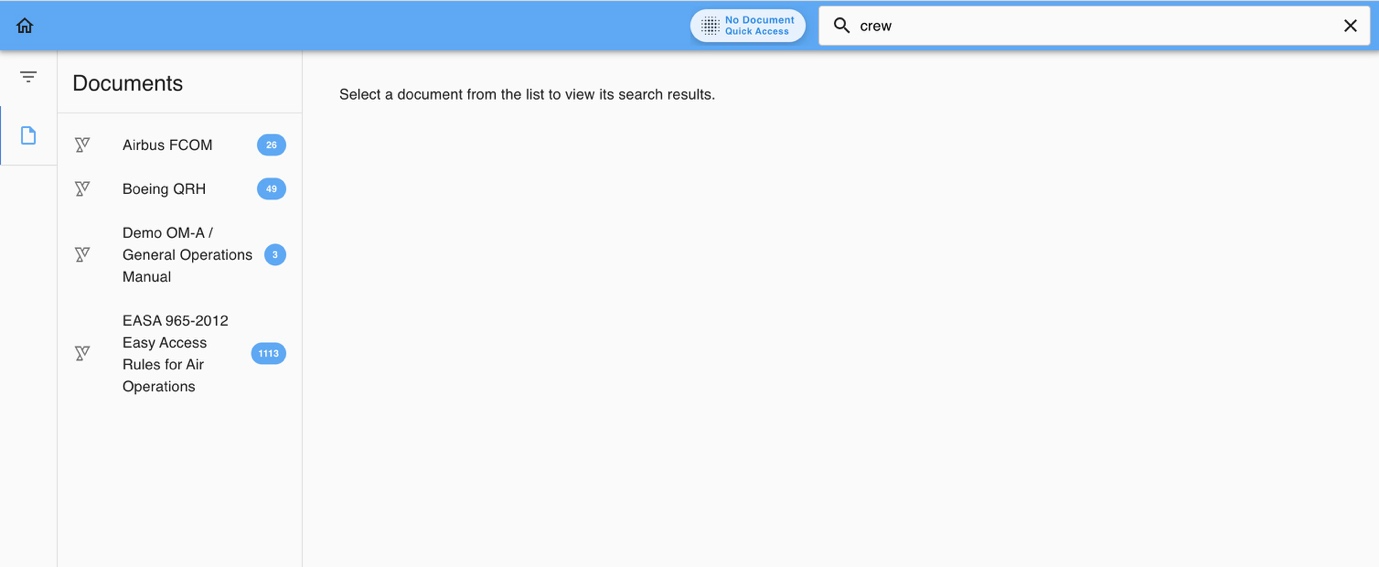
- Select a document to open it to view the search results within that specific document.
Filtering the Documents list
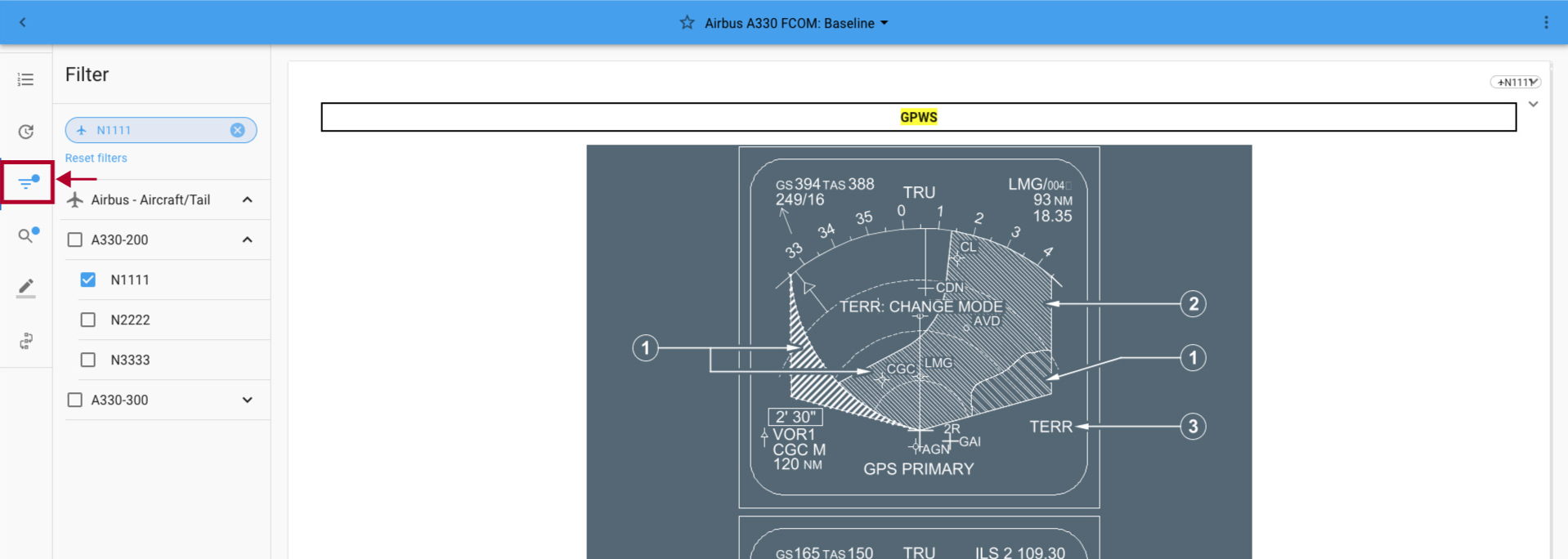
If your search returns too many documents, refine your search term or select the Filter icon to limit the results using the available filter criteria:

Local Search
Local Search helps you find information within the document you are currently viewing. It is useful when you already know which manual or document contains the information and want to quickly navigate to the relevant section. Search results can be further refined using the available document filters.
Using Local Search
- Open a document and click Search in the left sidebar.
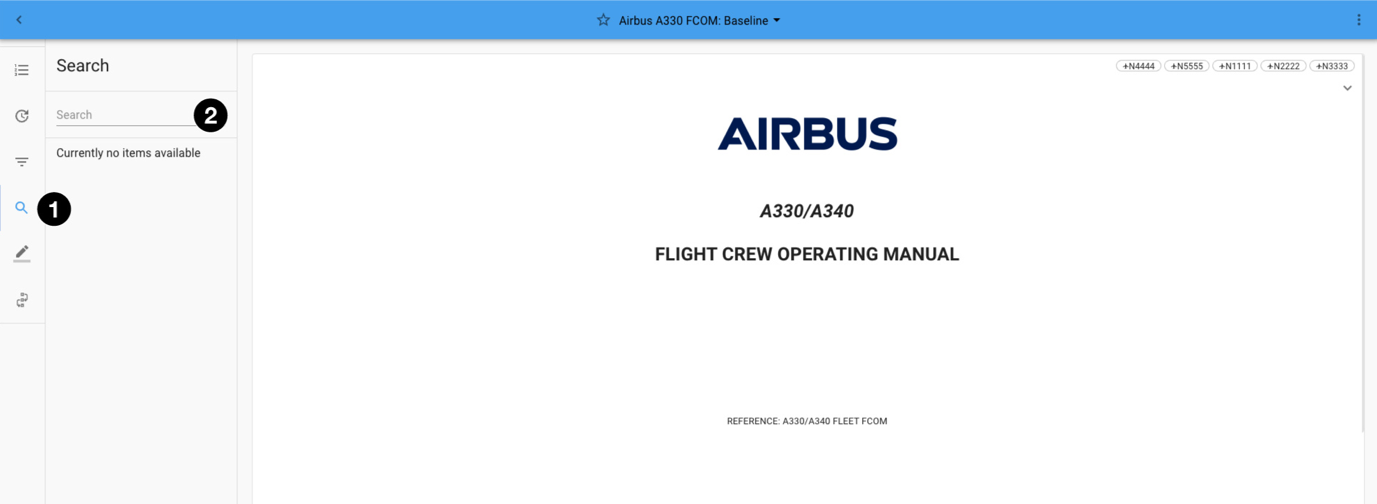
- Enter the search term and press Enter
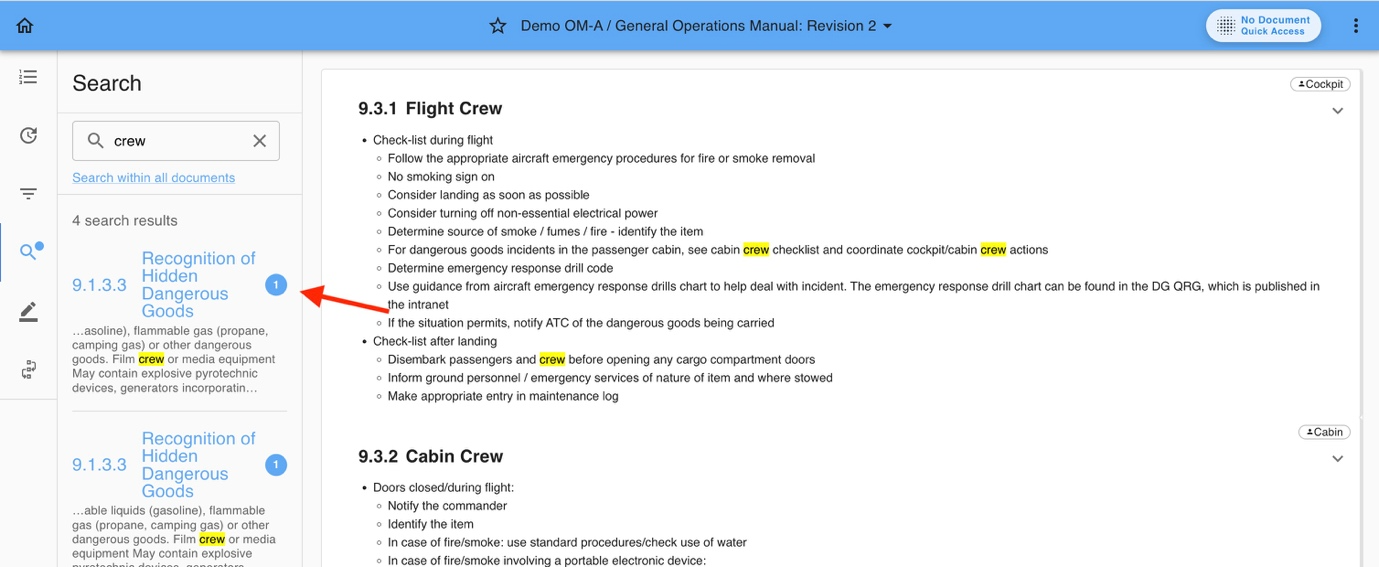
- The search list displays all modules containing search hits.
- The search hit count indicates the amount of results within that respective module.
Filtering the Search list
If your search returns too many documents, refine your search term or select the Filter icon to limit the results using the available filter criteria:
Recent Search Terms
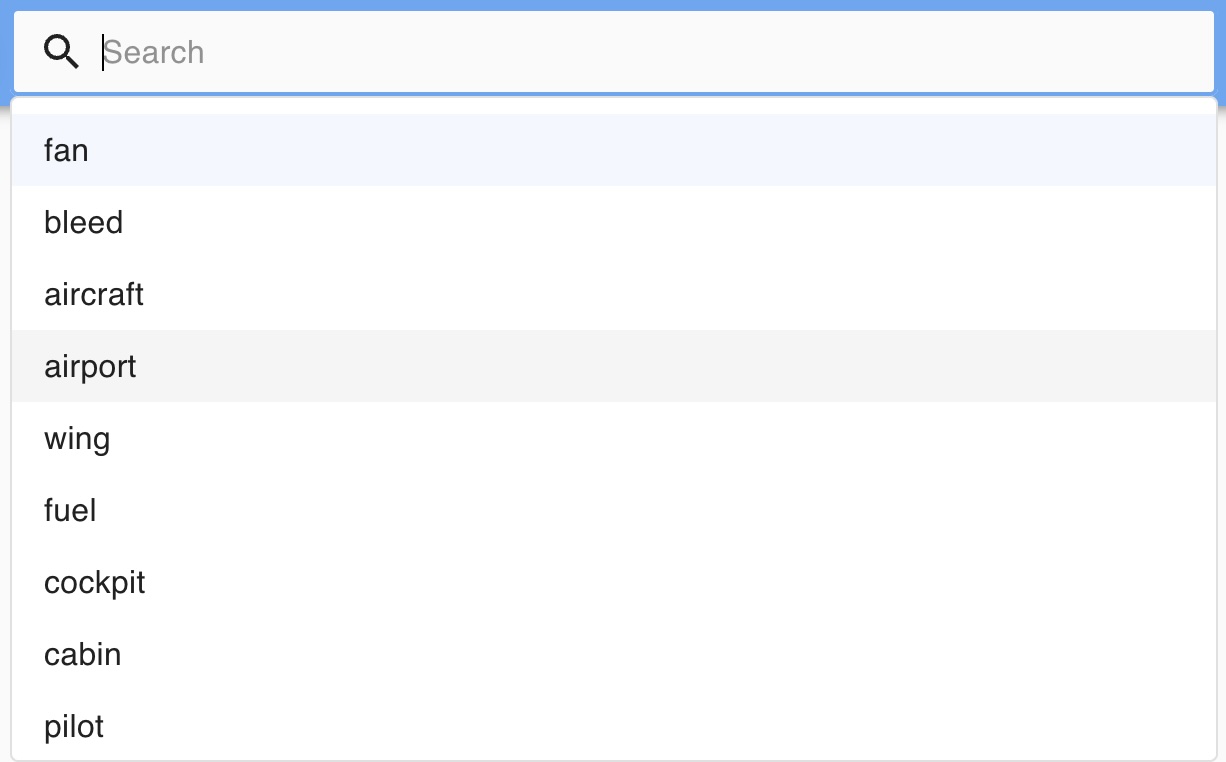
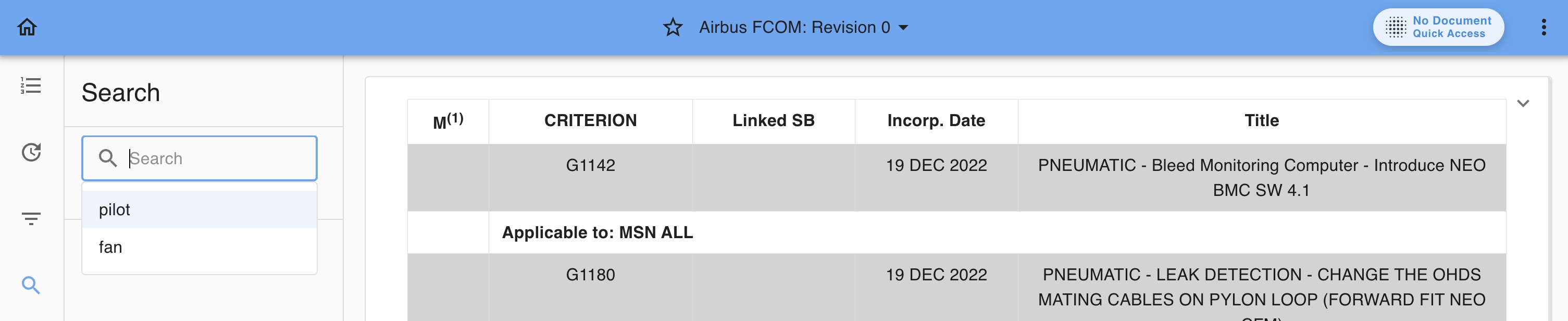
Recent Search Terms provide quick access to your most recently used search queries. Yonder stores up to 10 recent searches for both Global Search and Local Search, allowing you to repeat previous searches without entering the search term again.
- Global Search
- in-Document Search
Was this article helpful?
That’s Great!
Thank you for your feedback
Sorry! We couldn't be helpful
Thank you for your feedback
Feedback sent
We appreciate your effort and will try to fix the article