TABLE OF CONTENTS
General
The “Content” tab allows selected users to create new and edit existing modular content for a new document. Remark: Changes to released documents are initiated by change requests and implemented directly in the Yonder Reader Online.
For ease of reference, its functionalities are marked with numbers that refer to the tabs below the image.
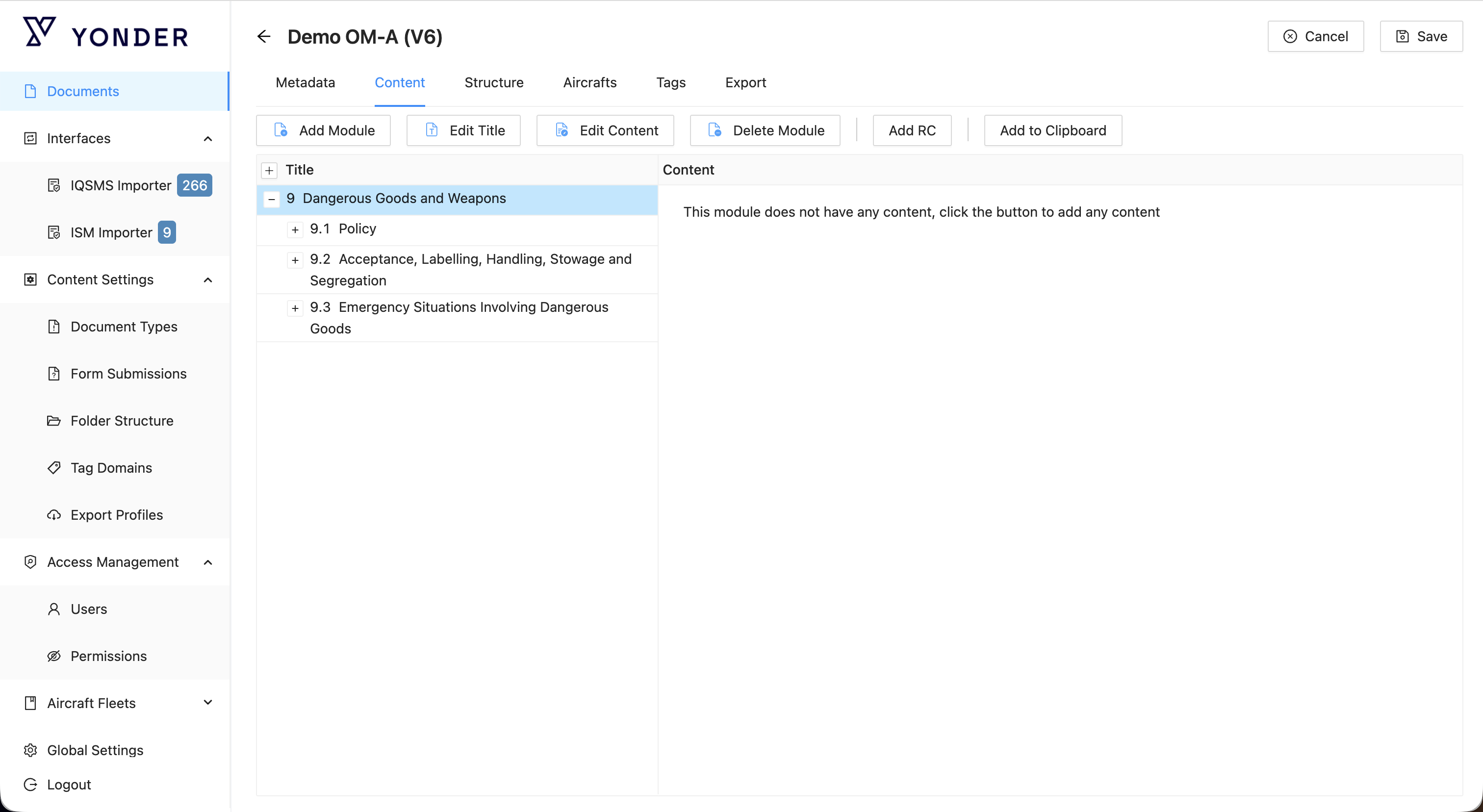
| Action | Description |
|---|---|
| Add Module | Allows users to add a new information module to the document. |
| Edit Title | Allows users to edit the title for the selected information module. |
| Edit Content | Allows users to create or edit the content for the selected information module. |
| Delete Module | Allows users to delete the selected information module. |
| Add Reused Content | Allows users to reuse content from another document that was previously added to the clipboard. |
| Add Module to Clipboard | Allows users to add the selected information module to the clipboard for reuse or linking. Available for released documents. |
| Expand View to Display Entire Module Tree | Allows users to quickly expand all modules to show the entire hierarchy. |
Add Module
To create a new information module, click on “Add Module”, followed by providing a title for the newly created module.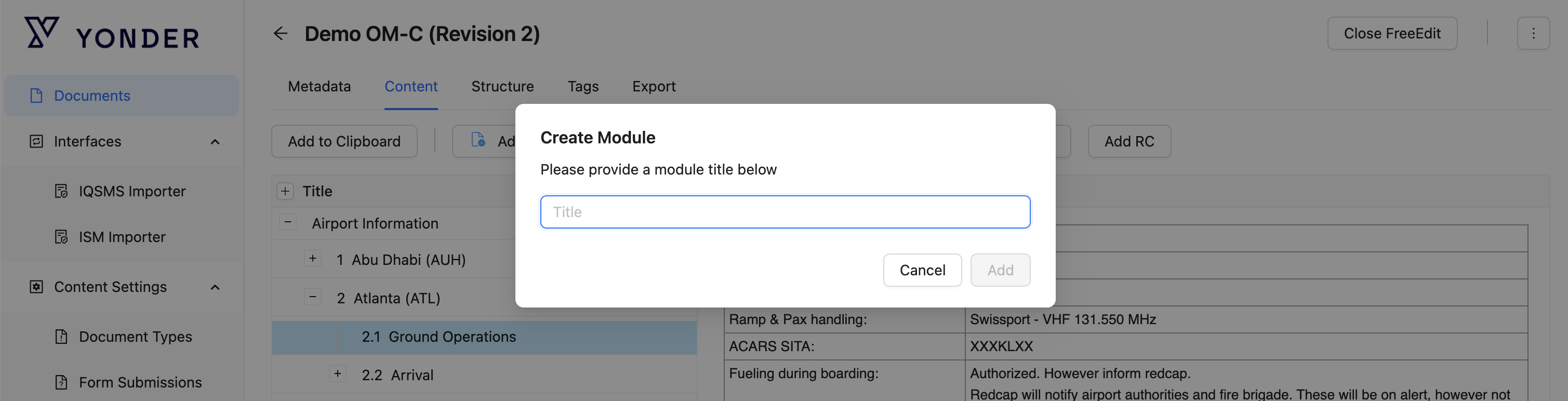
Once created, simply drag and drop the information module to the desired location within the document tree. Information modules can also be grouped / nested together in order to create the desired hierarchies. The animation below shows two drag and drop examples.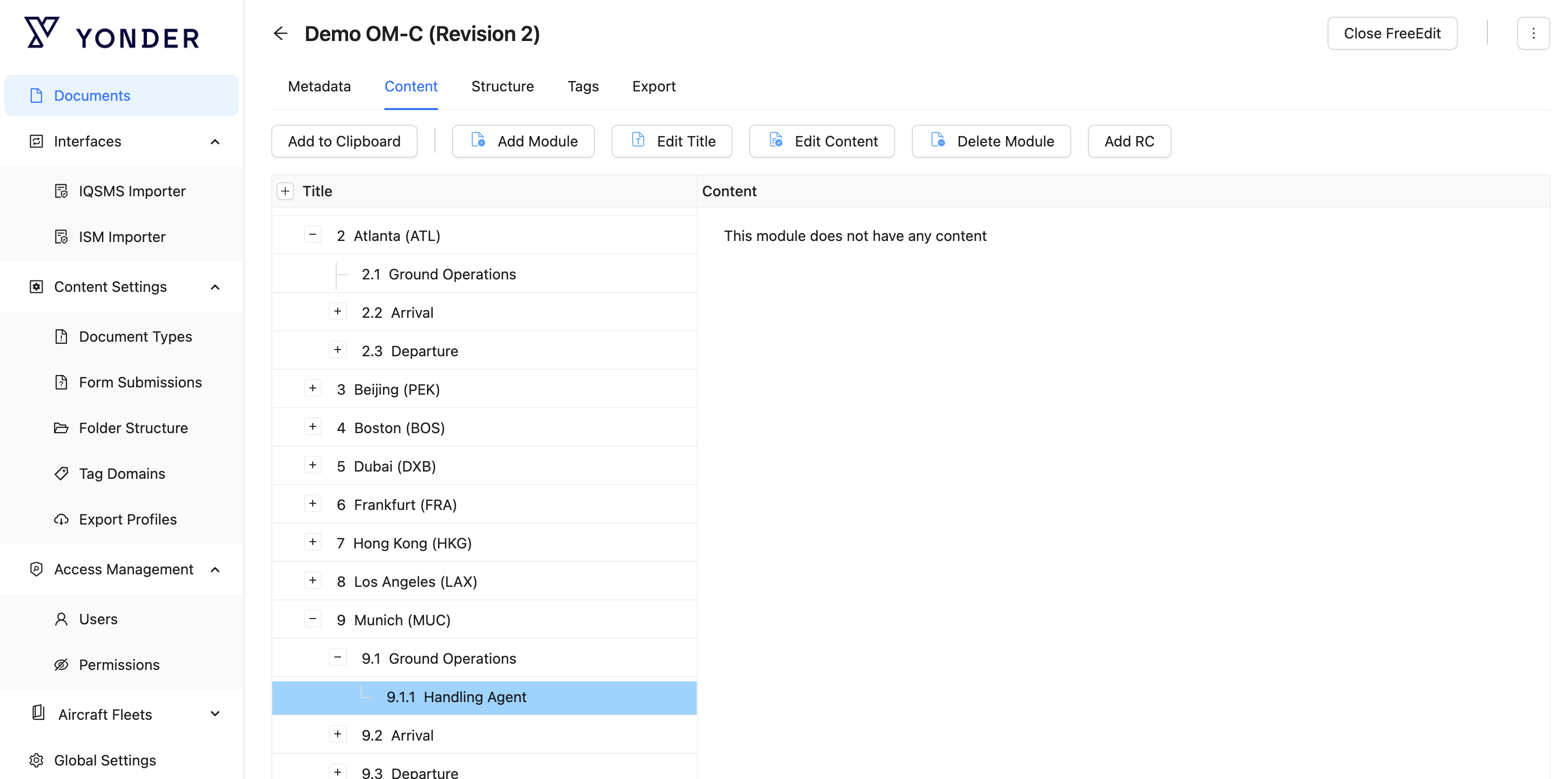
Edit Title
Selecting ‘Edit Title’ opens a pop-over that allows the user to rename the title of the selected information module.

Edit Content
To create / edit the actual content of an information module, select the respective module and click on “Edit Content”. Once finalized, click on the arrow on the top left and save your progress by clicking on “Save” thereafter, if so desired (see illustration below).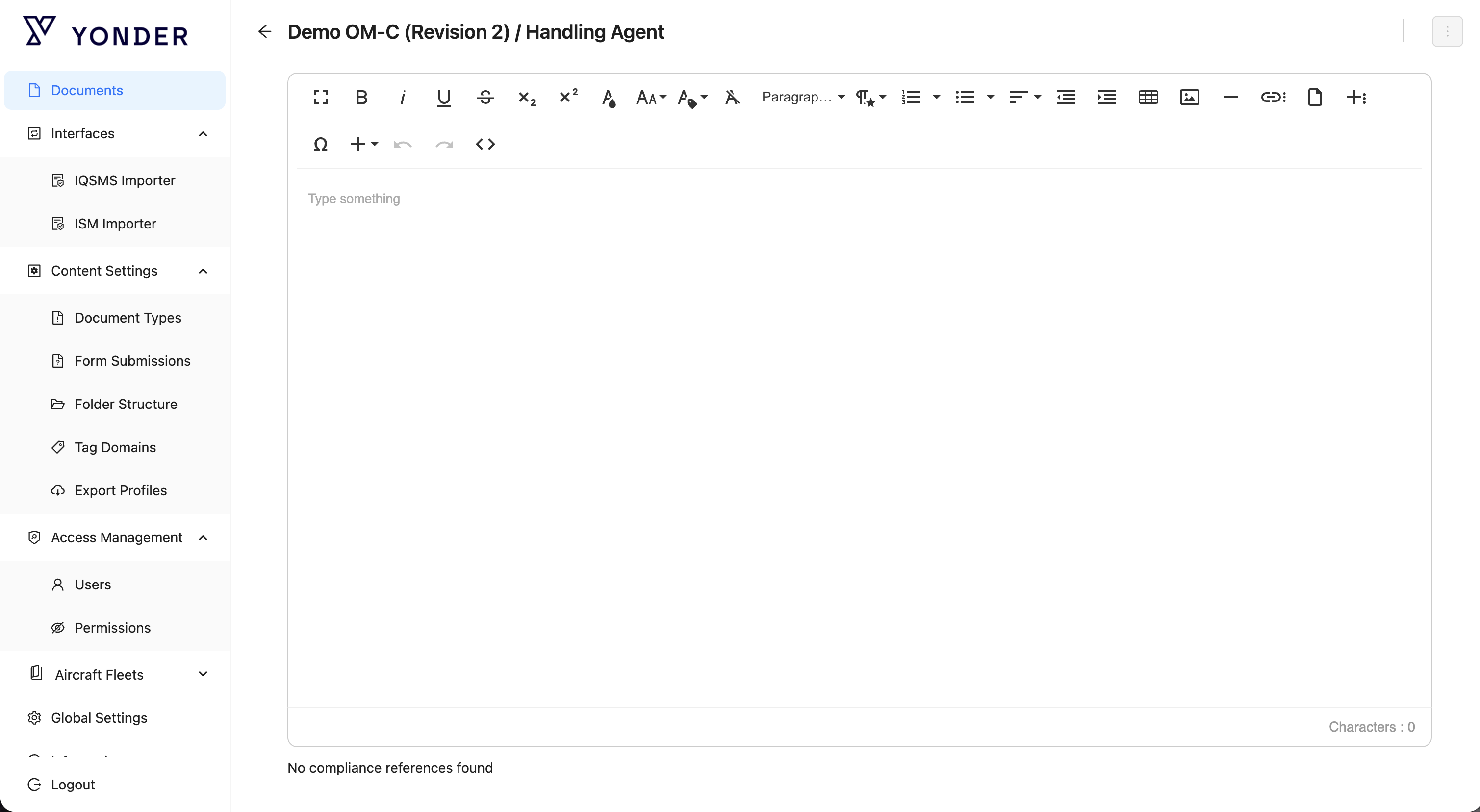
Insert content by copy / paste
These instructions provide a guide on how to achieve specific copy and paste behaviors based on the two selection methods implemented in Yonder:
- Triple Click Selection:
- To copy a block of text with its formatting intact, triple-click on the text to select the entire block.
Result: The behavior during paste might involve wrapping the pasted content in a table or list based on the source formatting.
- End-to-End Selection:
- For copying only the text and its formatting, manually select the text from the beginning to the end without triple-clicking.
Result: When pasting, the content will maintain its original formatting without being wrapped in a table or list.
Copying and Pasting without Formatting:
- Copy
Copying without formatting involves storing only the plain text content in the clipboard, discarding any formatting applied to the selected text.
Procedure:
Windows: Highlight the text and press "Ctrl + Shift + C" or "Ctrl + Alt + C" depending on the application.
macOS: Highlight the text and press "Cmd + Option + C."
Paste without Formatting: - Paste
Pasting without formatting retrieves only the plain text content from the clipboard and applies the default formatting of the destination location.
Procedure:
Windows: Position the cursor and press "Ctrl + Shift + V" or "Ctrl + Alt + V" depending on the application.
macOS: Position the cursor and press "Cmd + Shift + V."
Insert / Format Tables
To insert a table, click on the table icon and select the grid size. The grid size is still adjustable after table insertion. Once inserted, click on any of the table rows to display additional formatting options, as illustrated below.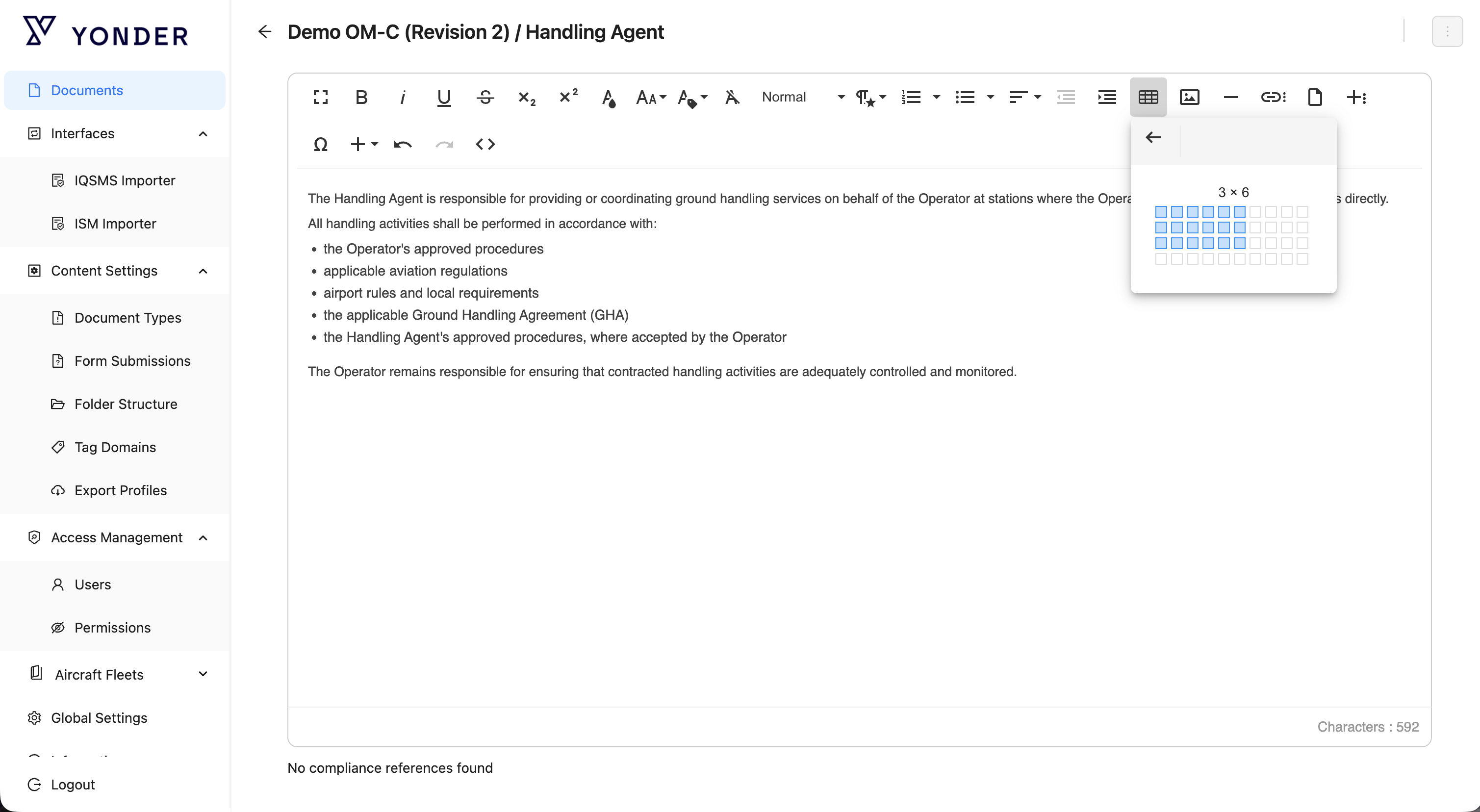
Link Options
There are several different link types available, all of which are accessible via the link icon  .
.
 Web Link
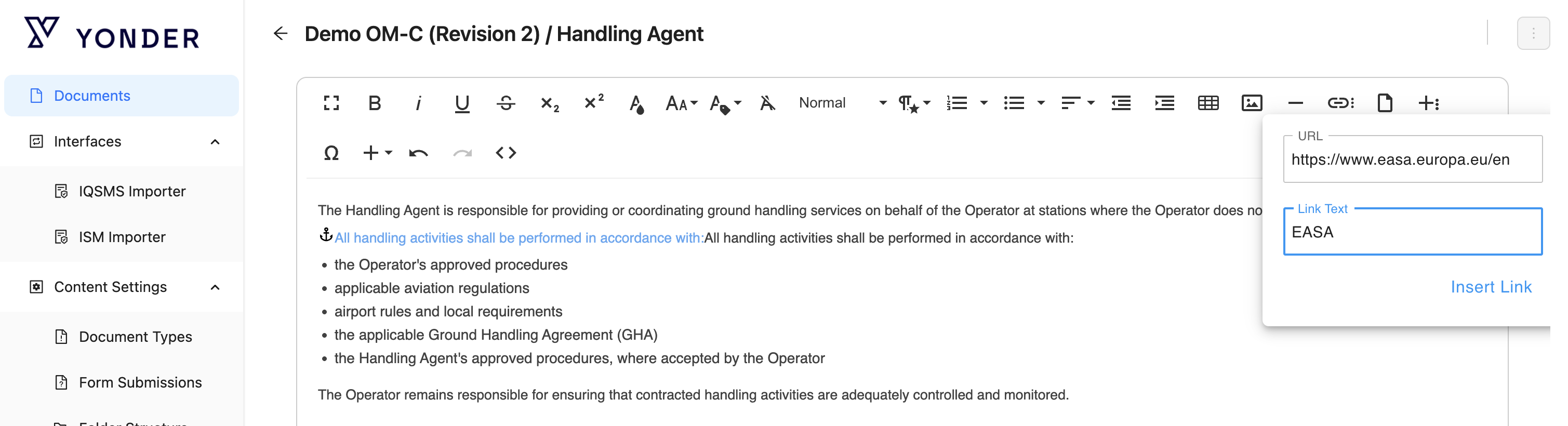
Enter the web URL and a display name for the link to the web page.
To add the link press INSERT LINK:
 Internal LInk
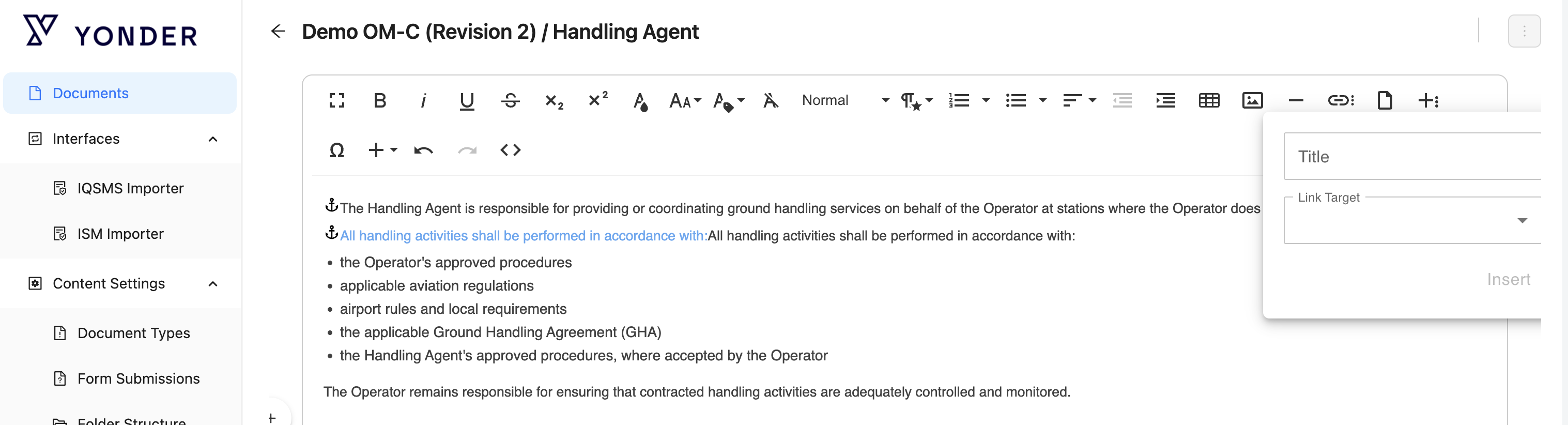
To link text to any internal source available in Yonder, first add the desired module to the Clipboard.
The module can be added to the Clipboard either:
- via the Yonder Content Manager (not shown here), or
- via the Yonder Reader Online, as illustrated below.
Adding a module to the Clipboard in Yonder Reader Online
- Open the desired information module.
- Click the three-line menu icon.
- Select Add to Clipboard.
Once the module has been added to the Clipboard, it can be selected as the internal source when creating the link.
 Local Link
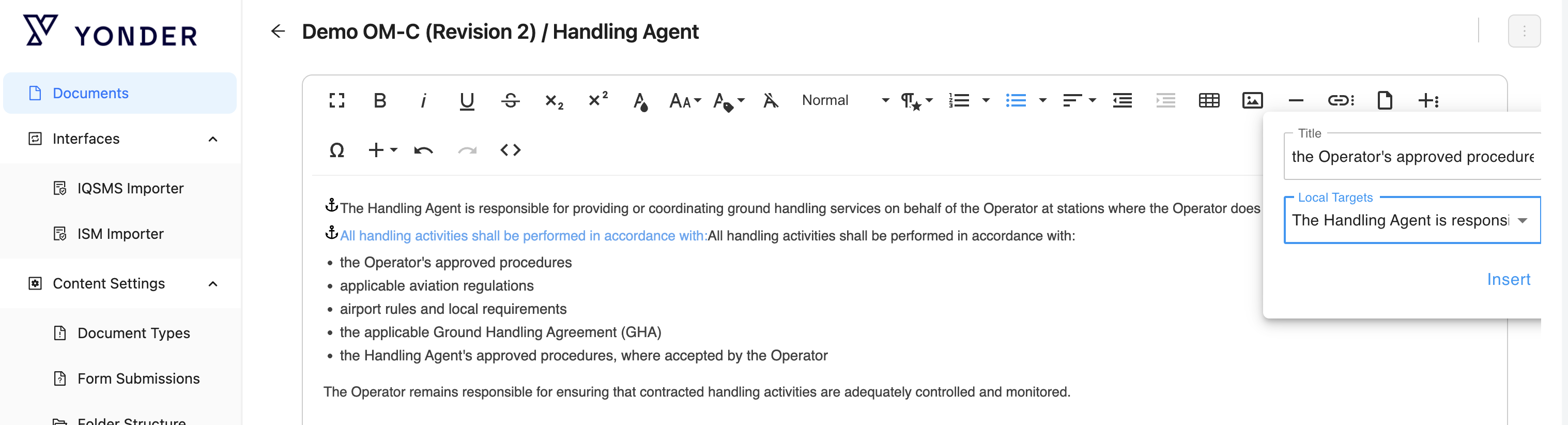
In some cases, you may want to create links to other sections within the same module, for example, to guide users through a step-by-step procedure.
1. Create the anchor
First, select or highlight the information you want to link to. This is the link target.
Then, select the Anchor icon  from the link options in the toolbox.
An anchor is now added next to the selected text. The anchor is only visible in the Yonder Content Manager Editor and will not be visible to users when viewing the published content.
2. Create the link
Next, select the text that should become the clickable link.
Select the Link to Anchor icon from the link options in the toolbox.
Select the previously created anchor from the list and complete the process.
The selected text is now linked to the corresponding location within the module.
See below for a complete example.
 File Link
Files can be uploaded directly to Yonder and made available within the document through an automatically generated link. The uploaded files can then be accessed via the created link in both Yonder Online and Yonder Offline Reader.
1. Uploading a file
- Click the Upload File icon.
- Select the desired file or files.
- Yonder uploads the files and automatically creates a link to each file in the document.
2. Changing the link name
The name of the automatically created link can be changed manually if required.
To change the link name:
- Click next to the generated link.
- Use the arrow keys on your keyboard to move the cursor into the link text.
- Select and delete the existing text fragments.
- Enter the desired link name.
 Anchor
To create an anchor for use with a Local Link, first place the cursor at the position in the paragraph where the link should point to.
- Click at the desired position within the paragraph.
- Open the Link Selector and select Anchor.
- The anchor is placed at the selected position.
- The newly created anchor is then available in the drop-down list when creating a Local Link.
Remark: Anchors are not visible to users in the published content. They are only used to define the target position for Local Links.
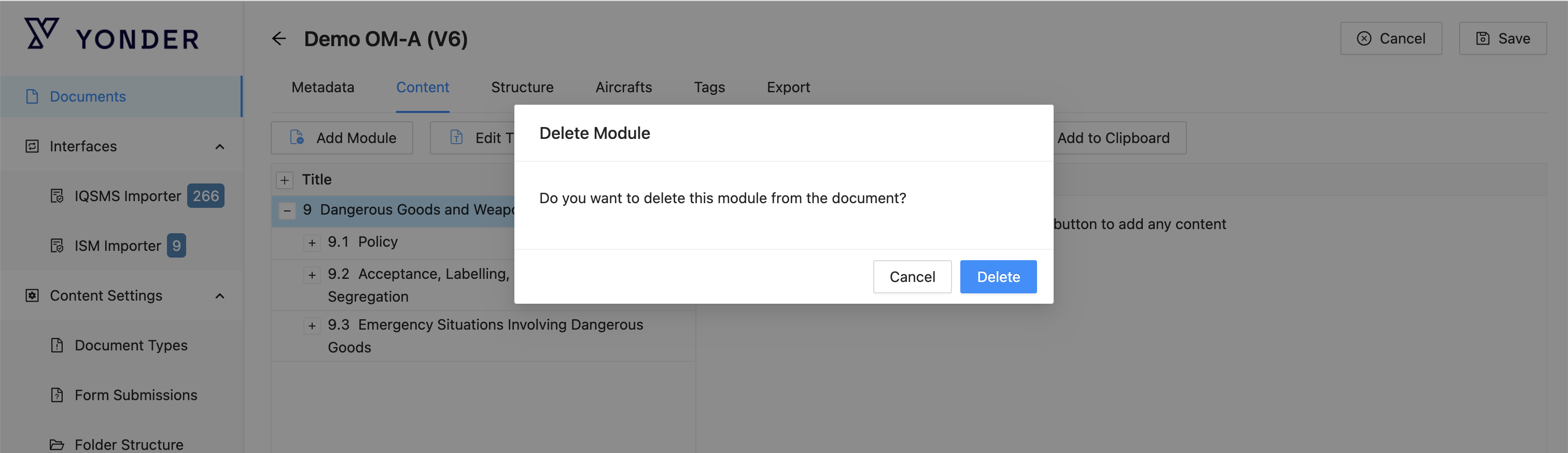
Delete Module
The Delete Module action allows users to remove the selected information module from the document.
This permanently deletes the module and its content from the upcoming document revision.
Add RC
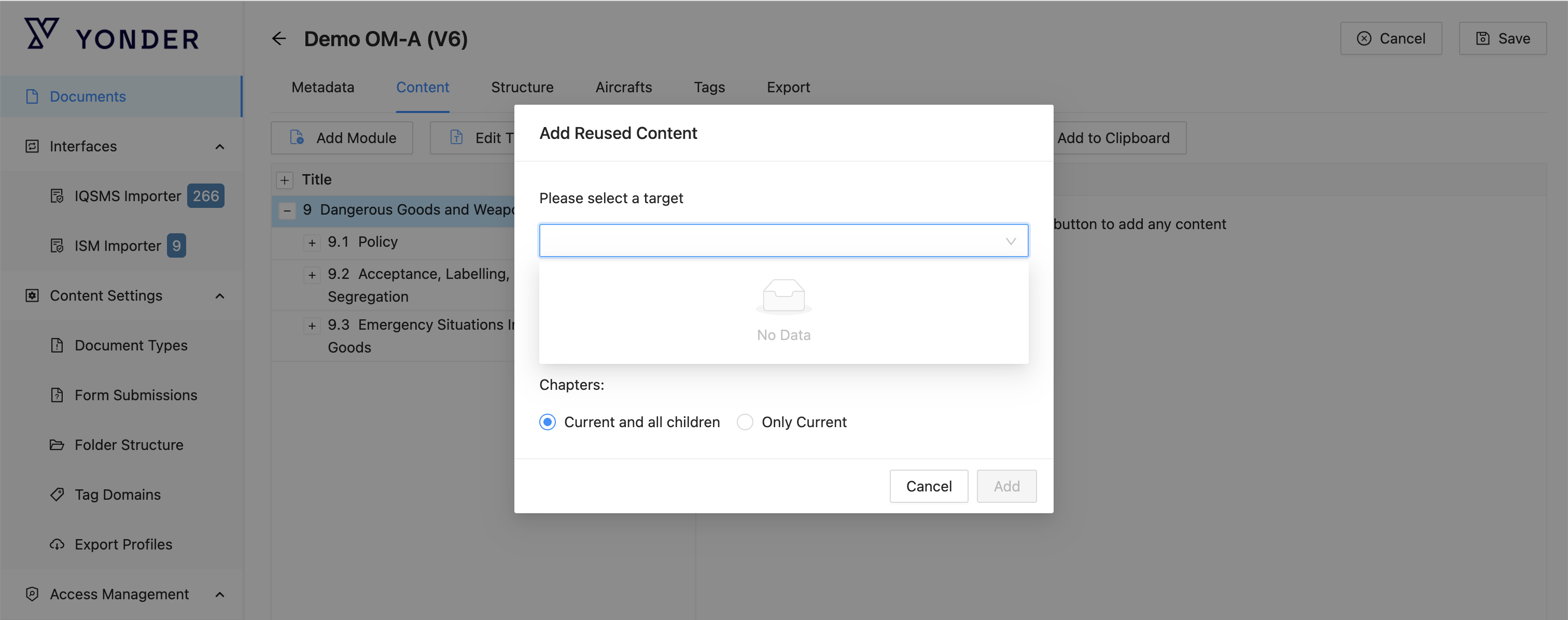
The Add Reused Content feature allows users to reuse content from another document that was previously added to the clipboard.
Steps to Reuse Content
Select a Target – Choose the target document or module where the content should be inserted.
Provide a Module Version Title – Enter a title for the reused module version.
Choose Chapters – Decide which chapters to include:
Current and All Children – Include the selected module and all of its child modules.
Only Current – Include only the selected module.
This allows precise control over which content is reused and how it is structured in the target document.
Add to Clipboard
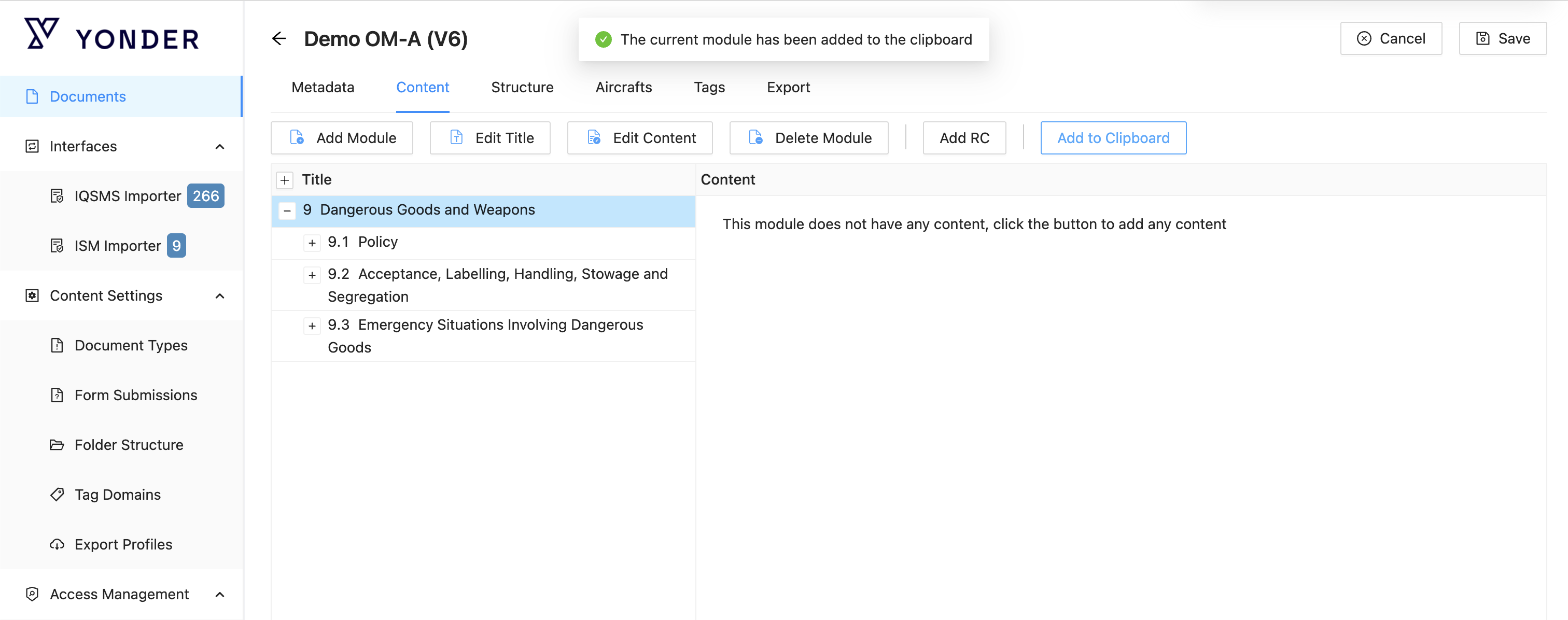
The Add Module to Clipboard action allows users to copy the selected information module to the clipboard.
Once on the clipboard, the module can be reused or linked in other documents.
Was this article helpful?
That’s Great!
Thank you for your feedback
Sorry! We couldn't be helpful
Thank you for your feedback
Feedback sent
We appreciate your effort and will try to fix the article