TABLE OF CONTENTS
Overview
Permissions in Yonder are used to control user access to features, data, and actions across the system. They ensure that:
- Customers can manage their own access settings securely.
- Users only see and interact with functionality relevant to their roles.
- Technical interfaces and internal tools remain properly isolated.
Why It Matters
- Security: Prevent unauthorized access to sensitive content.
- Consistency: Ensure role-based access works the same across all environments.
- Maintainability: Centralized permission handling via the Admin UI allows scalable administration.
All permissions are implemented using a set of roles, extended with custom attributes to distinguish between different types (e.g. application vs. workflow permissions). The Yonder Admin UI reads these permissions, allowing customers to manage access in a user-friendly way.
Yonder distinguishes different permission types:
| Permission Type | Description |
|---|---|
| Application | Access control to features within Yonder. |
| Organization | Used for access control to change tasks, notifications, and visibility settings.. |
| Workflow | Determines which workflow functions are available to users for specific document types. |
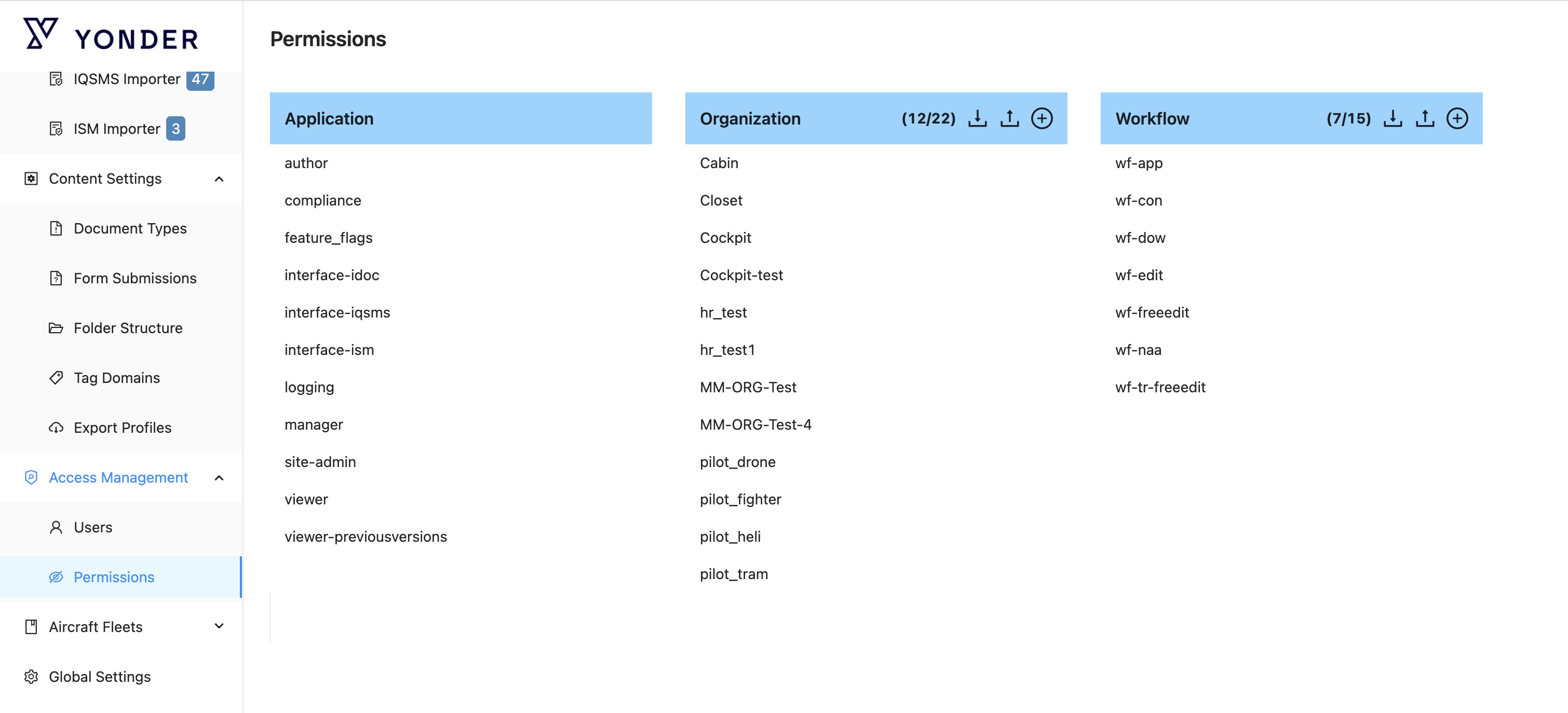
Each type of permission serves a specific purpose and is managed by either Yonder or the customer. This layered structure provides both control and flexibility for secure and effective use of the platform.
Application Permissions
Governed by Yonder
Application-level permissions are centrally managed by Yonder and determine access to core system features, integrations, and administrative capabilities. These permissions are associated with predefined roles, such as viewer, author, or site-admin, and cannot be modified by the customer.
For a detailed breakdown of these roles and what they enable, please refer to the table below:
Application Role Permissions Overview
Role | Description | Functionality |
viewer | Grants read-only access to smart documents and filedrop files. Users can view content both online and offline. This is the default permission assigned to all users. |
|
viewer-previousversion | Allows users to access and view historical versions of smart documents. Useful for tracking changes and reviewing document history. |
|
viewer-regulations | Enables users to access regulations in the viewer (needed for linking) |
|
manager | Provides editing capabilities for Filedrop files and Forms. Users with this role can modify content but cannot create new smart documents or manage system-wide configurations. |
|
author | Enables users to create new smart documents and revise existing ones. Ideal for content creators who need full authoring functionality, including versioning and publishing. |
|
site-admin | Grants access to administrative settings, including user management, document type definitions, folder structures, tagging configurations, and forms workflow setup. This role is intended for system administrators responsible for the overall configuration and requires corresponding training. |
|
interface-iqsms | Activates the IQSMS interface within the platform. Only applicable and visible to customers who have licensed the IQSMS integration module. |
|
interface-ism | Activates the ISM interface within the platform. Only applicable and visible to customers who have licensed the ISM integration module. |
|
compliance | Provides access to compliance reports with anonymized user data to ensure GDPR compliance. Users can analyze compliance either on document or user level without identifying specific individuals. |
|
logging | Grants visibility into compliance reports with full user identification, as well as access to the system's activity log (history log). Intended for auditors or administrators who require detailed tracking and accountability under GDPR provisions. |
|
These roles ensure consistency and security across all customers and environments. If you need to assign or adjust these roles, please contact Yonder support.
Organization Permissions
(Managed by the Customer)
Organization permissions define user access within the customer’s organizational structure. These are fully self-managed by the customer and control visibility, notifications, and role-based access to resources within the organization.
Specifically, organization permissions include:
- All existing hard roles (visibility):
These determine what content, documents, or folders a user can see based on their organizational role. - All existing change notification roles:
These define who receives alerts and notifications when changes occur in relevant documents or processes. - All existing organization roles:
These encompass role-based access and responsibilities within the organizational hierarchy (e.g., department-specific permissions, group-based access control).
Workflow Permissions
(Managed by the Customer)
Workflow permissions are also managed by the customer, and govern what actions users can perform within a given form or process workflow. These permissions are configured on a per-workflow basis and may include:
- Contributors
- Editors
- Internal and external approvers
Workflow Permission Editing Exceptions
- For Workflow Permissions, the Name field cannot be edited, as it is linked to the workflow configuraton and the correspoinding mapping. It must remain consistent.
- Worflow Permissions can not be configured to receive Change Tasks.
Permission Management
To view the details of a permission, click on the desired permission entry.
Yonder will display the Permission Details along with a list of Assigned Users:
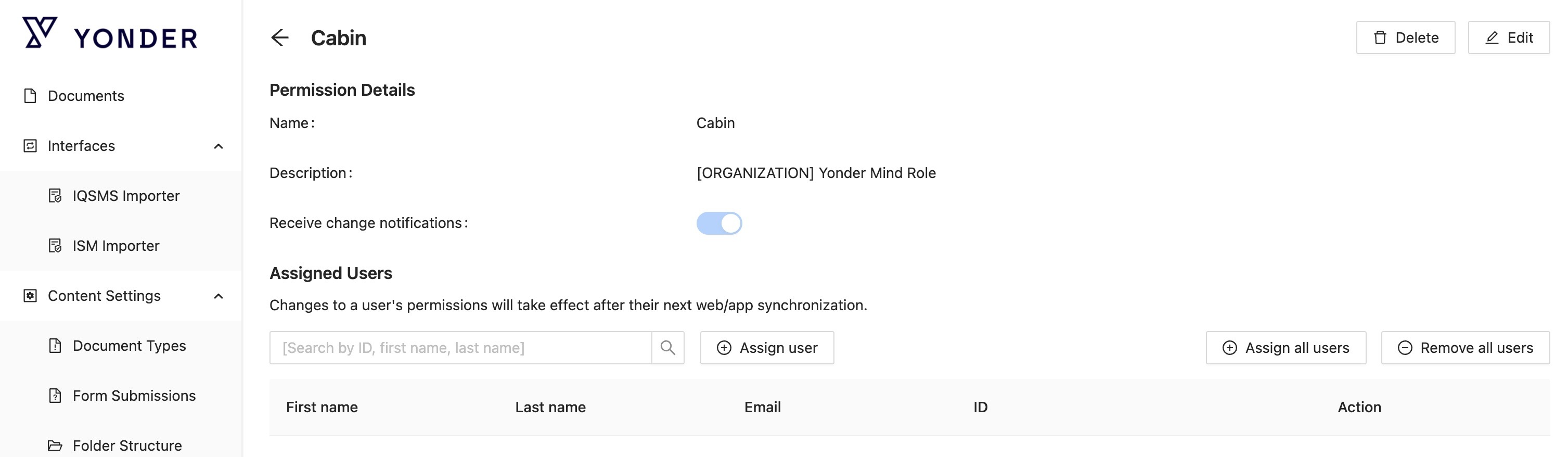
Permission Details
List of the Permission attributes:
- Name:
The unique name of the permission. - Description:
An optional text field that can be used to provide context or details about the permission. - Receive change notifications:
Determines whether this permission group can be selected as a recipient for change notifications.- When enabled, the group becomes available in the notification configuration screen.
- All users assigned to this permission will receive notifications when changes occur, depending on how notifications are configured.
Assigned Users
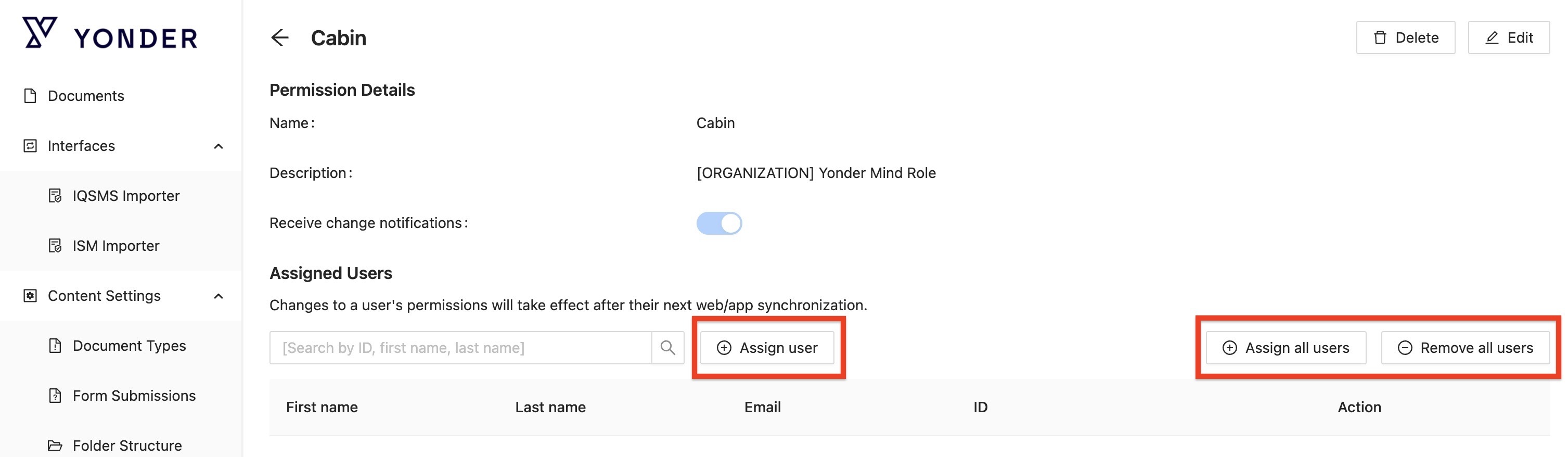
This section displays all users who have been granted the selected permission.
You can assign or remove individual users, as well as assign all or remove all users directly from this screen. These actions can also be performed under Access Management > Users.
Add a new Permission
By selecting the ‘+’ icon, you can manually add a permission.

Edit a Permission
Clicking "Edit" allows the user to modify the permission details:

Delete a Permission
Clicking "Delete" allows the user to delete the permission:

Deletion of a Permission and assigned Users
Deleting a permission does not remove the users assigned to it. Only the permission itself is deleted; the users remain unaffected and available in the system.
Export / Import Permissions
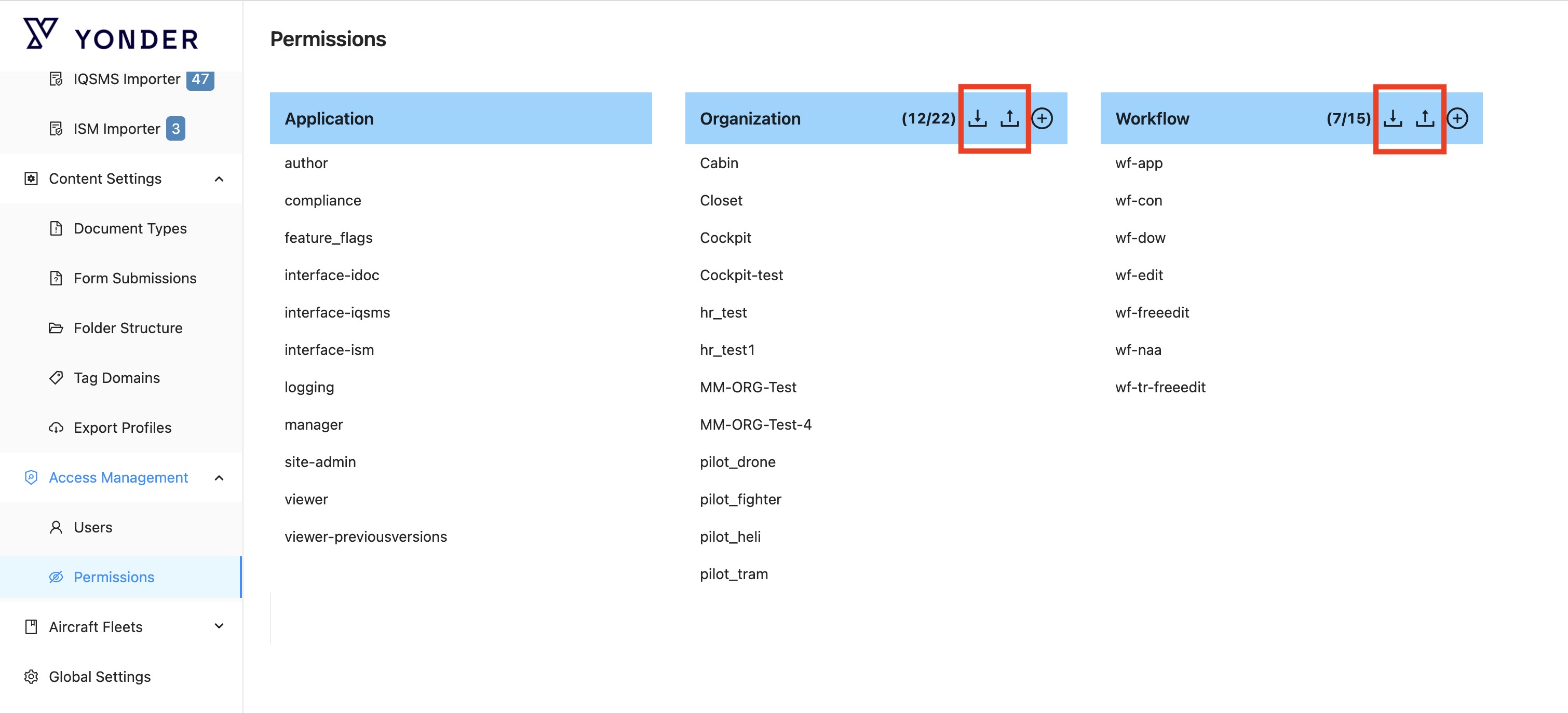
You can now export organization and workflow permissions to review, share, or perform bulk updates. By clicking Export, the current permissions are downloaded in XLSX format. The exported file can also be used as a template for importing permissions.
Note: As mass imports may take time, the user importing will receive an email notification, once the import has been executed.
Was this article helpful?
That’s Great!
Thank you for your feedback
Sorry! We couldn't be helpful
Thank you for your feedback
Feedback sent
We appreciate your effort and will try to fix the article