TABLE OF CONTENTS
General
This article explains how to import original Airbus source content into Yonder and which prerequisites must be fulfilled before starting the process.
The import function is designed specifically for native Airbus Flight Ops XML files delivered as a structured ZIP package. Yonder validates the file structure and metadata during import and automatically generates the document framework based on the provided Airbus content.
To successfully complete the import, you must:
- Create a new document of type “Airbus Flight Ops XML”
- Upload only native Airbus XML files (other formats are not supported)
During the import process, the system:
- Reads the Airbus metadata
- Creates or updates required aircraft entries in the Aircraft Fleet domain
- Optionally generates additional modules (such as Front Page, Transmittal Letter, Aircraft Allocation Table, and List of Modifications)
- Produces a downloadable import log for validation and traceability
Prerequisites
- Airbus Flight Ops XML provided as a ZIP file
- Access to the Admin Console
- Appropriate permissions to create documents and revisions
Airbus ZIP file
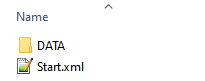
To successfully import Airbus content, the designated customer representative must prepare the Airbus content in one ZIP file containing:
- A Start.xml file
- A DATA folder containing all other content and necessary metadata
- The name of the ZIP file is irrelevant
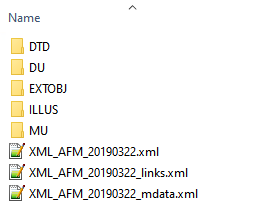
The DATA folder holds all content and required metadata:
Note: Aircraft Tag Domain
Missing aircraft entries in the "Aircraft Fleet" domain will be created automatically.
Important: New aircraft entries may have only an MSN (Manufacturer Serial Number) without a tail sign, which might cause errors.
Import the source files
To import original Airbus content you need to set up a new document.
Only native Airbus XML can be imported for documents of the type Airbus Flight Ops XML.
Additional modules can be generated by selecting the corresponding checkboxes. The available modules are:
- Front Page: Generates a front page for the document.
- Transmittal Letter: Creates a formal letter for document transmission.
- Aircraft Allocation Table: Produces a table showing the allocation of aircraft.
- List of Modifications: Compiles a list of any modifications included in the document.
These modules are created based on Airbus metadata, allowing for tailored document content.
Import Process – Step by Step
Follow these steps to import a new Airbus document into Yonder:
- Navigate to the Admin Console.
- Create a new document.
- Enter the document name (for example: A319 AFM).
- Select the document type: airbus-flight-ops.
- Click Create.
- Select Import Document.
- Choose the Airbus XML ZIP file.
- Select the required modules to be created.
- Click Upload to start the import process.
Once the import is complete:
- Review the import log (you may download it if needed).
- Close the pop-up window.
- Click Continue to finalize the import.
- Release the document to make it available.
Important Note
- Only Airbus Flight Ops XML ZIP files are supported.
- Always verify the imported content before releasing the document.
- If the ZIP file cannot be imported, this may be related to the known issue referenced above.
Importing a New Airbus Revision
To import a revision of an existing Airbus document:
- Open the existing document.
- Create a new revision.
- Enter the revision name (for example: 12 AUG 25).
- Select the revision date.
- Click Import Document.
- Select the Airbus XML ZIP file.
- Click Upload to begin the import.
Once the import is complete:
- Review or download the import log if required.
- Close the pop-up window.
- Click Continue to finalize the revision import.
- Release the document revision.
Import Log
Upon import a log file will be generated.
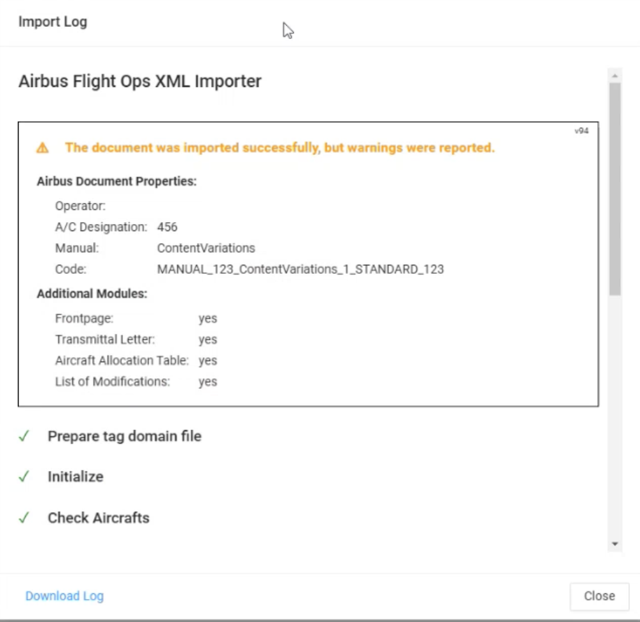
The log file may be downloaded for later use by licking on Download Log.
Important: The import log should always be downloaded before closing the dialog window, as it cannot be accessed afterward and for future reference. Once the dialog box is closed, the log file will no longer be accessible. The file will be saved to the default folder on the local drive.
Was this article helpful?
That’s Great!
Thank you for your feedback
Sorry! We couldn't be helpful
Thank you for your feedback
Feedback sent
We appreciate your effort and will try to fix the article