TABLE OF CONTENTS
General
In the preferences section, you can configure your personal app preferences and access general app information.
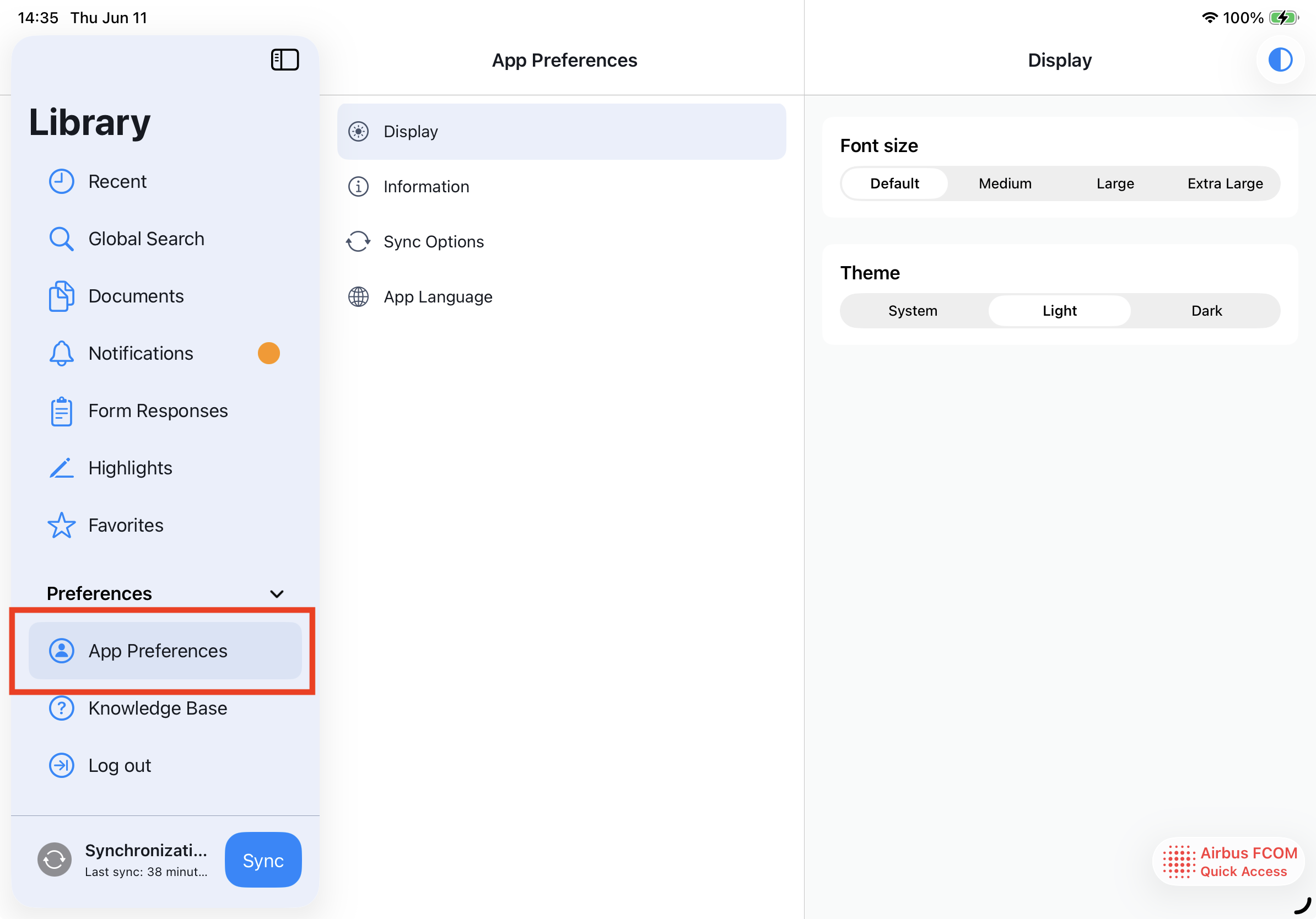
Display
Select your preferred Font size, affecting both the content area for improved readability and the primary sidebar for accurate navigation under challenging conditions.
You can also choose your preferred Theme setting, determining whether the display mode follows your system settings or is displayed independently in Light or Dark mode: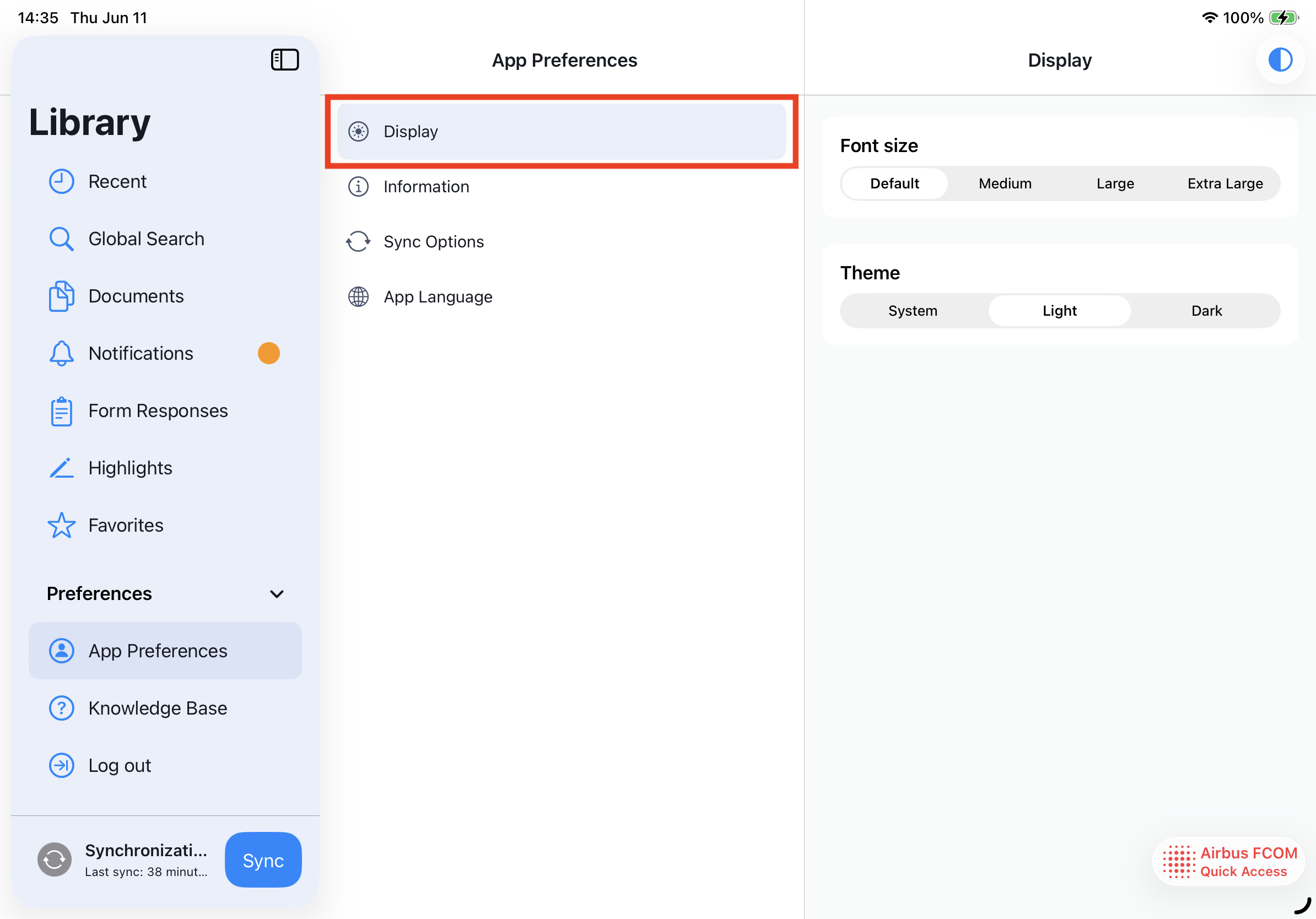
Information
This section includes the following entries:
- User Name
- User ID
- Company
- Version
- Session Expiry Date
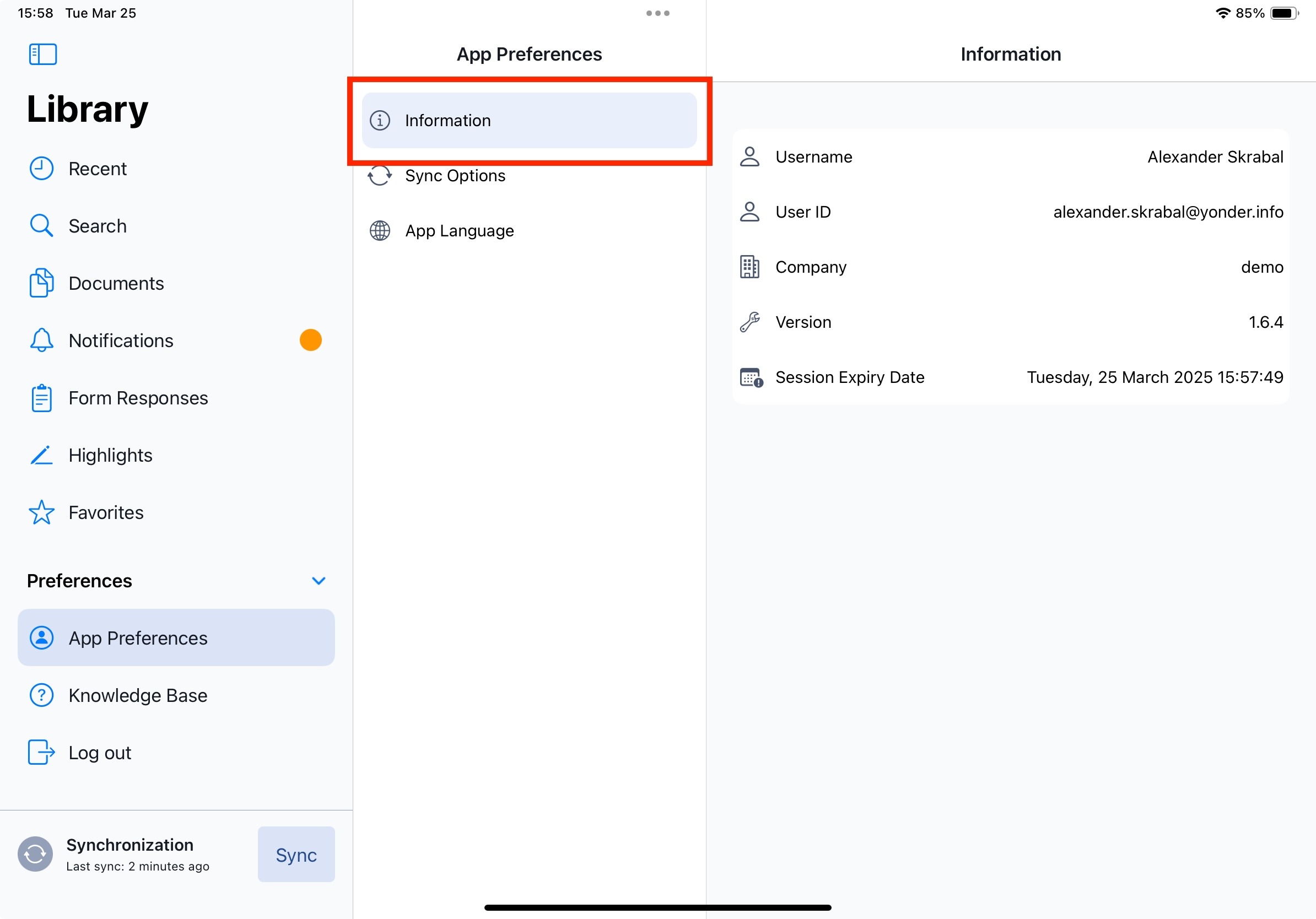
Username
First and last name of the user logged in.
User ID
ID of the user logged in.
Version
Lists the currently installed app version.
Session Expiry Date
Session expiry defines the validity period of the session token.
During each synchronization, the token is verified and refreshed.
If the token is not updated after expiration (such as in cases where the user has left the organization) synchronization will no longer be possible.
Token Validity
The timestamp of the session token may be outdated. To ensure smooth operation, working in the app remains possible. The token will be validated and, if possible, updated during the next regular synchronization. The validity of a token depends on the configured security settings.
Sync Options
For more information on the app synchronization please consult the dedicated Synchronization article (here)
Sync Options
For more information on the app synchronization please consult the dedicated Synchronization article (here)
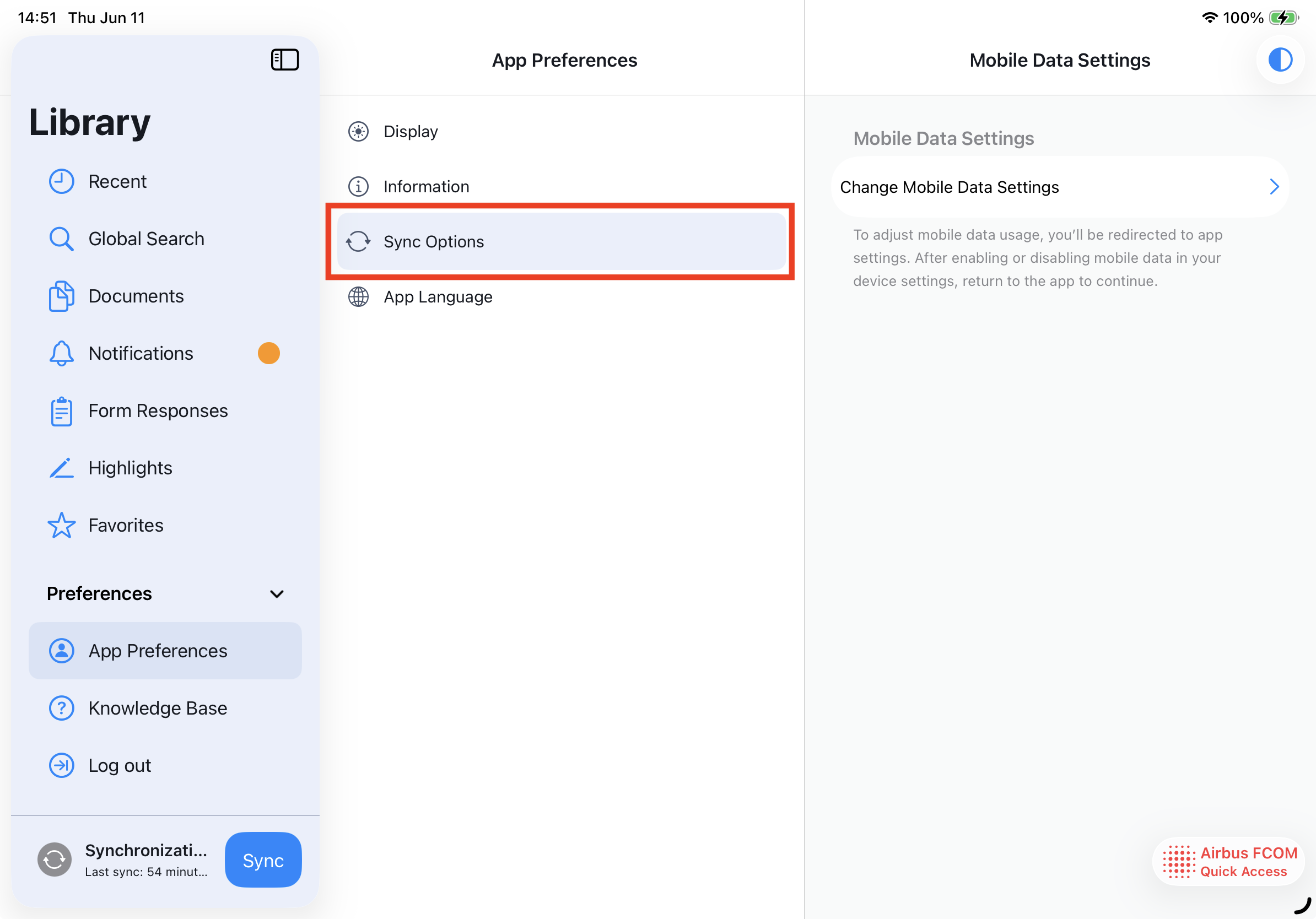
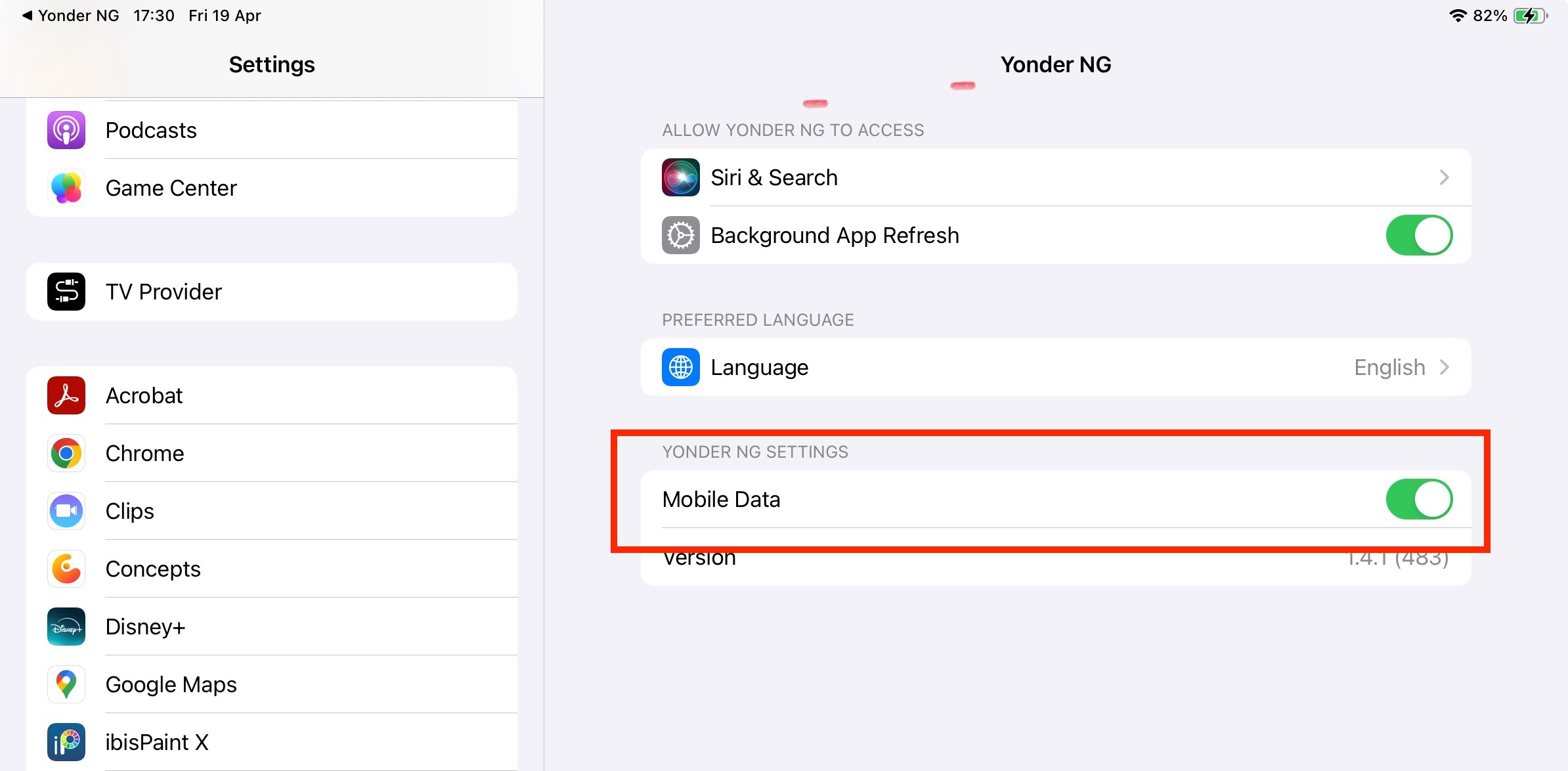
The "mobile data" setting on iOS devices controls whether the device can use cellular data for internet connectivity. When enabled, the device can access the internet using the cellular network, allowing you to browse the web, use apps, and perform other online activities when not connected to Wi-Fi. Disabling this setting restricts the device to Wi-Fi only for internet access, conserving cellular data usage and potentially saving on data charges.
Changing this setting will override the corresponding Apple settings:
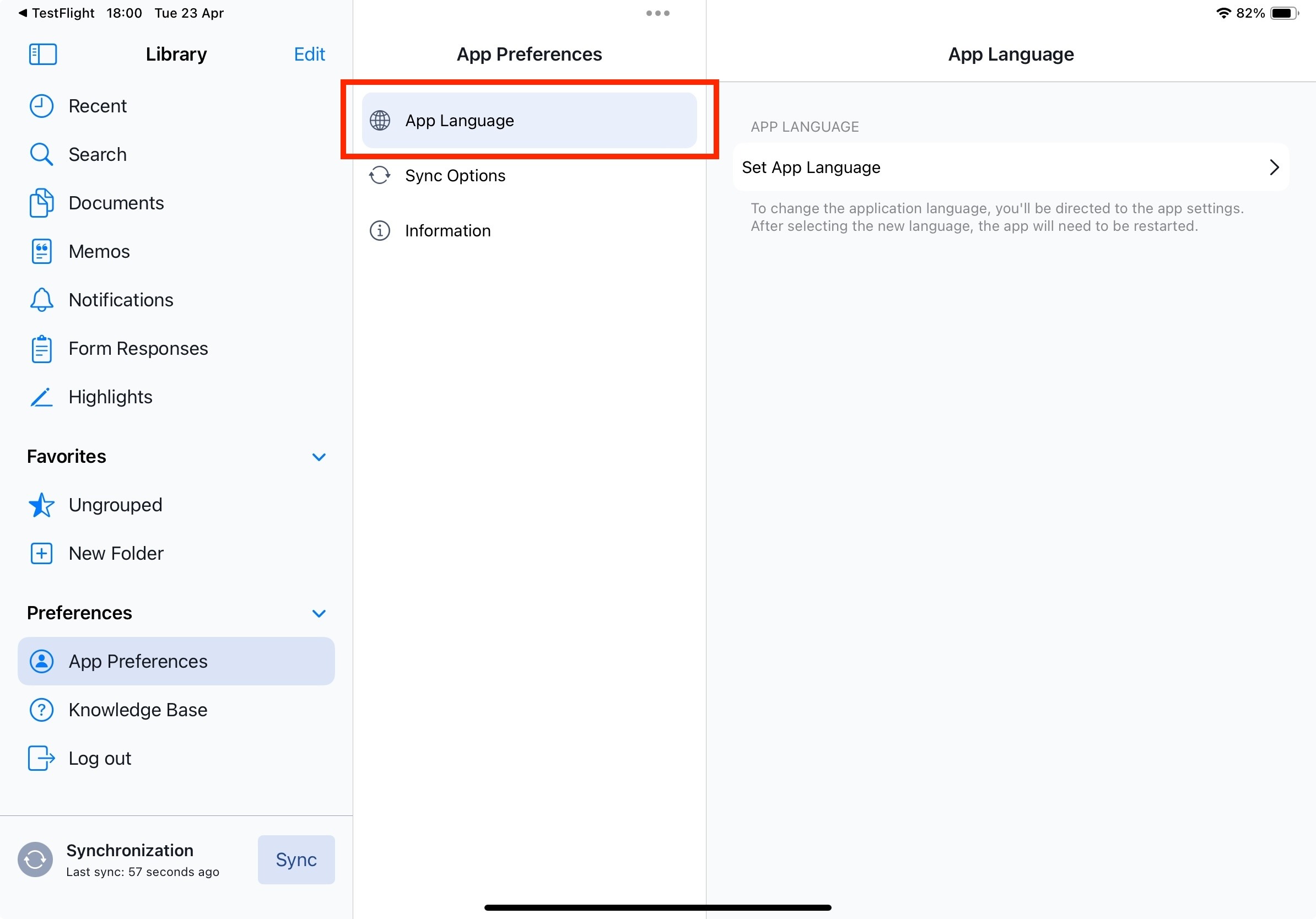
App Language
Choose your preferred language from the available options in Yonder.
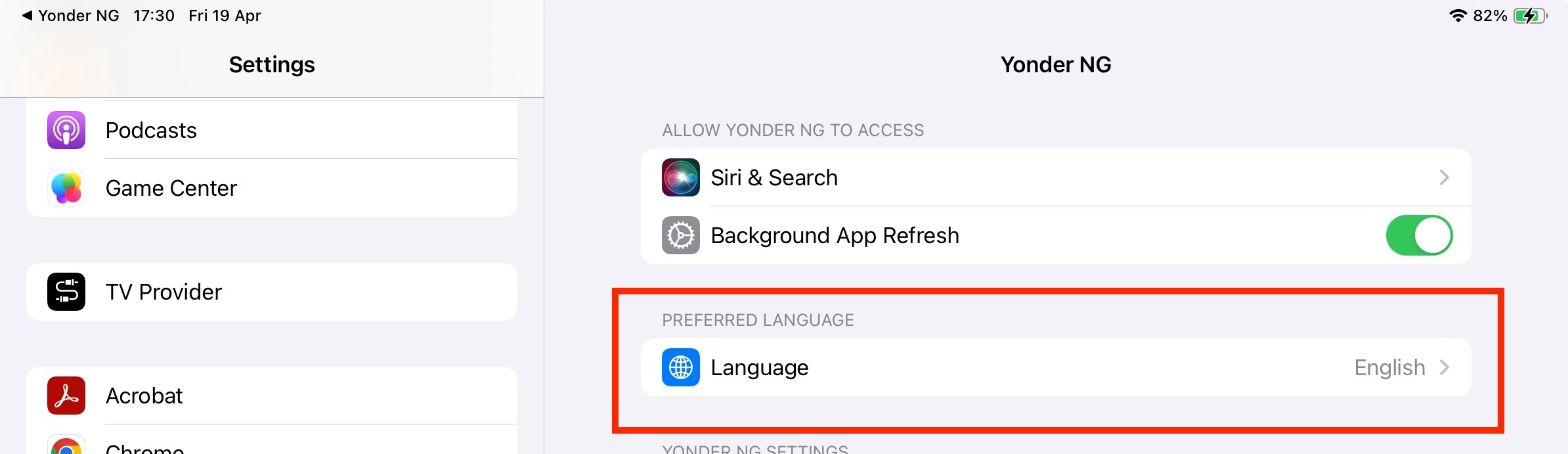
You'll be directed to the Apple settings for the Yonder app. Please choose your preferred language there.
Note: The app needs to restart to ensure the language change takes effect.
Note: Changing the language affects the Yonder application interface only.
The content of the documents will remain in their original language.
Was this article helpful?
That’s Great!
Thank you for your feedback
Sorry! We couldn't be helpful
Thank you for your feedback
Feedback sent
We appreciate your effort and will try to fix the article