TABLE OF CONTENTS
General
Bulk Changes allows you to update the status of multiple changes at the same time, making it easier to manage larger workloads efficiently.
Prerequisites
All selected changes must have the same status.
All selected changes must be of the same Change type.
Changing the Status of Multiple Changes at Once
Bulk Changes lets you update the status of multiple changes in one action. All selected changes will then be updated simultaneously.
How to Use Bulk Changes
1. Select the first change by clicking the row (do not use the multi-select checkbox, which is only for assigning changes to a Topic).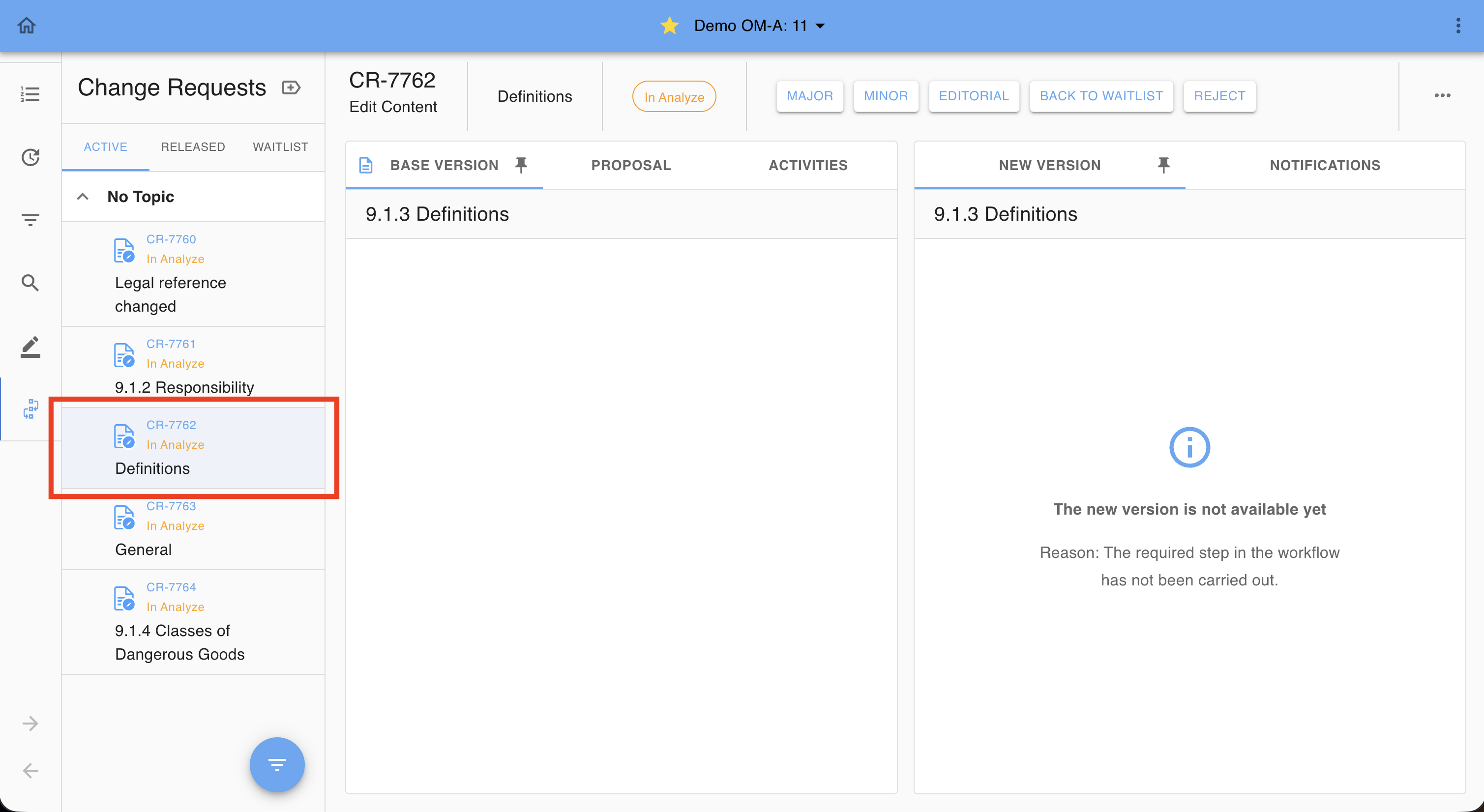
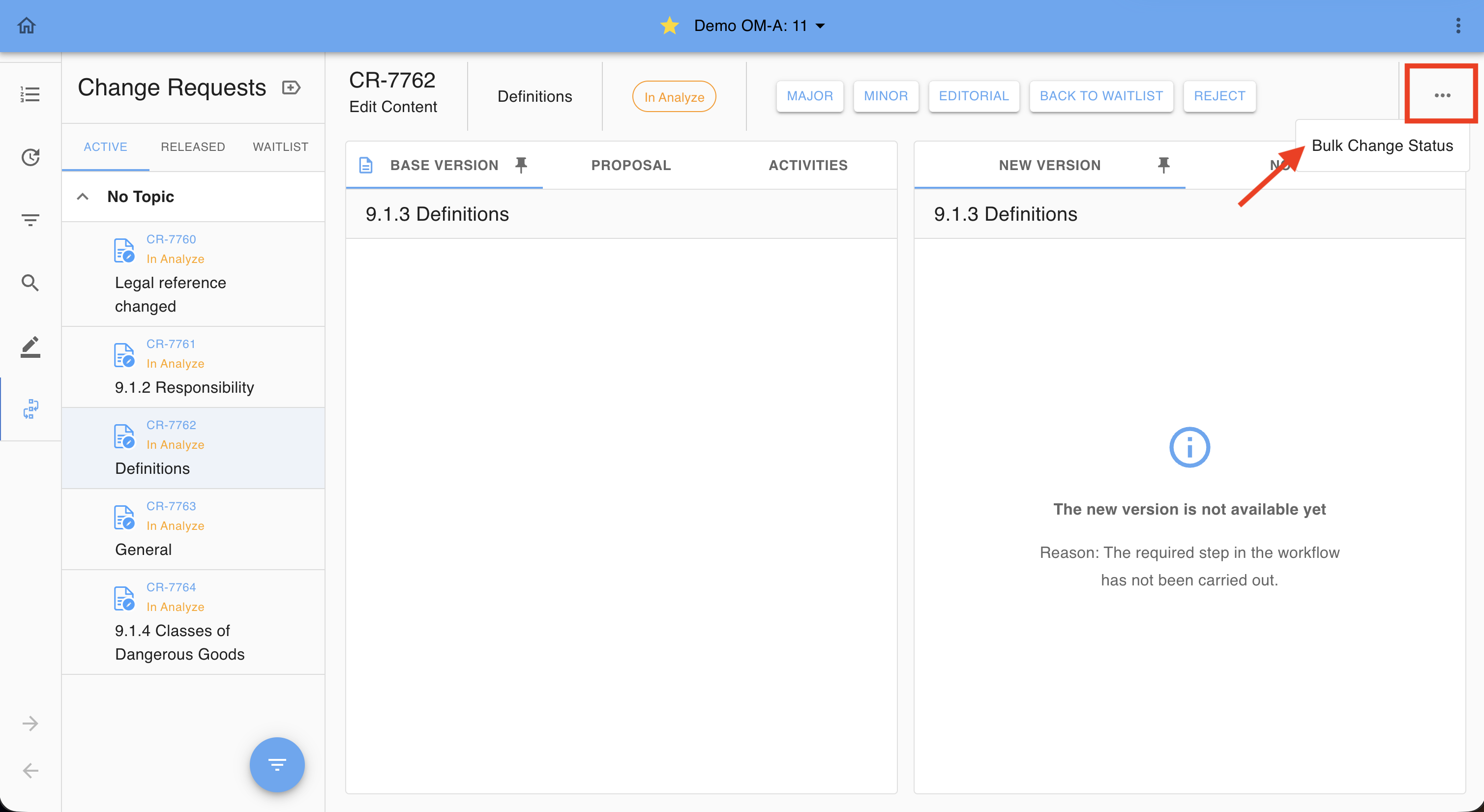
2. Open the Kebab menu and click Assign Bulk Change Status.
3. Select additional changes. Only changes with the same status and type are allowed.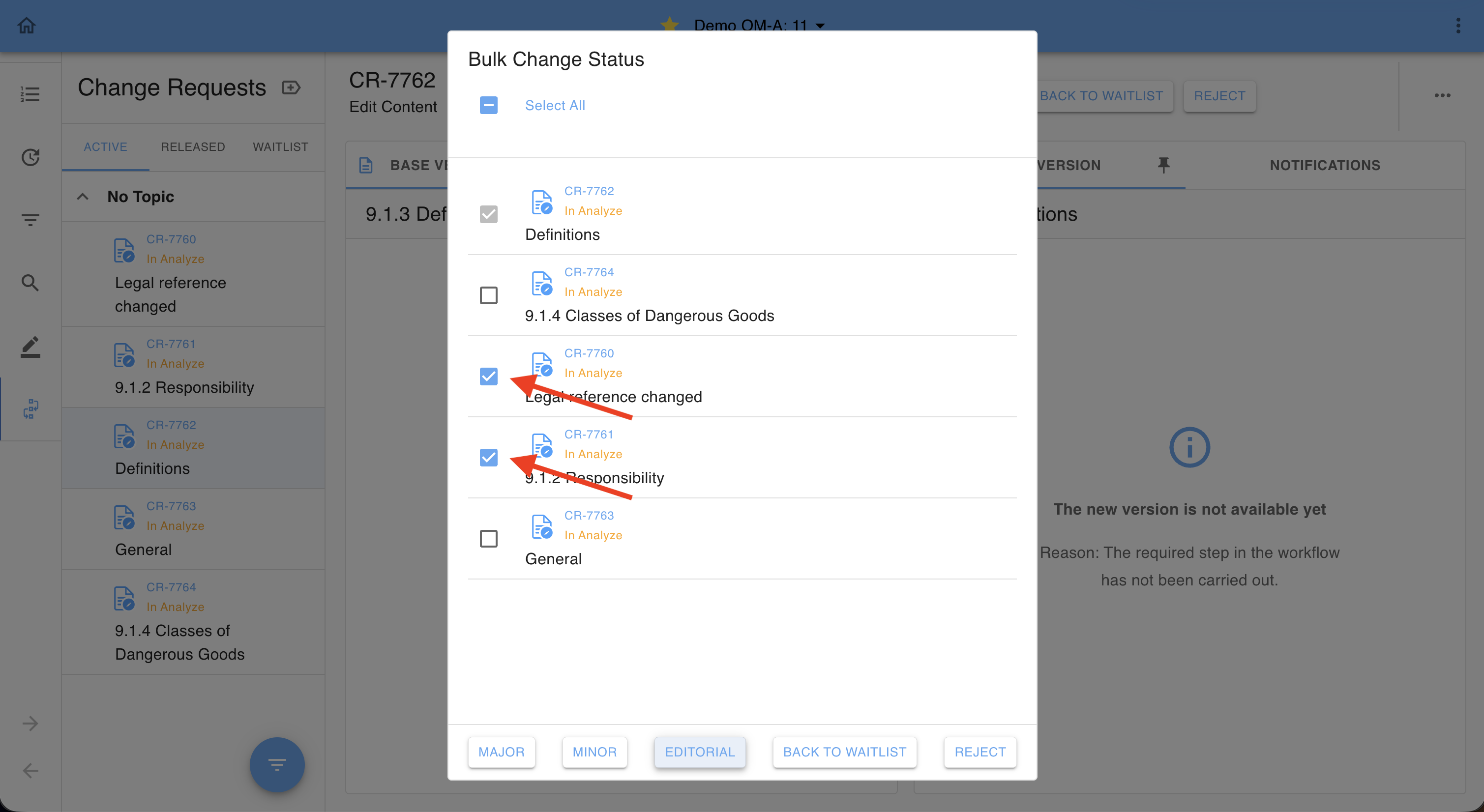 Note: The previously selected Change is preselected. You can add addtitional changes of the same type and status.
4. Choose the new status by clicking one of the available status options.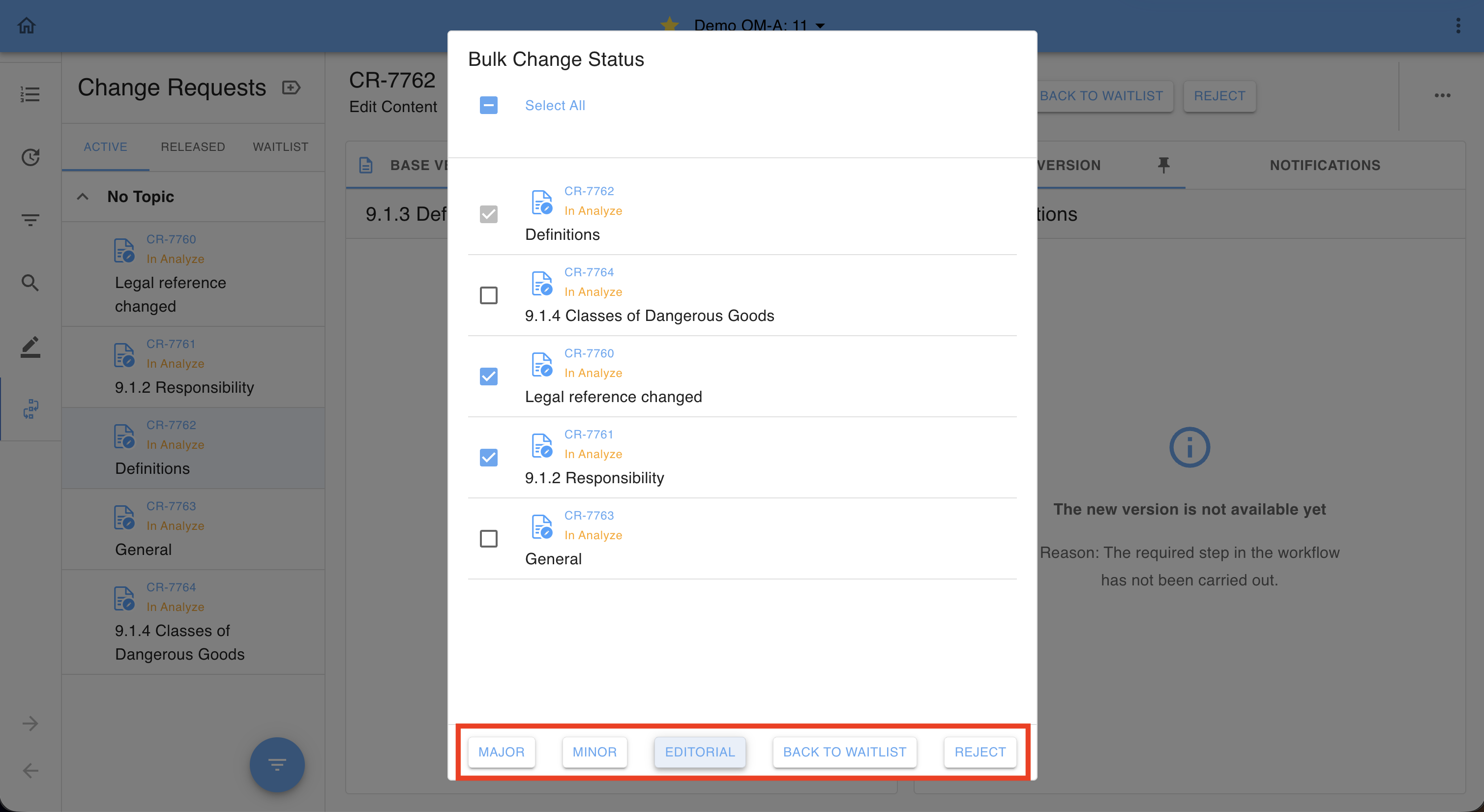
5. Optionally, add instructions for the bulk status change.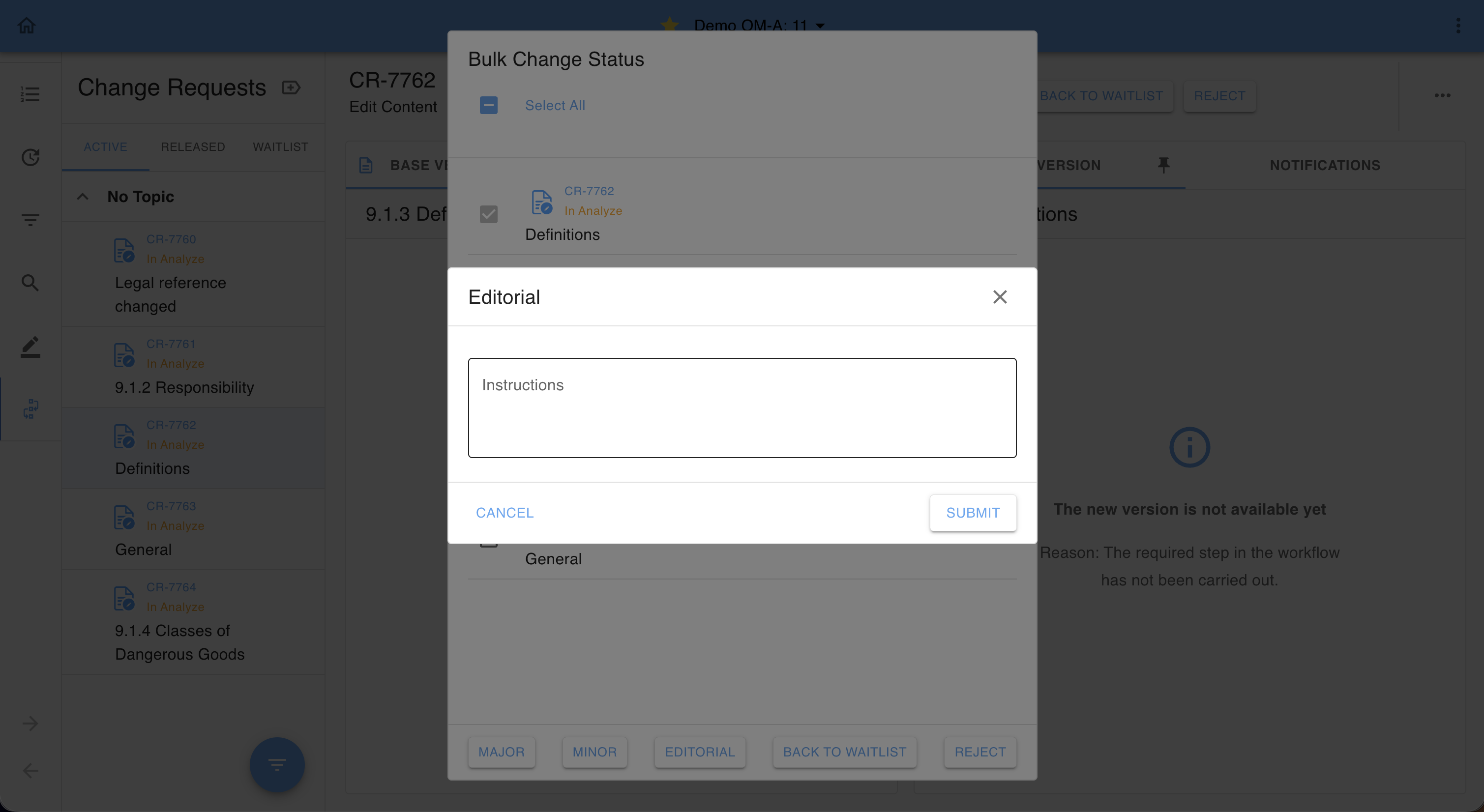
6. A status confirmation is displayed.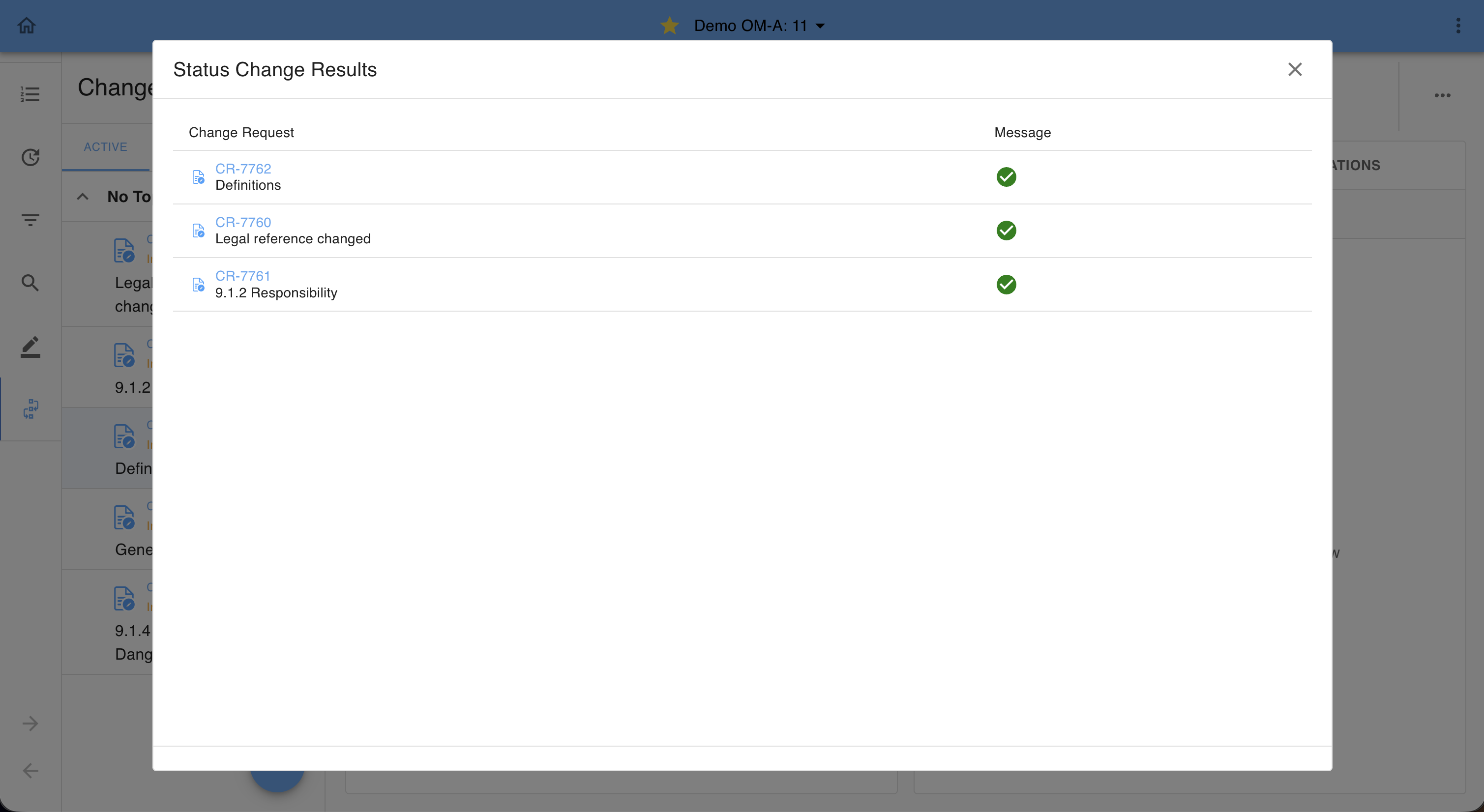
Result:
All selected changes are updated to the chosen status in one action. In the Change list the Changes are listed with their newly assigned status: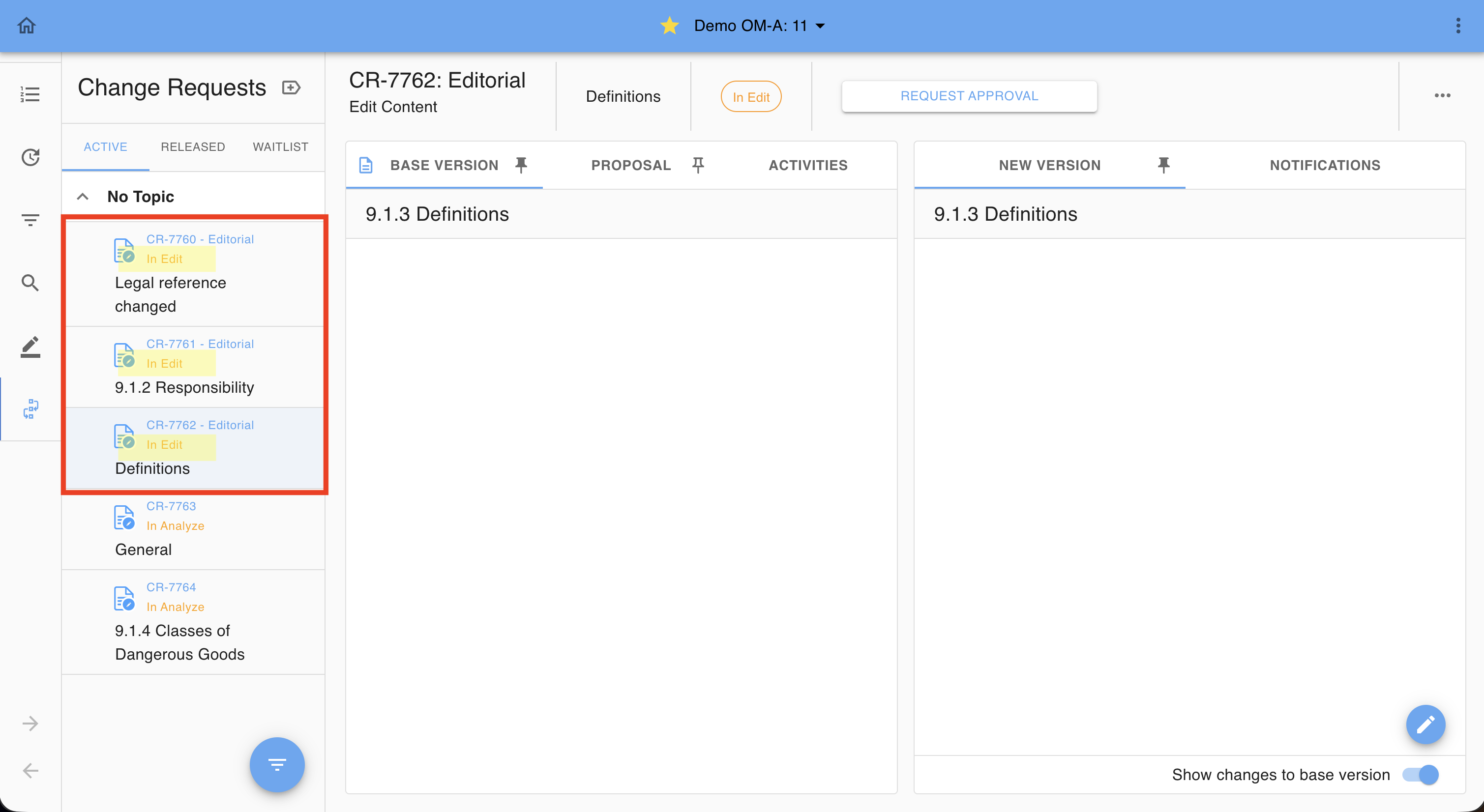
Was this article helpful?
That’s Great!
Thank you for your feedback
Sorry! We couldn't be helpful
Thank you for your feedback
Feedback sent
We appreciate your effort and will try to fix the article