TABLE OF CONTENTS
General
Highlights & Notes is a feature that enables you to mark a selected text excerpt and optionally add a note to it via the Yonder Reader Online. You can access the highlights & notes within a document via a dedicated sidebar.
Highlights & Notes are also available in the Yonder Reader Offline, once synced.
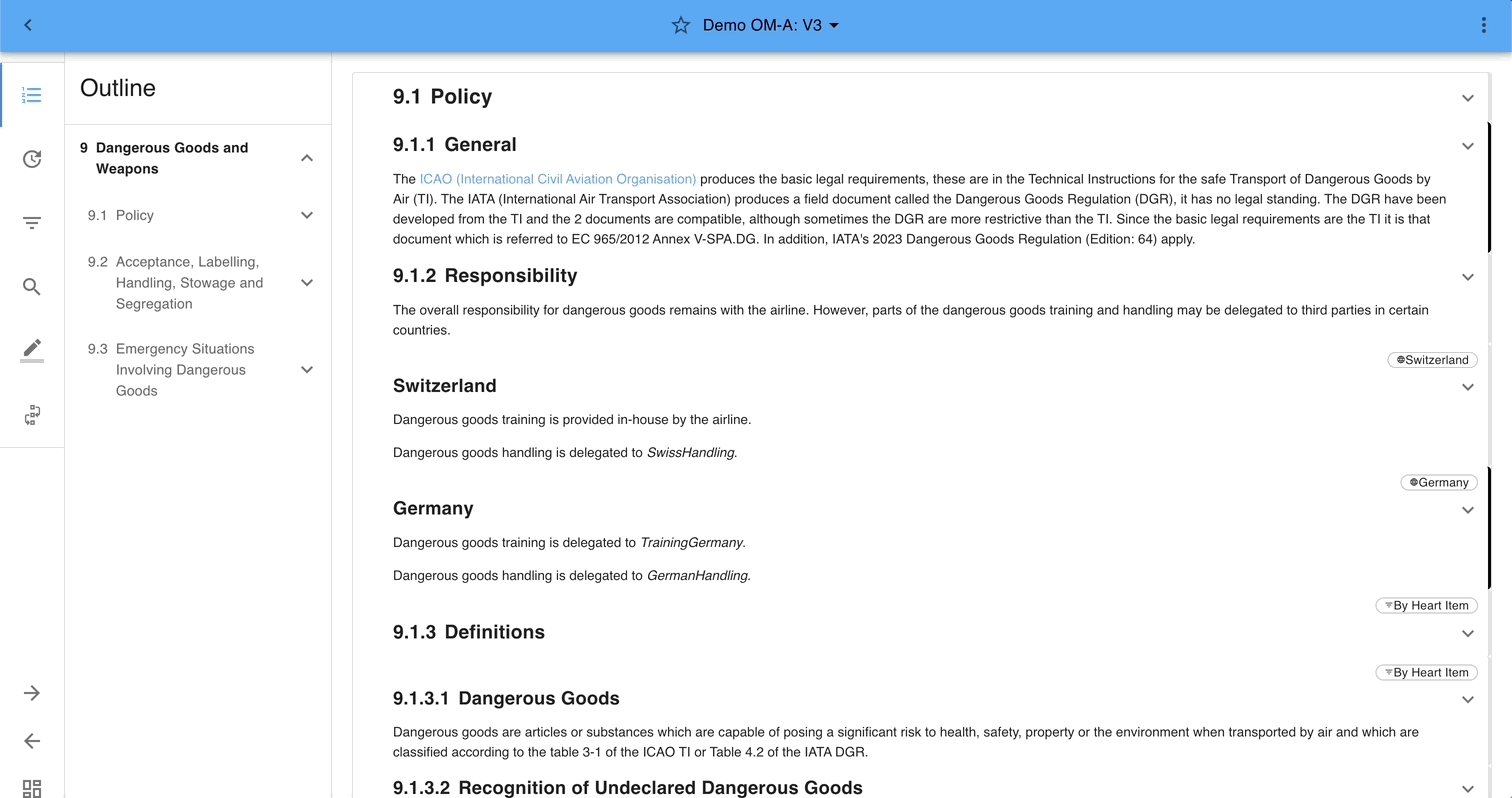
Create and navigate highlights
Mark the desired text excerpt and select the color needed; the highlight will be set accordingly.
You can navigate through your highlights in a document by selecting the highlight sidebar and clicking on the respective entries.
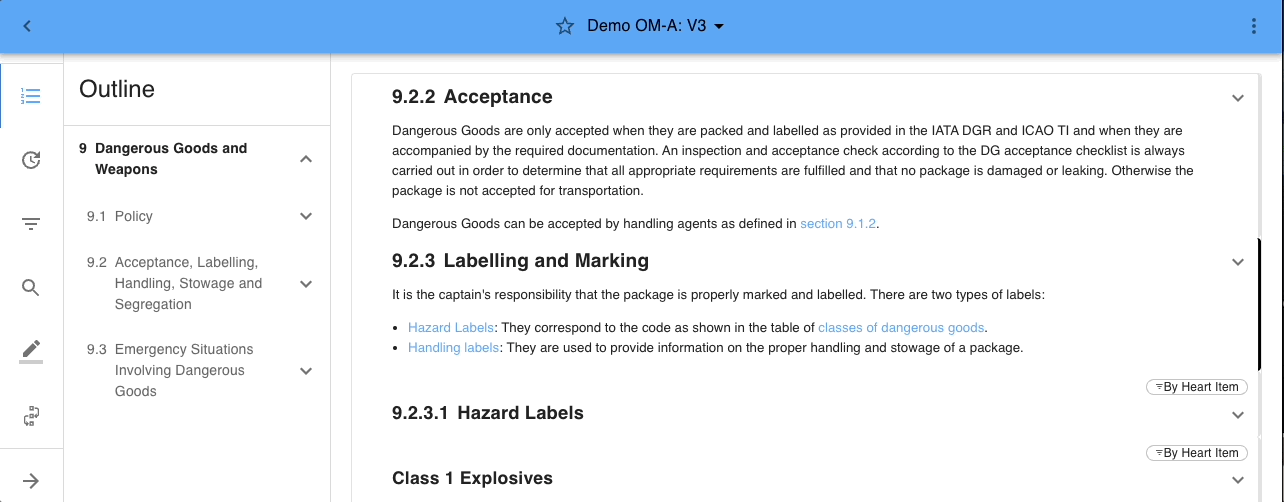
Delete a highlight
Select the the highlight to be deleted by clicking on the actual marking. Select Remove from the toolbar, confirm that you really want to remove and the highlight will be removed.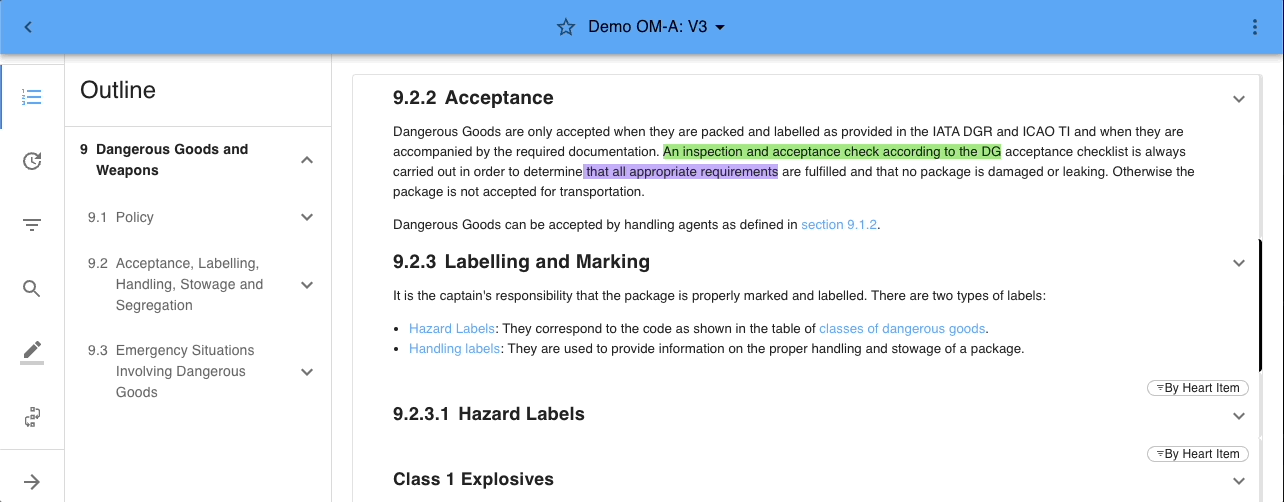
Add or delete a note
Click on the highlight and select Add Note. A small text editor opens and you are able to create your personal note.

Remark: The small bubble icon on the top left corner indicates that the highlight contains a note.
To delete a note simply click on the highlight containing the desired note and click on the trash symbol to only delete the note. To delete the highlight and the note simply select Remove from the toolbar and confirm that you want to remove the highlight and the note (see delete a highlight).
Transfer a highlight
Highlights that are not automatically transferred can be manually replaced.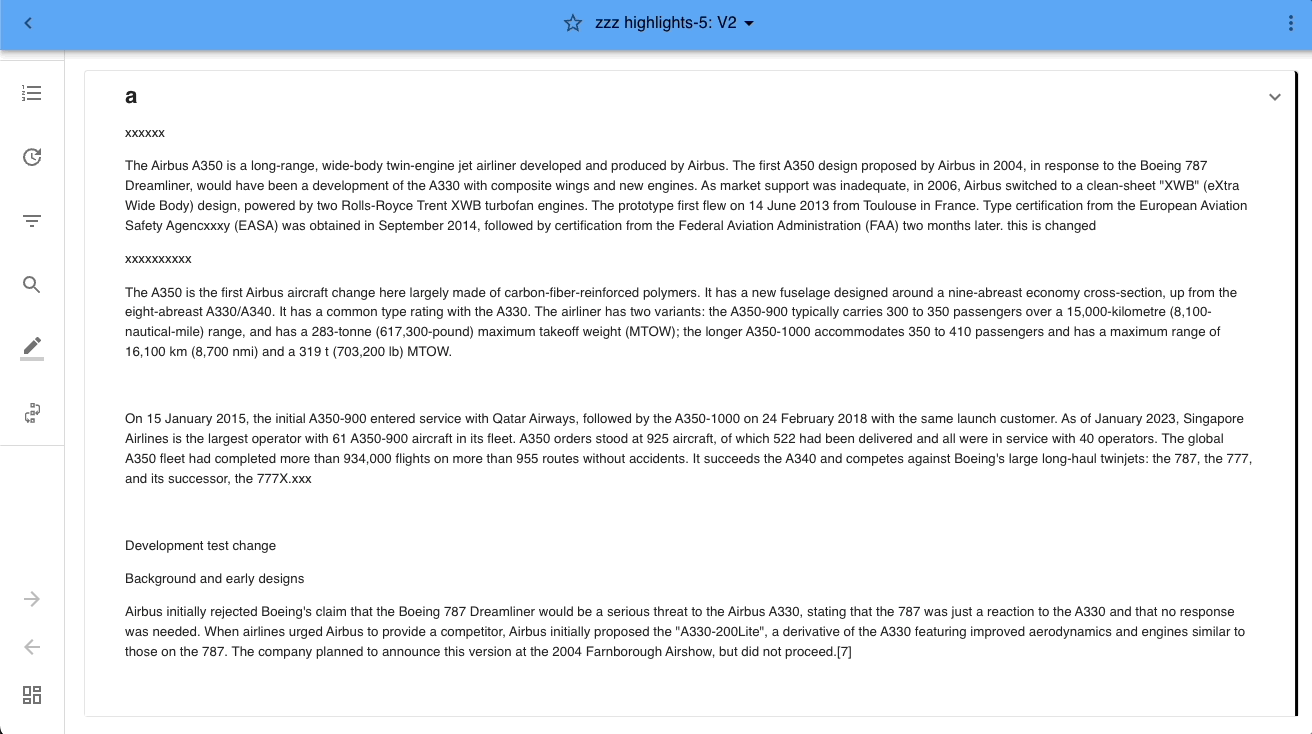
Navigate to the highlights sidebar, if there are highlights that could not be transferred a warning appears.
- Click on the warning prompt
- Select a highlight in the ‘Open’ section and select ‘Transfer Highlights’
- Mark the new section in the latest revision and the highlight is transferred
If you chose not to transfer a highlight, simply select ignore.
Notes
- The highlight on the previous revision will still be accessible in the outdated revision of the document.
- A note will be transferred with the highlight it belongs to.
Additional Information
| Highlight colors | 6 predefined colors that work in light / dark mode |
| Supported edit features in a note | Editor capabilities:
|
Was this article helpful?
That’s Great!
Thank you for your feedback
Sorry! We couldn't be helpful
Thank you for your feedback
Feedback sent
We appreciate your effort and will try to fix the article