You can adjust how information is displayed in the app using the Viewing Options menu.
This menu can be accessed by clicking on the ‘more’ menu (the ‘…’ icon) located at the top right of the app.
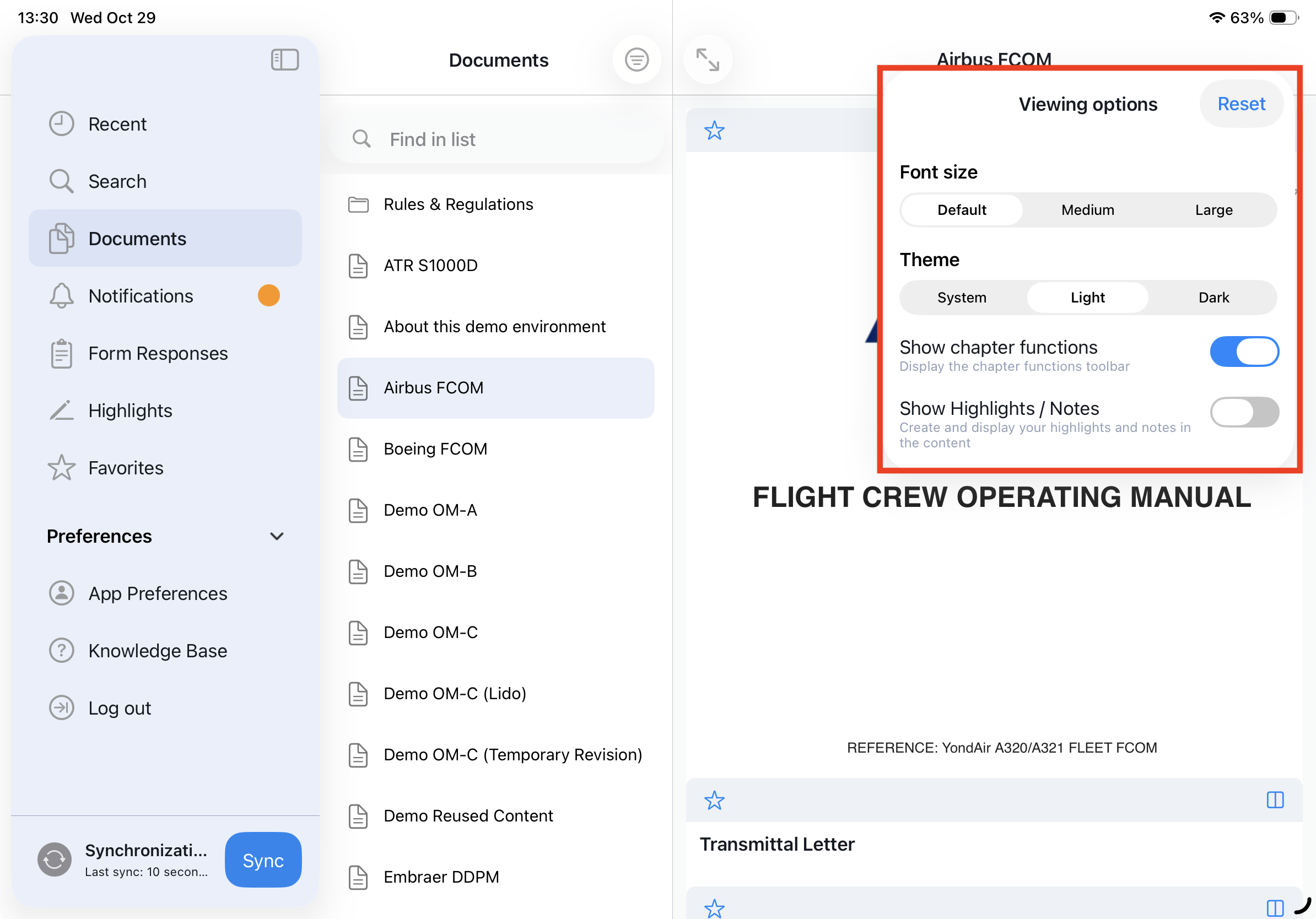
1. Font size
Choose the text size that best fits your preference:
Default – standard text size.
Medium – slightly larger text.
Large – largest available text size for better readability.
2. Theme
Select the appearance of the app interface:
System – automatically follows your iOS system setting (light or dark).
Light (Manual) – forces light mode regardless of system setting.
Dark (Manual) – forces dark mode regardless of system setting.
3. Show chapter functions
When enabled, this displays:
A bar to mark a module as a favorite.
A side-by-side comparison showing changes between the previous and current revision of the same module.
4. Show Highlights / Notes
Use this toggle to turn the display of your highlights and notes on or off.
Was this article helpful?
That’s Great!
Thank you for your feedback
Sorry! We couldn't be helpful
Thank you for your feedback
Feedback sent
We appreciate your effort and will try to fix the article