TABLE OF CONTENTS
Overview
Yonder integrates with iOS Spotlight to make supported documents accessible directly from the device's system-wide search.
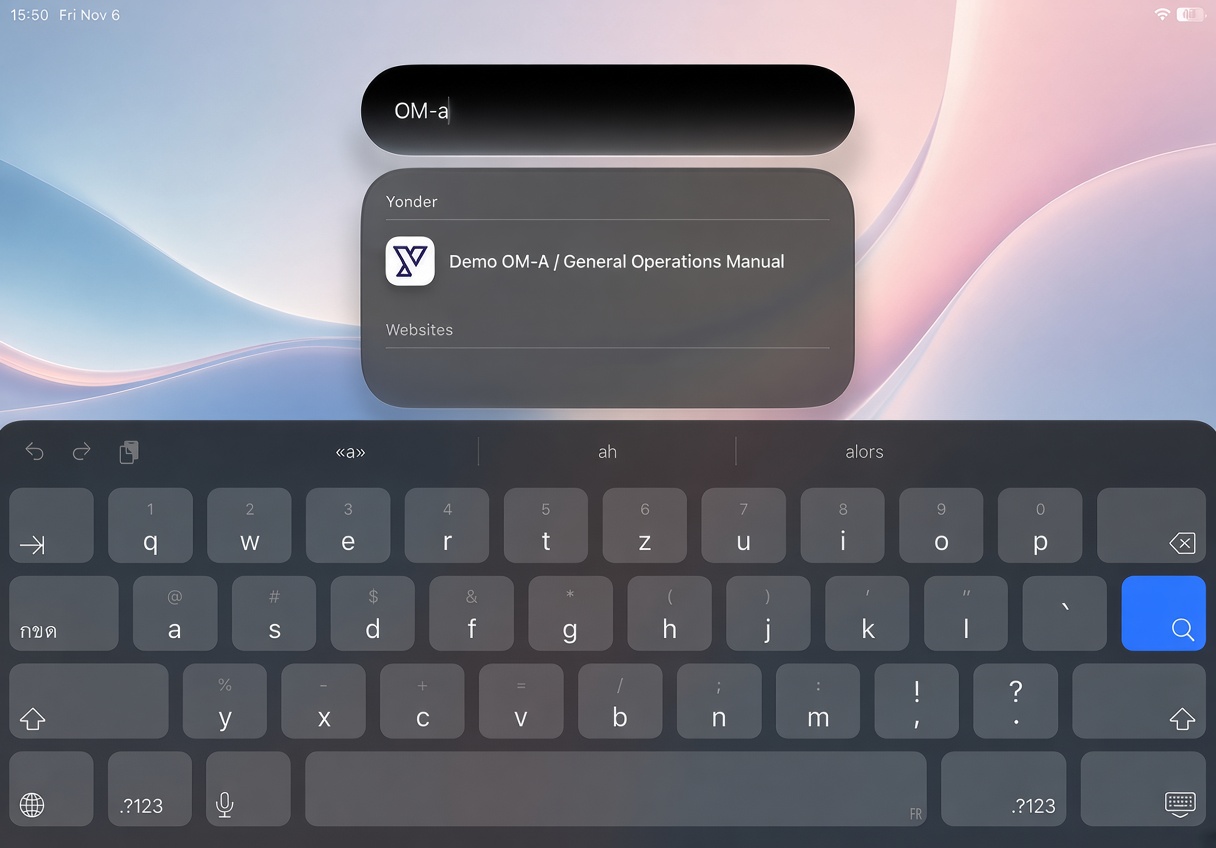
Users can find a document by entering its title in Spotlight and open it directly in Yonder by selecting the search result. This provides quick access to relevant content without having to navigate through the application first.
The availability of this functionality depends on the configured Spotlight integration and the document indexing settings.
How It Works
Step by step instruction:
- Open Spotlight: Swipe down from the middle of the Home Screen to open iOS Search.
- Search: Enter the title or a relevant keyword of the document you are looking for.
- Select: Tap the matching Yonder search result.
- Open: Yonder launches automatically and opens the selected document.
This provides quick access to your documents directly from the iOS Home Screen.
Requirements
For this feature to work, the following conditions must be met:
- Supported device: An iPhone or iPad running iOS 27 or later.
- Yonder installed: The Yonder app must be installed on the device and the user must be logged in.
- Document available: The document must be synchronised and available in your Yonder library.
- Spotlight indexing: The document must be included in Yonder's Spotlight index.
- Document access: You must have permission to access the document.
Important Notes
- Spotlight indexing takes place on your device. Newly synchronised documents may take some time to appear in search results.
- Only Yonder smart documents available for system-wide Spotlight visibility can be found this way.
Was this article helpful?
That’s Great!
Thank you for your feedback
Sorry! We couldn't be helpful
Thank you for your feedback
Feedback sent
We appreciate your effort and will try to fix the article