TABLE OF CONTENTS
- Introduction
- Apple Technologies
- How to use Ask Yonder
- Ask Yonder Widget
- Voice Input
- Spotlight search
- Apple Requirements
Introduction
Ask Yonder is a smart search feature that lets you quickly find information across your library by typing a question or speaking it out loud.
Powered by Apple’s on-device technology, Ask Yonder can deliver AI-generated summaries when Apple Intelligence is available, or fall back to standard Spotlight search results when it is not. This ensures you always get relevant answers while keeping your data secure on your device also when the user is offline.
Ask Yonder is available in the primary sidebar.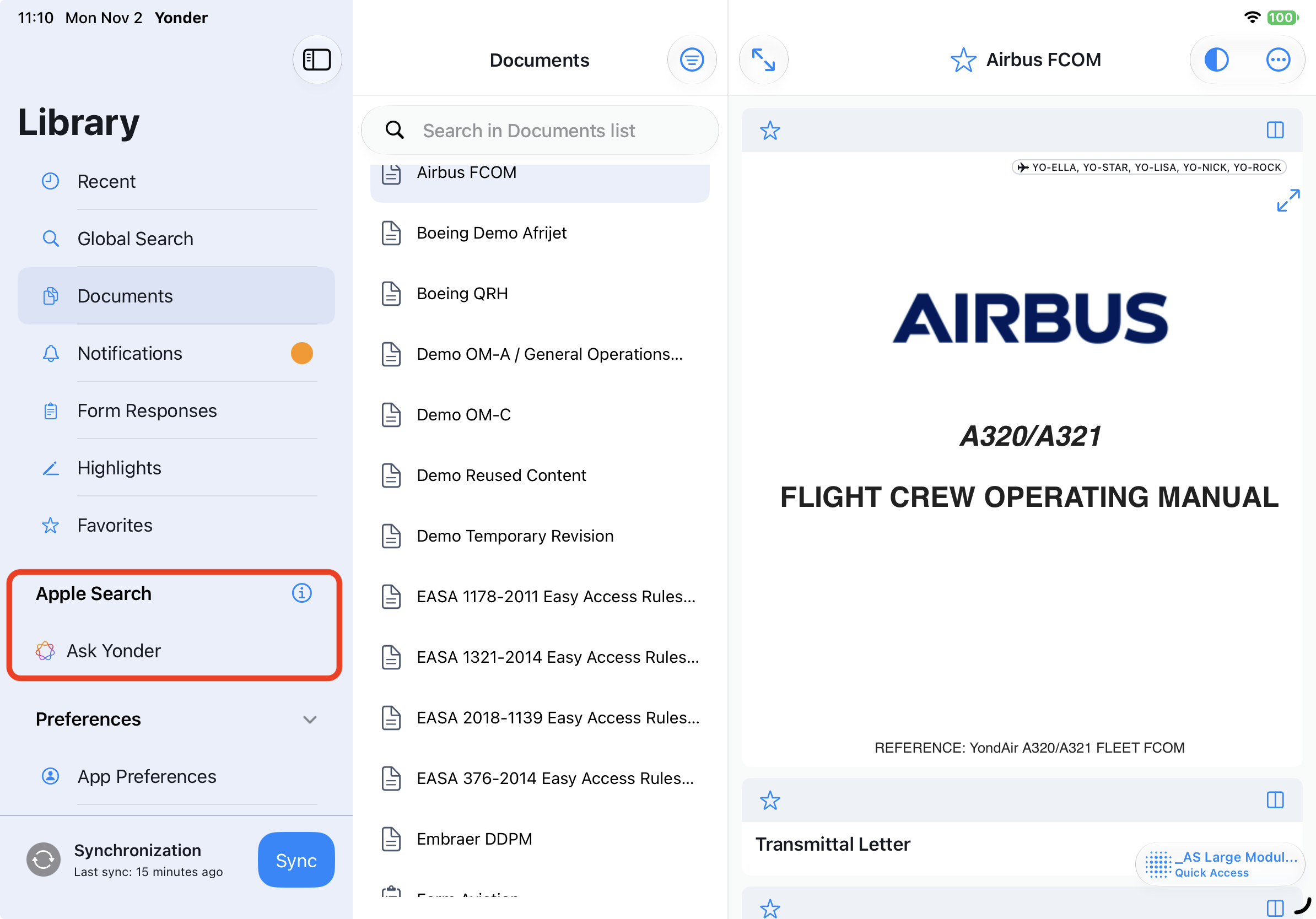
Apple Technologies
Ask Yonder relies on two core Apple technologies:
- Apple Foundation Models
Apple Foundation Models use the Core Spotlight search tool to retrieve relevant content and generate the summaries displayed in the Key Finding section. The AI processing takes place on your device, keeping your data private and ensuring that no content is sent to external AI servers. - Spotlight Search
When Apple Intelligence is not enabled on either the tenant or the device, Yonder uses Spotlight Search to provide search results and additional reference links. These results are deterministic and based directly on Apple’s search indexes of your library content. - Voice-to-Text
You can ask Yonder a question by speaking instead of typing. Apple’s voice-to-text feature converts your speech into text, which Ask Yonder then uses to search your library. Voice input is available regardless of whether Apple Intelligence is enabled or ready.
Note: to allow vice-to-text dictation needs to be enables.
Apple Intelligence enabled
When AI is enabled by your company and Apple Intelligence is enabled and ready on your device, Ask Yonder presents:
- Key Finding (blue box): The highest-priority search result with an AI-generated content summary.
- Additional References (Also In section): Relevant links found using Apple Spotlight indexes.
Note: When AI cannot provide an answer (e.g. in some cases If a question involves numbers, requires comparison, or is not clearly answered in the source content, Yonder will prompt the user to consult the relevant source content.
Apple Intelligence disabled
If AI is disabled by your company or Apple Intelligence is turned off on your device, Ask Yonder uses Apple Spotlight Search. Results are based on Apple’s search indexes and do not include AI-generated responses.
Device not Apple Intelligende ready
If Apple Intelligence is enabled but your device is not yet ready to use it, Ask Yonder automatically falls back to Apple Spotlight Search without AI-generated summaries.
How to use Ask Yonder
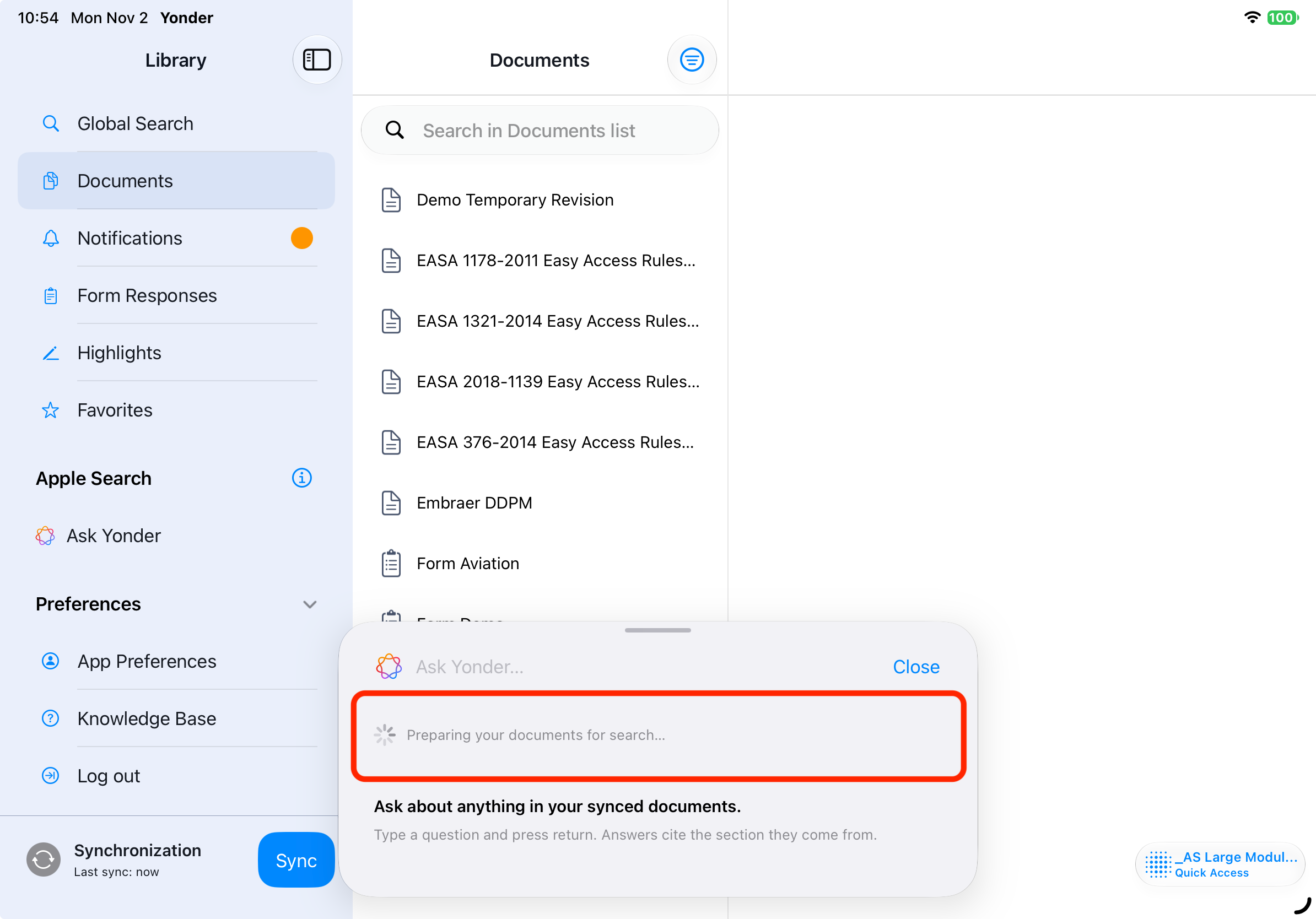
Note:When using Ask Yonder for the first time, your content will be indexed automatically. Indexing will also be triggered after each delta synchronization.
- Start the feature by clicking on Ask Yonder.
- If you use the feature for the first time, the library content needs to be indexed. Please wait until your documents are prepared.
- You can ask Yonder using either text or voice input.
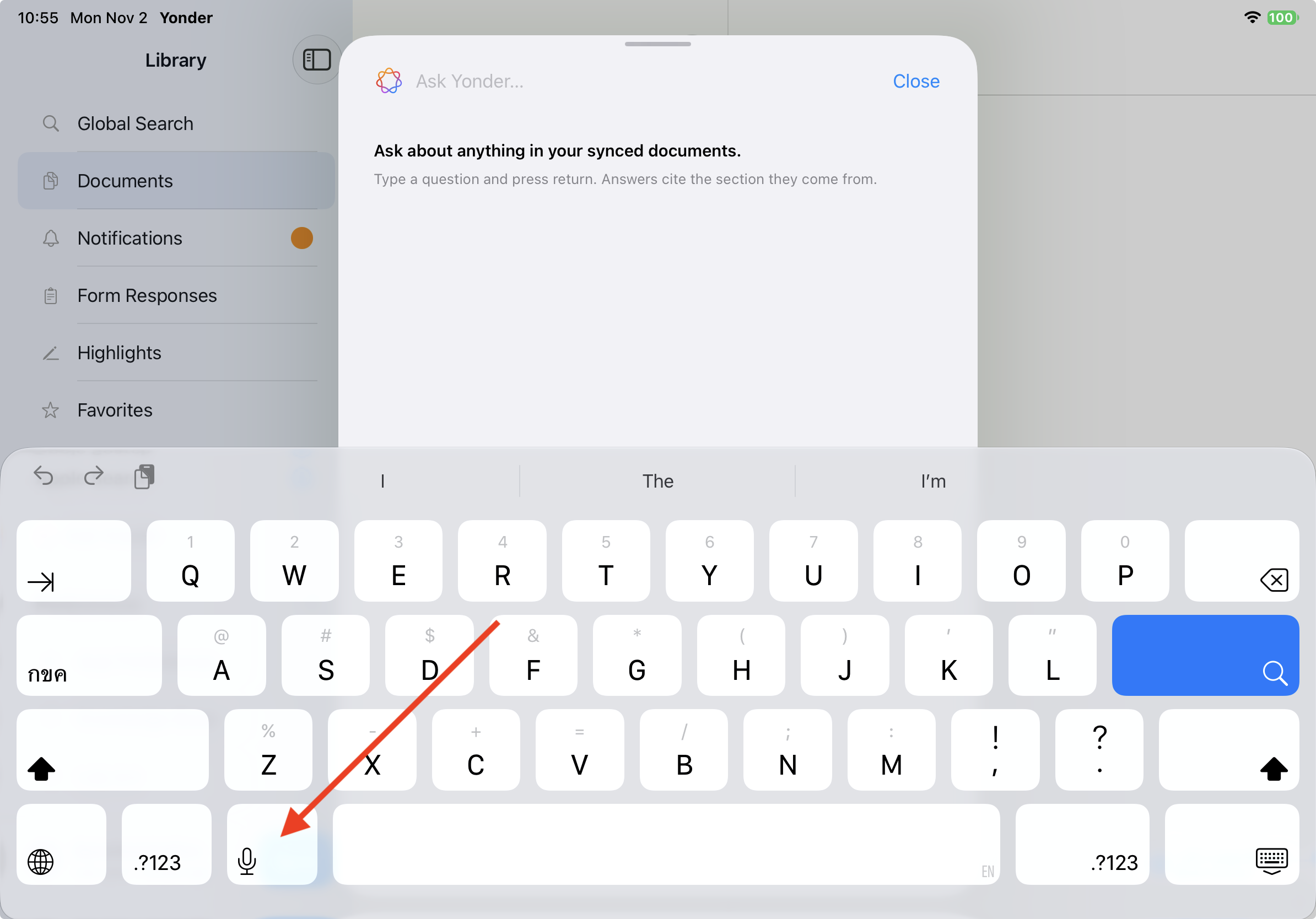
- Execute the search by clicking the search button.
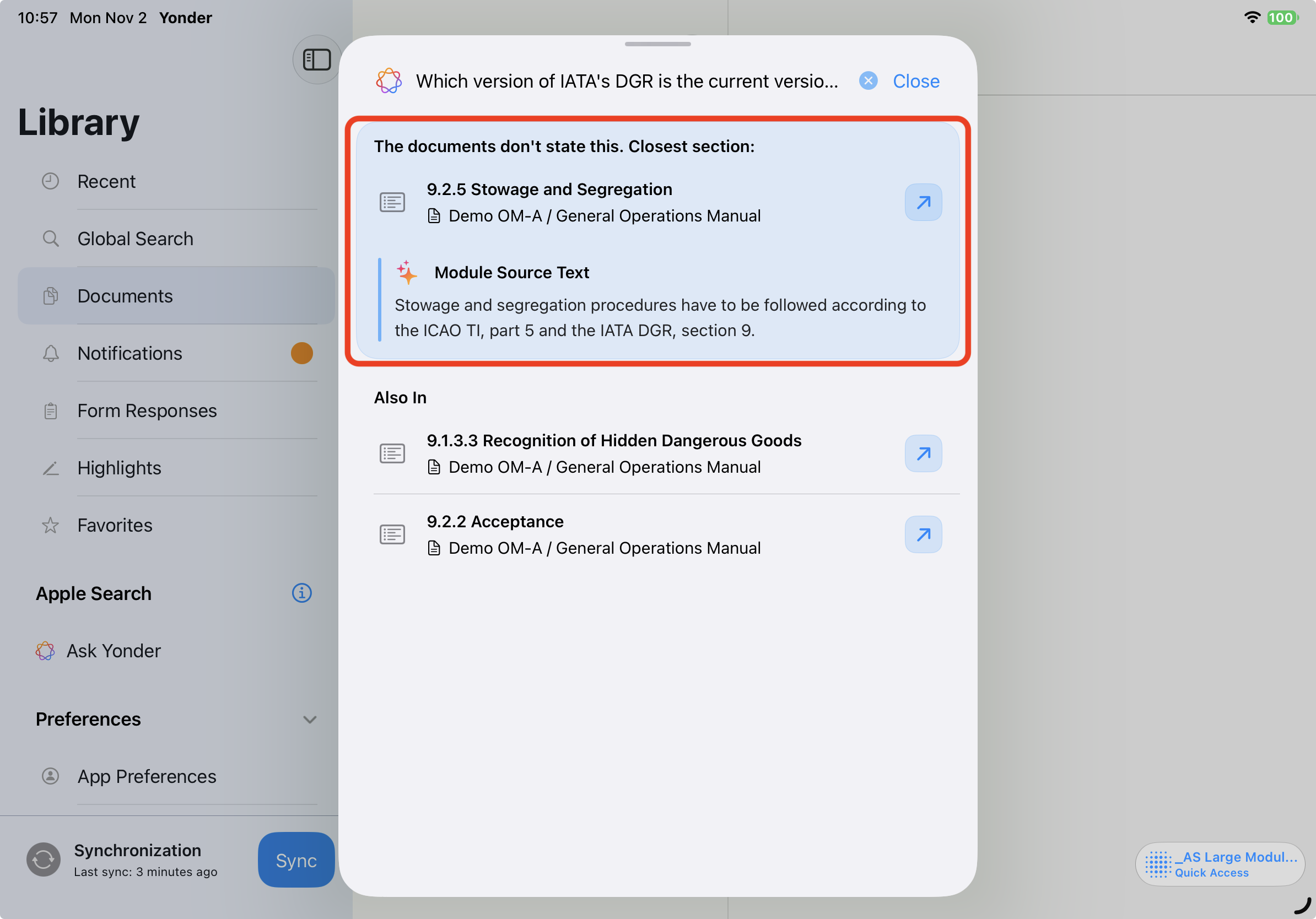 Yonder will present the most likely result and, if enabled, an AI response. If AI is not enabled, Yonder will display the content of the module and a link to the document.
- Under Also In, Yonder lists links to additional resources.
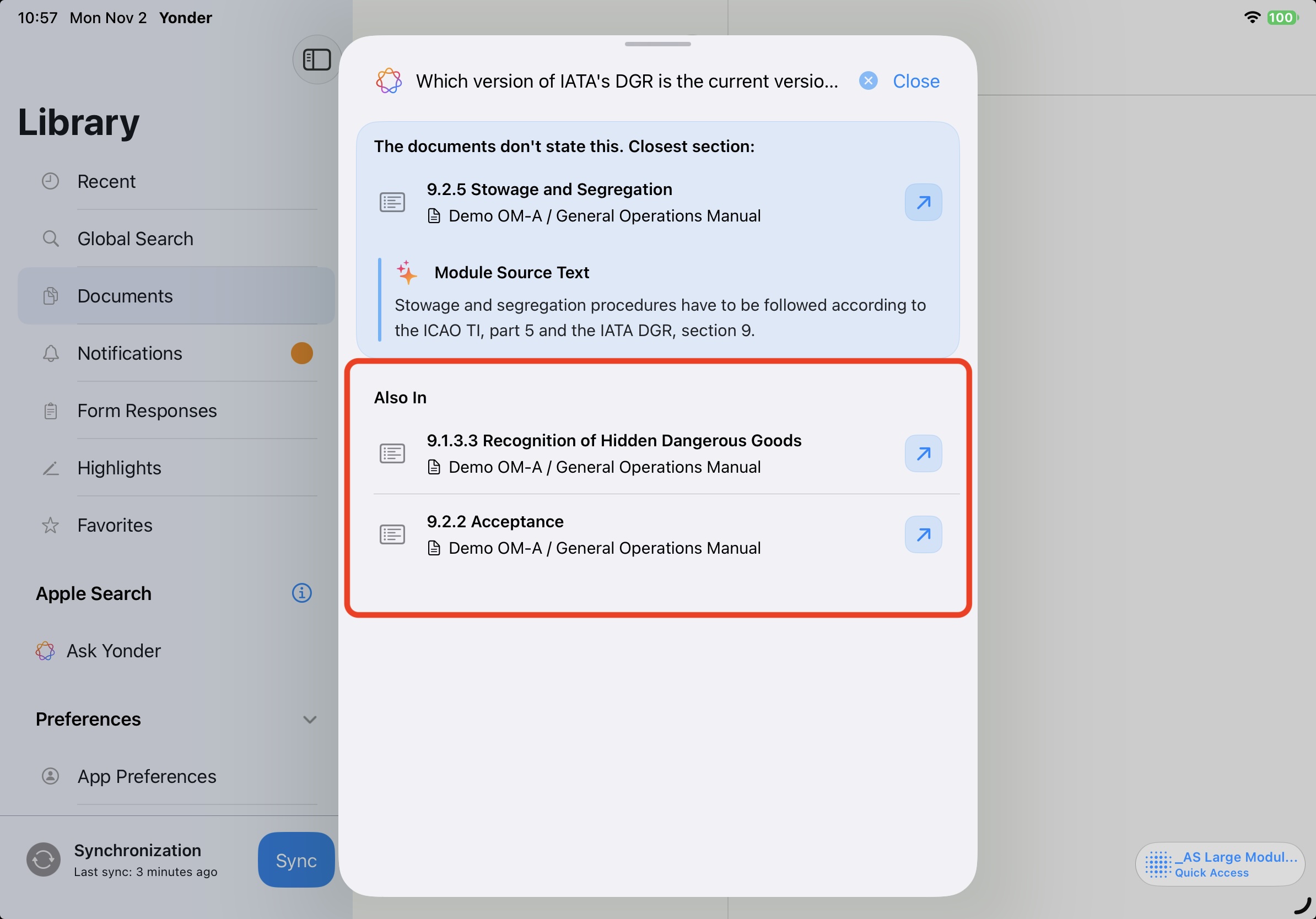
Note: If you navigate back to the dashboard, the pop-over remains open until you close it by clicking the Close button. This allows you to access the various links.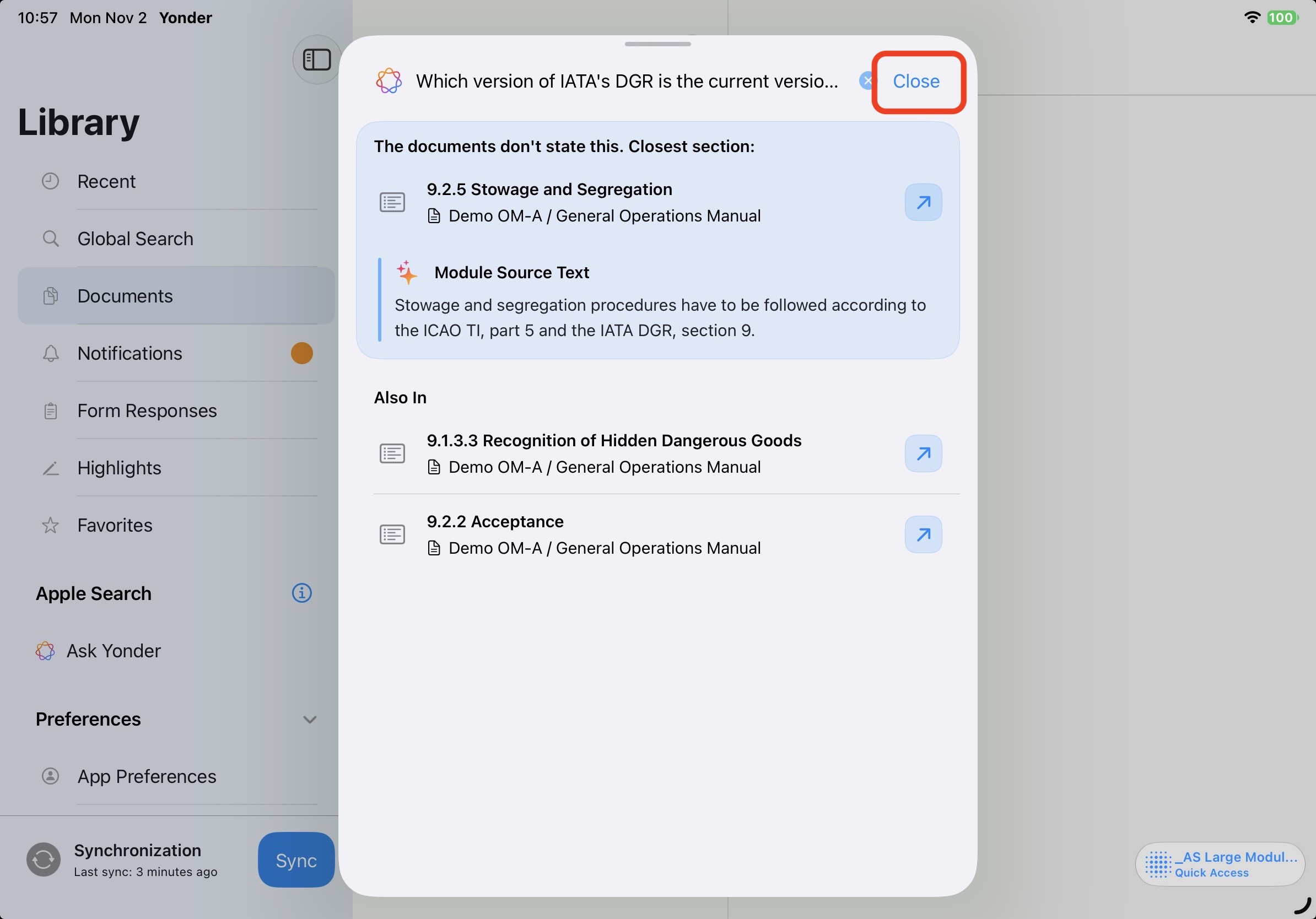
Ask Yonder Widget
The Ask Yonder widget provides quick access to the Ask Yonder feature directly from the device's Home Screen. Tapping the widget opens Yonder in the corresponding section, where users can immediately ask questions using text or voice input.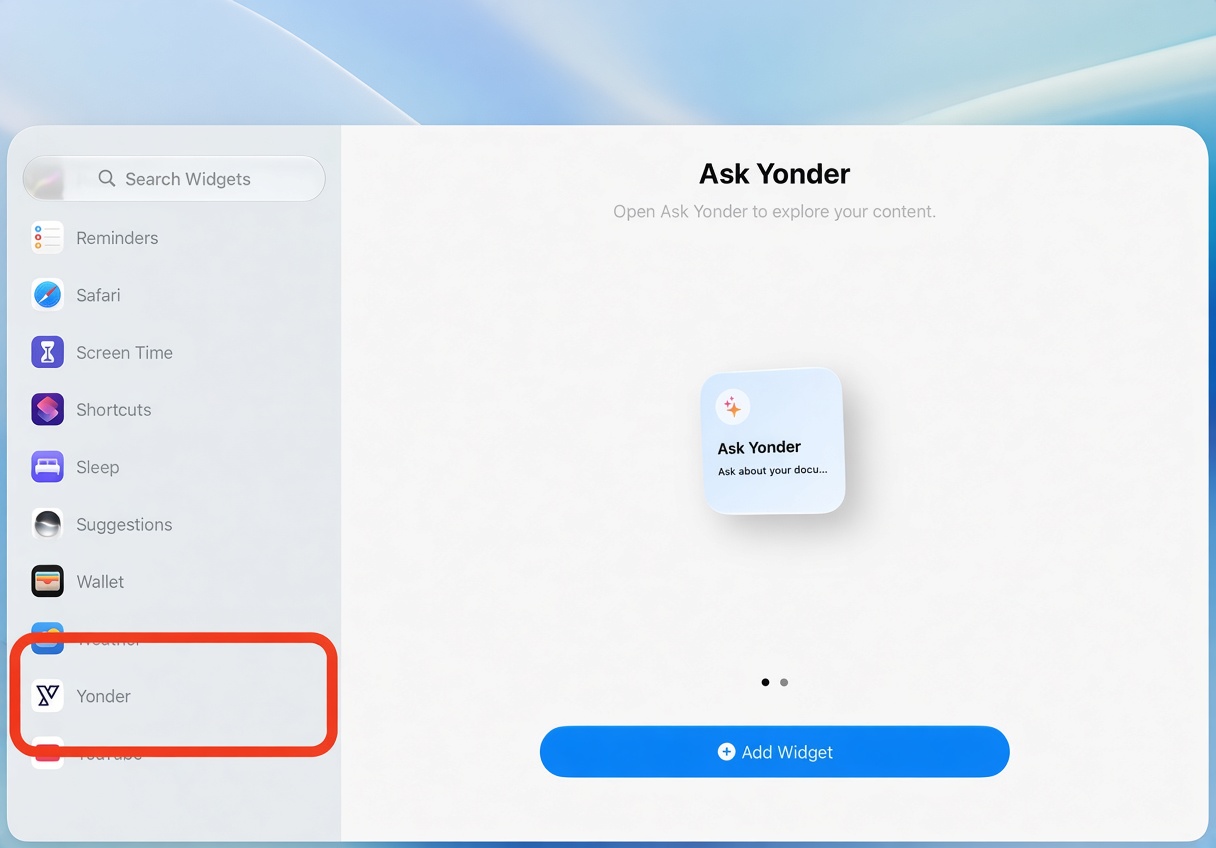
Voice Input
Voice input relies on Apple's built-in speech recognition and Dictation functionality.
- Dictation must be enabled under Settings > General > Keyboard > Enable Dictation.
- The selected dictation language must be supported by Apple's speech recognition.
- Alternatively, questions can be entered using the standard iOS/iPadOS keyboard without voice input.
Voice input is available for text input fields app wide such as Apple Search or Notes (in Highlights)
Spotlight search
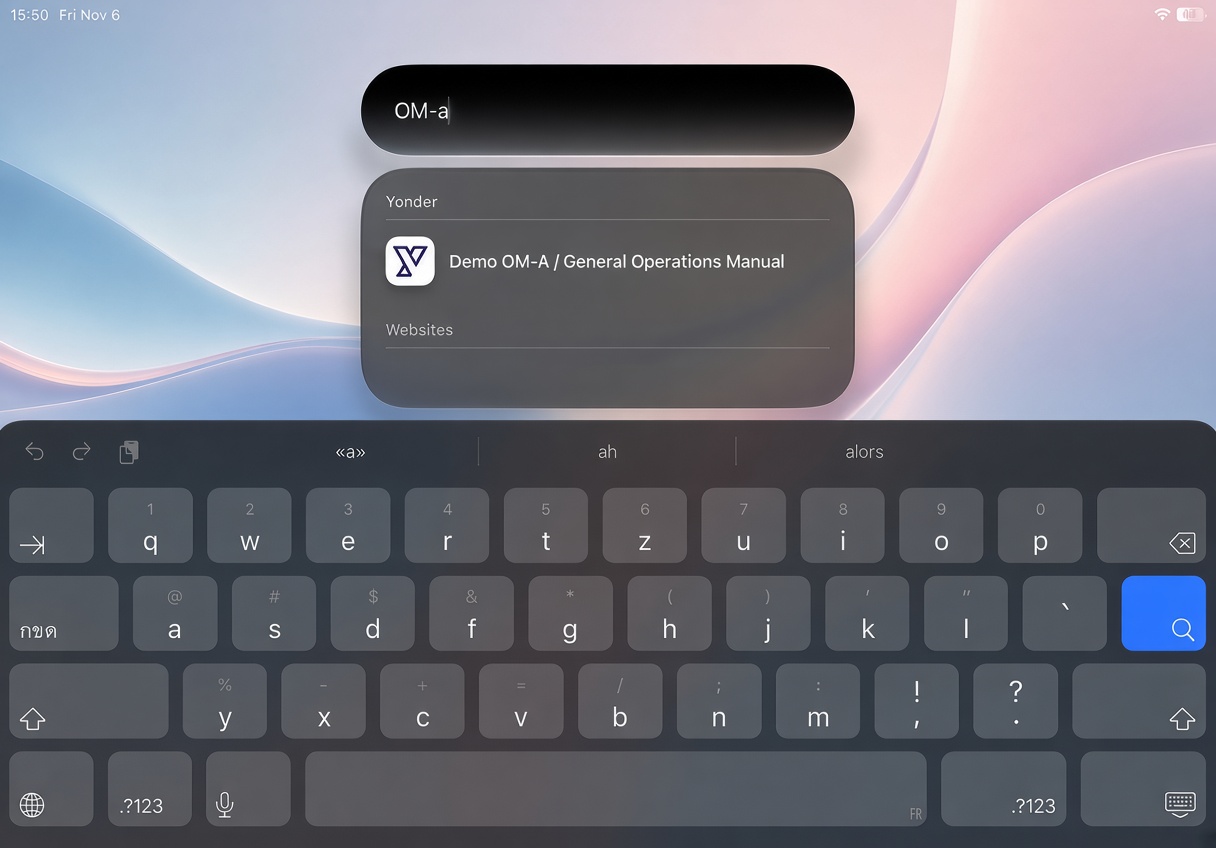
Spotlight allows Yonder to make indexed document content available through the system-wide search experience. Verify that Yonder is permitted to appear in Spotlight.
- Yonder must be enabled under Settings > Search to allow its indexed content to appear in Spotlight.
- Spotlight search must be available on the device.
Apple Requirements
Ask Yonder relies on Apple's on-device Foundation Models and requires a compatible Apple device with Apple Intelligence enabled. Before testing, verify the following requirements:
Device Compatibility
The device must support Apple Intelligence and run a compatible version of iOS or iPadOS.
- iOS 27.2 or higher
- iPhone 15 Pro / Pro Max or later supported models.
- iPad mini (A17 Pro) or iPad models with M1 chip or later.
- A compatible and up-to-date iOS or iPadOS version.
Apple Intelligence
Apple Intelligence must be activated and fully initialized before Ask Yonder can be used. The required on-device models must be downloaded and ready.
- Apple Intelligence must be enabled under Settings > Apple Intelligence & Siri.
- The required on-device models must be fully downloaded and ready.
- The device language and Siri language must be set to the same language supported by Apple Intelligence.
- Apple Intelligence availability depends on Apple's language and regional requirements.
Important note: Currently only English is supported.
Performance and model capabilities
Newer chips generally offer more processing power, improved Neural Engine performance and, depending on the device, more available memory. This can influence model execution speed and the complexity of AI tasks that can be handled locally.
Important note: The model is currently optimized for aviation-related usa cases.
Content Compatibility
For content to be available and discoverable in Ask Yonder and Spotlight Search, it must be indexed and searchable by Apple features.
Currently, is supported for Yonder Smart Documents only.
This means that only Smart Documents that have been successfully processed and indexed can be included in search results and used by Ask Yonder to provide answers or show up in Spotlight search.
Recommendation
For consistent and representative testing, I would recommend:
- Minimum: iPhone 15 Pro (A17 Pro) or iPad mini (A17 Pro).
- Recommended: iPhone 17 Pro or newer, or an iPad with M-series chip.
- Best reference device: Latest-generation iPhone Pro or iPad Pro.
Was this article helpful?
That’s Great!
Thank you for your feedback
Sorry! We couldn't be helpful
Thank you for your feedback
Feedback sent
We appreciate your effort and will try to fix the article