TABLE OF CONTENTS
Overview
Manage Notifications provides administrators with full transparency and control over document and revision notifications. It allows administrators to filter, review, delete, resend, and export notifications without affecting compliance task statuses.
This feature was designed to support operational use cases such as removing outdated notifications, managing expired document revisions, or reminding users who have not yet completed required actions.
The Notifications Report is available in the Analytics menu.
(Screenshot)
Important Principle
Deleting or resending notifications does not impact the compliance status of a task.
Compliance records remain unchanged. All actions performed in the Notifications Report are logged in the History Log for traceability.
Use Cases
The Notifications Report can be used to:
- Delete notifications for a specific user within a defined time range
- Delete notifications related to expired documents or revisions
- Resend notifications (reminder) to users who have not yet completed required actions
- Export filtered notifications for reporting purposes
Report Overview
The feature is available in the Yonder Reader via the Hamburger Menu → Manage Notifications and is designed as a dedicated operational tool, separate from the Compliance Report.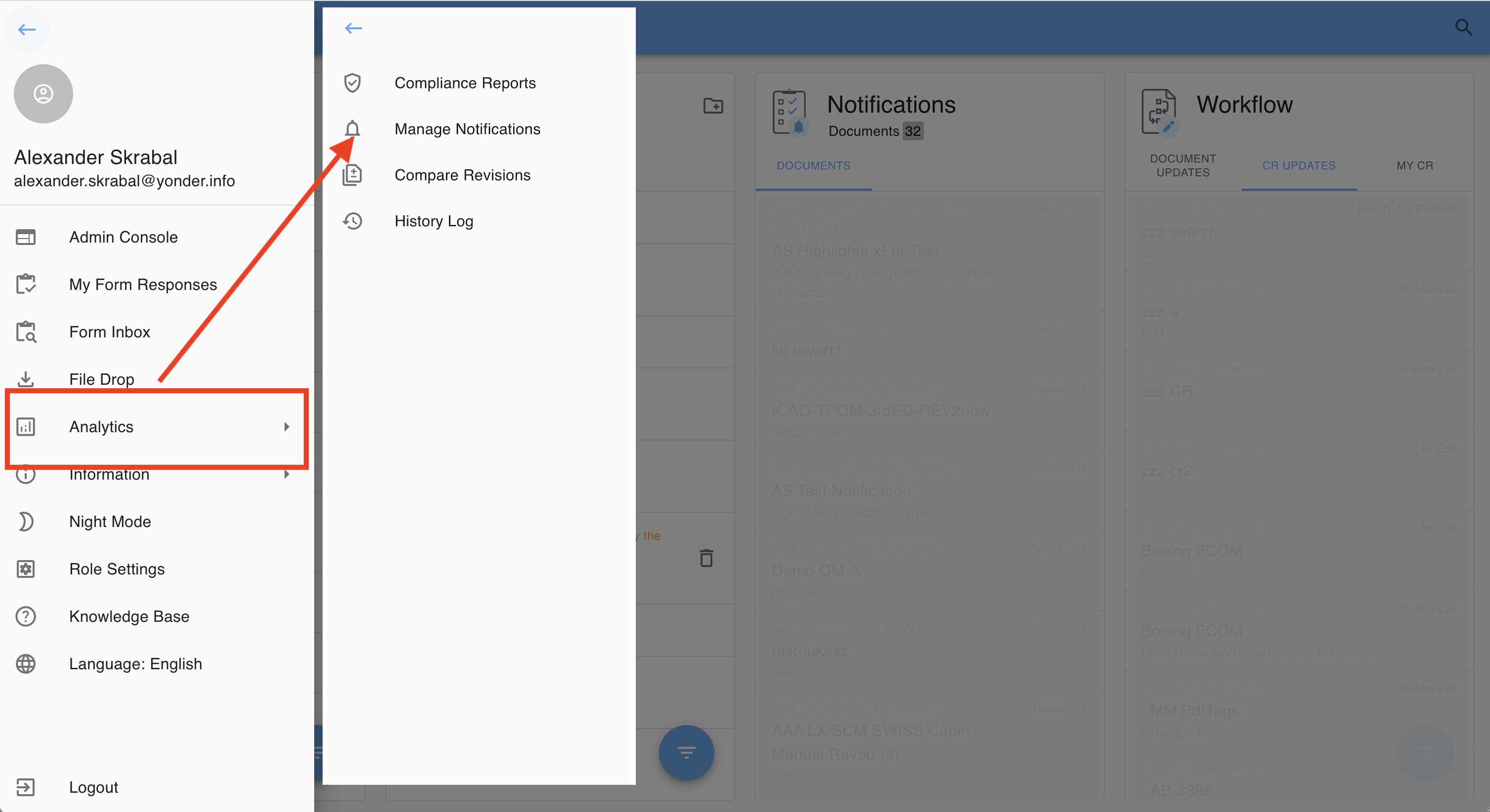
Query Parameters

You can filter notifications using the following criteria:
- User
- Document
- Revision (visible only if the document contains more than just the baseline revision)
- Creation period (from – to)
Note: The date range is restricted to past dates to ensure that notifications created during the deletion process are not unintentionally included and removed. - Removed by user (boolean yes/no)
To clear all filters and start a new query, click the Reset button.
Report Columns
The report includes the following information:
- Creation date (date and time the notification was created)
- Document name
- Revision
- User name
- Removal date
Available Actions
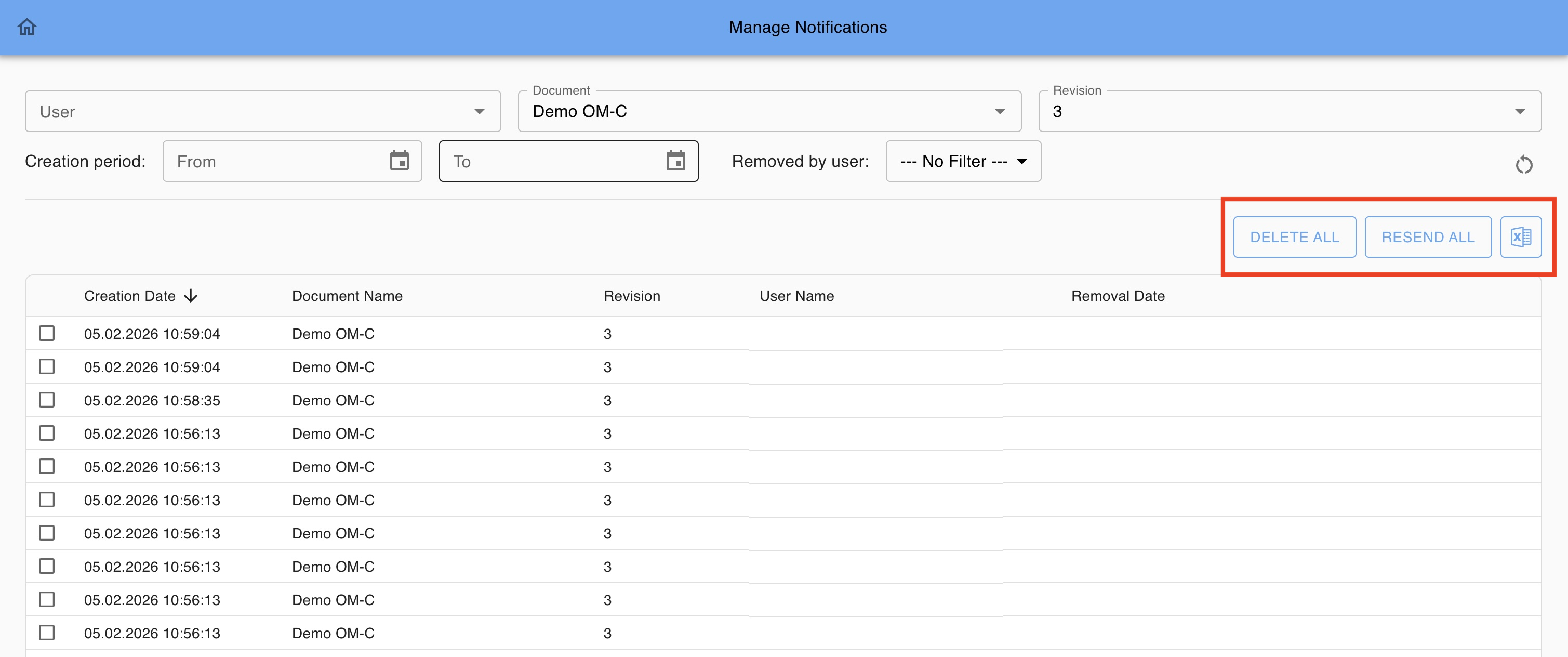
Delete Notifications
- Select one or multiple notifications
Clicking 'DELETE ALL' will remove all notifications (no individual selection needed). - Enter a mandatory reason for deletion
- Confirm deletion
All deletions are recorded in the History Log.
Resend Notifications
- Select one or multiple notifications
Clicking REDEND ALL will resend all (no individual selection needed). - A new, identical notification is created for each selected entry
- This is typically used to remind users who have not yet acted
All resent notifications are recorded in the History Log.
Download as Excel
You can export selected or filtered notifications as a CSV file simply by clicking the “Export to Excel” button.
This feature is particularly useful for generating reports, supporting audits, and performing technical troubleshooting, as it provides a complete and structured overview of the notification data.
The Excel export includes the following columns:
- OID – Technical identifier (for troubleshooting purposes)
- Created At – Date and time the notification was created
- Document Name – Document name of the current revision
- Revision - Name of the current revision
- User - User name
- Document Id – Technical identifier (for troubleshooting purposes)
- Revision Id – Technical identifier (for troubleshooting purposes)
Audit-trail
All actions performed are logged in the History Log of the corresponding document to ensure transparency and auditability.
Was this article helpful?
That’s Great!
Thank you for your feedback
Sorry! We couldn't be helpful
Thank you for your feedback
Feedback sent
We appreciate your effort and will try to fix the article