TABLE OF CONTENTS
- Linking operational Content to compliance relevant Content (e.g. regulations)
- Creating a Compliance Link
- Managing Compliance Links
Linking operational Content to compliance relevant Content (e.g. regulations)
Yonder patented Link Creator allows operational documents to be linked directly to the regulations and regulatory requirements they are based on. This creates a traceable connection between external regulatory requirements and the corresponding operational content in Yonder.
Instead of checking regulations separately and manually determining whether an operational document is affected, document owners can use these links to identify relevant regulatory changes and review the affected content.
Connecting Regulations and Operational Content
Regulatory content can be linked to relevant modules, paragraphs, or other structured content within Yonder documents. The link provides a direct relationship between the regulatory requirement and the operational content that implements or reflects it.
This allows organisations to maintain a clear connection between:
- Regulatory requirements
- Operational procedures and instructions
- The responsible document owner
- Changes to the underlying regulatory content
Traceability and Compliance
The link between a regulation and operational content provides a traceable relationship between the external requirement and its implementation in the organisation's documentation.
This helps organisations understand:
- Which operational content is based on a specific regulation.
- Which operational documents may be affected when a regulation changes.
- Who is responsible for reviewing the affected content.
- When a regulatory change has been reviewed and addressed.
Single Source of Regulatory Context
By connecting regulatory content with operational documentation in Yonder, regulatory requirements and operational procedures can be managed within the same structured environment.
This reduces the need for document owners to manually monitor regulatory changes and determine which operational documents might be affected. The regulatory change becomes the trigger for a structured review of the linked operational content.
Review Instead of Manual Monitoring
The purpose of the link is not to automatically change operational documentation when a regulation is revised. Instead, it provides a controlled review process.
The document owner remains responsible for determining whether a change is required. Yonder provides the connection and automatically initiates the review process when the linked regulatory content changes.
Creating a Compliance Link
Compliance links connect you operational content in Yonder with the regulatory requirements it addresses. A compliance link can be created from a module of an operational document to a relevant module or section of a regulation.
Opening the Link Creator
To create a compliance link, open the detail view of the relevant module in the operational document.
- Open the document and navigate to the module you want to link.
- Open the module detail view and open the Links tab.
- Click the Link icon to open the Link Creator.
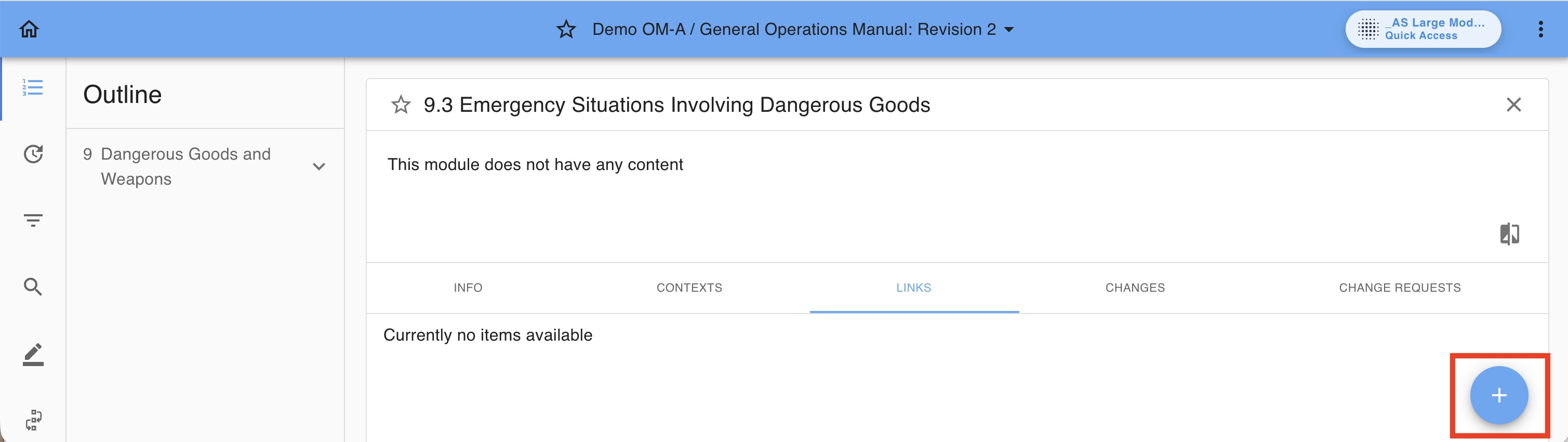
- Select whether the compliance link should be anchored to the entire module or to a specific element within the module.
- Add Module Link anchors the compliance link to the entire module.
- Add Element Link anchors the compliance link to a specific section or element within the module.
Use Add Element Link when the compliance requirement applies to a specific part of the module. Use Add Module Link when the compliance requirement applies to the module as a whole.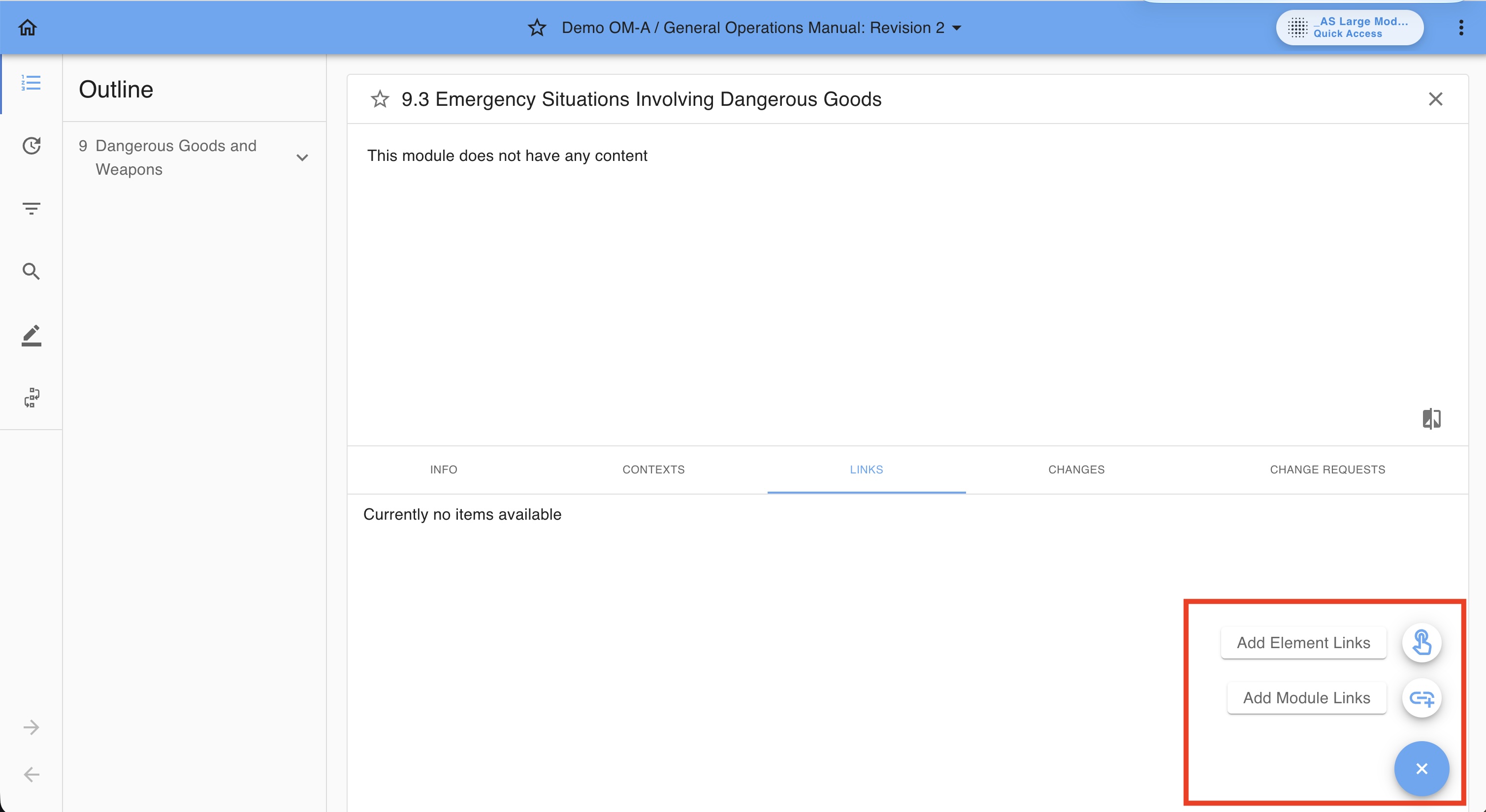
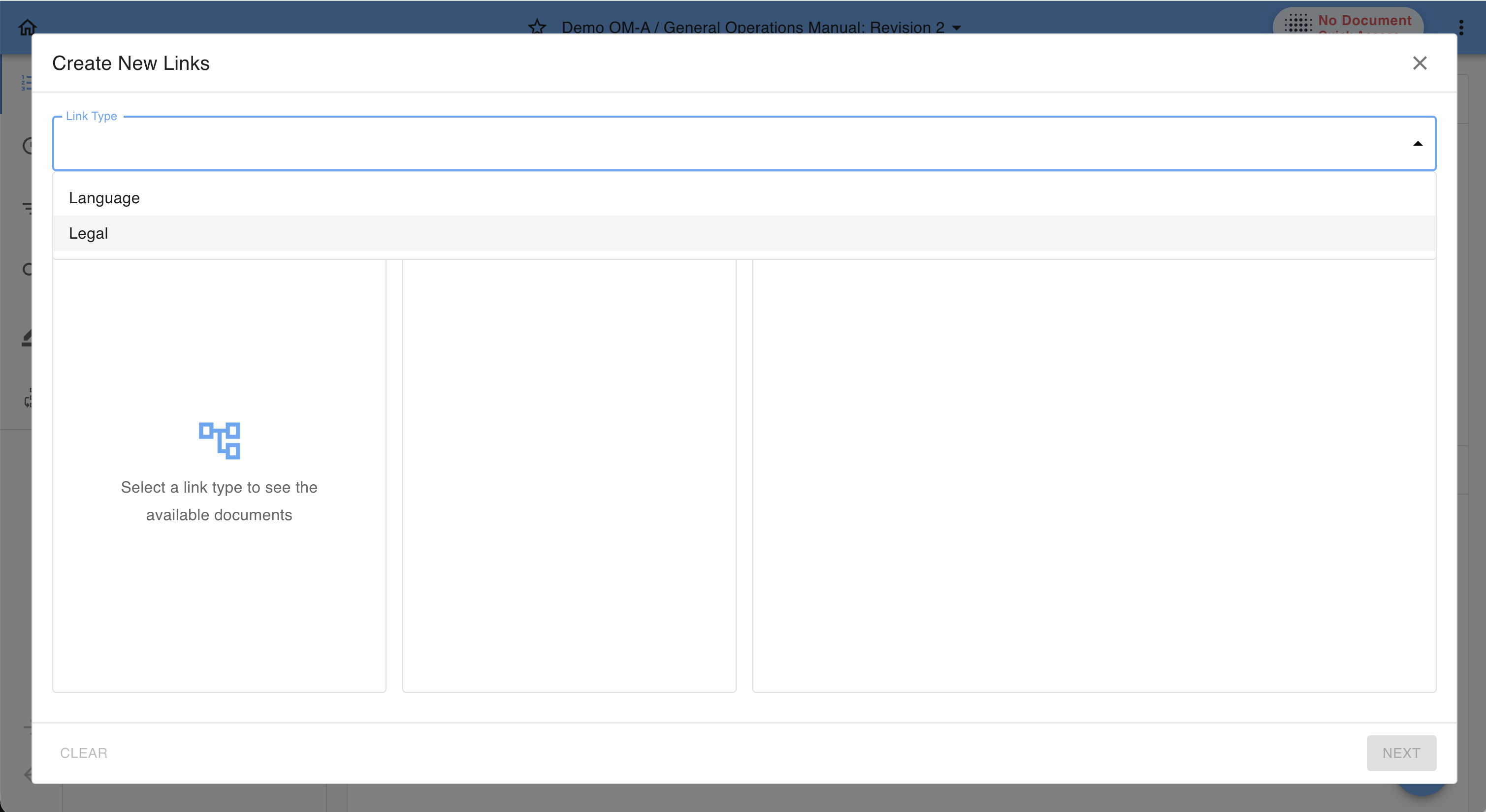
- In the Link Creator select the Link Type 'Legal'
- Navigate to the compliance content you want to link to the operational module. Multiple compliance content items can be selected.
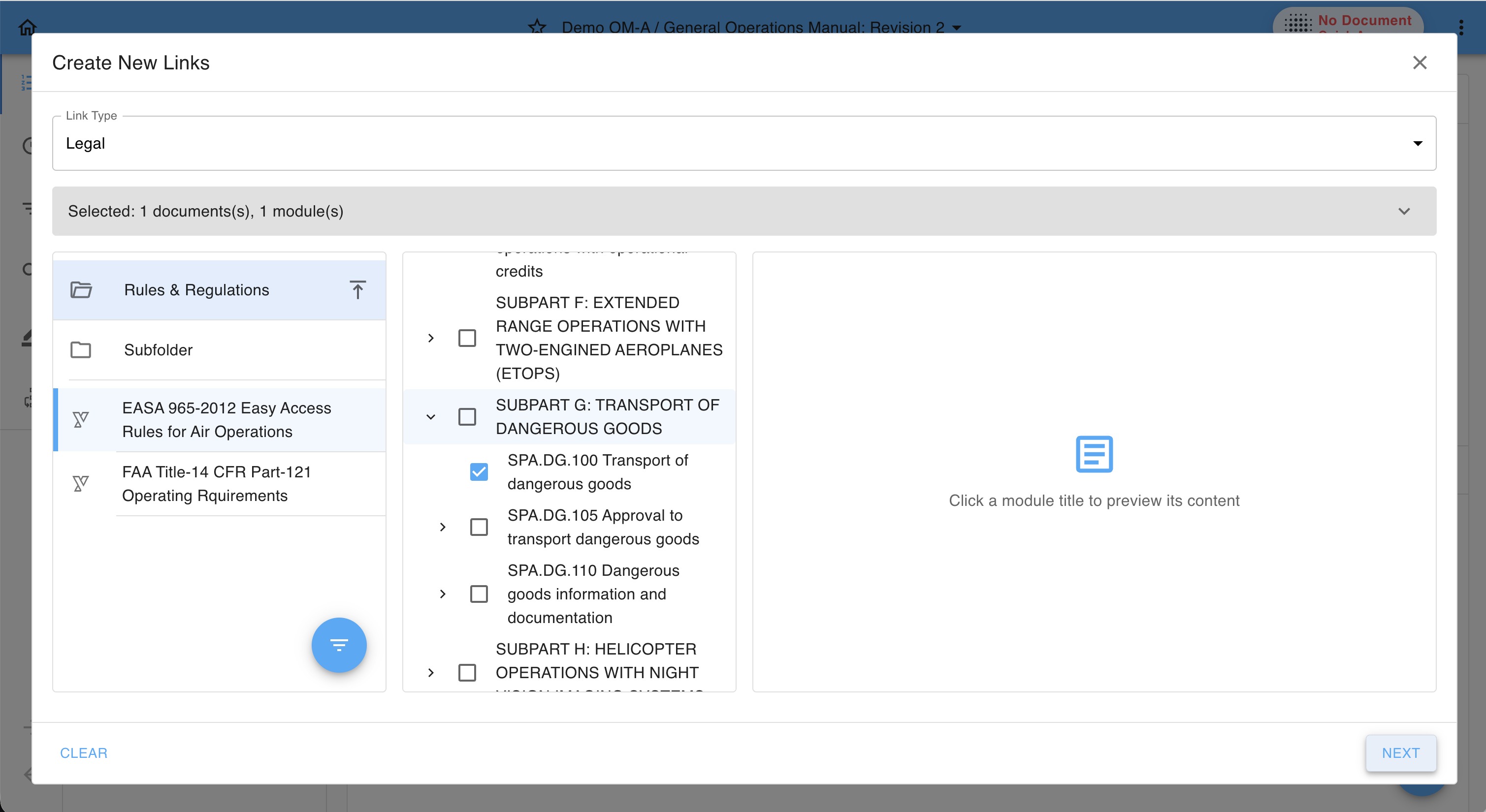
Note: When Add Element Link is selected, select the element within the module where you want to anchor the compliance link. The selected element is highlighted to make the link target clearly visible.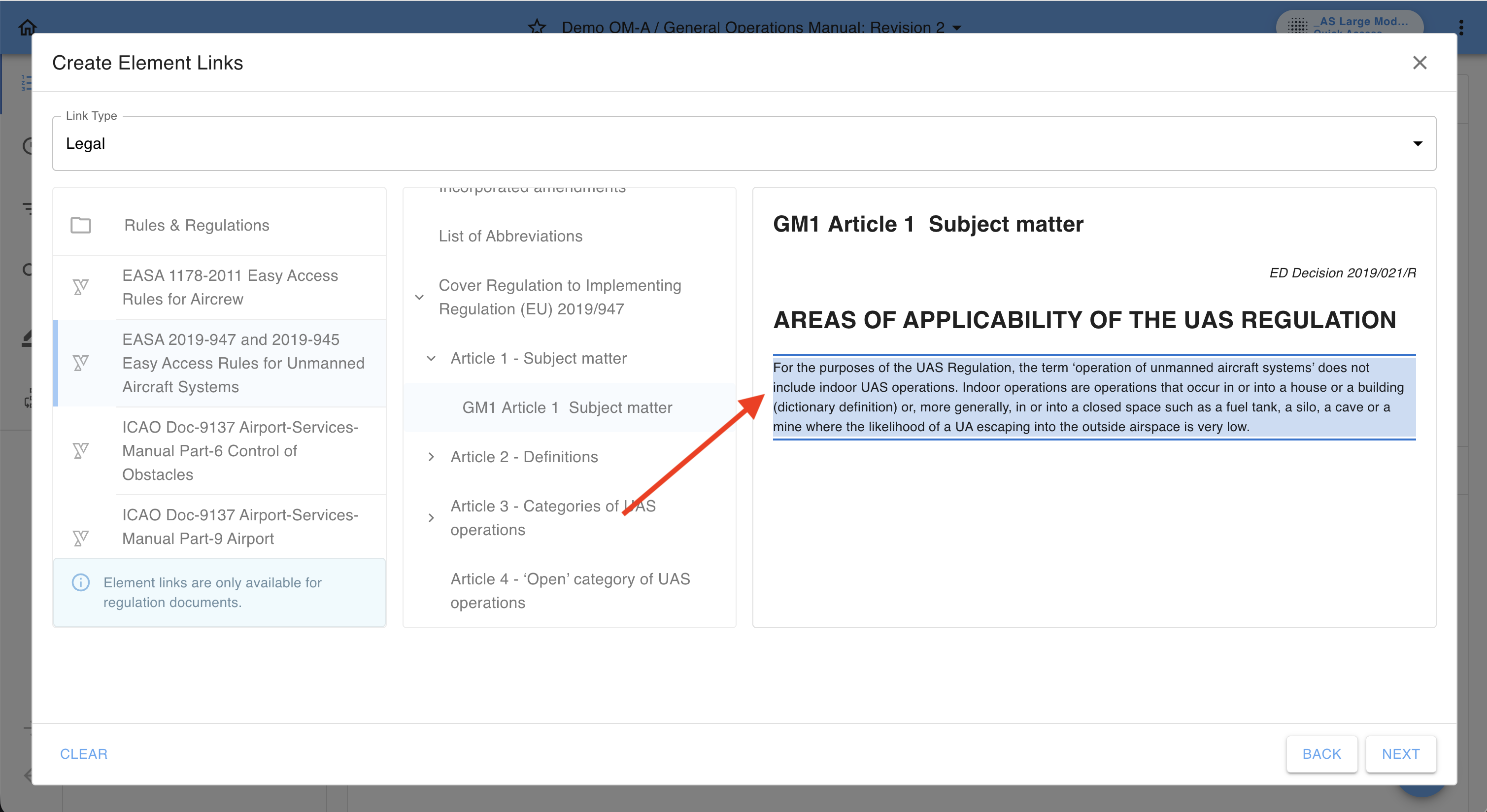
- Review the selected compliance links before confirming them. The Link Configurator provides an overview of the compliance links that will be created.
You may add a Link Description to provide additional context for the compliance link.The Link Description is optional and can be used to briefly explain the purpose or relevance of the compliance link.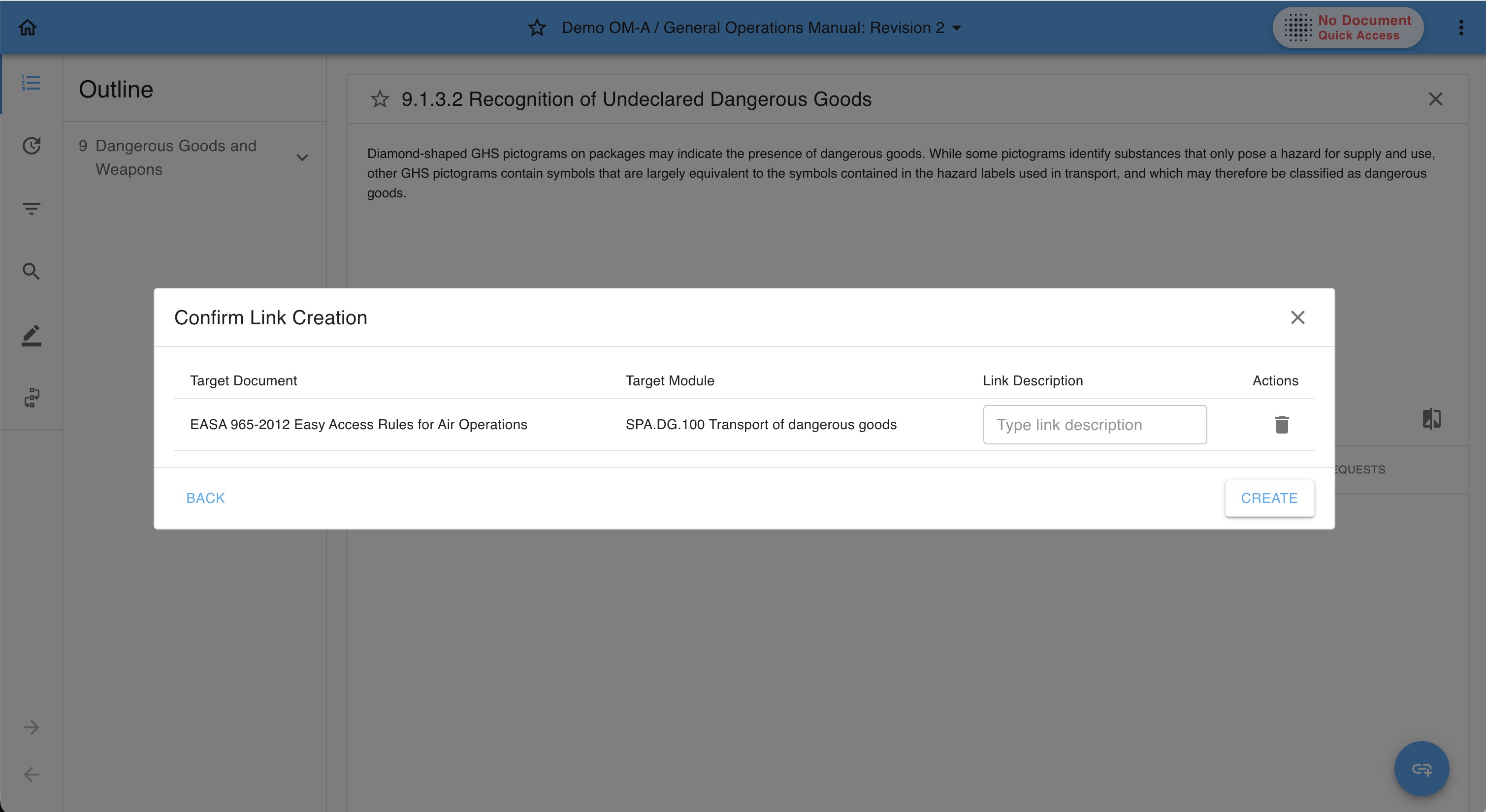
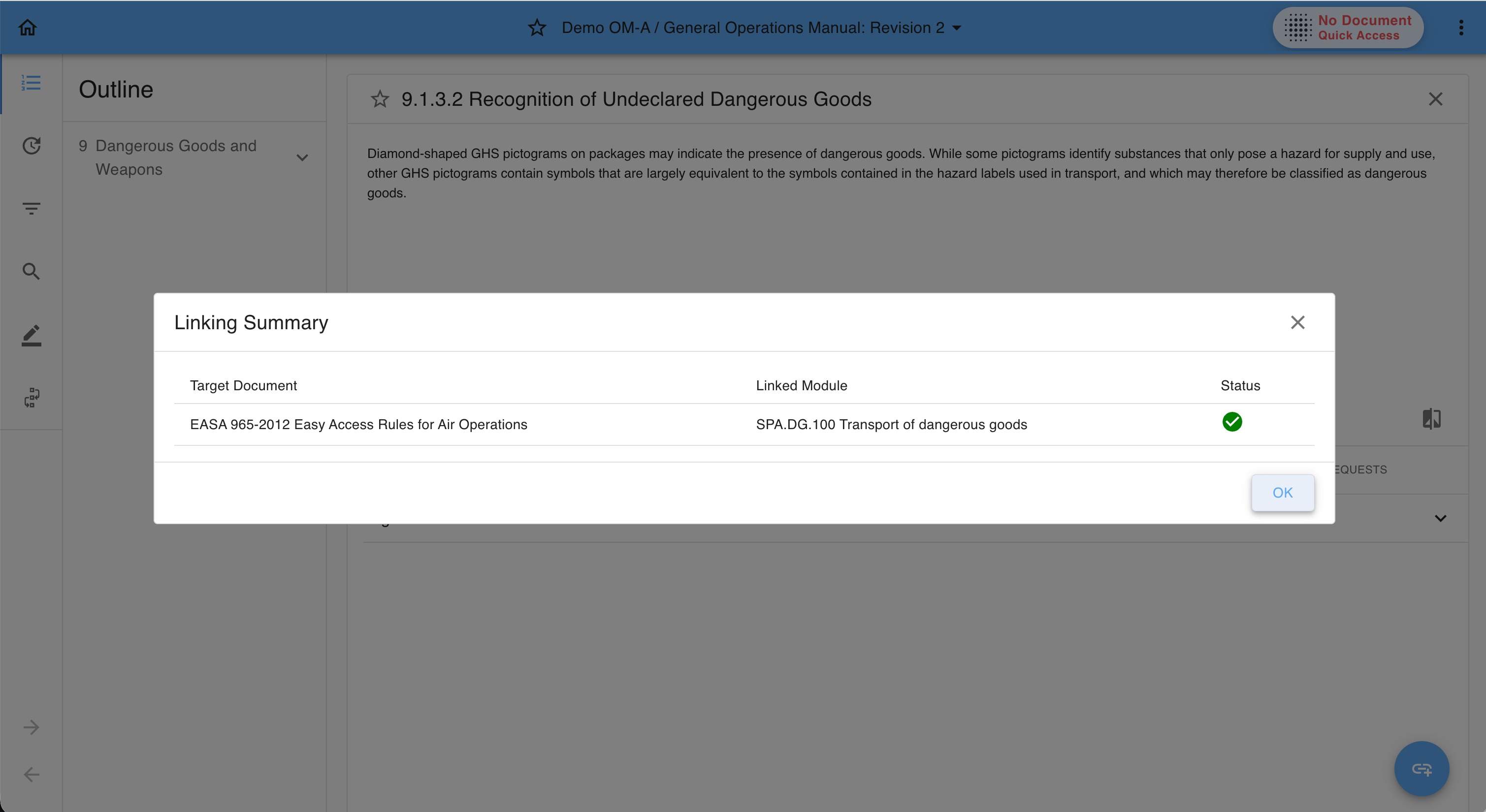
- The Link Configurator will present an overview on the defined links
Managing Compliance Links
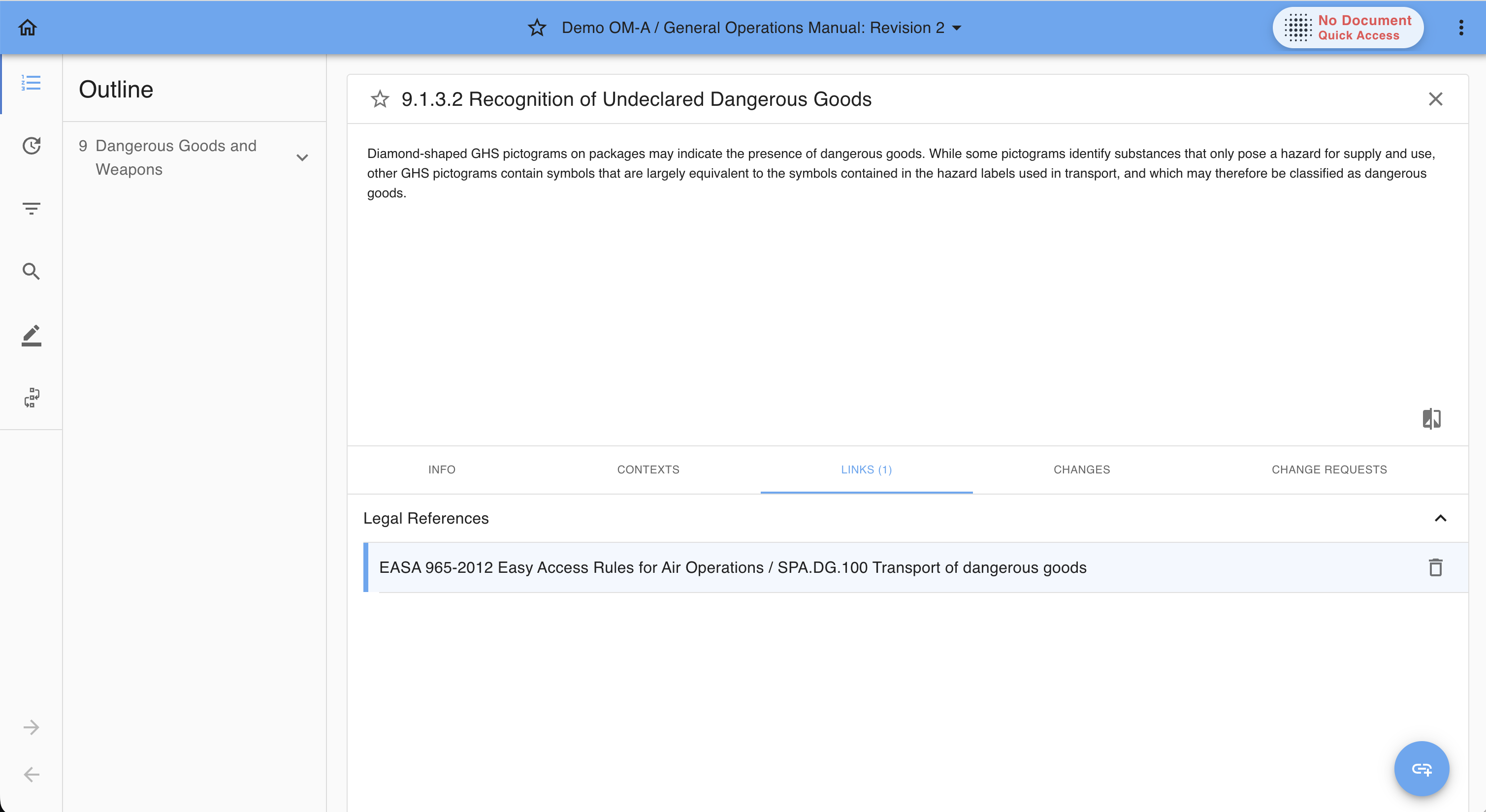
Compliance links can be reviewed from the Links tab of the respective module. Each compliance link provides direct access to the linked compliance content and shows the relationship between the operational content and its regulatory source.
Multiple compliance links can be assigned to the same operational module, allowing operational content to be linked to all relevant compliance content.
Automated Change Requests
For the standard link type configuration, when linked compliance content is revised, Yonder automatically creates a change request for the affected linked operational content.
The document owner receives the change request and can review the linked content to determine whether the regulatory revision requires an update to the operational document. The review follows the standard change request flow.
Important: This behaviour applies to the standard link type configuration. Link types that have been customized for specific customer requirements may follow a different change request behaviour.
The document owner can then:
- Review the revised regulation.
- Open the linked operational content.
- Assess whether the existing content is affected.
- Update the operational content if required.
- Process the change through the normal review and approval workflow.
Was this article helpful?
That’s Great!
Thank you for your feedback
Sorry! We couldn't be helpful
Thank you for your feedback
Feedback sent
We appreciate your effort and will try to fix the article