TABLE OF CONTENTS
General
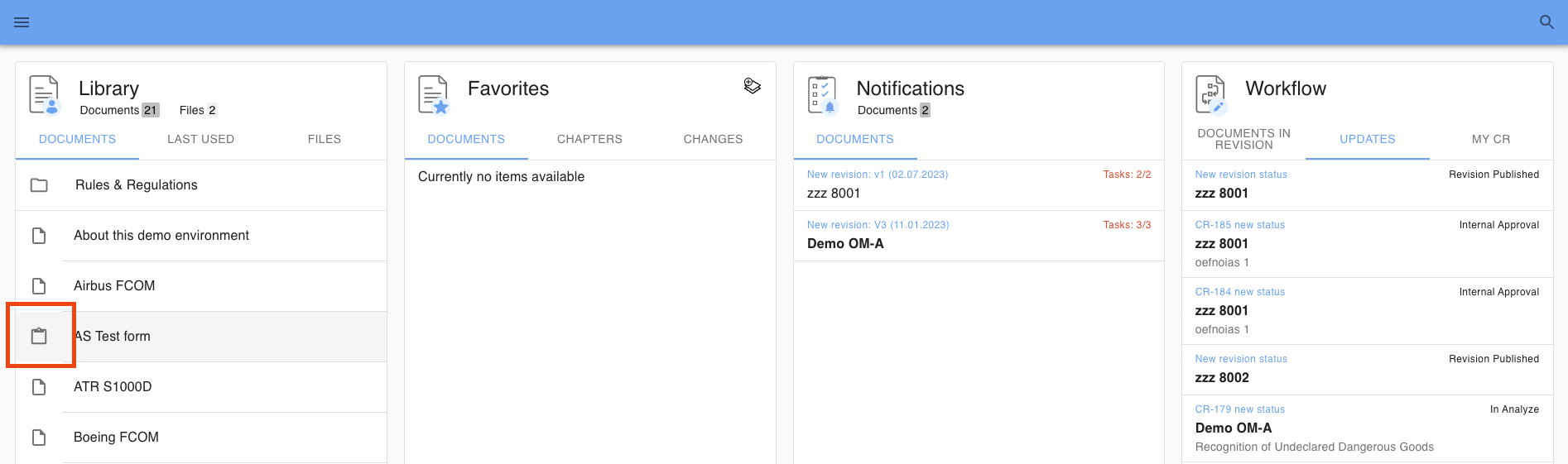
Forms are a different type of document.
You can find your forms in your library and identify them by the dedicated icon:
Navigation and submitting a form
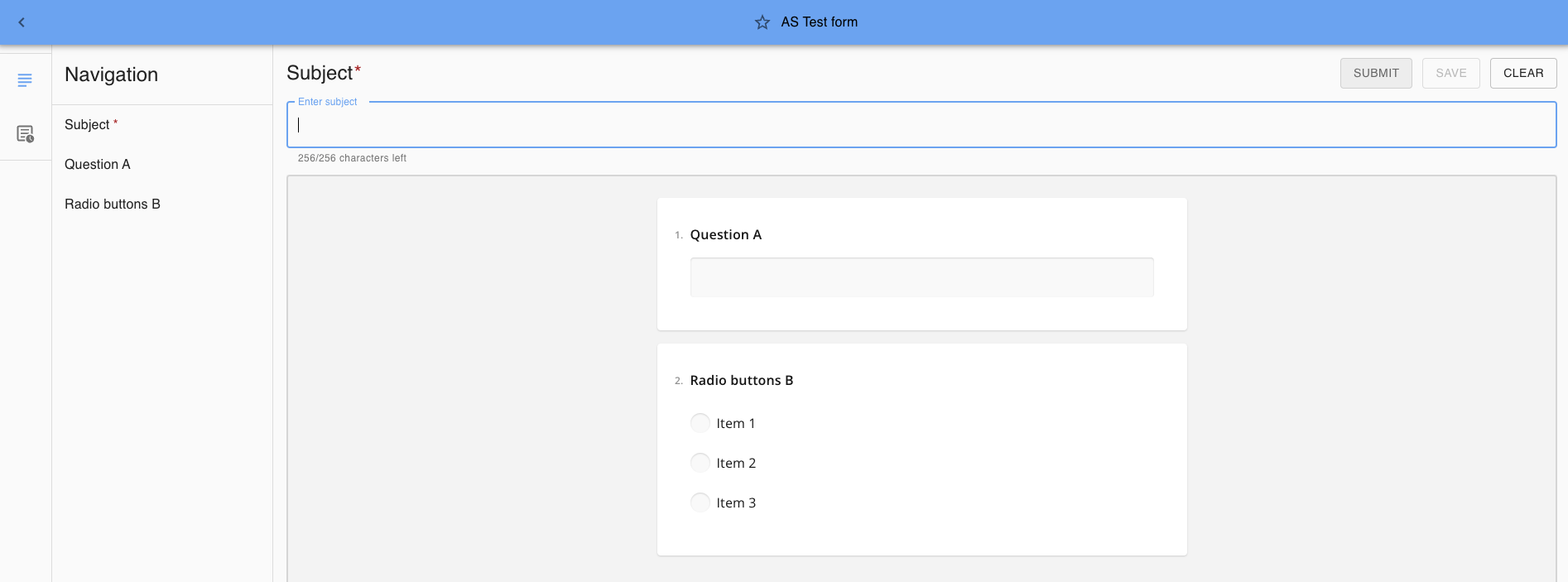
Forms function like an interactive document.
Navigation
The navigation sidebar is a clickable breadcrumb. You can navigate from question to question and identify by the checkmark if you already filled in the question.
Fields
A form can consist of multiple fields to be filled out.
Mandatory fields are marked with an “*”.
Note: you must fill in the mandatory ‘Subject’ so that you can identify your submitted form more easily in the future. See below chapter ‘Select a submission’.
Submit a form
Simply click on submit if the form has been filled out.
Other options are:
- Save: to store your current state. Saved forms are stored in your inbox in a ‘Draft’ status.
- Clear: to clear all the fields you filled in so far
Handling of submitted forms
You find your saved (draft) and submitted forms by accessing ‘My Form Responses’ in the settings sidebar:

Select a submission
You can select your submissions from the My Form Responses menu. You can easily identify your submission by the subject you gave the submission in case you have multople submissions of a form.
My Form Responses > select a submission

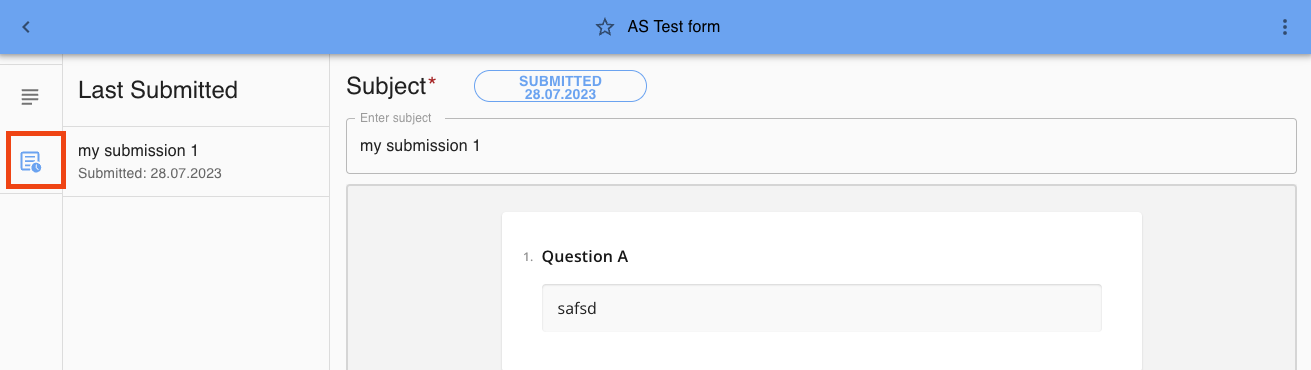
Last form submissions
If you have multiple submissions of the same form, you can easily navigate to your last submissions by opening the tab ‘Last submissions’:
Printing a form
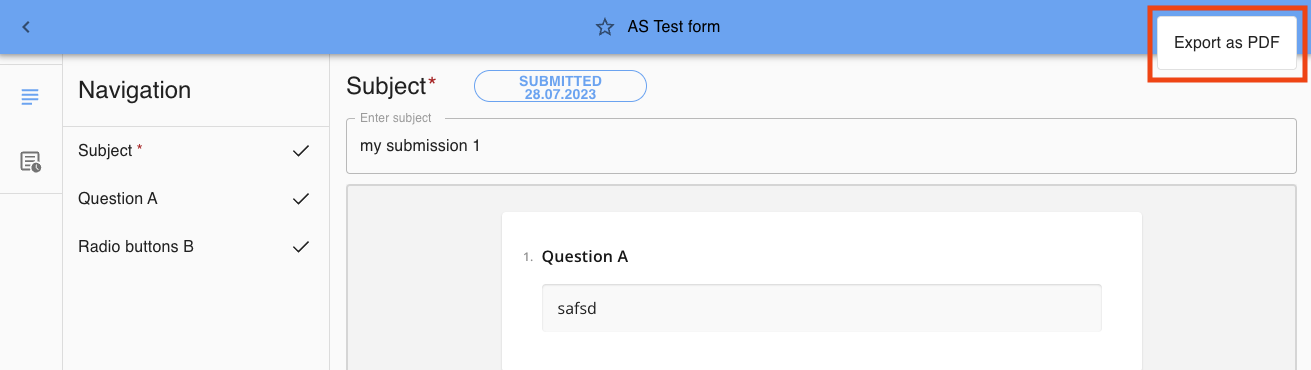
You can print your form submissions by accessing them in via:
My Form Responses > select the desired submission > click on the 3 dot menu and select Export as PDF:
Was this article helpful?
That’s Great!
Thank you for your feedback
Sorry! We couldn't be helpful
Thank you for your feedback
Feedback sent
We appreciate your effort and will try to fix the article